
Akuvox Akuvox SP-R50
Ìwé Ìtọ́sọ́nà Olùlò Foonu IP Business Akuvox SP-R50
Model: SP-R50
Ọrọ Iṣaaju
The Akuvox SP-R50 is a business IP phone designed to provide high-quality, cost-effective communication solutions. It features HD Voice, a 2.3-inch 132x64 graphical LCD with backlight, and supports 3-way conferencing. This manual provides essential information for setting up, operating, maintaining, and troubleshooting your SP-R50 IP phone.
Package Awọn akoonu
Ṣaaju ki o to bẹrẹ, jọwọ rii daju pe gbogbo awọn nkan wa ninu package:
- IP Phone (Akuvox SP-R50) x 1
- Duro x1
- Handset with Cord x 1
- Ethernet Okun x 1
- Adapter agbara x 1
Ṣeto
Follow these steps to set up your Akuvox SP-R50 IP Phone:
- So Iduro naa: Securely attach the stand to the back of the IP phone.
- So foonu pọ: Pulọọgi opin okun foonu ti a fi sinu foonu ati opin keji sinu ibudo foonu lori ipilẹ foonu.
- Sopọ si Nẹtiwọọki:
- Ti o ba nlo Power over Ethernet (PoE), so opin okun Ethernet pọ si ibudo LAN lori foonu ati opin miiran si iyipada nẹtiwọki PoE-ṣiṣẹ tabi olulana.
- If not using PoE, connect one end of the Ethernet cable to the LAN port on the phone and the other end to your network switch or router. Then, connect the power adapter to the phone's power port and plug it into a power outlet.
- Ibẹrẹ ibẹrẹ: The phone will power on automatically. The LCD screen will display the boot-up sequence. Once complete, it will attempt to obtain an IP address and register with your SIP server.
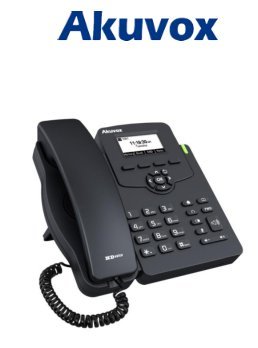
Image: Akuvox SP-R50 Business IP Phone, showing the main unit with the handset resting on its cradle and the stand attached, ready for setup.
Awọn ilana Iṣiṣẹ
This section covers the basic operation of your Akuvox SP-R50 IP Phone.
Ṣiṣe ati Gbigba Awọn ipe
- Lati Ṣe Ipe: Pick up the handset or press the Speaker button. Dial the desired number and press the Kiakia or # bọtini.
- Lati Gba Ipe kan: Mu agbekọri naa tabi tẹ Agbọrọsọ bọtini nigbati foonu ba ndun.
- Lati Pari Ipe kan: Gbe foonu soke tabi tẹ awọn Agbọrọsọ bọtini.
Awọn ẹya ipe
- Ipe Nduro: Allows you to answer a second incoming call while on an active call.
- Pe Siwaju: Redirects incoming calls to another number.
- Gbigbe ipe: Ngbe ipe lọwọ lọ si ẹgbẹ miiran.
- Call on Hold: Puts an active call on hold.
- Pa ẹnu mọ́: Mu gbohungbohun rẹ parẹ lakoko ipe kan.
- Idahun adaaṣe: Configures the phone to automatically answer incoming calls.
- Titun: Ó pe nọ́mbà tó kẹ́yìn tí a pè.
- Maṣe daamu (DND): Blocks all incoming calls.
- Local 3-Way Conference: Allows you to conduct a three-way conference call.
Phonebook and Settings
- Iwe foonu: The phone supports a phonebook of up to 500 groups and 5 remote phone book URLs. Access and manage contacts through the menu.
- Atunse iwọn didun: Use the volume keys on the phone to adjust the handset, speaker, or ringer volume.
- Awọn ohun orin ipe: Select from various ring tones through the phone's settings menu.
Image: Akuvox SP-R50 Business IP Phone, showcasing its ergonomic design and key layout from a slightly elevated angle, highlighting the display and navigation buttons.
Itoju
Itọju to peye ṣe idaniloju igbesi aye gigun ati iṣẹ to dara julọ ti foonu IP rẹ.
- Ninu: Lo asọ asọ ti o gbẹ lati nu dada foonu naa. Fun awọn ami alagidi, die-die dampen awọn asọ pẹlu omi. Ma ṣe lo awọn kẹmika ti o lewu, awọn afọmọ abrasive, tabi awọn nkanmimu.
- Ayika: Keep the phone away from direct sunlight, excessive heat sources, and moisture. Ensure it is placed on a stable surface to prevent accidental falls.
- Awọn kebulu: Periodically check all connected cables (handset, Ethernet, power) for any signs of wear or damage. Replace damaged cables immediately.
Laasigbotitusita
If you encounter issues with your Akuvox SP-R50, refer to the following common problems and solutions:
| Isoro | Owun to le Fa | Ojutu |
|---|---|---|
| Foonu ko ṣiṣẹ. | No power connection or faulty power adapter/PoE. | Check if the power adapter is securely plugged in or if the Ethernet cable is connected to a PoE-enabled port. Try a different power outlet or PoE port. |
| Ko si ohun orin ipe. | Network connection issue or SIP registration failure. | Verify the Ethernet cable is properly connected. Check the network status on the phone's display. Contact your network administrator or SIP service provider if the issue persists. |
| Ko le ṣe tabi gba awọn ipe wọle. | SIP registration failed, DND enabled, or network problem. | Ensure the phone is registered (check display). Disable DND if active. Confirm network connectivity. |
| Dídára ìpè tí kò dára (ìró ohùn, àìdúró). | Idilọwọ nẹtiwọki tabi kikọlu. | Ensure your network has sufficient bandwidth. Avoid placing the phone near other electronic devices that may cause interference. |
Awọn pato
Key technical specifications for the Akuvox SP-R50 Business IP Phone:
| Ẹya ara ẹrọ | Apejuwe |
|---|---|
| Brand | Akuvox |
| Awoṣe | Akuvox SP-R50 |
| Ifihan | 2.3'' 132*64 Graphical LCD with Backlight |
| Awọn iroyin SIP | 1 Line (Support 1 SIP account) |
| Ohun Awọn ẹya ara ẹrọ | HD Voice, 3-Way Conference |
| Agbara Iwe foonu | 500 groups, 5 Remote Phone Book URL Atilẹyin |
| Awọn akọọlẹ ipe | 100 awọn titẹ sii |
| Agbara | PoE Support, Power Adapter (included) |
| Pataki Awọn ẹya ara ẹrọ | Call Waiting, Call Forward, Call Transfer, Call on Hold, Mute, Auto-answer, Redial, DND, Speed Dial, Hotline, Direct IP call, Music on hold, Intercom, Call Pickup, Group Call Pickup, Anonymous Call, Anonymous Call Rejection |
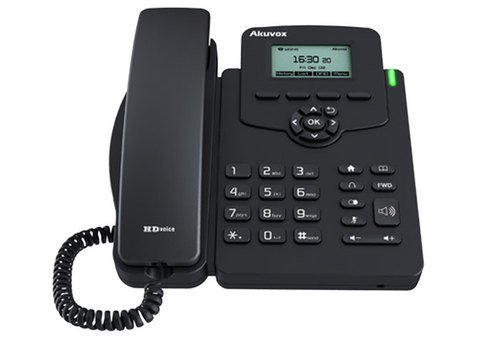
Aworan: Iwaju view of the Akuvox SP-R50 Business IP Phone, clearly showing the display, navigation keys, and numeric keypad.
Alaye atilẹyin ọja
The Akuvox SP-R50 Business IP Phone comes with a 2 Odun atilẹyin ọja from the date of purchase. This warranty covers manufacturing defects and malfunctions under normal use. Please retain your proof of purchase for warranty claims. For detailed terms and conditions, refer to the warranty card included with your product or contact Akuvox customer support.
Atilẹyin
If you require further assistance or have questions not covered in this manual, please contact your vendor or Akuvox customer support. You may also visit the official Akuvox website for additional resources and frequently asked questions.
Ask a question about this manual
Ask about setup, troubleshooting, compatibility, parts, safety, or missing instructions. Manuals+ will review the question and use this page’s manual context to help answer it.