
1. Ifihan
The HyperX Cloud II Gaming Headset is engineered to deliver an optimal Hi-Fi gaming experience. It features a newly designed USB sound card audio control box that amplifies audio and voice, allowing users to discern subtle in-game details. This headset generates virtual 7.1 surround sound, enhancing gaming, movie, and music experiences with improved distance and depth perception. Independent audio and microphone volume controls, along with a toggle for 7.1 Surround Sound and microphone mute, provide comprehensive control over your audio environment.

Figure 1: HyperX Cloud II Gaming Headset, showcasing apẹrẹ rẹ.
2. Key Awọn ẹya ara ẹrọ
- Didara Ohun Didara: Equipped with 53mm drivers for rich, clear audio and an immersive gaming experience.
- Detachable Noise-Cancelling Microphone: Ensures clear and effective communication by minimizing background noise.
- Apẹrẹ itunu: Features HyperX's signature memory foam and premium leatherette material for extended comfort during long gaming sessions.
- Ibamu Olona Platform: Compatible with PC, PS5, PS4, Xbox Series X|S, Xbox One, Nintendo Switch, and mobile gaming devices.
- Asopọmọra Alailowaya: Connects to gaming devices or computers using a physical cable for reliable and uninterrupted audio transmission.

Figure 2: Headset with the detachable microphone in place.
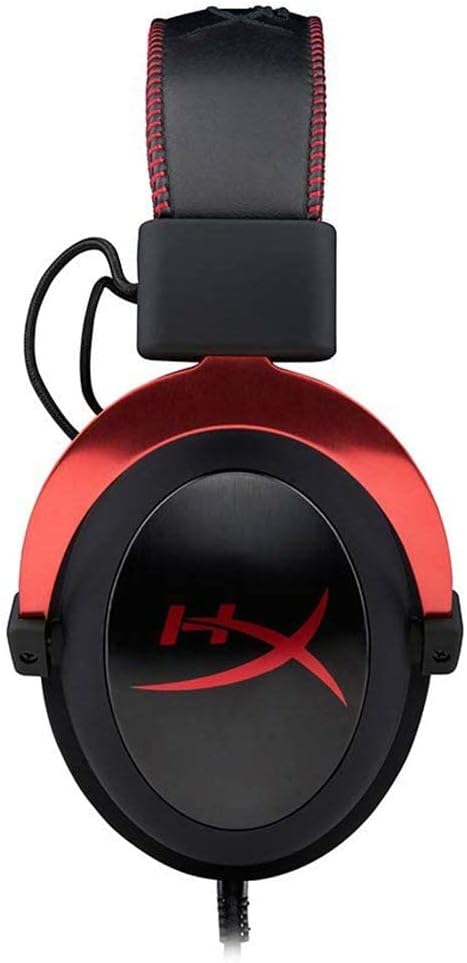
Figure 3: The USB audio control box for the HyperX Cloud II headset.
3. Eto
3.1 to wa irinše
- HyperX awọsanma II Awọn ere Awọn Agbekọri
- Ariwo-Fagilee Gbohungbohun
- USB Audio Iṣakoso apoti
- Additional Velour Ear Cushions (for replacement)
- Apo irin ajo

Figure 4: HyperX Cloud II headset and its included accessories.
3.2 Nsopọ Agbekọri
- So Gbohungbohun naa: Insert the detachable noise-cancelling microphone into the port on the left earcup until it clicks securely into place.
- PC Connection (USB Audio Control Box):
- Connect the headset's 3.5mm jack to the USB audio control box.
- Plug the USB connector of the audio control box into an available USB port on your PC.
- Your PC should automatically detect and install the necessary drivers.
- Console/Mobile Connection (3.5mm Jack):
- For PS4, Xbox One (with adapter, sold separately), Nintendo Switch, and mobile devices, connect the headset's 3.5mm jack directly to the controller or device's audio port. The USB audio control box is not used for these direct connections.

Figure 5: Multiplatform connection options for the headset.
4. Awọn ilana Iṣiṣẹ
4.1 Using the USB Audio Control Box (PC Only)
The in-line USB audio control box provides convenient access to essential audio functions:
- Iṣakoso Iwọn didun Agbekọri: Use the '+' and '-' buttons on the left side to adjust the headset's audio output volume.
- Iṣakoso iwọn gbohungbohun: Use the '+' and '-' buttons on the right side to adjust the microphone input level.
- 7.1 Surround Sound Toggle: Press the '7.1' button in the center to activate or deactivate virtual 7.1 surround sound. An LED indicator will confirm its status.
- Pa gbohungbohun: Use the microphone mute switch on the side of the control box to quickly mute or unmute your microphone.
4.2 Using the Detachable Microphone
The flexible microphone can be positioned for optimal voice pickup. Ensure it is positioned close to your mouth but not directly in front to avoid plosives. When not needed, the microphone can be easily detached for a more streamlined headset profile.
5. Itọju
- Ninu: Lo aṣọ rírọrùn tí ó gbẹ láti nu agbekọri naa. Yẹra fún àwọn kẹ́míkà líle tàbí àwọn ohun èlò ìfọ́mọ́ra.
- Awọn iṣu Eti: The ear cushions are replaceable. If they show signs of wear or damage, they can be replaced with the included velour ear cushions or new ones purchased separately. Gently remove the old cushions and carefully attach the new ones.
- Ibi ipamọ: When not in use, store the headset in the provided travel pouch to protect it from dust and damage.

Figure 6: Detail of the headset's comfortable earcups.
6. Laasigbotitusita
- Ko si Olohun/Iwọn kekere:
- Rii daju pe gbogbo awọn asopọ wa ni aabo.
- Check the volume levels on the in-line audio control box and your device.
- Daju pe agbekari ti yan bi ẹrọ ti o wu ohun aiyipada ninu awọn eto eto rẹ.
- Gbohungbohun Ko Ṣiṣẹ:
- Ensure the microphone is securely attached and not muted on the in-line control box.
- Check microphone input levels in your device's sound settings.
- Verify that the headset microphone is selected as the default input device.
- 7.1 Surround Sound Issues:
- Ensure the 7.1 button on the USB audio control box is activated (LED illuminated).
- 7.1 surround sound functionality is primarily for PC via the USB audio control box.
7. Awọn pato
| Ẹya ara ẹrọ | Sipesifikesonu |
|---|---|
| Orukọ awoṣe | Awọsanma II |
| Nọmba awoṣe | KHX-HSCP-RD |
| Asopọmọra Technology | Wired (USB for PC, 3.5mm for consoles/mobile) |
| Awọn agbekọri Jack | USB, 3.5mm |
| Audio Driver Iwon | 53 millimeters |
| Àwọn Ẹ̀yà Ìṣàkóso Ariwo | Noise-Cancelling Microphone, Active Noise Cancellation |
| Iwọn Nkan | 318 Giramu (11.2 iwon) |
| Ọja Mefa | 6.69 x 4.72 x 2.76 inches |
| Ohun elo | Aluminum, Leatherette, Plastic |
| Awọn irinše to wa | Headset, Detachable Microphone, USB Audio Control Box, Velour Ear Cushions, Travel Pouch |
| Ṣe atilẹyin Imọ-ẹrọ Bluetooth | Rara |
8. Ibamu
The HyperX Cloud II Gaming Headset offers broad compatibility across various gaming platforms:
- PC (via USB Audio Control Box)
- PLAYSTATION 5 (PS5)
- PLAYSTATION 4 (PS4)
- Xbox Series X|S (via controller 3.5mm port)
- Xbox One (via controller 3.5mm port, adapter may be required for older controllers)
- Nintendo Yipada
- Mobile Gaming Devices
9. Official ọja Video
Fidio 1: Ipariview of the HyperX Cloud II Gaming Headset, highlighting its 53mm drivers and noise-cancelling microphone. This video is provided by the seller, Renew4Me.
10. Atilẹyin ọja ati Support
For warranty information, technical support, or service inquiries regarding your HyperX Cloud II Gaming Headset, please refer to the official HyperX webaaye tabi kan si atilẹyin alabara wọn taara. Jeki ẹri rira rẹ fun eyikeyi awọn ibeere atilẹyin ọja.