
Ọja Pariview
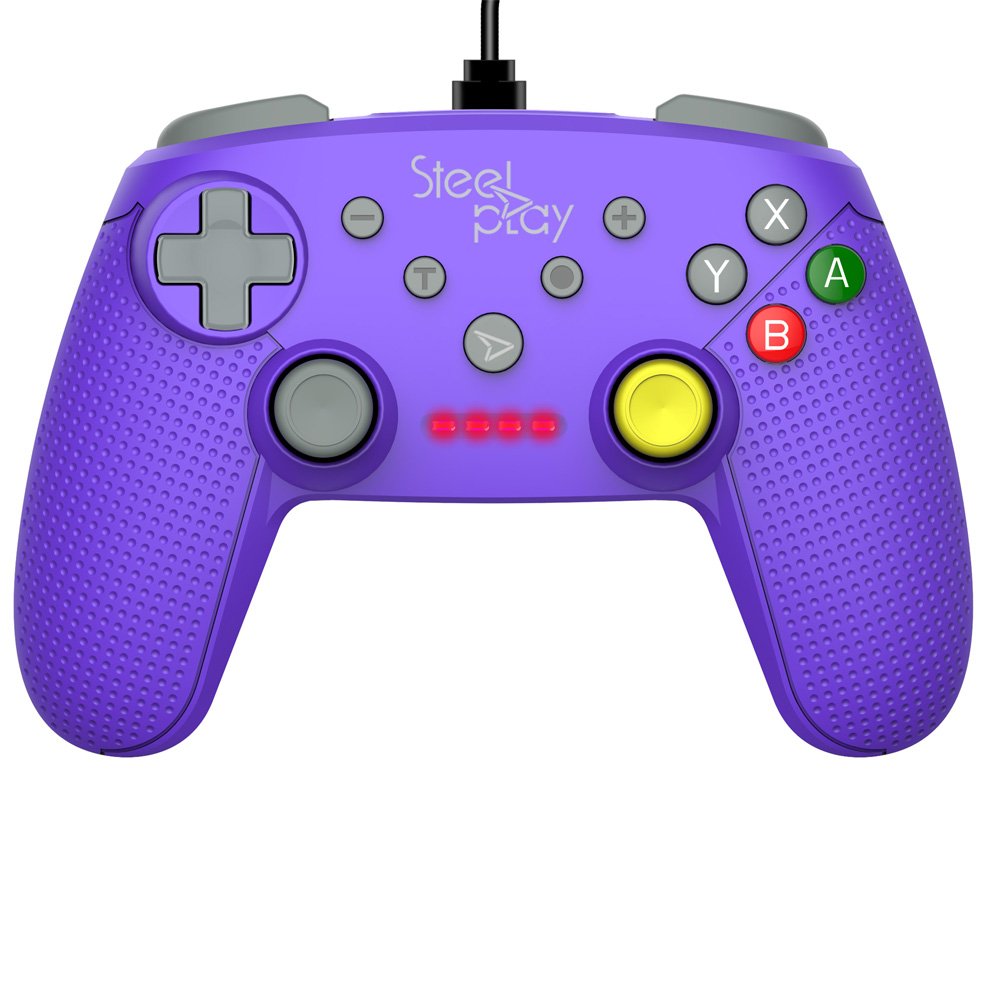
The Steelplay Wired Controller GCUBE (model ECO0622) is designed for use with the Nintendo Switch console, providing a reliable wired connection for uninterrupted gameplay. This controller features a comfortable ergonomic grip, a 2.5-meter USB cable, and includes advanced functionalities such as a gyro sensor, dual vibration feedback, and a turbo function button.
Awọn ilana iṣeto
- Darapọ mọ Alakoso: Insert the USB connector of the Steelplay Wired Controller GCUBE into an available USB port on your Nintendo Switch dock.
- Power On the Console: Ensure your Nintendo Switch console is powered on and connected to your TV or in handheld mode with the dock.
- Idanimọ aifọwọyi: The console should automatically detect the controller. The player indicator lights on the controller will illuminate to show its assigned player number.
- Begin Gameplay: You can now use your Steelplay Wired Controller GCUBE for gaming.
Ṣiṣẹ Alakoso
The Steelplay Wired Controller GCUBE features a standard layout for intuitive gameplay.
Awọn iṣẹ bọtini:
- Osi/Ọtun Analog Sticks: Fun gbigbe ati iṣakoso kamẹra.
- D-Pad (Pad ìtọ́sọ́nà): Fún ìtẹ̀síwájú ìtọ́sọ́nà tó péye.
- Awọn bọtini A/B/X/Y: Action buttons, typically used for jumping, attacking, interacting, etc.
- Àwọn Bọ́tìnì L/R (Bọ́tìnì èjìká): Often used for quick actions or menu navigation.
- ZL/ZR Buttons (Trigger Buttons): Analog or digital triggers for specific in-game actions.
- Iyokuro (-) Bọtini: Typically opens in-game menus or performs specific actions.
- Bọtini (+) pẹlu: Typically pauses the game or opens system menus.
- Bọtini Ile: Pada si Nintendo Yipada Akojọ Ile.
- Bọtini Yiya: Takes screenshots of your gameplay.
Awọn ẹya pataki:
- Gyro Function: The controller includes a built-in gyro sensor for motion control in compatible games. This allows for intuitive aiming or steering by tilting the controller.
- Idahun Gbigbọn Meji: Experience enhanced immersion with haptic feedback that responds to in-game events.
- Iṣẹ Turbo: The turbo function allows for rapid, repeated input of a button press. To activate, press and hold the Turbo button, then press the desired action button (e.g., A, B, X, Y, L, R, ZL, ZR). To deactivate, repeat the process.
Itoju
Proper care ensures the longevity and optimal performance of your controller.
- Ninu: Lo asọ ti o tutu, ti o gbẹ lati nu oludari naa. Fun idoti alagidi, die-die dampFi omi bo aṣọ náà. Yẹra fún lílo àwọn kẹ́míkà líle, àwọn ohun olómi, tàbí àwọn ohun ìfọmọ́ tí ó lè pa aṣọ náà.
- Ibi ipamọ: Tọju olutọju naa ni itura, aye gbigbẹ kuro lati orun taara ati awọn iwọn otutu to gaju.
- Itọju USB: Avoid bending or twisting the USB cable excessively. Do not pull the cable to disconnect the controller; always grasp the plug.
- Yago fun Olomi: Keep the controller away from liquids to prevent internal damage.
Laasigbotitusita
- Alakoso Ko Dahun:
- Ensure the USB cable is securely connected to both the controller and the Nintendo Switch dock.
- Try connecting the controller to a different USB port on the dock.
- Tun console Nintendo Switch rẹ bẹrẹ.
- Buttons or Joysticks Not Working Correctly:
- Ṣàyẹ̀wò fún àwọn ìdènà tàbí ìdọ̀tí tí ó wà ní àyíká àwọn bọ́tìnì tàbí àwọn joysticks.
- Ensure the controller's firmware is up to date. Firmware updates may be necessary and typically require connection to a PC. Refer to the Steelplay official website for specific instructions and update tools.
- Gbigbọn Ko Ṣiṣẹ:
- Verify that vibration is enabled in your Nintendo Switch system settings and within the game you are playing.
- Ensure the controller is securely connected.
Awọn pato
| Ẹya ara ẹrọ | Ẹ̀kúnrẹ́rẹ́ |
|---|---|
| Nọmba awoṣe | ECO0622 |
| Ibamu | Nintendo Yipada |
| Asopọmọra | Firanṣẹ (USB) |
| USB Ipari | 2.5 mita |
| Awọn iwọn | 17.2 x 7 x 20.3 cm |
| Iwọn | 360 g |
| Pataki Awọn ẹya ara ẹrọ | Gyro Function, Dual Vibration Feedback, Turbo Function Button, Rubberized Grip Surface, Ergonomic Grip |
Alaye atilẹyin ọja
For detailed warranty information regarding your Steelplay Wired Controller GCUBE, please refer to the warranty card included with your product or visit the official Steelplay webojula. Awọn ofin atilẹyin ọja le yatọ nipasẹ agbegbe ati alagbata.
Onibara Support
If you encounter any issues or have questions not covered in this manual, please contact Steelplay customer support. Contact information can typically be found on the official Steelplay webaaye tabi lori apoti ọja.