
1. Ifihan
O ṣeun fun riraasing the CAIWEI A8AB-NEW Video Projector. This manual provides essential information for the safe and efficient operation of your device. Please read it thoroughly before use and retain it for future reference.
2. Awọn ilana aabo
- Ma wo taara sinu pirojekito lẹnsi nigbati awọn lamp wa lori.
- Rii daju pe fentilesonu to dara ni ayika pirojekito lati ṣe idiwọ igbona.
- Ma ṣe fi pirojekito han si ojo tabi ọrinrin.
- Lo adapter agbara ti a pese pẹlu pirojekito nikan.
- Keep the projector away from flammable materials.
- Yọọ pirojekito nigba iji manamana tabi nigba lilo fun igba pipẹ.
- Má ṣe gbìyànjú láti tún ẹ̀rọ ìṣiṣẹ́ náà ṣe fúnra rẹ. Tọ́ka gbogbo iṣẹ́ ìtọ́jú náà sí àwọn òṣìṣẹ́ tó péye.
3. Package Awọn akoonu
Jọwọ ṣayẹwo pe gbogbo awọn ohun kan wa nigbati o ba n ṣii wọn:
- CAIWEI A8AB-NEW Video Projector
- Okun agbara
- Isakoṣo latọna jijin
- Okun HDMI
- Okun VGA
- AV Cable
- Itọsọna olumulo
4. Ọja Ipariview
Familiarize yourself with the projector's components:
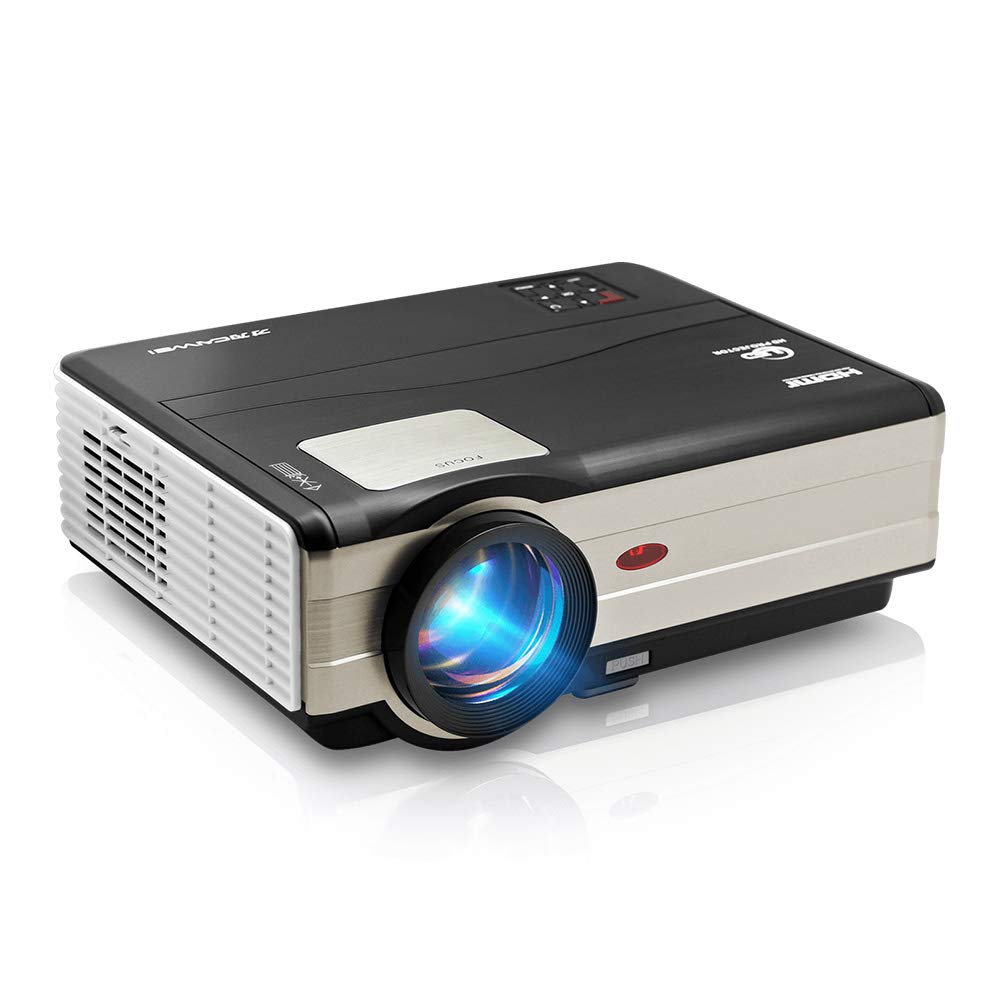
Nọmba 1: Iwaju view of the CAIWEI A8AB-NEW Video Projector, showing the lens and ventilation.
Iwaju Panel
- Lẹnsi asọtẹlẹ: Yiyọ aworan naa.
- Idojukọ Oruka: Ó ń ṣe àtúnṣe sí kedere àwòrán.
- Atunse okuta bọtini: Ó ń ṣe àtúnṣe ìyípadà àwòrán trapezoidal.
Ru Panel
- Ibudo Agbara: Ó so mọ́ okùn agbára.
- Awọn ibudo HDMI (x2): Ó sopọ̀ mọ́ àwọn ẹ̀rọ tí ó ní HDMI (fún àpẹẹrẹ, ẹ̀rọ orin Blu-ray, ẹ̀rọ eré).
- Awọn ibudo USB (x2): Connects to USB storage devices or other USB peripherals.
- Ibudo VGA: Connects to computers or laptops with VGA output.
- Ibudo AV: Connects to older devices using composite video and stereo audio.
- Ohùn tó ń jáde (3.5mm): Ó sopọ̀ mọ́ àwọn agbọ́hùnsọ tàbí agbekọ́rí ìta.
5. Eto
5.1 Ibi
Place the projector on a stable, flat surface or mount it to a ceiling. Ensure the projector is perpendicular to the projection screen or wall. The optimal projection distance varies, but generally, a larger distance yields a larger image.
5.2 Asopọ agbara
- Connect the power cable to the projector's power port.
- Pulọọgi opin okun agbara miiran sinu iṣan agbara kan.
- Ina Atọka agbara yoo tan imọlẹ.
5.3 Àwọn Ẹ̀rọ Ìsopọ̀pọ̀
Pirojekito naa ṣe atilẹyin fun ọpọlọpọ awọn orisun titẹ sii:
- HDMI: Connect an HDMI cable from your device (e.g., laptop, game console, streaming stick) to one of the projector's HDMI ports.
- USB: Insert a USB flash drive into a USB port to play media files taara.
- VGA: So okùn VGA kan lati kọmputa rẹ pọ mọ ibudo VGA ti projector naa.
- TI: Use the provided AV cable to connect to devices with composite video output.
- Wireless (WiFi): For screen mirroring from smartphones or tablets, navigate to the 'Wireless Display' or 'Screen Mirroring' option in the projector's menu and follow the on-screen instructions. Ensure your device and the projector are on the same Wi-Fi network.
- Bluetooth: To connect external Bluetooth speakers, go to the Bluetooth settings in the projector's menu, enable Bluetooth, and pair with your desired audio device.
5.4 Àtúnṣe Àfojúsùn àti Ìṣàtúnṣe Òkúta
- Tan pirojekito ki o si fi aworan han.
- Yiyi awọn Oruka idojukọ on the lens until the image appears sharp and clear.
- If the image is trapezoidal (wider at the top or bottom), adjust the Keystone Atunse dial or setting until the image is rectangular.
6. Awọn ilana Iṣiṣẹ
6.1 Agbara Tan / Pa
- Agbara Tan: Tẹ bọtini agbara lori pirojekito tabi isakoṣo latọna jijin.
- Agbara Pa: Tẹ bọtini agbara lẹẹkansi. Jẹrisi pipa ti o ba beere lọwọ rẹ.
6.2 Lilọ kiri Akojọ aṣyn
Use the navigation buttons (Up, Down, Left, Right, OK) on the projector or remote control to browse the on-screen menu. The 'Menu' button typically opens the main settings, and 'Exit' or 'Back' closes sub-menus.
6.3 Aṣayan Orisun Input
Press the 'Source' or 'Input' button on the remote control or projector. A list of available input sources (HDMI1, HDMI2, USB1, USB2, VGA, AV, Wireless Display) will appear. Select the desired source using the navigation buttons and press 'OK'.
6.4 Eto ohun
Access the audio settings through the main menu to adjust volume, select audio output (internal speaker, external via 3.5mm jack, or Bluetooth), and modify sound modes.
6.5 Wireless/Bluetooth Connection
Refer to section 5.3 for detailed instructions on connecting via Wi-Fi for screen mirroring or Bluetooth for audio output.
7. Itọju
7.1 Ninu awọn lẹnsi
Use a soft, lint-free cloth specifically designed for optical lenses. Gently wipe the lens surface. Avoid using abrasive cleaners or excessive force, which can scratch the lens.
7.2 Cleaning the Air Filter/Vents
Regularly check the air intake and exhaust vents for dust accumulation. Use a soft brush or a can of compressed air to gently clean the vents. This helps maintain proper airflow and prevents overheating.
7.3 Ibi ipamọ
When not in use, store the projector in a cool, dry, and dust-free environment. Use the original packaging or a protective case to prevent damage.
8. Laasigbotitusita
| Isoro | Owun to le Fa | Ojutu |
|---|---|---|
| Ko si aworan loju iboju | Power not connected; Incorrect input source; Device not powered on. | Check power cable; Select correct input source; Ensure connected device is on. |
| Aworan jẹ blurry | A kò ṣe àtúnṣe àfojúsùn; Ẹ̀rọ ìfihàn náà jìnnà jù/súnmọ́. | Ṣe àtúnṣe òrùka ìfojúsùn; Tún fi ẹ̀rọ ìfihàn náà sí ipò rẹ̀. |
| Aworan jẹ trapezoidal | Keystone not adjusted. | Ṣatunṣe atunṣe bọtini bọtini. |
| Ko si ohun | Volume too low; Muted; Incorrect audio output; Cable issue. | Increase volume; Unmute; Check audio settings; Verify cable connections. |
| Isakoṣo latọna jijin ko ṣiṣẹ | Batteries dead; Obstruction; Out of range. | Replace batteries; Remove obstructions; Ensure line of sight to IR receiver. |
| Ikilọ igbona pupọ | Blocked vents; Poor ventilation. | Clear vents; Ensure adequate space around projector. |
9. Awọn pato
- Awoṣe: A8AB-NEW
- Brand: CAIWEI
- Ipinnu Ifihan: 1280 x 800
- Imọ-ẹrọ Asopọmọra: Bluetooth, HDMI, USB, VGA, Wireless
- Awọn ẹya pataki: Built-In Wi-Fi, Portable, Wireless
- Awọn lilo ti a ṣe iṣeduro: Gaming, Home Theater
- Ìwọ̀n Nkan: 6.1 iwon
- Awọn iwọn ọja: 11.2 x 14.7 x 5 inches
10. Atilẹyin ọja ati Support
CAIWEI products are designed for reliability and performance. For specific warranty details, please refer to the warranty card included with your purchase or contact CAIWEI customer support. If you encounter any issues not covered in this manual, please reach out to our support team for assistance.
Atilẹyin Onibara: Please visit the official CAIWEI website or contact your retailer for support information.