
TP-Link Deco X20
TP-Link Deco X20 AX1800 Whole Home Mesh Wi-Fi System User Manual
Model: Deco X20
Ọrọ Iṣaaju
The TP-Link Deco X20 AX1800 Whole Home Mesh Wi-Fi System provides seamless Wi-Fi 6 coverage throughout your home. This system replaces traditional routers and Wi-Fi extenders, offering faster connections, increased capacity, and reduced latency for a superior online experience. It includes features like HomeCare for security and parental controls, and is compatible with Alexa for voice control.
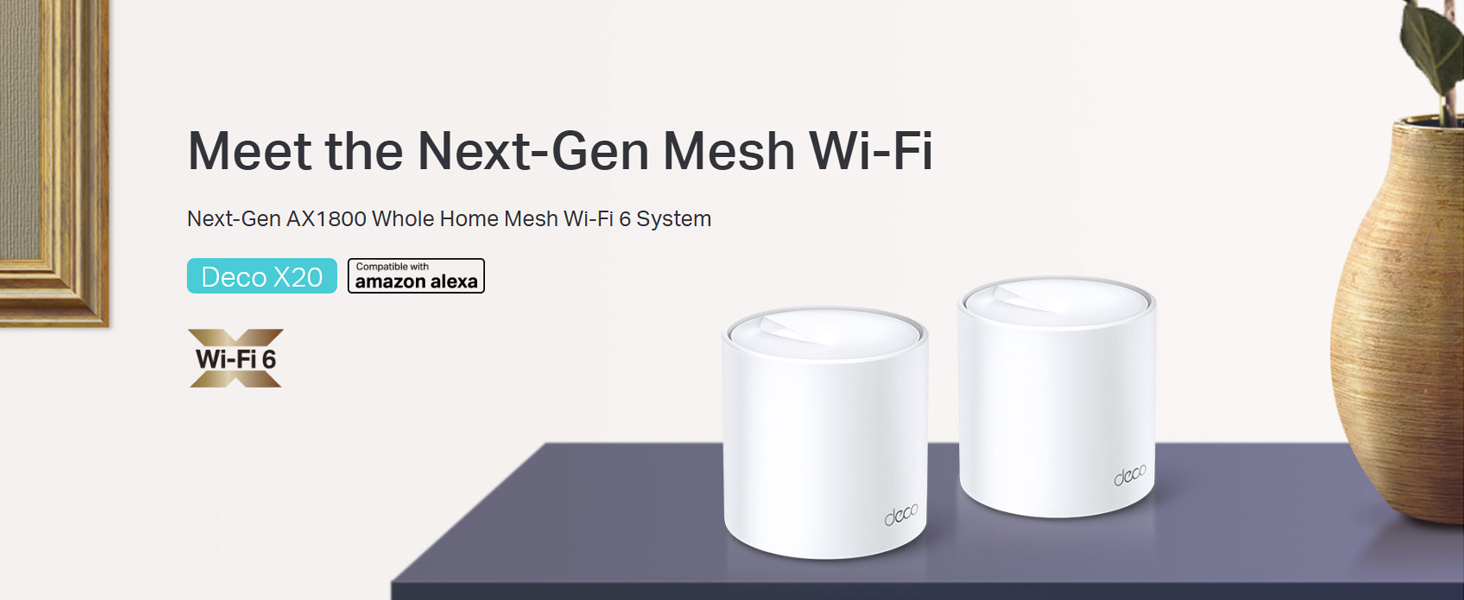
Image: Two TP-Link Deco X20 units on a table, showcasing ọja apẹrẹ.
Ohun ti o wa ninu Apoti
The Deco X20 (2-Pack) system typically includes the following components:
- 2 x Deco X20 Units
- 1 x Okun Ethernet RJ45
- 2 x Power Adapters
- 1 x Awọn ọna fifi sori Itọsọna

Image: The TP-Link Deco X20 (2-Pack) retail box, displaying the included items.
Eto Itọsọna
Setting up your TP-Link Deco X20 system is designed to be straightforward using the Deco app. Follow these steps for initial installation:
- Ṣe igbasilẹ Ohun elo Deco: Wa fun "TP-Link Deco" in the App Store (iOS) or Google Play Store (Android) and install the application on your smartphone or tablet.
- So Ẹrọ Deco Akọkọ pọ:
- Pa modẹmu rẹ kuro.
- So ẹyọ Deco kan pọ si modẹmu rẹ nipa lilo okun Ethernet ti a pese.
- Power on your modem, then power on the Deco unit. Wait for the Deco unit's LED to pulse blue.
- Ṣe ifilọlẹ Ohun elo Deco: Open the Deco app and follow the on-screen instructions to create a TP-Link ID and set up your main Deco unit.
- Fi Àwọn Ẹ̀yà Deco Afikun kun: Once the main unit is configured, the app will guide you through adding the remaining Deco units. Place them strategically around your home for optimal coverage.
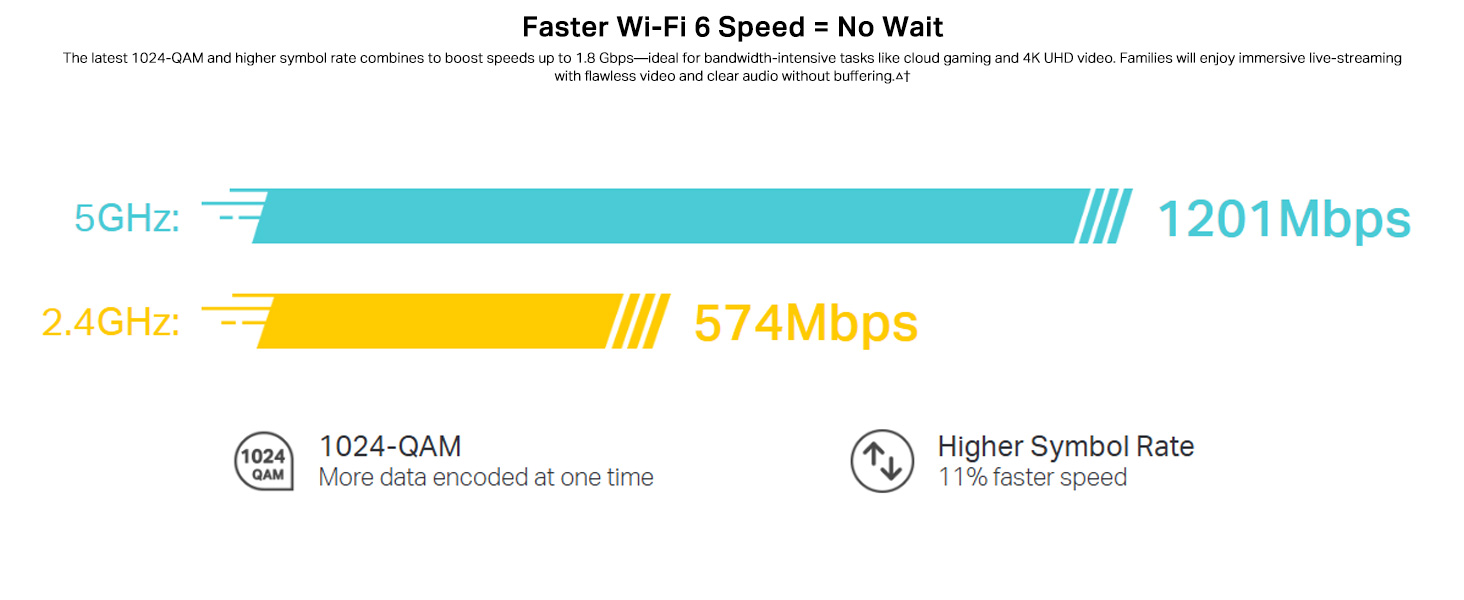
Image: Visual guide for setting up the Deco X20 system via the Deco mobile application.
Awọn ilana Iṣiṣẹ
The TP-Link Deco X20 system operates as a unified network, providing seamless Wi-Fi coverage. Management is primarily done through the Deco mobile application.
Deco App Features:
- Isakoso nẹtiwọki: View connected devices, prioritize network traffic (QoS), and manage guest networks.
- Awọn iṣakoso obi: Set time limits, block inappropriate content, and monitor online activity for family members.
- Antivirus (HomeCare/HomeShield): Protect your network and connected devices from malicious threats.
- Awọn imudojuiwọn famuwia: The app facilitates easy firmware updates to ensure your system has the latest features and security enhancements.
- Iṣakoso ohun: Integrate with Amazon Alexa for convenient voice commands to manage your Wi-Fi.

Image: The Deco app interface, demonstrating various control and monitoring features.
Lilọ kiri lainidi:
The Deco system creates a single Wi-Fi network name (SSID) throughout your home. As you move, your devices automatically connect to the Deco unit with the strongest signal, ensuring an uninterrupted connection.
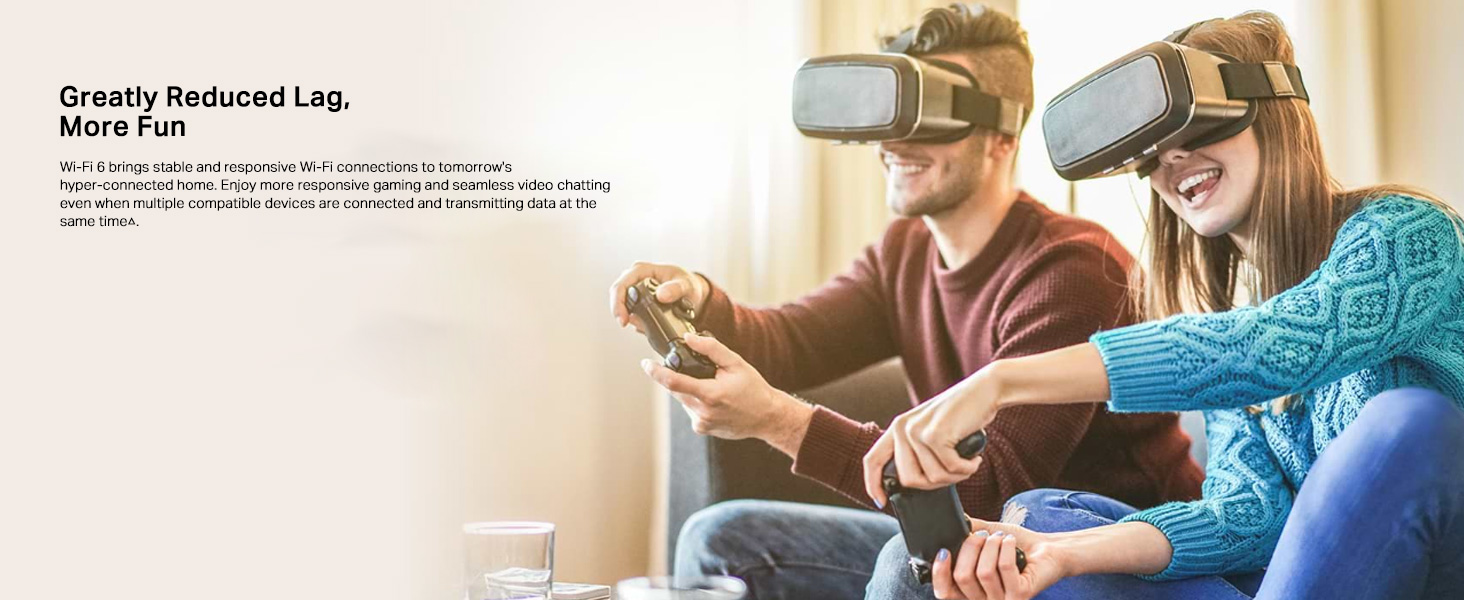
Image: Comparison of seamless roaming with Deco versus a traditional router and extender setup.
Key Awọn ẹya ara ẹrọ
- Wi-Fi 6 Technology (802.11ax): Provides faster speeds up to 1800 Mbps (1201 Mbps on 5GHz and 574 Mbps on 2.4GHz), increased capacity, and reduced network congestion.
- Whole Home Mesh Coverage: Eliminates Wi-Fi dead zones, covering up to 4000 sq ft with a 2-pack system.
- So Awọn Ẹrọ Diẹ sii pọ: OFDMA and MU-MIMO technologies allow simultaneous data transmission to multiple devices, supporting over 150 connected devices without performance degradation.
- Irẹwẹsi Irẹlẹ: Enhances responsiveness for gaming and video calls.
- TP-Link HomeCare/HomeShield: Offers comprehensive network security, robust parental controls, and Quality of Service (QoS) for a safer and optimized online experience.
- AI-Driven Mesh: The system intelligently learns your network environment and user behavior to optimize Wi-Fi performance continuously.
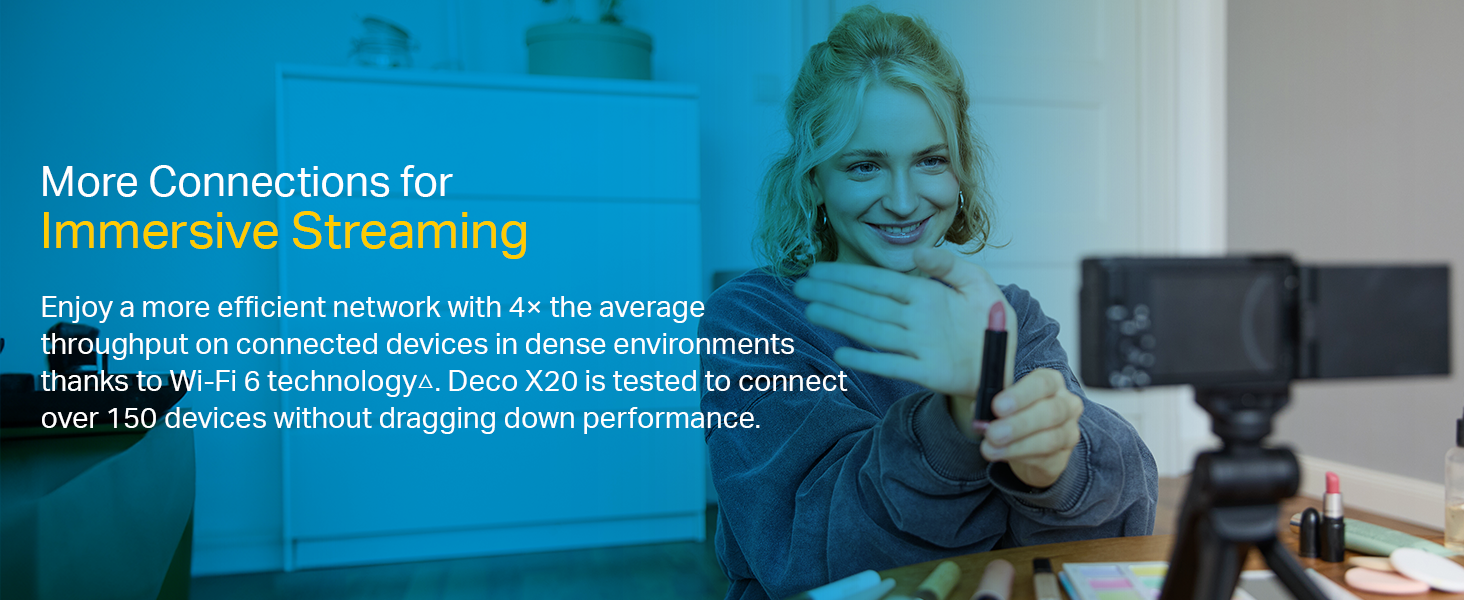
Image: Infographic highlighting the advantages of Wi-Fi 6, such as speed and efficiency.
Itoju
To ensure optimal performance and security of your Deco X20 system, consider the following maintenance practices:
- Awọn imudojuiwọn Famuwia deede: Check the Deco app periodically for available firmware updates. Installing updates ensures you have the latest security patches and performance improvements.
- Ibi to dara julọ: Ensure Deco units are placed in open areas, away from obstructions like large metal objects, thick walls, and other electronic devices that may cause interference.
- Mimọ: Keep the Deco units clean and free from dust to prevent overheating and maintain proper airflow. Use a soft, dry cloth for cleaning.
- Abojuto Nẹtiwọọki: Use the Deco app to monitor network activity and identify any unusual behavior or unauthorized devices.
Laasigbotitusita
If you encounter issues with your Deco X20 system, try the following troubleshooting steps:
- Ko si Asopọ Ayelujara:
- Ṣayẹwo boya modẹmu rẹ n ṣiṣẹ daradara.
- Ensure the Ethernet cable between the main Deco unit and the modem is securely connected.
- Tun modem rẹ ati ẹrọ Deco akọkọ bẹrẹ.
- Ifihan agbara Wi-Fi ti ko lagbara tabi Awọn agbegbe ti o ku:
- Relocate Deco units closer to each other or to the areas with weak signals.
- Ensure there are no major physical obstructions (e.g., thick concrete walls) between Deco units.
- Consider adding another Deco unit if coverage is still insufficient.
- Ipo LED Deco Unit:
- Alawọ ewe ri to: Deco n ṣiṣẹ deede.
- Pulsing Blue: Deco ti šetan fun iṣeto.
- Pupa ti o lagbara: Deco has an issue (e.g., no internet connection).
- Pulsing Puling: Deco is disconnected from the main unit.
- Cannot Connect to Deco App:
- Ensure your smartphone is connected to the Deco Wi-Fi network.
- Restart the Deco app.
- Reinstall the Deco app if the issue persists.
Fun iranlọwọ siwaju sii, wo atilẹyin TP-Link webojula tabi olubasọrọ onibara iṣẹ.
Awọn pato
| Ẹya ara ẹrọ | Ẹ̀kúnrẹ́rẹ́ |
|---|---|
| Brand | TP-Link |
| Orukọ awoṣe | Deco X20 |
| Boṣewa alailowaya | 802.11ax (Wi-Fi 6) |
| Igbohunsafẹfẹ Band Class | Ẹgbẹ-meji (2.4 GHz & 5 GHz) |
| Oṣuwọn Gbigbe Data (O pọju) | 1800 Mbps (1201 Mbps on 5GHz, 574 Mbps on 2.4GHz) |
| Ibora | Up to 4000 sq ft (2-pack) |
| Nọmba ti Ports | 2 Gigabit Ethernet ports per Deco unit |
| Aabo Ilana | WPA-PSK, WPA2-PSK, WPA3 |
| Ọna Iṣakoso | Deco App, Amazon Alexa |
| Awọn iwọn (L x W x H) | 11L x 11W x 11.4H centimita |
| Eto isesise | RouterOS (internal) |
| Ramu Memory sori ẹrọ | 16 GB (Note: This value is from the provided product data and may refer to flash storage or a specific component, as typical router RAM is lower.) |
Atilẹyin ọja ati Support
Alaye Atilẹyin ọja:
The TP-Link Deco X20 comes with a 3-odun atilẹyin ọja. For any product quality related issues, it is recommended to reach out to TP-Link's customer service support for resolution.
Atilẹyin Onibara:
For technical support, warranty claims, or general inquiries, please contact TP-Link customer service:
- Owo Ọfẹ: 1800-209-4168
- Imeeli: support.in@tp-link.com
- Adirẹsi olupese: TP-Link Systems Inc. 10 Mauchly, Irvine, CA 92618, USA or TP-Link India Private Limited Office No.1, Tower 2, Level 2, Raiaskaran Tech Park, Andheri Kurla Road, M.V Road, Andheri East-400072
Please retain your proof of purchase for warranty services.
Alaye Aabo pataki
- Do not expose the device to water or humidity.
- Ma ṣe gbiyanju lati tunto tabi tun ẹrọ naa funrararẹ.
- Lo awọn ohun ti nmu badọgba agbara ti a pese nikan.
- Ensure proper ventilation around the Deco units to prevent overheating.
Awọn iwe aṣẹ ti o jọmọ - Deco X20
 |
TP-Link Product Guide: Comprehensive Wi-Fi 6 and Mesh Networking Solutions Explore TP-Link's extensive product guide featuring the latest in Wi-Fi 6, Mesh Wi-Fi systems, 5G connectivity, and smart home technologies designed for seamless, reliable home and SOHO networking. |
 |
TP-Link Deco X20 AX1800 Gbogbo ile Mesh Wi-Fi 6 Itọsọna olumulo eto Comprehensive user guide for the TP-Link Deco X20 AX1800 Whole Home Mesh Wi-Fi 6 System, covering setup, features, management, and troubleshooting for optimal home network performance. |
 |
Itọsọna Olumulo TP-Link Deco X20-DSL AX1800 VDSL Gbogbo Ile Mesh Wi-Fi 6 Eto Ìtọ́sọ́nà olùlò tó péye fún TP-Link Deco X20-DSL AX1800 VDSL Whole Home Mesh Wi-Fi 6 System, tó bo ìṣètò, ìṣètò, àwọn ẹ̀yà bíi HomeShield, àti ìṣòro. |
 |
Ìtọ́sọ́nà Olùlò TP-Link Deco M5 AC1300: Ètò Wi-Fi Gbogbo Ilé Ìtọ́sọ́nà olùlò tó péye fún TP-Link Deco M5 AC1300 Whole Home Mesh Wi-Fi System. Kọ́ nípa ìṣètò, àwọn ẹ̀yà ara bíi rírìn kiri láìsí ìṣòro, àwọn ìṣàkóso òbí, àwọn kòkòrò àrùn, àti ìṣàtúnṣe nẹ́tíwọ́ọ̀kì. |
 |
TP-Link Deco Itọsọna Fifi sori kiakia - Wi-Fi Mesh Setup Itọsọna yii n pese awọn ilana fun siseto TP-Link Deco Wi-Fi Mesh Mesh, pẹlu ipo LED, alaye ailewu, ati awọn alaye atilẹyin ọja. Kọ ẹkọ bi o ṣe le sopọ ati tunto nẹtiwọọki rẹ. |
 |
TP-Link Deco M9 Plus AC2200 Smart Home Mesh Wi-Fi Itọsọna olumulo System A comprehensive user guide for the TP-Link Deco M9 Plus AC2200 Smart Home Mesh Wi-Fi System, covering setup, app features, parental controls, antivirus, and regulatory information. |
Ask a question about this manual
Ask about setup, troubleshooting, compatibility, parts, safety, or missing instructions. Manuals+ will review the question and use this page’s manual context to help answer it.