
Divoom 90100058091
Divoom TimeBox Evo Instruction Manual
Pixel Art Bluetooth Speaker with 16x16 LED Display
1. Ifihan
The Divoom TimeBox Evo is a versatile and compact Bluetooth speaker featuring a vibrant 16x16 pixel LED display. It combines high-quality audio with customizable pixel art, offering a unique blend of entertainment and utility. This manual provides essential information for setting up, operating, and maintaining your TimeBox Evo.

Figure 1.1: Divoom TimeBox Evo displaying a pixel art image.
2. Ohun ti o wa ninu Apoti
Please ensure all items are present in the packaging:
- 1 × Timebox-Evo
- 1 x Okun Ngba agbara USB
- 1 x 3.5mm Audio Cable
- 1 × Afowoyi olumulo
3. Eto
3.1 Agbara Lori ati gbigba agbara
To power on the TimeBox Evo, press and hold the power button located on the side of the device. The device comes with a USB-C charging cable. Connect the cable to the USB-C charging port on the device and a compatible USB power source to charge. A full charge provides approximately 6 hours of playback.

Figure 3.1: Product dimensions and charging information.
3.2 App Installation and Bluetooth Connection
The Divoom TimeBox Evo is primarily controlled via the Divoom mobile application. Download the 'Divoom' app from your device's app store:
Once installed, open the app and follow the on-screen instructions to pair your TimeBox Evo via Bluetooth. Ensure Bluetooth is enabled on your smartphone or tablet.
Video 3.1: Official Divoom guide on connecting the TimeBox Evo via Bluetooth.
4. Ṣiṣẹ ẹrọ naa
4.1 Ipilẹ idari
The TimeBox Evo features intuitive buttons on its top panel for quick control:
- Bọ́tìnnì Ṣíṣe/Sánu duro: Press to play or pause music. Hold to answer/end calls or reject incoming calls.
- Bọtini isalẹ iwọn didun: Press to decrease volume. Hold for previous song.
- Clock/Timer Button: Press for auto power OFF timer. Hold to enter manual alarm.
- Bọtini Soke Iwọn: Press to increase volume. Hold for next song.
- Bọtini ikanni: Press to change display channel. Hold to change effects.
- Power Button (Side): Press to check battery status. Hold to power ON/OFF.

Olusin 4.1: Pariview of the TimeBox Evo's physical buttons and their functions.
4.2 Pixel Art Display
The 16x16 pixel LED screen is the centerpiece of the TimeBox Evo. Through the Divoom app, you can:
- Create Your Own Art: Design custom pixel art and animations using the app's intuitive editor.
- Explore the Community Gallery: Browse and download thousands of pixel art designs created by other users worldwide.
- Display Functional Information: Show the time, date, weather, or other useful data on the screen.
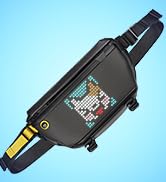
Figure 4.2: The Divoom app allows for pixel art creation, browsing a clock gallery, and more.
4.3 Awọn iṣẹ Aago ati Itaniji
The TimeBox Evo functions as a smart alarm clock with various features:
- Awọn itaniji isọdi: Set multiple alarms with personalized pixel art animations and 12 different wake-up sounds.
- Ariwo funfun: Utilize 24 soothing sounds to aid sleep, including campfire, frog, seashore, and more.

Figure 4.3: TimeBox Evo showing time, with features for white noise and alarm clock.
4.4 Sisisẹsẹhin Orin
Enjoy high-quality audio with the TimeBox Evo's 6W DSP speaker. Connect your device via Bluetooth to stream music. The display can also show real-time music visualizers, adding a dynamic element to your listening experience.

olusin 4.4: Ti abẹnu view highlighting the 6W powerful speaker.
4.5 Afikun Awọn ẹya ara ẹrọ
The Divoom app unlocks a variety of additional functionalities for your TimeBox Evo:
- Voice Message: Record and play voice messages.
- Ifiranṣẹ Ifiranṣẹ: Receive notifications from your phone on the display.
- Aago ati kika akoko: Set timers and countdowns for various activities.
- Atẹle: Use the display as a digital scoreboard for games.
- Awọn ere: Play simple pixel games directly on the device.
Fídíò 4.1: Ìfihàn fídíò kan tí ìjọba ṣeasing various functions and ornaments of the Divoom TimeBox Evo.
5. Awọn pato
| Ẹya ara ẹrọ | Ẹ̀kúnrẹ́rẹ́ |
|---|---|
| Orukọ awoṣe | Apoti akoko-Evo |
| Ọja Mefa | 3.88"D x 3.88"W x 1.5"H |
| Iwọn Nkan | 316 Giramu (11.1 iwon) |
| Agbọrọsọ Agbara Ijade ti o pọju | 6 Wattis |
| Agbara Batiri | 2500 mAh |
| Igbesi aye batiri | Awọn wakati 6 |
| Akoko gbigba agbara | Awọn wakati 3 |
| Imọ-ẹrọ Ibaraẹnisọrọ Alailowaya | Bluetooth (Ẹya 5.0) |
| Ọna Iṣakoso | Ohun elo, Fọwọkan |
| Àwọ̀ | Dudu |
6. Laasigbotitusita
If you encounter any issues with your Divoom TimeBox Evo, please try the following common troubleshooting steps:
- Ẹrọ ti ko ni agbara: Ensure the device is fully charged. Connect it to a power source and try again.
- Awọn oran Asopọ Bluetooth: Make sure Bluetooth is enabled on your phone/tablet and the TimeBox Evo is in pairing mode. Try restarting both devices.
- Ohun elo iṣẹ ṣiṣe: Ensure your Divoom app is updated to the latest version. If issues persist, try reinstalling the app.
- Ko si Ohun: Check the volume levels on both the TimeBox Evo and your connected device. Ensure the device is properly paired.
7. Atilẹyin ọja ati Support
For detailed warranty information and further support, please refer to the official user manual or visit the Divoom brand store.
- Ilana olumulo (PDF): Ṣe igbasilẹ PDF
- Divoom Official Store: Ṣabẹwo Ile-itaja
Ask a question about this manual
Ask about setup, troubleshooting, compatibility, parts, safety, or missing instructions. Manuals+ will review the question and use this page’s manual context to help answer it.