
1. Ifihan
O ṣeun fun riraasing the Yenkee YKB 3200 Gaming Keyboard. This manual provides essential information for the proper setup, operation, and maintenance of your new keyboard. Please read this manual thoroughly before using the product to ensure optimal performance and longevity.
2. Alaye Aabo
- Pa keyboard kuro lati awọn olomi ati ọrinrin pupọ.
- Ma ṣe fi bọtini itẹwe han si awọn iwọn otutu to gaju.
- Yago fun sisọ tabi tẹribalẹ keyboard si awọn ipa to lagbara.
- Ma ṣe gbiyanju lati tu tabi tun bọtini itẹwe funrararẹ. Tọkasi gbogbo iṣẹ si oṣiṣẹ oṣiṣẹ.
- Use only a dry, soft cloth for cleaning.
3. Package Awọn akoonu
Jọ̀wọ́ ṣàyẹ̀wò ohun tó wà nínú àpò náà nígbà tí o bá ń tú u. Tí àwọn nǹkan kan bá sọnù tàbí tí wọ́n bá bàjẹ́, pe olùtajà rẹ.
- Yenkee YKB 3200 Gaming Keyboard with integrated smartphone holder
- Okùn USB (ti a so mọ)
4. Ọja Ipariview
The Yenkee YKB 3200 is a robust gaming keyboard designed for an enhanced gaming experience. It features a durable metal construction, responsive rubber dome keys, and dynamic rainbow backlighting.
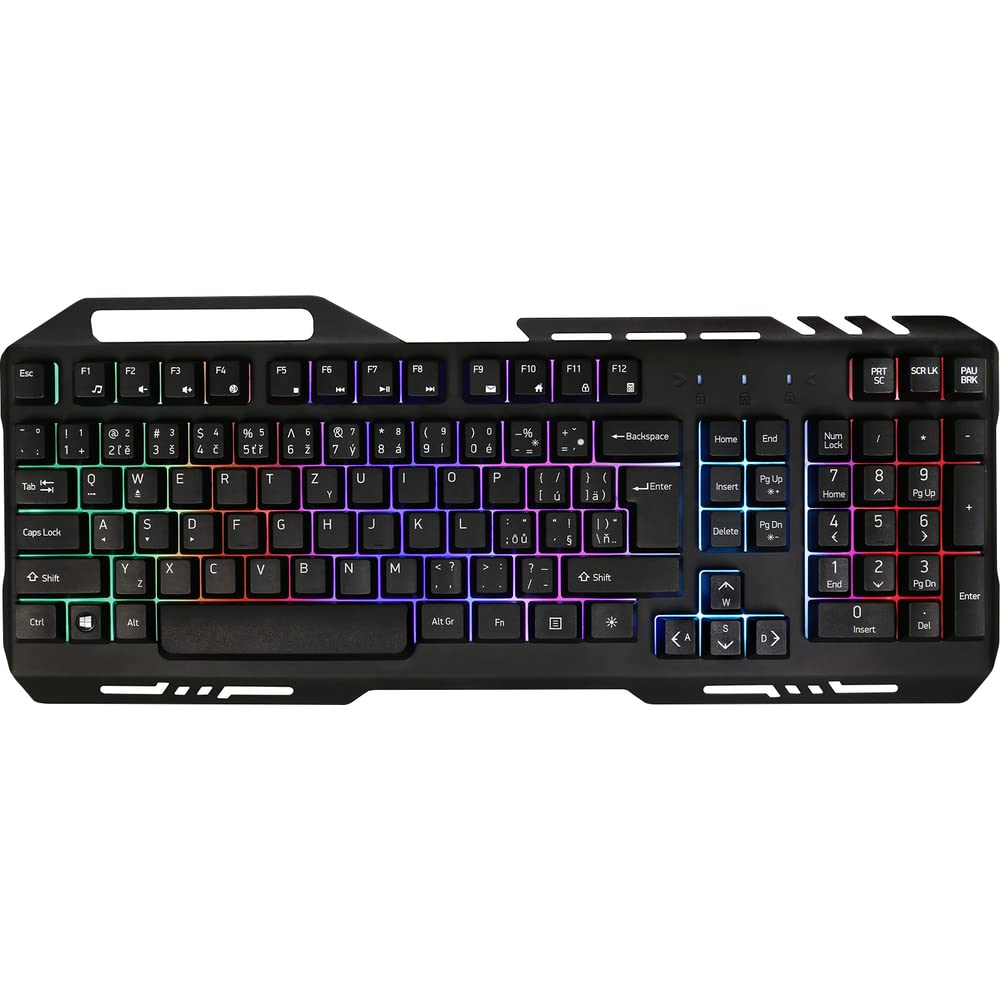
Image 1: Yenkee YKB 3200 Gaming Keyboard. This image displays the full keyboard with its metal frame and illuminated keys, highlighting the integrated smartphone holder at the top.
Awọn ẹya pataki:
- Metal Keyboard Design: Provides enhanced durability and a premium feel.
- Integrated Smartphone Holder: Conveniently located at the top of the keyboard for easy access to your mobile device.
- Durable Rubber Dome Keys: Offers a comfortable and responsive typing experience.
- Nine Rainbow Backlight Modes: Customizable lighting effects to suit your preference and gaming atmosphere.
- Asopọmọra USB: Simple plug-and-play connection to your computer.
- Gigun USB 1.5m: Pese ample de ọdọ fun orisirisi setups.
5. Eto
- Yọ Keyboard kuro: Farabalẹ yọ keyboard kuro lati apoti rẹ.
- Sopọ si Kọmputa: Locate an available USB port on your computer (PC or laptop). Insert the USB connector of the keyboard into the USB port.
- Fifi sori Awakọ: The keyboard is plug-and-play and typically does not require additional driver installation. Your operating system should automatically detect and install the necessary drivers.
- Ibi: Place the keyboard on a stable, flat surface. You can use the integrated smartphone holder to position your mobile device.
- Iṣe idanwo: Open a text editor or browser to test if the keys are responding correctly.
6. Awọn ilana Iṣiṣẹ
Iṣakoso ina Back:
The Yenkee YKB 3200 features nine distinct rainbow backlight modes. These modes can typically be cycled through using a dedicated function key combination.
- Awọn ipo iyipada: Look for a key labeled 'FN' (Function) and a key with a light bulb icon or 'Scroll Lock' / 'Pause Break'. Pressing FN + Light Bulb / Scroll Lock / Pause Break (depending on keyboard layout) will cycle through the available backlight modes.
- Ṣiṣatunṣe Imọlẹ: Some keyboards allow brightness adjustment using FN + Up/Down Arrow keys. Refer to your specific keyboard layout for exact key combinations.
- Títan/Pa ìmọ́lẹ̀ ẹ̀yìn: A long press of the backlight control key or a specific FN combination might turn the backlight on or off.
Àwọn bọtini Multimedia àti Iṣẹ́:
The keyboard may include additional function keys (F1-F12) that, when combined with the 'FN' key, provide multimedia control or quick access to applications. Common functions include:
- FN + F1-F12: Volume control, media playback, email, web browser, etc. (Specific functions vary by model).
7. Itọju
Ninu:
- Isọsọ gbogboogbo: Lo aṣọ rirọ, gbigbẹ, ti ko ni awọ lati nu oju bọtini itẹwe naa.
- Yiyọ eruku kuro: Lo afẹfẹ fisinuirindigbindigbin lati yọ eruku ati idoti kuro laarin awọn bọtini.
- Awọn abawọn Tagidi: Fun awọn abawọn alagidi, die-die dampen the cloth with water or a mild, non-abrasive cleaning solution. Ensure no liquid enters the keyboard.
Ibi ipamọ:
Tí o kò bá lò ó fún ìgbà pípẹ́, tọ́jú keyboard náà sí ibi tí ó tutù tí ó sì gbẹ, kí oòrùn má baà ràn án tàbí ooru tó le koko.
8. Laasigbotitusita
| Isoro | Owun to le Fa | Ojutu |
|---|---|---|
| Keyboard ko fesi | Asopọ USB alaimuṣinṣin, ibudo USB ti ko tọ, ọran awakọ. | Rii daju pe okun USB ti sopọ ni aabo. Gbiyanju ibudo USB ti o yatọ. Tun kọmputa rẹ bẹrẹ. |
| Imọlẹ afẹyinti ko ṣiṣẹ | Backlight turned off, low brightness setting. | Press the backlight control key combination (e.g., FN + Scroll Lock) to cycle modes or adjust brightness. |
| Awọn bọtini jẹ alalepo tabi ko dahun | Dirt or debris under keys. | Clean the keyboard using compressed air and a soft cloth. |
9. Awọn pato
| Ẹya ara ẹrọ | Sipesifikesonu |
|---|---|
| Brand | Yenkee |
| Nọmba awoṣe | Ọdun 3200 |
| Asopọmọra Technology | USB |
| USB Ipari | 1.5 mita |
| Apejuwe Keyboard | Ere |
| Backlight Theme | Rainbow (9 modes) |
| Awọn ẹrọ ibaramu | Kọǹpútà alágbèéká, PC |
| Ọja Mefa | 45.2 x 20 x 3.5 cm |
| Iwọn Ọja | 841 g |
| Awọn irinše to wa | USB cable (attached) |
10. Atilẹyin ọja ati Support
Yenkee products are designed and manufactured to the highest quality standards. For information regarding warranty terms and conditions, please refer to the warranty card included with your purchase or visit the official Yenkee website. For technical support or service inquiries, please contact your local retailer or the Yenkee customer support team.