
1. Ọja Ipariview
The EZoneTronics Android Car Radio is a double DIN multimedia system designed for in-car entertainment and navigation. It features a touch screen display, Android operating system, built-in Bluetooth, Wi-Fi connectivity, and GPS capabilities. This unit supports various applications and media playback, enhancing your driving experience.
Awọn ẹya pataki:
- Iṣakoso kẹkẹ idari: Compatible with factory steering wheel controls (resistive analog signal input only). Digital CANBUS signals may require an external converter.
- GPS Lilọ kiri: Integrated GPS module. Download preferred map applications from the Play Store after connecting to Wi-Fi.
- Wi-Fi ti a ṣe sinu: Allows downloading applications from the Play Store.
- Bluetooth & FM Radio: Bluetooth for hands-free calls and music streaming. FM radio with preset stations for real-time traffic, news, and weather.
Awọn eroja to wa:
The package includes the Android Player unit, GPS Antenna, Power Harness, 2 USB adapters, User Manual, RCA output wire, Camera Input wire, and 2 Installation brackets.

Figure 1: EZoneTronics Android Car Radio unit and included accessories.
2. fifi sori
Proper installation is crucial for optimal performance. It is recommended to have the unit installed by a professional if you are unfamiliar with car audio wiring.
2.1 Awọn asopọ onirin:
- Ijanu Agbara: Connect the main power harness to your vehicle's power supply, ensuring correct positive, negative, and accessory connections.
- Eriali GPS: So eriali GPS pọ ki o si gbe e si ipo kan pẹlu ko o view of the sky for best signal reception.
- USB Adapters: Utilize the provided USB adapters for connecting external devices or media.
- Ṣiṣe RCA: Sopọ si ita amplifiers or subwoofers using the RCA output wires.
- Iṣawọle kamẹra: Sopọ ẹhinview camera to the dedicated camera input wire for parking assistance.
2.2 Steering Wheel Control (SWC):
If your vehicle has factory steering wheel controls based on a resistive analog signal, the SWC feature can be retained by connecting the appropriate wires. For vehicles using a digital CANBUS data signal, an additional digital-to-resistive converter may be required. If your car does not have factory SWC, an external steering wheel controller (wired connection) can be added.

Figure 2: Steering Wheel Control in operation.
3. Isẹ
3.1 Basic Controls:
The unit features a fully capacitive touch screen for control. Side buttons typically include Power, Volume Up/Down, Home, and Back functions.
3.2 Lilọ kiri GPS:
After connecting to a Wi-Fi network, access the Play Store to download your preferred navigation application. Ensure the GPS antenna is properly installed for accurate positioning.

Figure 3: GPS Navigation Function.
3.3 Bluetooth Asopọmọra:
Enable Bluetooth on your mobile phone and search for the car radio. Pair the devices to enable hands-free calling, access your phone book, and stream audio via A2DP.

Figure 4: Bluetooth features including hands-free calls and EQ regulation.
3.4 Wi-Fi and App Installation:
Connect the unit to a Wi-Fi hotspot (e.g., from your mobile phone) to access the Play Store. You can download and install various applications, including streaming services like Netflix.
3.5 Mirror Link Function:
The Mirror Link function allows you to display your smartphone screen on the car radio. Android phones can be controlled via USB, while iPhones can mirror video and audio wirelessly.
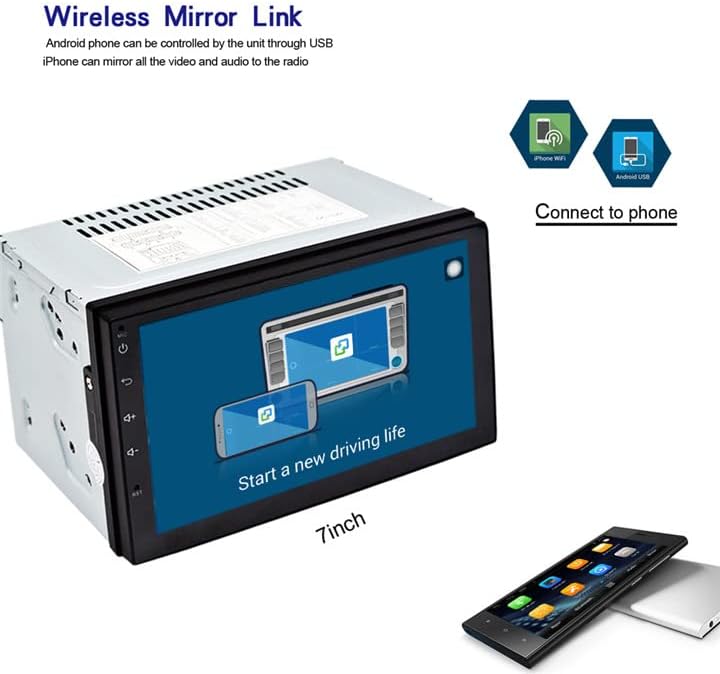
Figure 5: Wireless Mirror Link setup.
3.6 FM Radio:
Access the FM radio function to tune into local stations. You can save your favorite stations as presets for quick access.

olusin 6: FM Radio ni wiwo.
4. Awọn pato
| Ẹya ara ẹrọ | Apejuwe |
|---|---|
| Brand | EZoneTronics |
| Nọmba awoṣe | 10 |
| Asopọmọra Technology | Bluetooth, WiFi |
| Adarí Iru | Android |
| Pataki Awọn ẹya ara ẹrọ | Built-In Bluetooth, Touchscreen |
| Awọn ẹrọ ibaramu | Foonuiyara |
| Asopọmọra Iru | USB |
| Ipo Ijade Ohun | Sitẹrio |
| Kakiri Ohun ikanni iṣeto ni | 4.0 |
| Fidio fifi koodu | H.264 |
| Agbara Ijade | 45 Wattis |
| Nọmba ti awọn ikanni | 4 |
| Awọn iṣẹ Intanẹẹti atilẹyin | Netflix |
| Ọna Iṣakoso | Ohun elo, Fọwọkan |
| Audio o wu Iru | Bluetooth |
| Ọna kika | WMA |
| Olupese | Rhythm Electronics Limited |

Ṣe nọmba 7: Awọn Iwọn Ọja.
5. Laasigbotitusita
If you encounter issues with your EZoneTronics Android Car Radio, please refer to the following general troubleshooting steps:
- Ko si Agbara: Check all power connections, including the main power harness and vehicle's fuse box. Ensure the accessory wire is correctly connected.
- Ko si Ohun: Verify speaker connections and ensure the volume is not muted or set to minimum. Check RCA connections if using external ampalifiers.
- Awọn ọrọ ifihan agbara GPS: Ensure the GPS antenna is installed in a location with an unobstructed view ti oju ọrun. Ṣayẹwo asopọ eriali si ẹrọ naa.
- Awọn iṣoro Asopọ Bluetooth: Rí i dájú pé Bluetooth ti ṣiṣẹ́ lórí rédíò ọkọ̀ ayọ́kẹ́lẹ́ àti ẹ̀rọ alágbèéká rẹ. Gbìyànjú láti yọ àwọn ẹ̀rọ náà kúrò kí o sì tún so wọ́n pọ̀.
- Iboju Fọwọkan Ko dahun: Try restarting the unit. If the issue persists, a factory reset might be necessary (refer to the on-screen settings for this option).
- Awọn aiṣedeede App: Ensure the unit is connected to Wi-Fi and the app is updated to the latest version. Clear the app's cache or reinstall it if necessary.
For persistent issues, contact EZoneTronics customer support for further assistance.
6. Alaye Aabo
Always prioritize safety while operating your vehicle. Do not operate the car radio in a way that distracts you from driving. Adjust settings or interact with applications only when the vehicle is safely parked. Adhere to all local traffic laws and regulations.