
1. Ifihan
O ṣeun fun riraasing the FiiO K3 Type-C USB DAC Headphone Amp. This manual provides detailed instructions for setting up, operating, and maintaining your device to ensure optimal performance and longevity. The FiiO K3 is a high-performance digital-to-analog converter and headphone amplifier designed to enhance your audio experience with various devices, including computers and other audio sources.

Figure 1: FiiO K3 Type-C USB DAC Headphone Amp
2. Eto
Follow these steps to set up your FiiO K3 for the first time.
2.1 Package Awọn akoonu
Ṣaaju ki o to tẹsiwaju, rii daju pe gbogbo awọn ohun kan wa ninu package naa:
- Ẹyọ FiiO K3
- USB Iru-C Data Cable
- Anti-slip Tape (4 pieces)
- Quick Bẹrẹ Itọsọna
- Kaadi atilẹyin ọja

Figure 2: FiiO K3 and included accessories
2.2 Nsopọ si Kọmputa kan
Connect the FiiO K3 to your computer using the provided USB Type-C cable. The K3 draws power directly from the USB port.
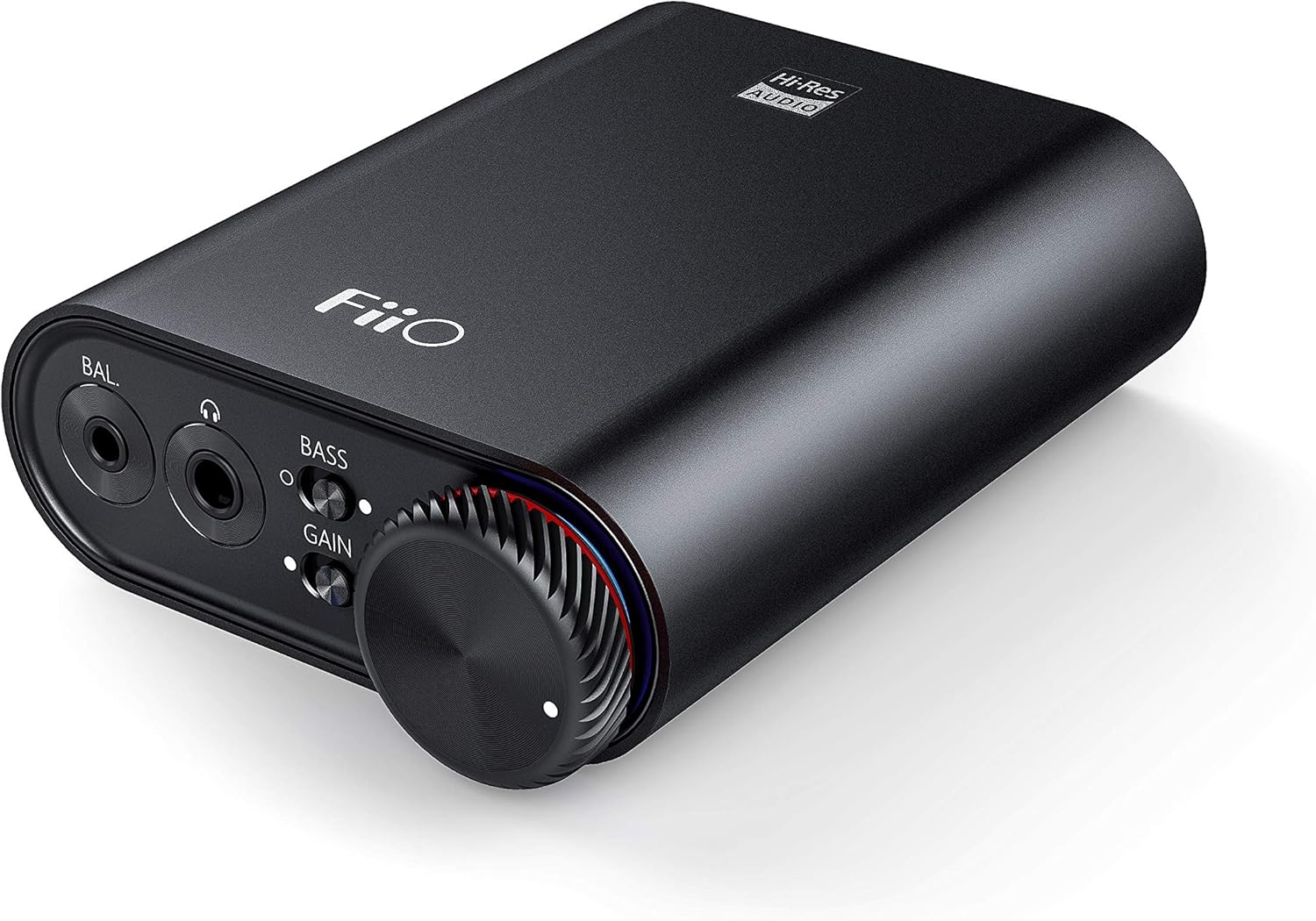
Figure 3: Front panel of FiiO K3 with headphone outputs and controls.
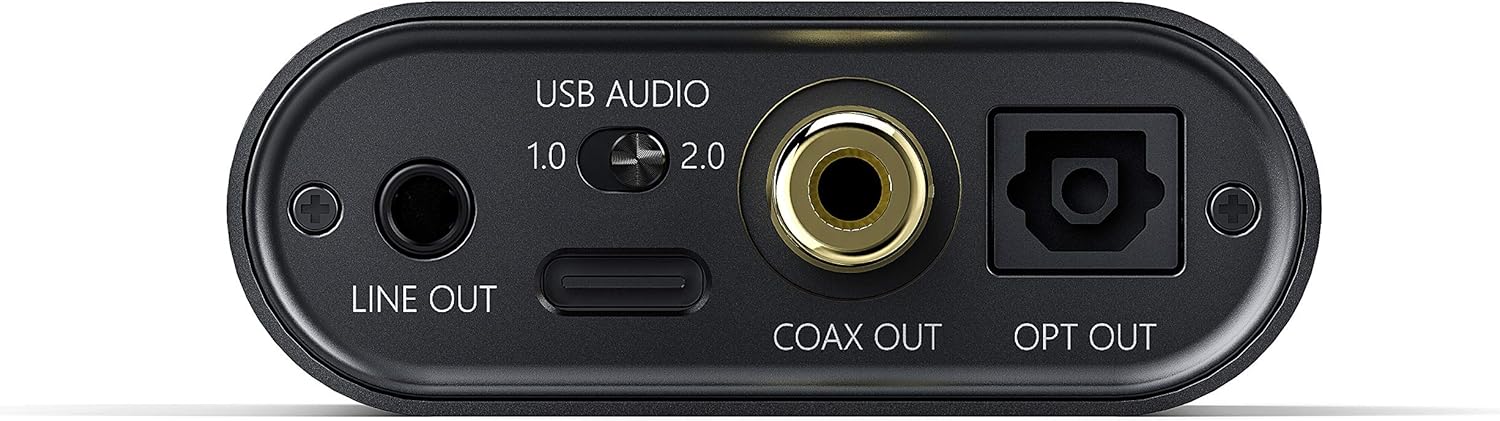
Figure 4: Rear panel of FiiO K3 with USB-C, Line Out, Coaxial Out, and Optical Out ports.
Awọn ọna ohun afetigbọ USB
The FiiO K3 supports two USB Audio modes, selectable via a switch on the rear panel:
- USB Audio 1.0 (Driver-Free): This mode is plug-and-play and does not require driver installation. It supports up to 96kHz/24-bit PCM audio. Compatible with Windows, macOS, and Linux.
- USB Audio 2.0 (Requires Driver): This mode offers higher performance, supporting up to 384kHz/32-bit PCM and DSD256. For Windows operating systems, a specific driver must be installed. For macOS and Linux, it is typically driver-free.
To download the Windows USB 2.0 driver, visit the official FiiO support webojula: www.fiio.com/supports.
2.3 Nsopọ Awọn agbekọri
The FiiO K3 features two headphone output jacks on the front panel:
- Ìjáde 3.5mm Onípele Kanṣoṣo: For standard headphones.
- Iwontunwonsi 2.5mm: For headphones with a balanced connection, offering improved sound separation and power.
Plug your headphones into the appropriate jack. Ensure the connection is secure.
2.4 Connecting to External Audio Devices
The FiiO K3 provides multiple output options for connecting to external speakers, amplifiers, or other DACs:
- 3.5mm Line Out: Connects to the analog input of an amplifier or active speakers. The volume of the Line Out is controlled by the K3's volume knob.
- Coaxial Out: Provides a digital coaxial output for connecting to an external DAC or amplifia pẹlu titẹ sii coaxial kan.
- Ojú Jade: Provides a digital optical output for connecting to an external DAC or amplifia pẹlu titẹ sii opitika.
When using the Line Out, Coaxial Out, or Optical Out, ensure that the connected device is set to the correct input source.
Video 1: FiiO K3 User Guides. This video demonstrates the unboxing, connection to a computer, and various input/output options of the FiiO K3, including USB Audio modes, headphone outputs, and digital/analog line outs.
3. Awọn ilana Iṣiṣẹ
3.1 Agbara Tan / Pa ati Iṣakoso iwọn didun
The large knob on the front panel serves as both the power switch and volume control. Rotate it clockwise to power on the device and increase the volume. Rotate counter-clockwise to decrease the volume and power off the device when turned fully to the left.
3.2 ayo Yipada
The K3 features a gain switch (labeled "GAIN") on the front panel. This switch allows you to adjust the output level to match the impedance and sensitivity of your headphones:
- Èrè Kekere: Suitable for sensitive headphones or earphones.
- Ere giga: Provides more power for high-impedance or less sensitive headphones.
Adjust the gain setting to achieve a comfortable listening volume without distortion.
3.3 Bass Boost Switch
The bass boost switch (labeled "BASS") on the front panel allows you to enhance the low-frequency response of your audio. Toggle it on or off according to your preference.
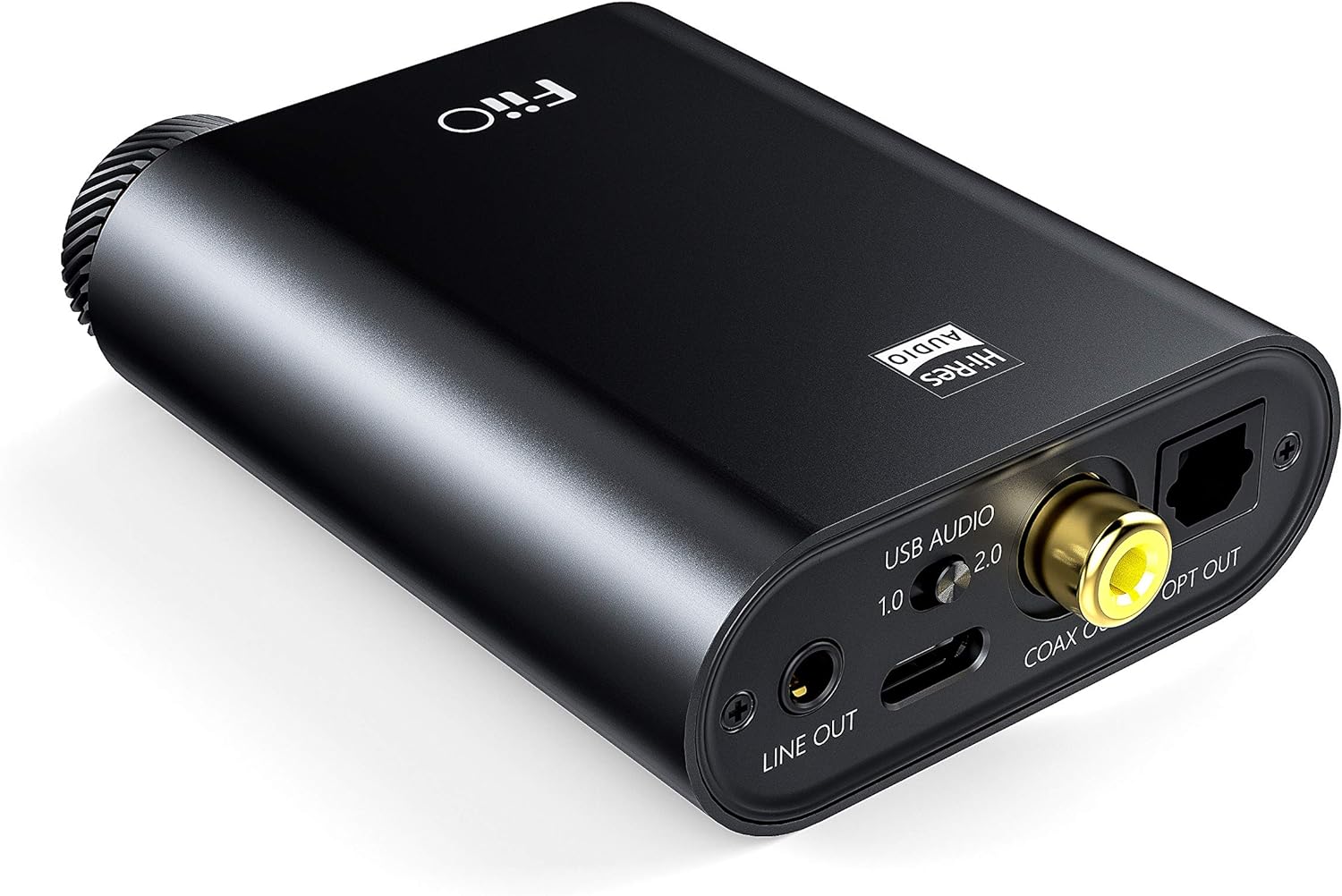
Figure 5: Close-up of the FiiO K3 front panel showing volume knob, bass switch, and gain switch.
3.4 RGB Indicator
The RGB indicator light located near the volume knob displays the current sampling rate of the audio being played:
- Buluu: 44.1kHz tabi 48kHz sampoṣuwọn ling.
- Yellow: Sampling rate greater than 48kHz.
- Alawọ ewe: DSD audio.
- Pupa: Ko si ifihan agbara.
4. Itọju
Ìtọ́jú tó péye ń jẹ́ kí FiiO K3 rẹ pẹ́ títí, ó sì ń ṣiṣẹ́ dáadáa.
- Ninu: Use a soft, dry cloth to wipe the device. Avoid using harsh chemicals or abrasive materials.
- Mimu: Mu ẹrọ naa pẹlu itọju. Yẹra fun sisọ silẹ tabi ṣiṣafihan si agbara ti o pọ julọ.
- Ayika: Keep the device away from extreme temperatures, direct sunlight, moisture, and dust.
- Anti-slip Tape: Apply the provided anti-slip tape to the bottom of the unit to prevent it from sliding on surfaces.
5. Laasigbotitusita
Tí o bá ní ìṣòro pẹ̀lú FiiO K3 rẹ, wo àwọn ìṣòro àti ojútùú tó wọ́pọ̀ wọ̀nyí:
5.1 Ko si Ijade Ohun
- Ṣayẹwo Awọn isopọ: Ensure all cables (USB, headphones, line out) are securely connected.
- Ipele Iwọn: Verify that the volume knob on the K3 is turned up and not at its minimum setting. Also check the volume level on your computer or connected audio device.
- Àṣàyàn Ìwọlé/Ìjáde: Confirm that your computer's audio output is set to the FiiO K3. If using Line Out, ensure your external ampA ti ṣeto awọn agbọrọsọ lifier/agbọrọsọ si titẹ sii ti o tọ.
- RGB Indicator: If the RGB indicator is red, there is no signal. Check your source device and connections.
5.2 Daru Ohun
- Eto Ere: If the sound is distorted, try switching the GAIN to "Low" for sensitive headphones.
- Ipele Iwọn: Reduce the volume on both the K3 and your source device to prevent clipping.
- Didara Orisun: Ensure the audio source file kò bàjẹ́ tàbí kò ní ìdàgbàsókè.
- Iduroṣinṣin USB: Check if the cables are damaged or faulty.
5.3 USB 2.0 Driver Issues (Windows)
- Fifi sori Awakọ: Ensure the correct FiiO USB 2.0 driver is installed from the official FiiO webojula.
- Ibudo USB: Gbiyanju lati sopọ si ibudo USB ti o yatọ lori kọnputa rẹ.
- Atunbere: Tun kọmputa rẹ bẹrẹ lẹhin fifi sori ẹrọ awakọ naa.
6. Awọn pato
| Ẹya ara ẹrọ | Iye |
|---|---|
| Brand | FiiO |
| Awoṣe | K3 |
| Atilẹyin DAC USB | Up to 384kHz/32bit PCM, DSD256 |
| Ibi ti ina elekitiriki ti nwa | USB Iru-C |
| Awọn abajade agbekọri | 3.5mm Oni-ipari Kan, 2.5mm Oniwọntunwọnsi |
| Ijade Laini | 3.5mm Line Jade |
| Awọn abajade oni-nọmba | Coaxial Out, Optical Out |
| Iwọn Nkan | 82 giramu |
7. Atilẹyin ọja & Atilẹyin
The FiiO K3 comes with a standard manufacturer's warranty. Please refer to the included Warranty Card for specific terms and conditions. For technical support, driver downloads, firmware updates, and frequently asked questions, please visit the official FiiO webojula:
You may also contact FiiO customer service directly through their webaaye fun iranlọwọ siwaju sii.