
1. Ifihan
The Modecom Oberon Pro Midi Tower is a computer case designed for users seeking a functional and spacious interior with a modern aesthetic. This manual provides essential information for the proper installation, operation, and maintenance of your computer case, ensuring optimal performance and longevity of your components.
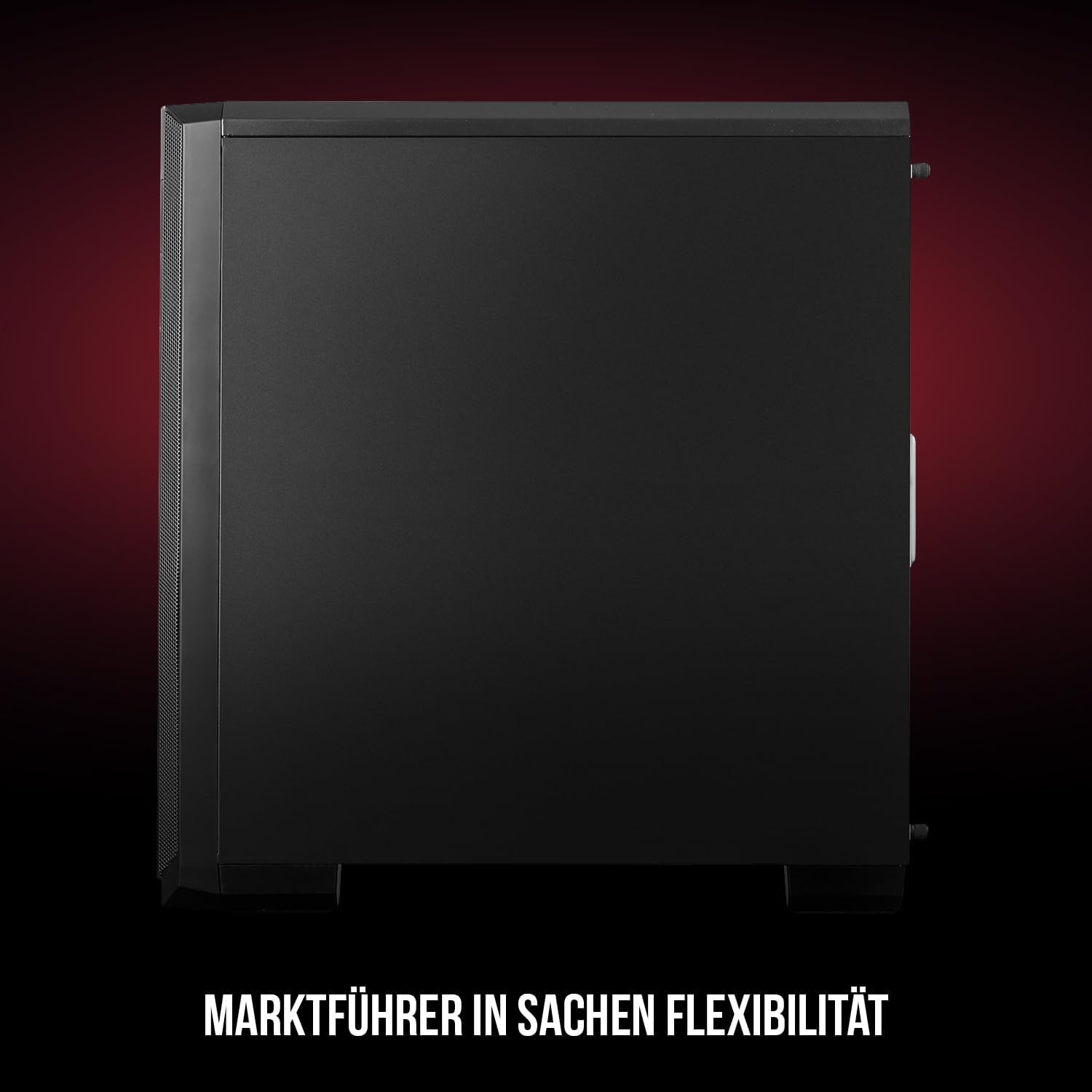
Nọmba 1: Iwaju ati ẹgbẹ view of the Modecom Oberon Pro Midi Tower computer case.
2. Alaye Aabo
- Nigbagbogbo ge asopọ ipese agbara lati inu iṣan ogiri ṣaaju fifi sori ẹrọ tabi yiyọ awọn paati eyikeyi kuro.
- Mu awọn paati pẹlu iṣọra lati yago fun itujade itanna. Gbero lilo okun-ọwọ anti-aimi.
- Pa awọn ẹya kekere ati awọn irinṣẹ kuro lọdọ awọn ọmọde.
- Rí i dájú pé afẹ́fẹ́ tó yẹ wà ní àyíká àpótí náà kí ó má baà gbóná jù.
- Do not attempt to modify the case structure, as this may void your warranty and pose safety risks.
3. Package Awọn akoonu
Verify that all the following items are present in your package:
- Modecom Oberon Pro Midi Tower Computer Case
- Apoti ẹya ẹrọ (awọn skru, awọn iduro, awọn asopọ okun)
- Afowoyi Olumulo (iwe-ipamọ yii)
4. Key Awọn ẹya ara ẹrọ
- Aláyè gbígbòòrò: Designed to accommodate high-end components and facilitate good airflow.
- Itutu ti o munadoko: Includes two pre-mounted 120mm fans (front and rear) to prevent component overheating.
- Fifi sori ẹrọ Ọfẹ: Supports tool-free mounting for SSD/HDD drives and expansion cards.
- Dust Filtration: Features easily dismountable magnetic filters on the top, front, and bottom (under the power supply unit) to keep the interior clean.
- Optimized Cable Management: Provides a system for convenient wiring organization.
- Long PSU Tunnel: Offers a 240mm space for power supplies, simplifying installation and cable arrangement.
5. Eto ati fifi sori
5.1. Ngbaradi Ọran naa
Before installation, remove the side panels of the case. The Oberon Pro features sound-dampening mats on the side panels to reduce noise.

olusin 2: inu ilohunsoke view showing sound-dampening mats on the side panel.
5.2. Modaboudu fifi sori
Install the necessary standoffs for your motherboard form factor (ATX, Micro ATX, ITX). Carefully place your motherboard into the case, aligning it with the standoffs, and secure it with screws.

Figure 3: Interior layout with pre-installed rear fan and motherboard tray.
5.3. Drive Installation (SSD/HDD)
The Oberon Pro supports tool-free installation for three 2.5" SSDs and two 3.5" HDDs. The 3.5" HDD bays are located in the power supply tunnel at the bottom of the case. 2.5" SSDs can be mounted on both sides of the motherboard tray.

Figure 4: Dedicated bays for HDD and SSD storage devices.
5.4. Fifi sori Ipese Agbara
The case features a long PSU tunnel (240mm) at the bottom. Install your power supply unit into this tunnel and secure it. This design aids in cable management and airflow.
5.5. Expansion Card Installation (PCI/PCIe)
Install your graphics card or other expansion cards into the PCI/PCIe slots. The case supports tool-free mounting for these cards, allowing for easy installation and removal.
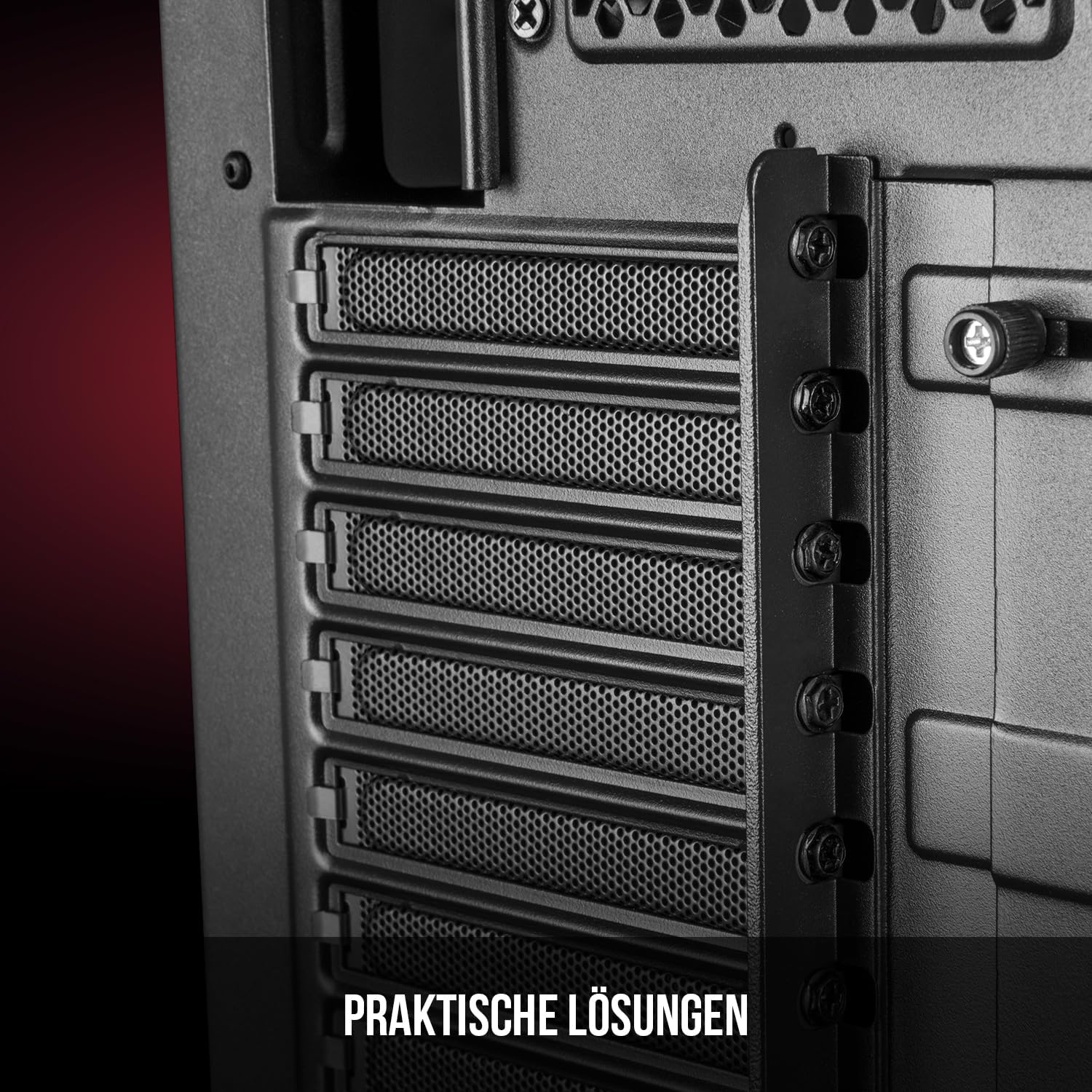
olusin 5: Ru inu ilohunsoke view highlighting the expansion card slots.
5.6. Iṣakoso USB
Utilize the provided cable routing options and tie-down points behind the motherboard tray to organize cables. This improves airflow and maintains a tidy interior.
6. itutu System
The Oberon Pro comes with two pre-installed 120mm fans, one at the front and one at the rear, to ensure adequate airflow. The maximum height for a CPU cooler is 163mm, and the maximum length for a video card is 395mm, allowing for compatibility with a wide range of components.
7. Itọju
To maintain optimal performance and prevent dust buildup, regularly clean the dust filters. The magnetic filters on the top, front, and bottom of the case are easily dismountable for cleaning. Use compressed air or a soft brush to remove accumulated dust.
8. Laasigbotitusita
- Ko si Agbara: Ensure all power cables are securely connected to the motherboard, power supply, and wall outlet. Check the power button connection to the motherboard.
- Igbóná púpọ̀: Verify that all fans are spinning correctly and that dust filters are clean. Ensure proper cable management to avoid obstructing airflow.
- Awọn ibudo iwaju paneli ko ṣiṣẹ: Check that the front panel connectors (USB, audio) are correctly plugged into the motherboard headers.
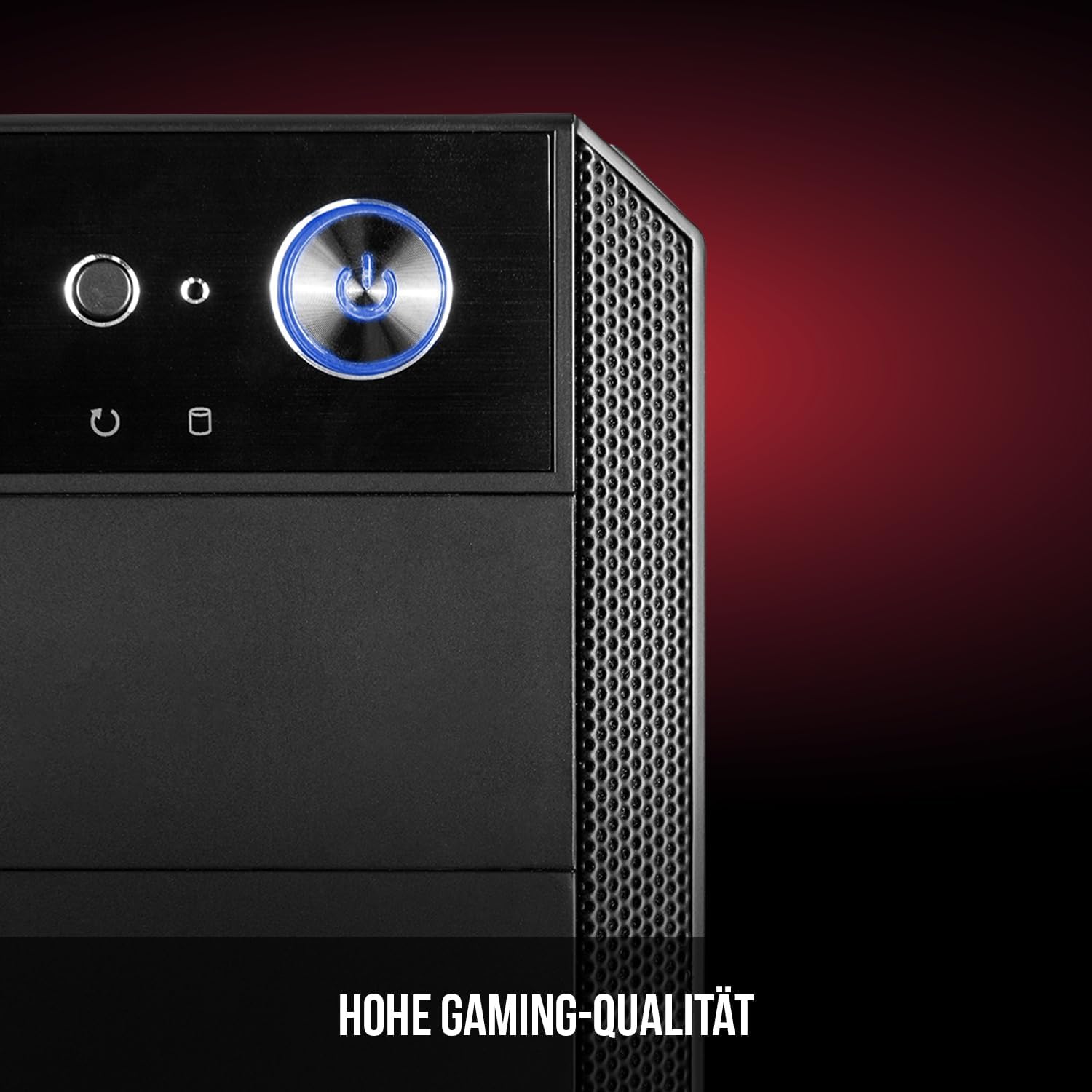
Figure 6: Front panel I/O ports for connectivity.
9. Awọn pato
| Ẹya ara ẹrọ | Sipesifikesonu |
|---|---|
| Brand | Modecom |
| Orukọ awoṣe | Oberon Pro |
| Nọmba awoṣe | AT-OBERON-PS-10-000000-0002 |
| Àwọ̀ | Dudu |
| Iru Irú | Ile-iṣọ Midi |
| Modaboudu Ibamu | ATX, Micro ATX, ITX |
| Ohun elo | Alloy Irin |
| Ọna Itutu | Afẹfẹ |
| Awọn onijakidijagan ti a ti fi sii tẹlẹ | 2 x 120mm (Front, Rear) |
| Max Sipiyu kula Iga | 163 mm |
| Max GPU Ipari | 395 mm |
| Wakọ Bays | 3 x 2.5" SSD, 2 x 3.5" HDD |
| Lapapọ Awọn ibudo USB | 4 |
| Pataki Awọn ẹya ara ẹrọ | Reset Button, Dust Filter, LED Indicators, Side Window |
| Iwọn Nkan | 5270 giramu |

Figure 7: Rear exterior view of the computer case.
10. Atilẹyin ọja ati Support
For warranty information and technical support, please refer to the official Modecom webojula tabi kan si alagbata rẹ. Jeki ẹri rira rẹ fun eyikeyi awọn ibeere atilẹyin ọja.