
Ọja Pariview
The Maxcio Smart WiFi Light Switch (Model KS-601) is designed to modernize your home lighting with smart control capabilities. This 2-way smart switch integrates seamlessly with your home Wi-Fi network, allowing for convenient control via a mobile application, voice commands through Amazon Alexa or Google Assistant, and traditional touch control. It also features powerful timer functions and LED backlighting for enhanced usability.
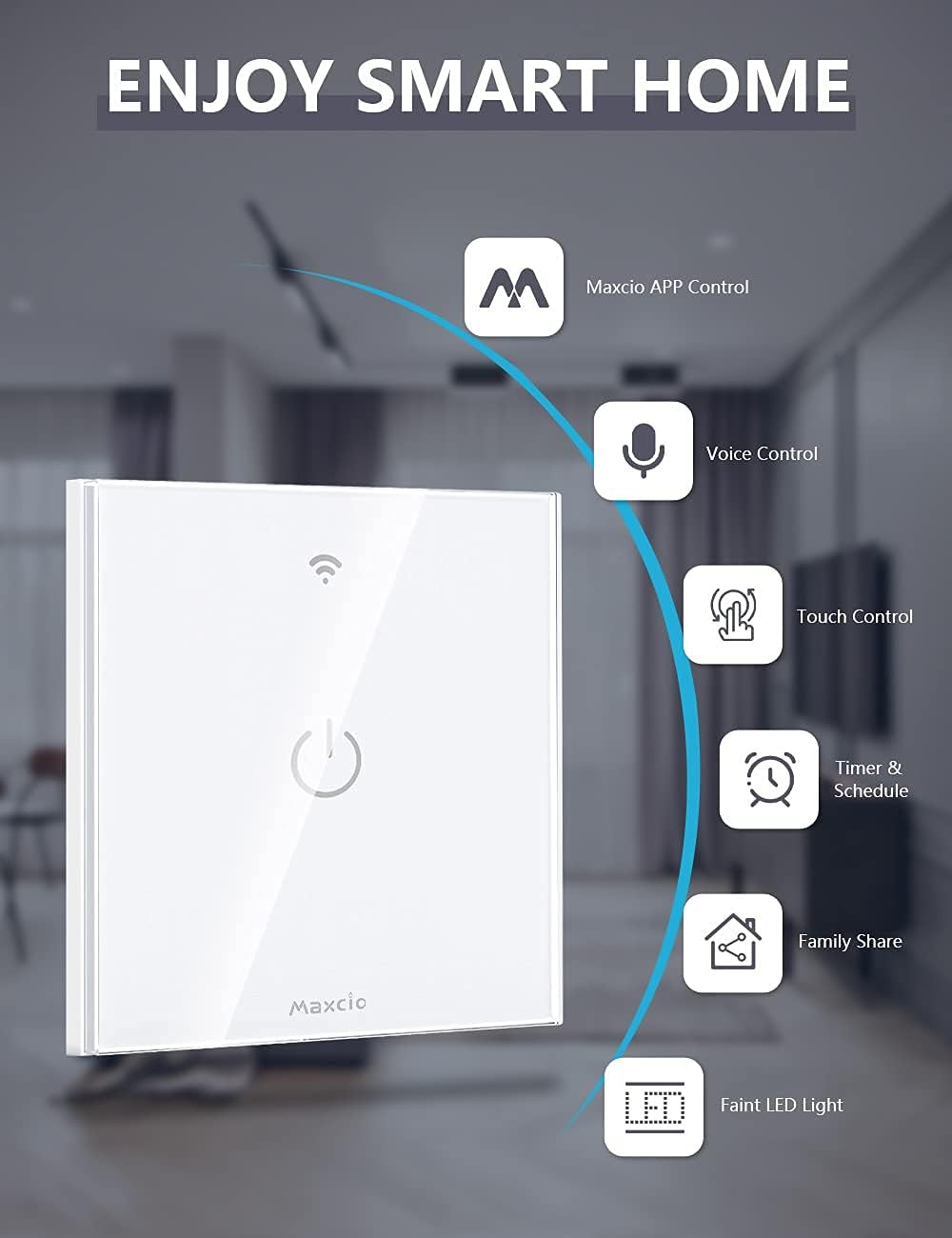
Image: The Maxcio Smart WiFi Light Switch highlighting its features: Maxcio APP Control, Voice Control, Touch Control, Timer & Schedule, Family Share, and Faint LED Light.
Alaye Aabo
- IKILO: Before installation, always disconnect the power supply at the circuit breaker to prevent electric shock.
- Fifi sori yẹ ki o ṣe nipasẹ oṣiṣẹ ina mọnamọna tabi ni ibamu pẹlu awọn koodu itanna agbegbe.
- Ensure your home wiring includes a neutral wire. This switch requires a neutral line + phase line circuit for proper operation.
- Do not exceed the maximum load capacity of 600W per gang (3500W total).
Eto ati fifi sori
1. Wiring Compatibility
This smart switch requires a neutral wire for installation. Please verify your home's electrical wiring before purchasing or attempting installation. The switch supports a neutral line + phase line circuit.

Image: Diagram illustrating the requirement for a neutral wire (blue) in the electrical circuit for the smart switch to function. It shows a 'NO SUPPORT' diagram with only live wires and a 'SUPPORT' diagram with neutral and live wires.
2. Fifi sori Igbesẹ
- Agbara Pa: Turn off the power at the main circuit breaker before starting any electrical work.
- Yọ Yipada atijọ kuro: Carefully remove your existing wall switch.
- Ṣe idanimọ Awọn okun: Identify the Live wire (Phase), Neutral wire, and Load wire(s). Typically, the neutral wire is blue, and the live wire is brown or black.
- So awọn onirin: Connect the wires to the Maxcio Smart WiFi Light Switch terminals as follows:
- Connect the Neutral wire to the 'N' terminal.
- Connect the Live wire to the 'L' terminal.
- Connect the Load wire(s) to the 'L1', 'L2', 'L3' terminals as appropriate for your setup (e.g., L1 for a single light).
- Yipada sori ẹrọ: Secure the switch into the wall box using the provided screws.
- So Apoti Iwari: Fi gilasi oju si modulu iyipada naa.
- Agbara Tan: Restore power at the circuit breaker. The LED indicator on the switch should light up.

Image: A detailed wiring diagram showing connections for Neutral Wire (blue), Live Wire (red), and Load Wire (red) from the switch to a light fixture, emphasizing the 'Neutral Wire Required' for installation.
Awọn ilana Iṣiṣẹ
1. App Control (Smart Life / Tuya)
Download the free 'Smart Life' or 'Tuya' app from the Google Play Store or Apple App Store. Follow the in-app instructions to add your Maxcio Smart WiFi Light Switch. The switch is compatible only with 2.4 GHz Wi-Fi networks.
- Isakoṣo latọna jijin: Turn your lights on or off from anywhere using your smartphone via 4G or Wi-Fi.
- Iṣẹ Aago: Set single, repeat, or loop timers to automate your home's electrical appliances.
- Pipin ẹrọ: Pin iṣakoso ti yipada pẹlu awọn ọmọ ẹgbẹ ẹbi nipasẹ ohun elo naa.
- Iṣakoso Ẹgbẹ: Create groups to control multiple devices simultaneously.
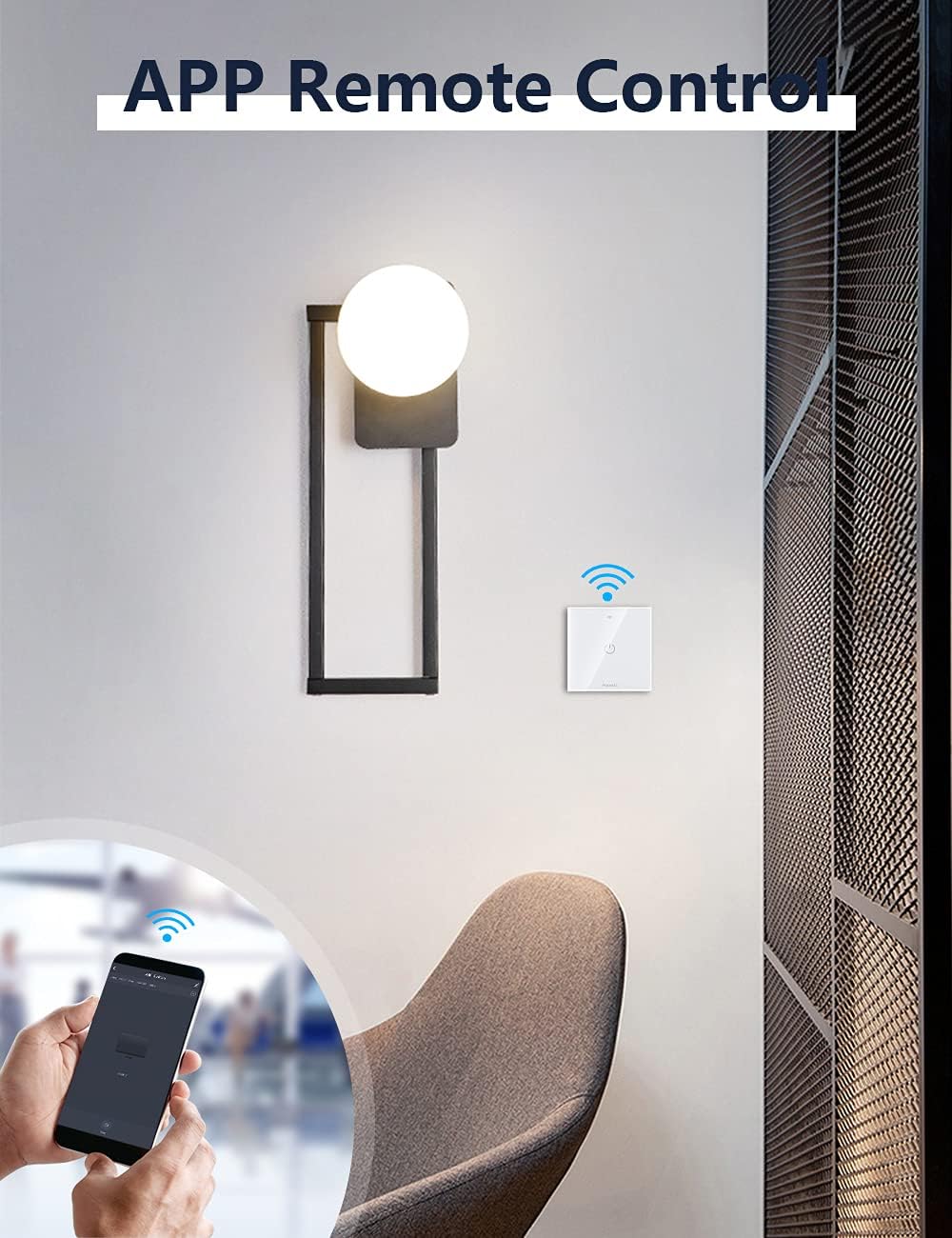
Image: A hand holding a smartphone displaying the 'Smart Life' app, remotely controlling a Maxcio Smart WiFi Light Switch installed on a wall, indicating remote app control functionality.

Image: A smartphone screen displaying a light scheduling interface within the app, showing 'Turn ON' at 08:00 AM and 'Turn OFF' at 22:00 PM, demonstrating the timer and scheduling features.

Image: An illustration depicting multiple family members (Brother, Sister, Dad, Mom) sharing control of smart home devices, symbolizing the 'Family Group Share' function of the Maxcio app.
2. Iṣakoso ohun
The Maxcio Smart WiFi Light Switch is compatible with Amazon Alexa (Echo / Dot / Tap) and Google Assistant. Connect your switch by enabling the Maxcio skill in the Alexa or Google Assistant app. Once connected, you can control your lights with simple voice commands.
- Example commands: "Alexa, turn on the light." or "Hey Google, turn off the light."

Image: A dining room scene with an Amazon Echo device on the table, and a speech bubble saying "Alexa, turn on the light.", demonstrating the voice control feature of the Maxcio Smart WiFi Light Switch.
3. Fọwọkan Iṣakoso
The switch features a physical touch-sensitive panel for manual operation. Simply tap the designated area on the switch to turn your lights on or off. The LED backlight ensures visibility in the dark.

Image: A hand interacting with the touch-sensitive surface of a Maxcio Smart WiFi Light Switch, with a bedroom in the background, illustrating the manual touch control functionality.
4. Awọn ẹya ara ẹrọ ti ilọsiwaju
- Iṣakoso Imọlẹ Itanna LED: Turn off the backlight at night to avoid disturbance.
- Iranti pipa-agbara: The switch remembers its last state (on/off) after a power outage and restores it when power returns.
- Delay Off Function: Configure the switch to automatically turn off after a set period.

Image: A multi-panel image illustrating advanced features: 'Control de Luz de Fondo' (Backlight Control), 'Actualizar Chip CB' (Updated CB Chip for stability), 'Función de Retardo de Apagado' (Delay Off Function), and 'Memoria de Apagado' (Power-off Memory).
Itoju
To ensure optimal performance and longevity of your Maxcio Smart WiFi Light Switch, follow these simple maintenance guidelines:
- Ninu: Gently wipe the glass panel with a soft, dry cloth. Avoid using abrasive cleaners or solvents that could damage the surface.
- Awọn imudojuiwọn famuwia: Periodically check the 'Smart Life' or 'Tuya' app for available firmware updates to ensure your switch has the latest features and security enhancements.
- Awọn ipo Ayika: Avoid installing the switch in areas with excessive moisture or extreme temperatures, as this may affect its performance and lifespan.
Laasigbotitusita
- Swip kò dáhùn: Ensure the power supply is connected and the circuit breaker is on. Check the wiring connections for any loose ends.
- Ko le sopọ si Wi-Fi: Verify that your Wi-Fi network is 2.4 GHz. Ensure the switch is within range of your Wi-Fi router. Try restarting your router and the switch.
- Iṣakoso ohun ko ṣiṣẹ: Confirm that the Maxcio skill is enabled in your Alexa or Google Assistant app and that the switch is properly linked. Check your internet connection.
- LED backlight not working: Check the app settings to ensure the backlight is enabled.
Awọn pato
| Ẹya ara ẹrọ | Sipesifikesonu |
|---|---|
| Olupese | Maxcio |
| Nọmba awoṣe | KS-601 |
| Ọja Mefa | 8.6 x 3.2 x 8.6 cm |
| Iwọn Ọja | 200 g |
| Àwọ̀ | Funfun |
| Ohun elo | Acrylonitrile Butadiene Styrene (ABS) |
| Itanna Agbara | 600 Watts (per gang) |
| Agbara to pọju | 3500 Watts (total) |
| Awọn ọna Voltage | 220 Volts |
| Ti won won Lọwọlọwọ | 10 Amperes |
| Circuit Iru | 2-Ọna |
| Asopọmọra | Wi-Fi 2.4 GHz (IEEE 802.11 b/g/n) |
| Awọn ọna Iṣakoso | App, Voice (Alexa/Google Home), Touch |
| Awọn eroja To wa | 1x Switch, 1x Manual |
Official ọja Video
Video: A demonstration of the Maxcio Smart WiFi Light Switch, including its installation process, wiring connections, and how to control it using a smartphone app and voice commands. The video shows the physical switch, wiring terminals, and the app interface for turning lights on and off.
Atilẹyin ọja ati Support
Maxcio products typically come with a standard manufacturer's warranty. For specific warranty details, technical support, or assistance with installation and troubleshooting, please refer to the contact information provided in your product packaging or visit the official Maxcio website. You may also contact the seller directly through your purchase platform for support.