
1. Ifihan
Welcome to the user manual for your Genius Manticore Gaming Keyboard. This guide provides essential information for setting up, operating, maintaining, and troubleshooting your new gaming keyboard. Please read these instructions carefully to ensure optimal performance and longevity of your device.
2. Ọja Ipariview
The Genius Manticore Gaming Keyboard is designed for an enhanced gaming experience, featuring a durable build and responsive keys. It connects via USB and is compatible with a wide range of devices. The keyboard includes 104 keys with a standard QWERTY layout, complemented by additional gaming-specific features.
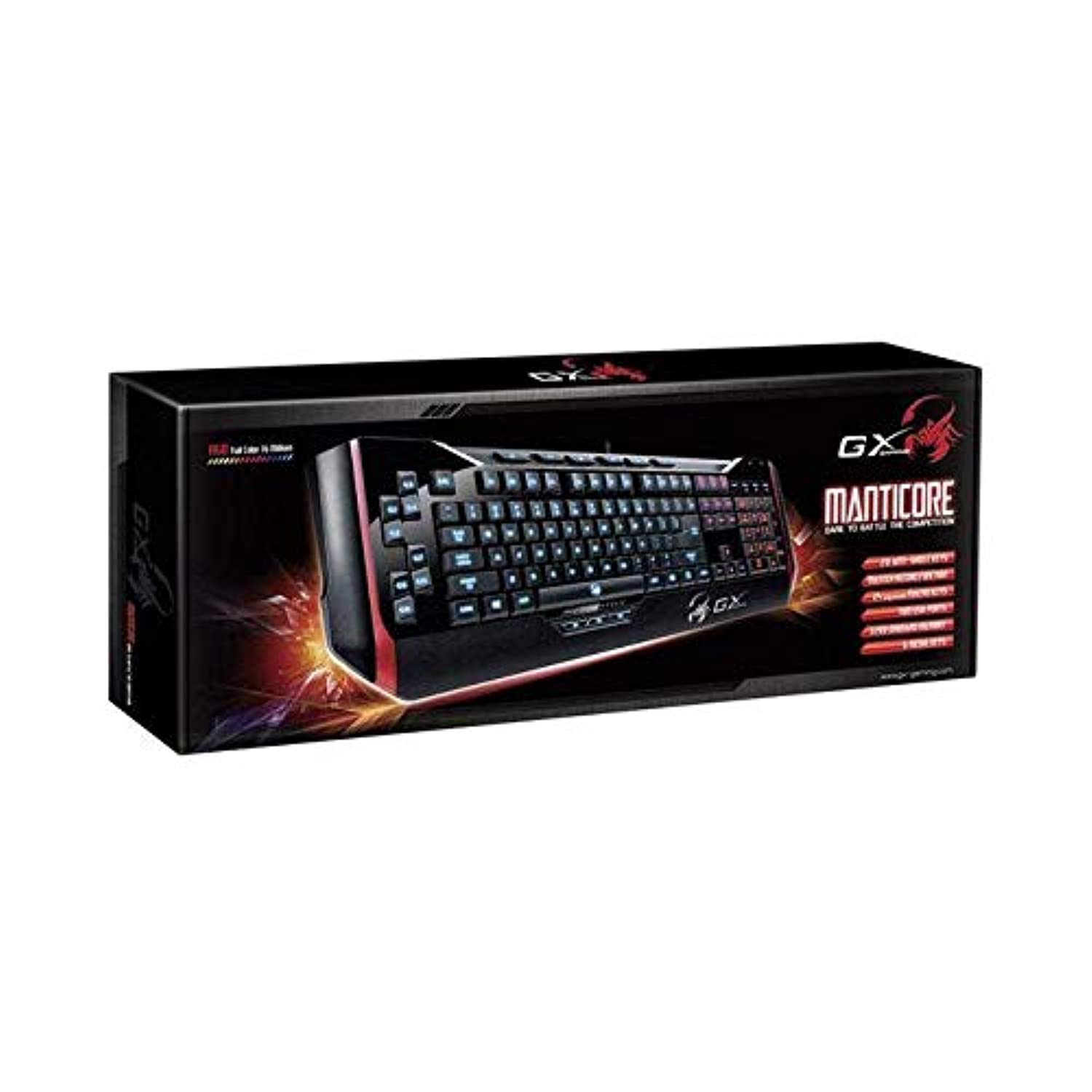
Nọmba 1: Genius Manticore Gaming Keyboard. This image displays the Genius Manticore Gaming Keyboard, featuring a black body with red accents on the sides. The keys are illuminated, indicating its gaming functionality. The keyboard has a standard QWERTY layout with additional keys on the left side, likely for macros, and a numeric keypad on the right.
3. Eto
- Yọ Keyboard kuro: Carefully remove the Genius Manticore Gaming Keyboard from its packaging. Ensure all components are present.
- Sopọ si Ẹrọ Rẹ: Locate an available USB port on your computer or compatible device. Insert the USB connector of the keyboard firmly into the USB port.
- Fifi sori ẹrọ Awakọ (ti o ba jẹ dandan): For most modern operating systems, the keyboard will be recognized automatically, and standard drivers will be installed. If prompted, follow the on-screen instructions to complete any driver installation.
- Iṣe idanwo: Open a text editor or a web aṣàwákiri kí o sì dán àwọn kọ́kọ́rọ́ wò láti rí i dájú pé wọ́n ń dáhùn dáadáa.
4. Awọn ilana Iṣiṣẹ
The Genius Manticore Gaming Keyboard offers a standard QWERTY layout for general typing and dedicated features for gaming.
- Awọn Iṣẹ́ Bọ́tìkì Déédé: All standard alphanumeric, symbol, and function keys operate as expected on a typical QWERTY keyboard.
- Awọn ẹya ara ẹrọ ere: The keyboard is designed for gaming. Specific gaming features, such as customizable backlighting or programmable macro keys (if available on your model), can typically be configured through dedicated software provided by Genius or through specific key combinations. Refer to the Genius website for any available software downloads or advanced feature guides.
- Orisun Agbara: The keyboard is powered directly via the USB connection to your device. No external power supply or batteries are required.
5. Itọju
Itọju to dara ṣe idaniloju gigun ati iṣẹ ti keyboard rẹ.
- Ninu: Lo asọ ti o rọ, ti o gbẹ lati pa dada keyboard kuro. Fun eruku ati idoti laarin awọn bọtini, lo afẹfẹ fisinuirindigbindigbin. Yago fun lilo awọn kẹmika lile tabi awọn ohun elo abrasive.
- Ifihan Olomi: This keyboard is ko omi sooro. Avoid spilling liquids on the keyboard, as this can cause permanent damage. If liquid exposure occurs, immediately disconnect the keyboard from your device and allow it to dry completely before attempting to use it again.
- Ibi ipamọ: Tí o kò bá lò ó, tọ́jú kọ̀ǹpútà náà sí ibi tí ó mọ́ tónítóní tí ó sì gbẹ, kí ó má baà sí ooru líle tàbí oòrùn tààrà.
6. Laasigbotitusita
Tí o bá ní ìṣòro pẹ̀lú keyboard rẹ, gbìyànjú àwọn ọ̀nà wọ̀nyí:
- Keyboard Ko Dahun:
- Rii daju pe okun USB ti sopọ ni aabo si keyboard mejeeji ati kọnputa naa.
- Gbiyanju lati so keyboard pọ mọ ibudo USB ti o yatọ lori kọnputa rẹ.
- Ṣe ìdánwò keyboard lórí kọ̀ǹpútà mìíràn láti mọ̀ bóyá ìṣòro náà wà pẹ̀lú keyboard tàbí kọ̀ǹpútà àtilẹ̀wá.
- Tun kọmputa rẹ bẹrẹ.
- Àwọn Kọ́kọ́rọ́ Pàtàkì Tí Kò Ṣiṣẹ́:
- Check for any physical obstructions under the non-functional keys.
- Nu keyboard bi a ti ṣalaye ninu apakan Itọju.
- Ensure no software conflicts are present (e.g., macro software interfering with standard key functions).
- Awọn oran Imọlẹ afẹyinti:
- If your model features adjustable backlighting, ensure it is not turned off or set to the lowest brightness level. Consult the Genius website for specific key combinations to control backlighting.
If these steps do not resolve the issue, please contact Genius customer support for further assistance.
7. Awọn pato
| Ẹya ara ẹrọ | Ẹ̀kúnrẹ́rẹ́ |
|---|---|
| Orukọ Brand | Oloye |
| Nọmba awoṣe | GE31310058108 |
| Awọn ẹrọ ibaramu | Gbogbo |
| Asopọmọra Technology | USB |
| Apejuwe Keyboard | Ere |
| Pataki Awọn ẹya ara ẹrọ | Ere |
| Àwọ̀ | Multi-color (Black and Red) |
| Ara | Igbalode |
| Ohun elo | Awọn ohun elo pupọ |
| Akori | Awọn ere |
| Orisun agbara | Agbara USB |
| Nọmba ti Awọn bọtini | 104 |
| Ifilelẹ bọtini itẹwe | Keyboard QWERTY |
| Ọwọ Iṣalaye | Ambidextrous |
| Bọtini opoiye | 104 |
| Omi Resistance Ipele | Ko Omi Resistant |
| Olupese | Oloye |
| ASIN | B07MQMXJS9 |
8. Atilẹyin ọja ati Support
Your Genius Manticore Gaming Keyboard is covered by a standard manufacturer's warranty. For detailed information regarding warranty terms, registration, or to access technical support, please visit the official Genius webojula tabi kan si wọn onibara iṣẹ Eka. Tọju iwe-ẹri rira rẹ bi ẹri rira.
Fun iranlọwọ siwaju sii, o le ṣabẹwo si Genius Official Webojula.