
HANWHA HCV-6070R
Hanwha Techwin HCV-6070R 2MP Outdoor Vandal-Resistant Dome Camera User Manual
Model: HCV-6070R
Ọrọ Iṣaaju
This manual provides detailed instructions for the installation, operation, and maintenance of the Hanwha Techwin HCV-6070R 2MP Outdoor Vandal-Resistant Dome Camera. This camera is designed for outdoor security surveillance, offering 2-megapixel resolution, a 2.8-12mm manual varifocal lens, and night vision capabilities with a BNC connection.
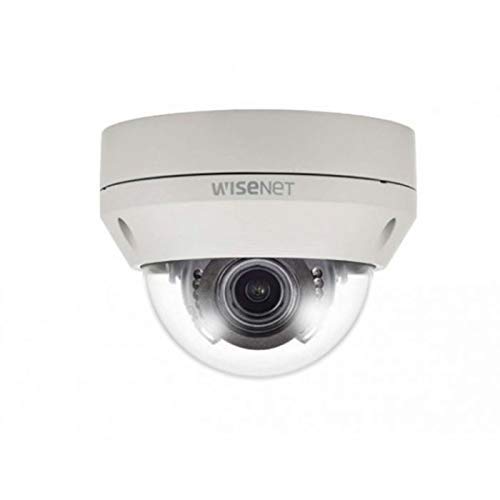
Figure 1: Hanwha Techwin HCV-6070R 2MP Outdoor Vandal-Resistant Dome Camera.
Alaye Aabo
Please read all safety instructions carefully before installing or operating the camera. Keep this manual for future reference.
- Ensure the power supply matches the camera's requirements to prevent electrical shock or fire.
- Ma ṣe fi kamẹra han si awọn iwọn otutu to gaju, ọriniinitutu, tabi awọn agbegbe ibajẹ.
- Fifi sori yẹ ki o ṣe nipasẹ oṣiṣẹ oṣiṣẹ ni ibamu pẹlu awọn koodu itanna agbegbe.
- Avoid direct exposure of the lens to strong light sources for extended periods.
- Ma ṣe gbiyanju lati tu tabi yi kamẹra pada. Eyi yoo sọ atilẹyin ọja di ofo.
Package Awọn akoonu
Jẹrisi pe gbogbo awọn ohun kan wa ninu package:
- Hanwha Techwin HCV-6070R Dome Camera (1 unit)
- Iṣagbesori skru ati ìdákọró
- Fifi sori Àdàkọ
- Quick Bẹrẹ Itọsọna
- Waterproof Cap (if applicable)
Ṣeto
1. Iṣagbesori Kamẹra
The HCV-6070R is designed for wall mounting. Choose a suitable outdoor location that provides the desired surveillance coverage and is protected from direct impact.
- Use the provided installation template to mark the drilling holes on the wall.
- Drill holes according to the template and insert the wall anchors.
- Secure the camera base to the wall using the mounting screws.
- Ṣe atunṣe kamẹra naa viewing angle as needed before tightening all screws.
2. Wiring ati awọn isopọ
The camera utilizes a BNC connection for video output and requires a separate power supply. Ensure all connections are secure and weatherproof for outdoor use.
- Asopọ fidio: Connect a BNC cable from the camera's BNC port to the video input of your DVR (Digital Video Recorder).
- Asopọ agbara: Connect a 12V DC power adapter (not included) to the camera's power input. The camera operates at 8 watts.
- Asopọ Alailowaya: The camera supports Wi-Fi for remote control and monitoring. Refer to the operating section for initial Wi-Fi setup.

Olusin 2: Example of a BNC coaxial cable for video connection. Ensure a secure connection to the camera and DVR.
3. Iṣeto ni ibẹrẹ
After physical installation and power-up, access the camera settings via your connected DVR or a compatible mobile application (Android controller type specified).
- Ṣeto ọjọ ati akoko.
- Configure network settings for Wi-Fi connectivity.
- Adjust video quality and recording preferences.
Ṣiṣẹ kamẹra
1. Video Abojuto ati Gbigbasilẹ
The camera provides 2MP effective video resolution, capturing video at 1080p and a frame rate of 30 fps. Video is typically recorded in MPEG-4 format.
- Wiwọle laaye view àti foo tí a gbà sílẹ̀tage through your connected DVR or the remote control application.
- Ensure your DVR is configured to record from the correct channel.
2. Adjusting Focus and Zoom
The HCV-6070R features a 2.8-12mm manual varifocal lens with optical zoom. Adjustments are made manually on the camera body.
- Loosen the focus and zoom locking screws on the camera lens assembly.
- Adjust the zoom ring to achieve the desired field of view.
- Adjust the focus ring until the image is clear and sharp.
- Tighten the locking screws to secure the settings.
3. Night Vision and Low Light Performance
Equipped with night vision and "Night Color" low light technology, the camera automatically switches to infrared mode in low light conditions to provide clear surveillance footage. The light source type is LED.
- Ensure no obstructions block the infrared LEDs on the camera.
- The camera will automatically activate its infrared illuminators when ambient light levels drop.
4. išipopada erin
The camera supports motion-only alerts. Configure motion detection zones and sensitivity settings through your DVR or the remote control application.
- Ṣetumo awọn agbegbe kan pato laarin kamẹra view fun erin išipopada.
- Set the sensitivity level to minimize false alarms.
- Configure alert notifications (e.g., email, push notifications) via your DVR or application.
5. Isakoṣo latọna jijin
The camera can be controlled remotely using a compatible Android application. Ensure the camera is connected to your Wi-Fi network.
- Download and install the Hanwha Techwin mobile application on your Android device.
- Follow the in-app instructions to add and connect to your HCV-6070R camera.
- Nipasẹ ohun elo, o le view gbe footage, access recordings, and adjust certain camera settings.
Itoju
Itọju deede ṣe idaniloju iṣẹ ṣiṣe to dara julọ ati igbesi aye gigun ti kamẹra rẹ.
- Fifọ lẹnsi naa: Gently wipe the camera lens with a soft, clean, lint-free cloth. For stubborn dirt, use a lens cleaning solution specifically designed for optical surfaces.
- Ṣiṣeto ile naa: Clean the camera's exterior housing with a damp asọ. Maṣe lo awọn kẹmika ti o lewu tabi awọn afọmọ abrasive.
- Ayẹwo USB: Periodically check all cables and connections for signs of wear, damage, or corrosion, especially for outdoor installations.
- Awọn imudojuiwọn famuwia: Check the Hanwha Techwin website for any available firmware updates to ensure your camera has the latest features and security patches.
Laasigbotitusita
| Isoro | Owun to le Fa | Ojutu |
|---|---|---|
| Ko si abajade fidio | No power; Loose BNC connection; Incorrect DVR input selected. | Check power supply; Secure BNC cable; Select correct channel on DVR. |
| Iruju tabi blurry aworan | Lens out of focus; Dirty lens. | Manually adjust focus (refer to Operating section); Clean the lens. |
| Iran oru ko sise | IR LEDs blocked; Insufficient power; Camera stuck in day mode. | Clear obstructions; Verify power supply; Restart camera. |
| Motion detection not triggering | Incorrect sensitivity settings; Motion detection zone not configured. | Adjust sensitivity; Configure motion detection zones in DVR/app. |
| Cannot connect via Wi-Fi | Incorrect Wi-Fi password; Camera out of range; Network issues. | Verify Wi-Fi credentials; Move camera closer to router; Check network status. |
Awọn pato
| Awoṣe | HCV-6070R |
| Brand | HANWHA Techwin |
| Ipinnu fidio ti o munadoko | 2 MP (1080p) |
| Iwọn fireemu | 30 fps |
| Lẹnsi Iru | 2.8-12mm Manual Varifocal Lens |
| Idojukọ Iru | Idojukọ Afowoyi |
| Sun-un Iru | Sun-un Optical |
| Asopọmọra Technology | Wireless (Wi-Fi), BNC Connection |
| Orisun agbara | Manual (requires external 12V DC power adapter) |
| Wattage | 8 watt |
| inu ile / ita gbangba Lilo | Ita gbangba |
| Pataki Ẹya | Night Vision (Night Color low light technology) |
| Fọọmù ifosiwewe | Dome |
| Iṣagbesori Iru | Ògiri Ògiri |
| Awọn ẹrọ ibaramu | DVR |
| Ọna Iṣakoso | Remote (Android Controller Type) |
| International Idaabobo Rating | IP54 |
| Fọto sensọ Technology | CMOS |
| Fidio Yaworan kika | MPEG-4 |
| Iru Itaniji | Išipopada Nikan |
Atilẹyin ọja ati Support
For warranty information and technical support, please refer to the official Hanwha Techwin webojula tabi kan si wọn onibara iṣẹ taara. Tọju iwe-ẹri rira rẹ bi ẹri rira fun awọn iṣeduro atilẹyin ọja.
Olupese: Hanwha
Ọjọ Akọkọ Wa: Oṣu Kẹta Ọjọ 19, Ọdun 2019
Ask a question about this manual
Ask about setup, troubleshooting, compatibility, parts, safety, or missing instructions. Manuals+ will review the question and use this page’s manual context to help answer it.