
Ọrọ Iṣaaju
This manual provides detailed instructions for the installation, operation, and maintenance of your Antec Dark Phantom DP501 ATX Mid Tower Gaming Case. Please read this manual thoroughly before beginning installation to ensure proper setup and optimal performance.

Aworan: Iwaju-ẹgbẹ view of the Antec Dark Phantom DP501 case, showcasing its sleek design and ARGB lighting elements.
Package Awọn akoonu
Jẹrisi pe gbogbo awọn paati wa ninu package:
- Antec Dark Phantom DP501 ATX Mid Tower Gaming Case
- Apoti ẹya ẹrọ (awọn skru, awọn asopọ okun, awọn iduro)
- Afowoyi Olumulo (iwe-ipamọ yii)
Ṣeto
1. Unpacking ati ayewo
Carefully remove the case from its packaging. Inspect for any signs of damage during transit. Remove the tempered glass side panel by unscrewing the thumb screws at the rear of the case.

Aworan: inu view of the Antec DP501 case, highlighting the spacious motherboard tray and cable management cutouts.
2. Modaboudu fifi sori
Install the necessary standoffs onto the motherboard tray according to your motherboard's form factor (ATX, Micro-ATX, Mini-ITX). Carefully place your motherboard onto the standoffs and secure it with screws.
3. Agbara Ipese Unit (PSU) fifi sori
The DP501 supports standard ATX power supplies. Install the PSU into the dedicated compartment at the bottom rear of the case. It is recommended to install modular PSU cables before securing the PSU if space is limited, especially for larger units like the Corsair RM1000i mentioned in user feedback.
4. Fifi sori ẹrọ Awakọ Ibi ipamọ
The case includes bays for 2.5-inch SSDs and 3.5-inch HDDs. Locate the drive cages and trays, install your storage devices, and secure them. The HDD bay may need to be temporarily removed for easier PSU installation.
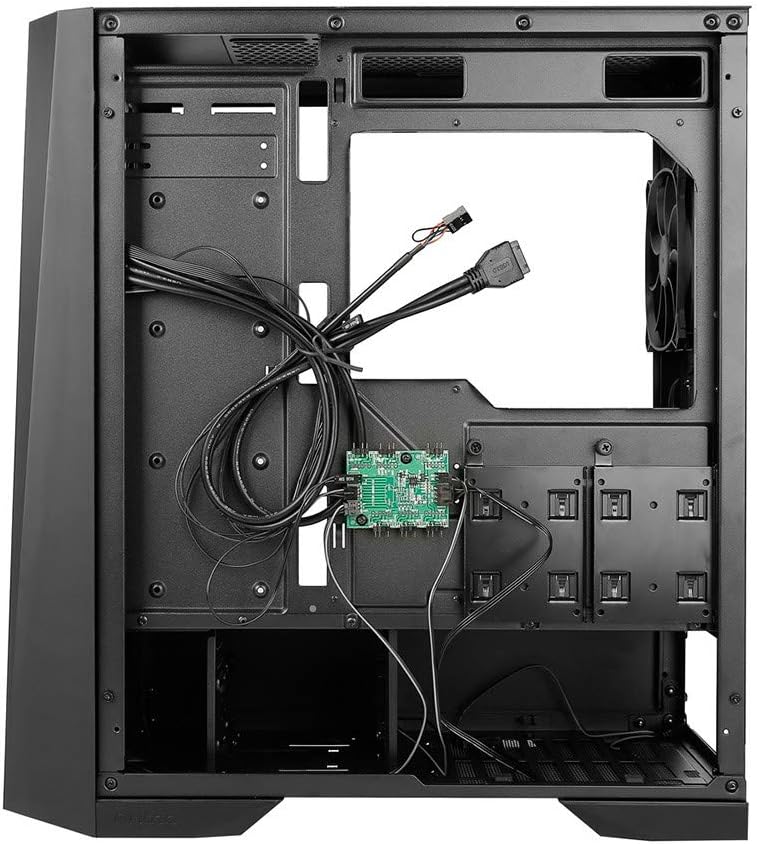
Àwòrán: Inú ẹ̀yìn view of the Antec DP501 case, illustrating the cable management area and accessible drive bays.
5. Fifi Kaadi Aworan ati Kaadi Imugboroosi sori ẹrọ
Install your graphics card and any other expansion cards into the appropriate PCIe slots on your motherboard. Secure them with screws at the rear of the case.
6. Itutu eto sori
The DP501 supports various cooling configurations:
- Awọn ololufẹ: Up to six LED case fans can be installed for optimal thermal performance.
- Itutu Omi: Ample room is provided for both All-In-One (AIO) and custom loop liquid cooling systems. Note that installing a 3-fan liquid cooler at the front may limit space for longer graphics cards. Consider top mounting for radiators where possible.
7. Iṣakoso USB
Lo àwọn ohun tí a gé síta àti àwọn ibi tí a ti so mọ́ ara wọn lẹ́yìn àwo módàbù láti ṣètò àwọn wáyà. Èyí mú kí afẹ́fẹ́ àti ẹwà wọn sunwọ̀n síi.
Ṣiṣẹ
1. Agbara lori / Paa
Connect the power cable to your PSU and a wall outlet. Press the power button located on the top front panel of the case to turn on your system. Press again to turn off, or hold for a forced shutdown.
2. ARGB ina Iṣakoso
The DP501 features an inbuilt LED controller for its ARGB lighting elements. You can control the colors and modes using the dedicated LED mode I/O button on the top panel. For 16.8 million custom colors and advanced synchronization, connect the 3-pin ARGB module to a compatible motherboard header and use the motherboard's software (e.g., ASUS Aura Sync, MSI Mystic Light, Gigabyte RGB Fusion).

Aworan: Iwaju view of the Antec DP501 case, demonstrating the active ARGB lighting on the front panel.
Video: Antec Dark Phantom DP501 ATX Mid Tower Gaming Case overview, ifihanasing ARGB lighting effects and internal components.
Itoju
1. Ìmọ́tótó Àlẹ̀mọ́ Eruku
The DP501 includes dust filters to prevent dust buildup. Regularly clean the removable dust filters located on the top and bottom of the case. Gently slide them out, clean with water or a soft brush, and ensure they are dry before reinserting.

Aworan: Isalẹ view of the Antec DP501 case, showing the removable dust filter for the power supply intake.
2. Gbogbogbo Cleaning
Lo asọ, damp cloth to clean the exterior surfaces of the case. For the tempered glass panel, use a glass cleaner and a microfiber cloth to avoid streaks. Avoid abrasive cleaners or solvents.
Laasigbotitusita
- Eto Ko Ni Agbara:
Check all power connections, including the PSU to the wall, PSU to motherboard, and front panel power switch header to the motherboard. Ensure the PSU switch is in the 'ON' position. - Ìmọ́lẹ̀ ARGB Kò Ṣiṣẹ́/Ṣíṣiṣẹ́pọ̀:
Verify that the ARGB controller is properly connected to the PSU and, if using motherboard sync, that the 3-pin ARGB cable is connected to the correct motherboard header. Ensure motherboard ARGB software is installed and configured correctly. - Awọn oran igbona pupọ:
Ensure all case fans are spinning correctly and oriented for proper airflow (intake/exhaust). Clean dust filters regularly. Verify CPU cooler and GPU cooler are properly seated and functioning. - Àwọn Ẹ̀yà Tí Kò Bára Mu:
The DP501 is a mid-tower case. While spacious, some oversized components (e.g., very long graphics cards, large 3-fan liquid coolers) may have fitment challenges, especially when front-mounted. Always check component dimensions against case specifications before purchase.
Awọn pato
| Brand | Antec |
| Orukọ awoṣe | DP501 |
| Iru Irú | Ile-iṣọ Mid |
| Modaboudu Ibamu | ATX |
| Ohun elo | SGCC+Plastic |
| Àwọ̀ | Dudu |
| Iwọn Nkan | kilo 5.6 (12.32 poun) |
| Awọn iwọn Ọja (LxWxH) | 0.81 x 0.76 x 0.39 inches (Note: These dimensions appear to be incorrect and likely refer to packaging or a small component. Refer to manufacturer's official product page for accurate case dimensions.) |
| Awọn ibudo USB 2.0 | 2 |
| Ọna Itutu | Water (supports liquid cooling) |
Atilẹyin ọja ati Support
Fun alaye atilẹyin ọja ati atilẹyin imọ-ẹrọ, jọwọ tọka si Antec osise webaaye tabi kan si iṣẹ alabara Antec taara. Jeki ẹri rira rẹ fun awọn iṣeduro atilẹyin ọja.