
1. Ifihan
The Onset HOBO H21-USB Micro Station is a compact, weatherproof data logger designed for multi-channel monitoring of environmental conditions. This battery-powered station supports up to five plug-and-play Smart Sensors, making it suitable for a wide range of indoor and outdoor applications. Its robust design and built-in USB interface ensure efficient data collection and offload.
Awọn ẹya pataki:
- Compact size for easy deployment in various environments.
- Five smart sensor inputs for versatile data collection.
- Wide range of compatible plug-and-play smart sensors.
- Integrated USB interface for direct data offload to PC or Mac.
- Weatherproof IP66 enclosure for harsh outdoor conditions.
- Hinged door and integrated mounting tabs for simple installation.
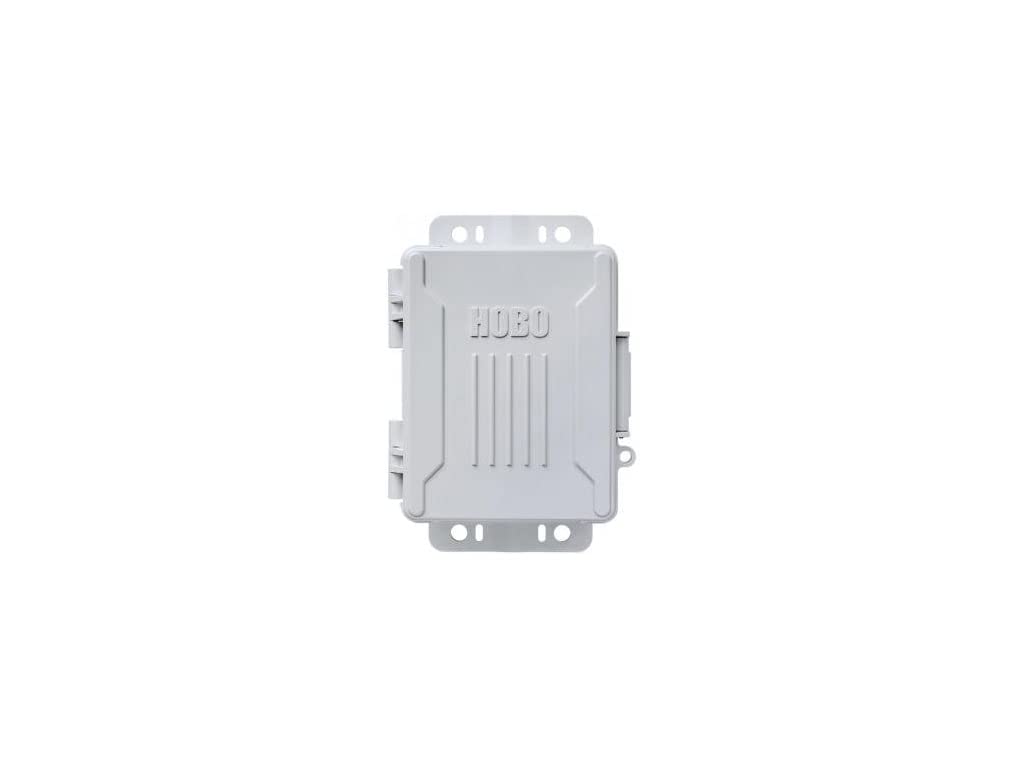
Figure 1: Onset HOBO H21-USB Micro Station Data Logger. This image shows the compact, grey data logger unit with its hinged door closed, highlighting its robust design.
2. Package Awọn akoonu
Daju pe gbogbo awọn nkan wa ninu package ṣaaju ki o to tẹsiwaju pẹlu fifi sori ẹrọ:
- HOBO H21-USB Micro Station Data Logger
- Okun USB
- Afowoyi Olumulo (iwe-ipamọ yii)
- (Note: Smart Sensors are sold separately and are not included with the base unit.)
3. Eto
3.1. Software fifi sori
Before deploying the HOBO H21-USB, install the necessary HOBOware software on your computer. HOBOware is required for configuring the logger, launching deployments, and offloading data.
- Download the latest version of HOBOware from the official Onset webojula: www.onsetcomp.com/support/software
- Follow the on-screen instructions to complete the installation for your Windows PC or Mac operating system.
- Connect the HOBO H21-USB to your computer using the provided USB cable. The software should recognize the device automatically.
3.2. Physical Installation and Sensor Connection
The H21-USB Micro Station is designed for easy deployment. Ensure the installation location is suitable for the sensors being used and provides adequate protection from extreme conditions beyond the logger's specifications.
- Open the hinged door of the Micro Station.
- Connect up to five compatible Smart Sensors into the available ports. Ensure each sensor is securely plugged in.
- Close the hinged door firmly to maintain the weatherproof seal.
- Use the integrated mounting tabs to secure the logger to a pole, post, or flat surface using screws or zip ties (not included). Ensure the logger is mounted in a way that does not obstruct sensor readings or expose it to unnecessary physical stress.
4. Awọn ilana Iṣiṣẹ
4.1. Configuring and Launching a Deployment
Use HOBOware software to configure the logging parameters and start a new data collection session.
- Connect the HOBO H21-USB to your computer via USB.
- Open HOBOware software.
- From the HOBOware menu, select Device > Launch.
- Configure the desired logging parameters, including:
- Wọle Aarin: How frequently data is recorded (e.g., every 5 minutes).
- Akoko Ibẹrẹ: Immediate, at a specific date/time, or on button push.
- Akoko Iduro: When memory is full, at a specific date/time, or never (manual stop).
- Iṣeto sensọ: Enable/disable connected sensors and set specific sensor parameters if applicable.
- Tẹ Bẹrẹ to launch the deployment. The logger will begin recording data according to your settings.
4.2. Data Offload and Analysis
Once a deployment is complete or you wish to retrieve data, follow these steps:
- Connect the HOBO H21-USB to your computer via USB.
- Open HOBOware software.
- From the HOBOware menu, select Device > Readout.
- The software will offload the recorded data from the logger.
- Fi data pamọ file to your computer. HOBOware allows you to view, plot, and export the data in various formats (e.g., CSV, Excel) for further analysis.
5. Itọju
5.1. Batiri Rirọpo
The HOBO H21-USB is powered by user-replaceable batteries. Refer to the specifications for the correct battery type. Replace batteries when the low battery indicator appears in HOBOware or if the logger fails to power on.
- Ensure the logger is not actively logging data. If it is, stop the deployment and offload any critical data.
- Open the hinged door and locate the battery compartment.
- Carefully remove the old batteries and dispose of them according to local regulations.
- Fi awọn batiri titun sii, ni idaniloju polarity ti o pe.
- Close the battery compartment and the hinged door securely.
5.2. Ninu ati Ibi ipamọ
Regular cleaning and proper storage ensure the longevity and accuracy of your data logger.
- Wipe the exterior of the logger with a damp asọ. Ma ṣe lo abrasive ose tabi epo.
- Ensure all ports and seals are free of dirt and debris.
- When not in use, store the logger in a cool, dry place away from direct sunlight and extreme temperatures.
- If storing for extended periods, remove the batteries to prevent leakage.
6. Laasigbotitusita
This section addresses common issues you might encounter with your HOBO H21-USB Micro Station.
| Isoro | Owun to le Fa | Ojutu |
|---|---|---|
| Logger not recognized by HOBOware. |
|
|
| Logger not recording data. |
|
|
| Awọn kika sensọ ti ko tọ. |
|
|
If you encounter issues not covered here, please refer to the Onset support webojula tabi olubasọrọ imọ support.
7. Awọn pato
| Ẹya ara ẹrọ | Ẹ̀kúnrẹ́rẹ́ |
|---|---|
| Awoṣe | H21-USB |
| Brand | Ibẹrẹ |
| Ni wiwo Hardware | USB |
| Awọn ẹrọ ibaramu | PC (Windows), Mac |
| Number of Smart Sensor Inputs | 5 |
| Lapapọ Awọn ibudo USB | 1 |
| Iwọn Nkan | 2.3 iwon |
| Apade Rating | IP66 (Ibo oju-ọjọ) |
| Awọn wiwọn atilẹyin | 4-20mA, Amp Hour, Barometric Pressure, DC Voltage, Kilowatt Hours, Leaf Wetness, Light Intensity, Power Factor, Pulse Input, Rainfall, Relative Humidity, Soil Moisture, Temperature, Volt-Amp Reactive, Volt-Amp Reactive hour, Volt-Amps, Water Flow, Watt Hours, Watts, Wind (Requires compatible Smart Sensors) |
| Ayika ti nṣiṣẹ | Ninu ile ati ita gbangba |
| UPC | 645759321725 |
| ASIN | B07N92MPXS |
8. Atilẹyin ọja ati Support
8.1. Atilẹyin ọja
Onset products are typically covered by a limited warranty against defects in materials and workmanship. The specific duration and terms of the warranty may vary. Please refer to the warranty information provided with your purchase documentation or visit the official Onset webaaye fun awọn eto imulo atilẹyin ọja alaye.
This warranty generally covers the repair or replacement of defective units, but does not cover damage caused by misuse, improper installation, unauthorized modification, or natural disasters.
8.2. Imọ Support
For technical assistance, troubleshooting, or questions regarding your HOBO H21-USB Micro Station, please contact Onset Technical Support.
- Atilẹyin Ayelujara: Visit the Onset support website for FAQs, knowledge base articles, and software downloads: www.onsetcomp.com/support
- Ibi iwifunni: Refer to the Onset website for current phone numbers and email addresses for technical support.
When contacting support, please have your product model (H21-USB) and a detailed description of the issue ready.


