
1. Ifihan
Thank you for choosing the Gembird MUS-6B-01 Optical USB Mouse. This manual provides essential information for setting up, operating, maintaining, and troubleshooting your new mouse. Please read these instructions carefully to ensure optimal performance and longevity of your device.

Image: The official Gembird brand logo, featuring the company name in a stylized font with a geometric design.
2. Ọja Ipariview
The Gembird MUS-6B-01 is a reliable 6-button optical USB mouse designed for comfortable and precise navigation. Its ambidextrous design makes it suitable for both left and right-handed users.
Awọn ẹya pataki:
- Titele Opitika: Pese dan ati ki o deede kọsọ Iṣakoso.
- 6 Awọn bọtini: Includes standard left/right click, scroll wheel, DPI adjustment, and two side buttons for enhanced functionality.
- Asopọmọra USB: Simple plug-and-play connection to your computer.
- Apẹrẹ Ambidextrous: Comfortable for both left and right-handed users.
Awọn eroja:
- Osi Tẹ Bọtini
- Ọtun Tẹ Bọtini
- Scroll Wheel (also functions as a middle click button)
- Bọtini Atunṣe DPI
- Bọtini Siwaju (Ẹgbẹ)
- Bọtini sẹhin (Ẹgbẹ)
- Optical Sensor (underside)
- USB Connector (at the end of the cable)
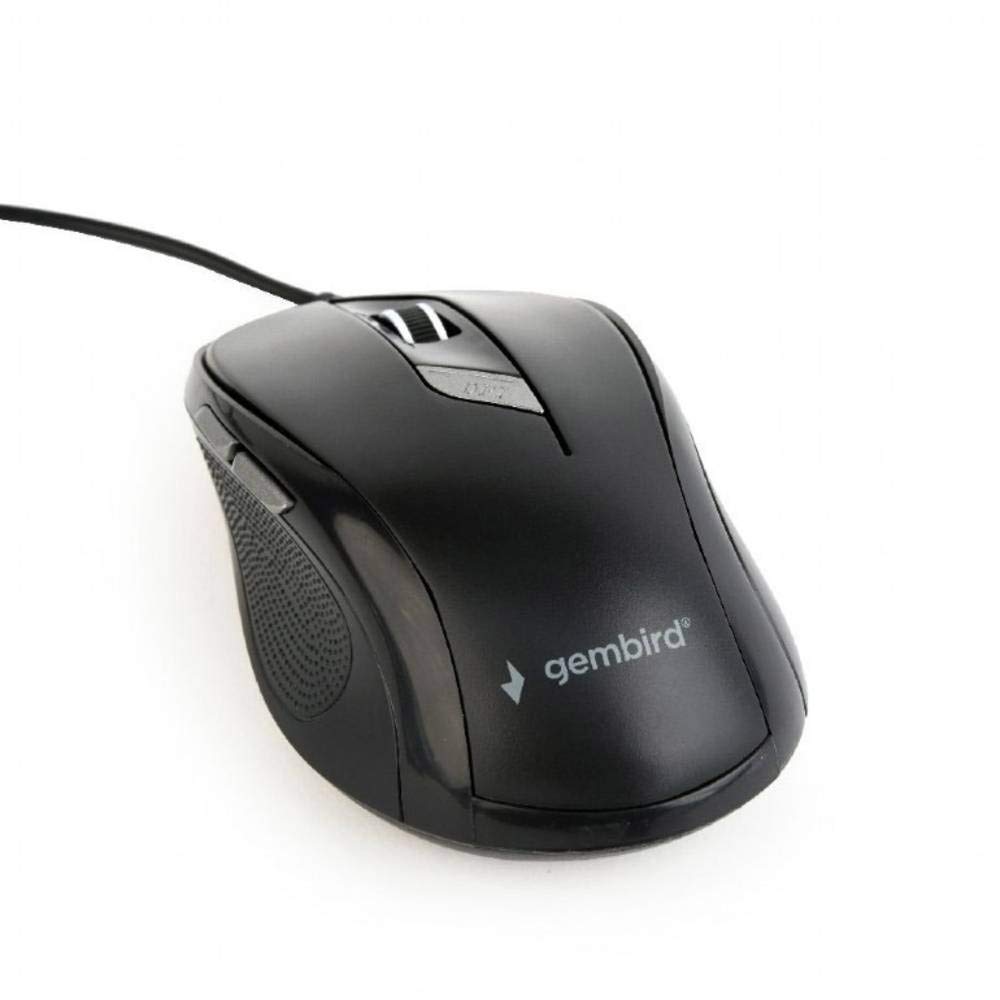
Aworan: A oke-isalẹ view of the Gembird MUS-6B-01 optical USB mouse. The mouse is black with a matte finish, featuring a scroll wheel, left and right click buttons, a DPI button, and two side buttons. A black USB cable extends from the front of the mouse.
3. Eto
Setting up your Gembird MUS-6B-01 mouse is a simple plug-and-play process.
Awọn igbesẹ fifi sori ẹrọ:
- Wa ibudo USB ti o wa lori kọnputa rẹ.
- Plug the USB connector of the Gembird MUS-6B-01 mouse firmly into the USB port.
- Your operating system (Windows, Linux) will automatically detect and install the necessary drivers. This process may take a few moments.
- Ni kete ti awọn awakọ ti fi sori ẹrọ, Asin ti šetan fun lilo.
No additional software installation is typically required for basic functionality.
4. Awọn ilana Iṣiṣẹ
Familiarize yourself with the functions of each button on your Gembird MUS-6B-01 mouse.
Awọn iṣẹ ipilẹ:
- Tẹ osi: Primary action, selecting items, opening files.
- Tẹ-ọtun: Opens context menus, provides additional options.
- Yi lọ Kẹkẹ: Yi lọ si oke tabi isalẹ nipasẹ awọn iwe aṣẹ ati web awọn oju-iwe.
- Aarin Tẹ (Yi Kẹkẹ Tẹ): Often used to open links in new tabs or for specific application functions.
Awọn iṣẹ to ti ni ilọsiwaju:
- Bọtini Atunse DPI: Located behind the scroll wheel, this button allows you to cycle through different sensitivity (DPI) settings. Press it to change the cursor speed to suit your preference.
- Bọtini Siwaju (Ẹgbẹ): Typically navigates forward in web aṣàwákiri tabi file oluwadi.
- Bọtini sẹhin (Ẹgbẹ): Typically navigates backward in web aṣàwákiri tabi file oluwadi.
The functionality of the side buttons may vary depending on the application or operating system settings. Some operating systems allow customization of these buttons.
5. Itọju
Proper care will help extend the life of your Gembird MUS-6B-01 mouse.
Ninu:
- Ge asopọ awọn Asin lati kọmputa rẹ ṣaaju ki o to nu.
- Lo asọ, die-die damp, lint-free cloth to wipe the surface of the mouse.
- For stubborn dirt, a small amount of mild soap solution can be applied to the cloth (not directly to the mouse).
- Use a cotton swab or compressed air to clean around the scroll wheel and between buttons.
- Ensure the optical sensor on the underside is clean and free of dust or debris.
- Maṣe lo awọn kẹmika ti o lewu, awọn olutọpa abrasive, tabi fi eku bọ inu omi.
Ibi ipamọ:
When not in use for extended periods, store the mouse in a clean, dry environment away from extreme temperatures and direct sunlight.
6. Laasigbotitusita
If you encounter issues with your Gembird MUS-6B-01 mouse, try the following troubleshooting steps:
| Isoro | Owun to le Solusan |
|---|---|
| Asin ko dahun |
|
| Erratic or jumpy cursor movement |
|
| Awọn bọtini ti ko ṣiṣẹ |
|
7. Awọn pato
Detailed technical specifications for the Gembird MUS-6B-01 Optical USB Mouse:
| Ẹya ara ẹrọ | Sipesifikesonu |
|---|---|
| Brand | Gembird |
| Orukọ awoṣe | MUS-6B-01 |
| Asopọmọra Technology | Firanṣẹ (USB) |
| Imọ-ẹrọ Iwari išipopada | Opitika |
| Bọtini opoiye | 6 |
| Ọwọ Iṣalaye | Ambidextrous |
| Ibamu Awọn ọna ṣiṣe | Linux, Windows 7, Windows XP (àti àwọn ẹ̀yà tuntun) |
| Hardware Platform | Kọmputa ti ara ẹni |
| USB Ipari | 5.0 mita |
| Iwọn Nkan | 74 giramu |
| Ohun elo | Ṣiṣu |
| Àwọ̀ | Dudu |
| Awọn batiri ti a beere | Rara |
8. Alaye Aabo
Jọwọ tẹle awọn itọnisọna ailewu wọnyi:
- Má ṣe fi eku sí omi tàbí ọ̀rinrin tó pọ̀ jù.
- Yago fun sisọ tabi tẹriba asin si awọn ipa to lagbara.
- Má ṣe gbìyànjú láti tú àsíì náà ká tàbí láti tún un ṣe fúnra rẹ. Tọ́ka sí àwọn òṣìṣẹ́ iṣẹ́ tó péye.
- Jeki ẹrọ naa kuro ni iwọn otutu ti o ga julọ ati oorun taara.
- Pa awọn ohun elo itanna run ni ọna ti o tọ gẹgẹbi awọn ofin agbegbe.
9. Atilẹyin ọja ati Support
Gembird products are designed for reliability and performance. For specific warranty terms and conditions, please refer to the warranty card included with your product or visit the official Gembird website. For technical support or further assistance, please contact your retailer or the Gembird customer service department.