
1. Ifihan
O ṣeun fun riraasing the Infocus 24-inch 720p LED TV, model IM24ED800. This manual provides essential information for setting up, operating, and maintaining your television. Please read this manual thoroughly before using the product and retain it for future reference.
Alaye Aabo
- Ma ṣe fi TV han si ojo tabi ọrinrin.
- Maṣe ṣe idiwọ awọn ṣiṣi eefin.
- Rii daju pe ipese agbara to dara voltage.
- Dabobo okun agbara lati rin lori tabi pinched.
- Tọkasi gbogbo iṣẹ si awọn oṣiṣẹ iṣẹ ti o peye.
- Jeki TV kuro lati orun taara, awọn orisun ooru, ati awọn aaye oofa to lagbara.
2. Package Awọn akoonu
Jọwọ ṣayẹwo apoti fun awọn nkan wọnyi:
- Infocus 24-inch 720p LED TV (IM24ED800)
- Remote Control (with batteries, if included)
- Okun agbara
- Iduro TV (awọn ege 2)
- Skru fun TV Imurasilẹ
- Afowoyi Olumulo (iwe-ipamọ yii)
3. Eto
3.1 So Iduro TV
To attach the stand to your Infocus TV:
- Farabalẹ gbe iboju TV si isalẹ lori rirọ, dada ti o mọ lati ṣe idiwọ awọn ikọlu.
- Mö kọọkan imurasilẹ nkan pẹlu awọn ti o baamu Iho lori isalẹ ti awọn TV.
- Fi àwọn skru tí a pèsè so gbogbo ohun tí ó dúró mọ́. Rí i dájú pé wọ́n ti di mọ́lẹ̀ dáadáa.
- Farabalẹ gbe TV naa ki o si gbe sori iduro, ipele ipele.
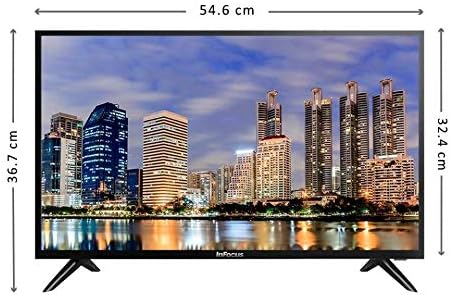
Aworan: Iwaju view of the Infocus 24-inch LED TV with dimensions indicated. The TV measures approximately 54.6 cm in width and 36.7 cm in height with the stand.
3.2 Awọn ẹrọ Nsopọ
Your Infocus TV features multiple input ports for connecting external devices.

Aworan: Ẹyin view of the Infocus 24-inch LED TV, highlighting the location of various input ports including HDMI and USB.
- Awọn asopọ HDMI: Connect Blu-ray players, game consoles, or cable/satellite boxes to the HDMI ports. The TV has 2 HDMI inputs.
- Awọn asopọ USB: Connect USB flash drives for media playback to the USB ports. The TV has 2 USB inputs.
- Antenna/Cable: Connect an antenna or cable TV signal to the RF input (if available, not explicitly listed but standard for TVs).
- Agbara: So okun agbara pọ si titẹ agbara TV ati lẹhinna si iṣan ogiri.
3.3 Ibẹrẹ Agbara Lori
Lẹhin sisopọ gbogbo awọn kebulu pataki:
- Ensure the power cord is securely plugged into both the TV and a power outlet.
- Tẹ bọtini agbara lori isakoṣo latọna jijin tabi lori TV funrararẹ.
- Follow the on-screen instructions for initial setup, which may include language selection, time zone, and channel scanning.
4. Ṣiṣẹ TV rẹ
4.1 Iṣakoso latọna jijin Loriview
The remote control allows you to access all TV functions. While specific button layouts may vary, common functions include:
- Agbara: Tan TV si tan tabi paa.
- Igbewọle/Orisun: Yan orisun titẹ sii (HDMI 1, HDMI 2, USB, TV).
- Iwọn didun Soke/Isalẹ: Ṣatunṣe ipele ohun.
- Ikanni Soke/Isalẹ: Ayipada TV awọn ikanni.
- Pa ẹnu mọ́: Ó pa ohùn tẹlifíṣọ̀n náà lẹ́nu mọ́.
- Akojọ: Ṣii akojọ aṣayan akọkọ fun awọn atunṣe eto.
- Awọn bọtini lilọ kiri (Soke/isalẹ/osi/Ọtun/DARA): Ti a lo lati lilö kiri ni awọn akojọ aṣayan ati jẹrisi awọn aṣayan.
- Jade/pada: Returns to the previous screen or exits the menu.
4.2 Ipilẹ Awọn iṣẹ
- Iyipada Orisun Iṣawọle: Tẹ awọn Iṣawọle or Orisun button on your remote control. Use the navigation buttons to select the desired input (e.g., HDMI 1, USB) and press OK.
- Iṣatunṣe Iwọn didun: Lo awọn Iwọn didun soke (+) or Iwọn didun isalẹ (-) awọn bọtini.
- Awọn ikanni Iyipada: Lo awọn Channel Up (CH+) or Channel Down (CH-) awọn bọtini.
4.3 USB Media Sisisẹsẹhin
Lati mu media ṣiṣẹ files from a USB flash drive:
- Insert a USB flash drive into one of the TV's USB ports.
- Tẹ awọn Iṣawọle or Orisun bọtini lori iṣakoso latọna jijin rẹ ki o yan USB.
- The TV's media browser should appear. Navigate through your files (photos, music, videos) using the remote control.
- Yan a file ki o si tẹ OK lati mu ṣiṣẹ.
5. Itọju
5.1 Ninu iboju
- Turn off the TV and unplug the power cord before cleaning.
- Lo aṣọ rirọ, ti ko ni awọ (fun apẹẹrẹ, aṣọ microfiber) lati nu iboju naa ni rọra.
- Fun awọn ami alagidi, fẹẹrẹ dampen awọn asọ pẹlu omi tabi a specialized iboju regede. Maṣe fun sokiri regede taara sori iboju.
- Yago fun lilo abrasive ose, oti, benzene, tabi tinrin, bi awọn wọnyi le ba iboju.
5.2 Itọju Gbogbogbo
- Keep the TV in a well-ventilated area.
- Yago fun gbigbe awọn nkan ti o wuwo si oke TV naa.
- Yọ TV kuro lakoko iji manamana tabi nigba ti kii yoo lo fun awọn akoko ti o gbooro sii.
6. Laasigbotitusita
Ti o ba pade awọn ọran pẹlu TV rẹ, tọka si awọn iṣoro ti o wọpọ ati awọn ojutu wọnyi:
| Isoro | Owun to le Fa | Ojutu |
|---|---|---|
| Ko si agbara | Kò sí okùn agbára tí a so pọ̀; ìṣòro ibi tí a ti ń ta iná | Rii daju pe okun agbara ti wa ni edidi ni aabo. Ṣe idanwo iṣan jade pẹlu ẹrọ miiran. |
| Ko si aworan, ṣugbọn ohun wa | Incorrect input source selected; loose video cable | Tẹ awọn Input/Orisun button to select the correct input. Check video cable connections. |
| Ko si ohun, ṣugbọn aworan wa | Volume muted or too low; audio cable issue | Tẹ awọn Pa ẹnu mọ́ button or increase volume. Check audio cable connections. |
| Isakoṣo latọna jijin ko ṣiṣẹ | Batteries depleted; obstruction; remote sensor blocked | Replace batteries. Remove any obstructions between the remote and TV. Ensure the TV's remote sensor is clear. |
| Ifiranṣẹ "Ko si ifihan agbara" | Incorrect input source; device not powered on; cable issue | Verify the correct input source is selected. Ensure the connected device is powered on. Check all cable connections. |
7. Awọn pato
The following are the technical specifications for the Infocus 24-inch 720p LED TV model IM24ED800:
| Ẹya ara ẹrọ | Ẹ̀kúnrẹ́rẹ́ |
|---|---|
| Nọmba awoṣe | IM24ED800 |
| Iwon iboju | 24 inches (61 cm) |
| Ifihan ọna ẹrọ | LED |
| Ipinnu | 1366 x 768 (720p HD) |
| Oṣuwọn sọtun | 60 Hz |
| Awọn igbewọle HDMI | 2 |
| Awọn igbewọle USB | 2 |
| Asopọmọra | HDMI, USB |
| Iṣagbesori Iru | Iduro tabili |
| Package Mefa | 60.8 x 37.8 x 12 cm |
| Package iwuwo | 5 kg |
8. Atilẹyin ọja ati Support
This Infocus TV is sold as a renewed product, which typically comes with a limited warranty provided by the seller or refurbisher. Please refer to your purchase documentation or contact your retailer for specific warranty terms and conditions.
For technical support or service inquiries, please contact the customer support channel provided by your retailer or the Infocus support webojula.