
XENOCAM A6708NH
XENOCAM 8CH 1080N Hybrid 5-in-1 AHD DVR User Manual
Model: A6708NH
1. Ifihan
This manual provides comprehensive instructions for the installation, configuration, and operation of your XENOCAM 8-channel 1080N Hybrid 5-in-1 AHD Digital Video Recorder (DVR). This DVR supports multiple video input formats including Analog, AHD, HD-TVI, CVI, and IP (NVR) cameras, offering versatile surveillance solutions. Please read this manual thoroughly before operating the device to ensure proper usage and optimal performance.
2. Alaye Aabo
- Rii daju pe ipese agbara voltage matches the DVR's requirements.
- Do not expose the DVR to moisture, rain, or extreme temperatures.
- Yẹra fún gbígbé DVR sí ibi tí oòrùn tààrà tàbí nítòsí àwọn orísun ooru.
- Do not open the DVR casing; tọka gbogbo iṣẹ si oṣiṣẹ ti o peye.
- Install the DVR in a well-ventilated area to prevent overheating.
3. Package Awọn akoonu
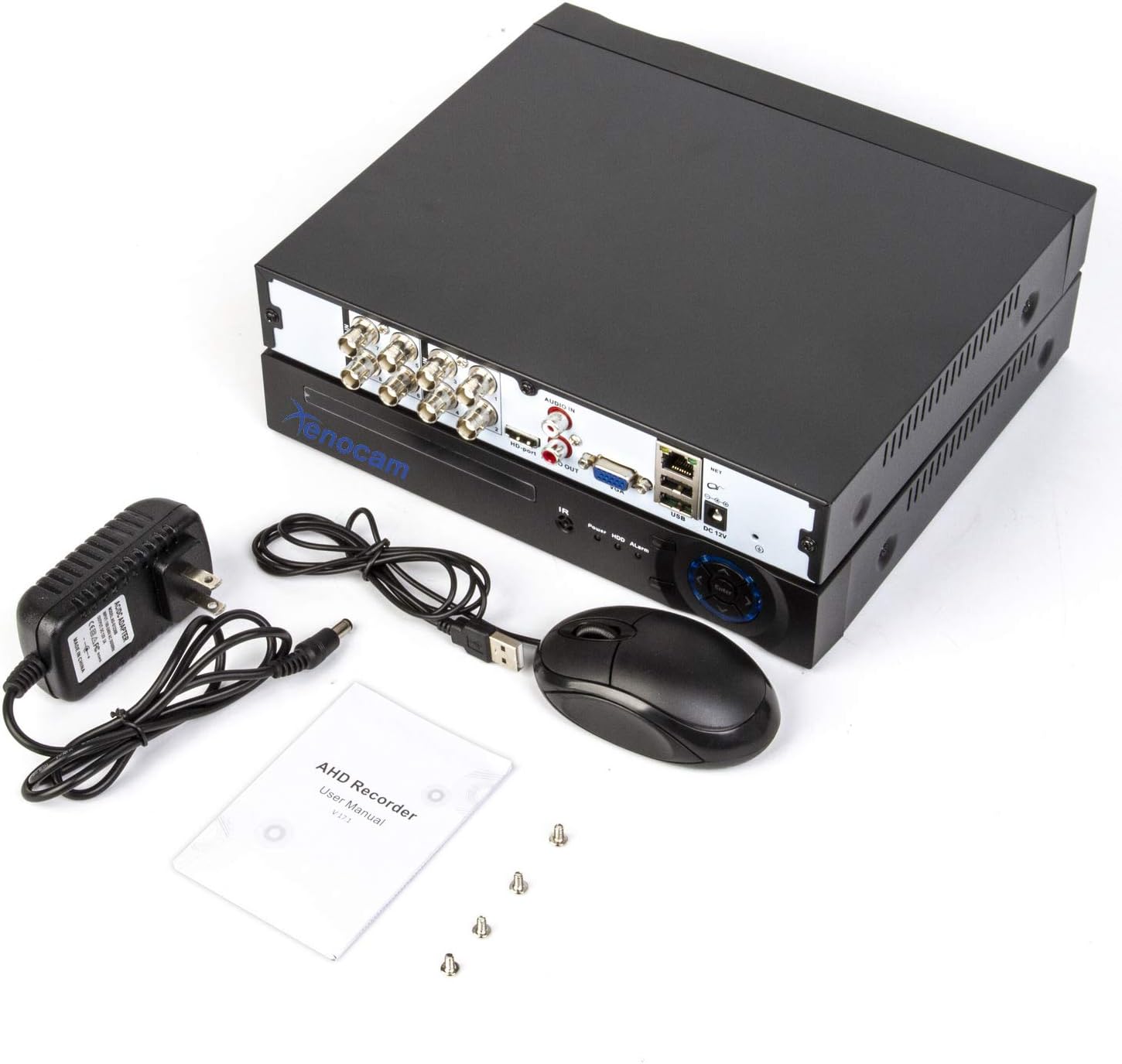
Jẹrisi pe gbogbo awọn ohun kan wa ninu package:
- XENOCAM 8CH 1080N Hybrid 5-in-1 AHD DVR Unit
- Adapter agbara
- Asin USB
- Àwọn skru fún fífi sori ẹrọ Hard Drive
- Itọsọna olumulo (Itọsọna Ibẹrẹ Ibẹrẹ)
Nọmba 3.1: Included accessories for the XENOCAM DVR system.
4. Ọja Ipariview
4.1 Iwaju ati ru Panels
Familiarize yourself with the ports and indicators on the DVR unit.

Nọmba 4.1: Front and Rear Panels of the DVR.
- Igbimo iwaju: Power indicator, HDD activity indicator, Alarm indicator, IR receiver, Navigation buttons (ESC, Enter, Menu).
- Iṣakoso yii:
- VIDEO IN (1-8): BNC connectors for analog, AHD, HD-TVI, CVI camera inputs.
- ODIO SINU/ODE: RCA connectors for audio input and output.
- HD-port (HDMI): Video output to monitor/TV.
- VGA: Video output to monitor/TV.
- USB: Ports for mouse, USB backup devices.
- NET (RJ45): Ibudo Ethernet fun asopọ nẹtiwọọki.
- DC 12V: Iṣagbewọle agbara.
4.2 ọja Mefa
The physical dimensions of the DVR unit are important for installation planning.

Nọmba 4.2: DVR Dimensions (Length: 9.96 in, Width: 9.37 in, Height: 1.65 in).
5. Eto
5.1 Hard Drive Installation (HDD not included)
A hard drive is required for recording video footage. Ensure the DVR is powered off before installation.
- Yọọ kuro ki o yọ ideri oke ti DVR kuro.
- So agbara SATA ati awọn okun data lati DVR pọ mọ dirafu lile naa.
- Ṣe aabo dirafu lile si ẹnjini DVR nipa lilo awọn skru ti a pese.
- Rọpo ideri oke ki o ni aabo pẹlu awọn skru.
5.2 Camera and Monitor Connection
Connect your cameras and a monitor to the DVR as illustrated below.
Nọmba 5.1: System Connection Diagram.
- Connect BNC cables from your cameras to the "VIDEO IN" ports (1-8) on the DVR.
- Connect a monitor or TV to the DVR using either the HDMI or VGA port.
- Connect the USB mouse to a USB port on the DVR.
- Fun latọna jijin viewing, connect an Ethernet cable from the DVR's "NET" port to your router.
- Connect the power adapter to the "DC 12V" input and then to a power outlet.
5.3 Ibẹrẹ agbara-soke ati iṣeto ni
Upon first power-up, the DVR will guide you through an initial setup wizard.
- Tan DVR naa.
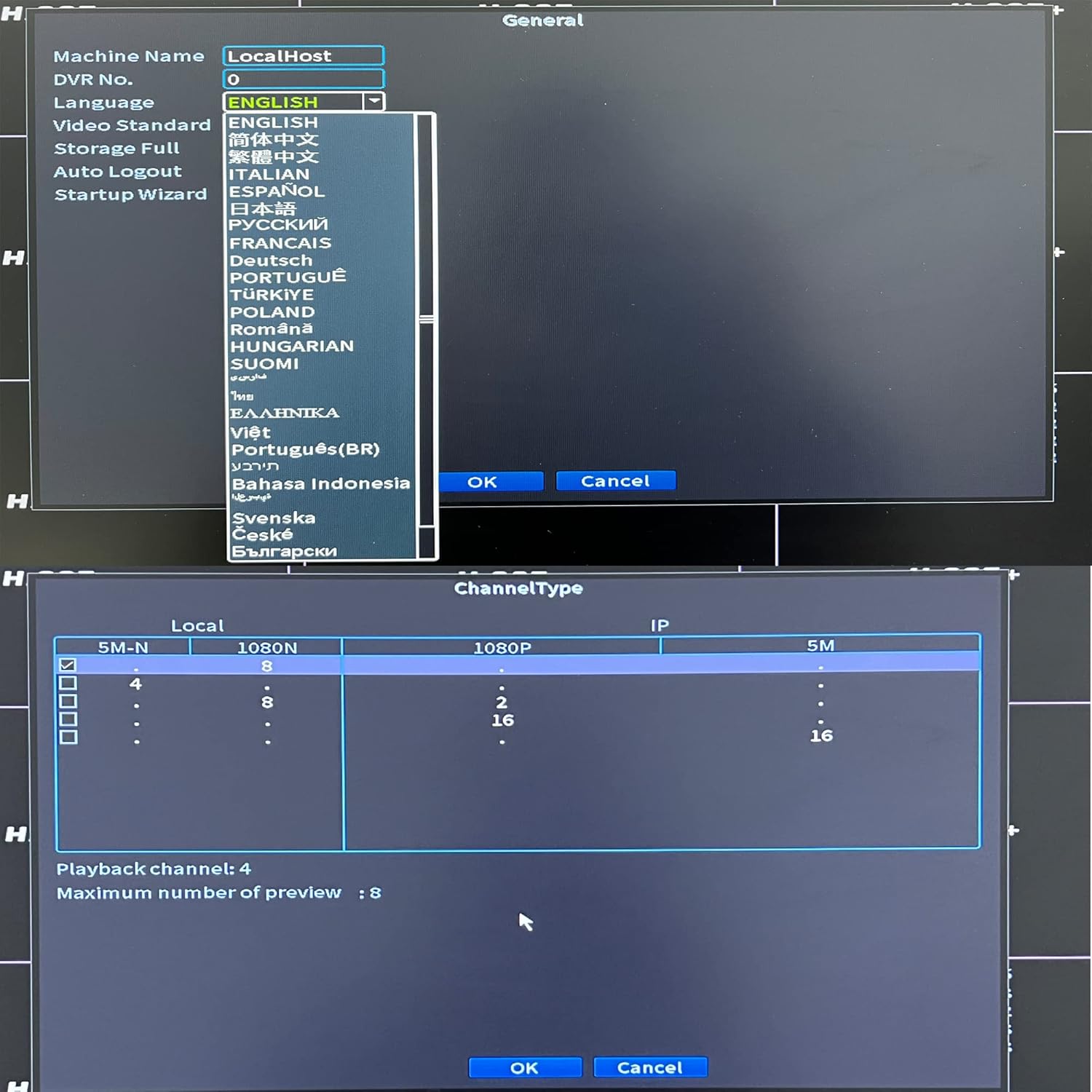
- Follow the on-screen prompts to set the language, date/time, and network settings.
- If a new hard drive is installed, the system may prompt you to format it. Confirm to proceed.
- Configure the channel type to match your connected cameras (Analog, AHD, TVI, CVI, IP).

Nọmba 5.2: Language and Channel Type Configuration Interface.
Akiyesi: To enable IP cameras (NVR mode), you may need to select a hybrid channel type that supports IP inputs. Refer to the on-screen options for specific configurations like "IP" or "Hybrid" modes.
6. Awọn ilana Iṣiṣẹ
6.1 User Interface Lilọ kiri
Use the connected USB mouse to navigate the DVR's graphical user interface (GUI).

Nọmba 6.1: Main Menu Interface.
- Titẹ-ọtun: Access the main menu or return to the previous screen.
- Titẹ-osi: Yan awọn aṣayan tabi jẹrisi awọn iṣe.
- Akojọ akọkọ: Provides access to system settings, recording, playback, network, and advanced features.
6.2 Live View
After successful camera connection, the live view will display video feeds from all active channels. You can switch between single-channel view and multi-channel grid views.
6.3 Gbigbasilẹ iṣeto ni
Access "Record Conf" from the main menu to set up recording schedules and motion detection.

Nọmba 6.2: System Menu Interface.
- Gbigbasilẹ Iṣeto: Set continuous recording or specific time periods for each channel.
- Iwari išipopada: Enable motion-triggered recording for selected channels. Configure sensitivity and detection areas. This feature can significantly extend recording times.
- Itaniji: Configure alarm actions such as email notifications or mobile push alerts upon motion detection.
6.4 Sisisẹsẹhin
Select "PlayBack" from the main menu to review foo ti o ti gbasilẹtage.
- Choose the date and time range for playback.
- Select the desired channels to view.
- Lo awọn iṣakoso ṣiṣiṣẹsẹhin (mu ṣiṣẹ, da duro, yiyara siwaju, pada sẹhin) lati lọ kiri nipasẹ footage.
6.5 Remote Access (Xmeye App)
The Xmeye app allows live viewing and playback on smartphone devices via Wi-Fi, 2G, 3G, or 4G networks.
- Download the "Xmeye" app from your smartphone's app store.
- Register an account or log in.
- Add your DVR device by scanning the QR code (usually found in the DVR's network settings) or manually entering the device ID.
- Ensure your DVR is connected to the internet via the Ethernet port.
6.6 Afẹyinti
To back up video footage, connect a USB flash drive to one of the DVR's USB ports. Navigate to the "Backup" option in the main menu to select footage and initiate the transfer.
7. Itọju
- Išakoso Wakọ lile: Regularly check the hard drive status in the system settings. Format the hard drive periodically if needed, ensuring important footage is backed up first.
- Ninu: Keep the DVR unit clean and free from dust. Use a soft, dry cloth. Do not use liquid cleaners.
- Awọn imudojuiwọn famuwia: Periodically check the XENOCAM official website for available firmware updates. Follow the provided instructions carefully for any updates.
8. Laasigbotitusita
| Isoro | Owun to le Fa | Ojutu |
|---|---|---|
| Ko si ifihan fidio lori atẹle. | Loose video cable, incorrect monitor input, DVR not powered on. | Ṣàyẹ̀wò àwọn ìsopọ̀ okùn HDMI/VGA. Rí i dájú pé àtẹ̀gùn náà wà lórí ìtẹ̀síwájú tó tọ́. Jẹ́ kí DVR rí i dájú pé agbára rẹ̀ wà. |
| Kò sí àwòrán kámẹ́rà. | Camera power issue, faulty cable, incorrect channel type setting. | Check camera power supply. Inspect BNC cables. Verify DVR channel type matches camera type. |
| Kò le wọ inu DVR lati latọna jijin. | No network connection, incorrect app settings, firewall issues. | Ensure DVR is connected to router. Check network settings on DVR and app. Verify router firewall settings. |
| DVR not recording. | No hard drive, hard drive full/faulty, recording schedule not set. | Install/check HDD. Format HDD if necessary (backup data first). Configure recording schedule. |
9. Awọn pato
- Awoṣe: A6708NH
- Input fidio: 8 Channels (Analog, AHD, HD-TVI, CVI, 1080P NVR)
- Ipinnu fidio: 1080N (1080P Lite), 960H, 720P, 1080P (IP)
- Ijade fidio: hdmi, vga
- Iṣagbewọle Olohun/Ijade: RCA
- Hard Disk Support: Up to 6 TB (HDD not included)
- Asopọmọra: Ethernet (RJ45), USB, Wi-Fi (via USB Wi-Fi adapter, if supported)
- Wiwọle Latọna jijin: Xmeye App (iOS/Android)
- Ibi ti ina elekitiriki ti nwa: DC 12V
- Awọn iwọn ọja: 9.96"L x 9.37"W x 1.65"H (25.3 cm x 23.8 cm x 4.2 cm)
- Ìwọ̀n Nkan: 2.53 poun (1.15 kg)
10. Atilẹyin ọja ati Support
XENOCAM products typically come with a limited warranty. For specific warranty terms, technical support, or service inquiries, please refer to the warranty card included with your product or visit the official XENOCAM webojula. Tọju iwe-ẹri rira rẹ bi ẹri rira.
For further assistance, you may contact XENOCAM customer support through their official channels.
Ask a question about this manual
Ask about setup, troubleshooting, compatibility, parts, safety, or missing instructions. Manuals+ will review the question and use this page’s manual context to help answer it.