
1. Ifihan
The Donner Dark Mouse Distortion Pedal is an effect unit designed for electric guitar, providing a range of distortion tones. It features two distinct distortion modes and a true bypass design to maintain signal integrity when the effect is disengaged. This manual provides essential information for setting up, operating, and maintaining your pedal.

Figure 1: The Donner Dark Mouse Distortion Pedal, designed to deliver classic distortion sounds.
2. Ọja Ipariview
The Dark Mouse pedal features intuitive controls for shaping your sound. Understanding these controls is key to utilizing the pedal's full potential.

Figure 2: Control layout of the Dark Mouse Distortion Pedal.
Awọn iṣakoso:
- 1. DC 9V Jack: Power input for a 9V DC adapter (center negative).
- 2. Mode Switch (CLASSIC/HYPER): Toggles between two distinct distortion characteristics.
- 3. LEVEL Knob: Adjusts the overall output volume of the effect.
- 4. FILTER Knob: Controls the tone or brightness of the distortion. Turning clockwise increases treble.
- 5. DIST Knob: Adjusts the amount of distortion or gain.
- 6. Input Jack: Connect your guitar or previous effect pedal here.
- 7. Output Jack: Sopọ si rẹ amplifier or next effect pedal.
- 8. Atọka LED: Illuminates when the effect is active.
- 9. Ẹsẹ: Ó ń fa ipa náà tàbí ó ń yọ ọ́ kúrò.
3. Eto
Follow these steps to connect your Donner Dark Mouse Distortion Pedal:
- Rii daju rẹ amplifier ti wa ni pipa ṣaaju ṣiṣe eyikeyi awọn asopọ.
- Connect your electric guitar to the Jack igbewọle (6) of the pedal using a standard 1/4-inch instrument cable.
- Sopọ awọn O wu Jack (7) of the pedal to your amplifier's input using another standard 1/4-inch instrument cable.
- Connect a 9V DC power adapter (center negative, 500mA minimum) to the DC 9V Jack (1). Note: The power supply is not included. Using an incorrect power supply may damage the pedal.
- Once all connections are secure, you may turn on your amplifier.

Figure 3: Proper connection of the pedal to power and instrument cables.
4. Awọn ilana Iṣiṣẹ
The Dark Mouse pedal offers two distinct distortion modes and flexible controls to tailor your sound.
Ngba ipa naa:
Tẹ awọn Ẹsẹ ẹlẹsẹ (9) to toggle the effect on or off. The LED Atọka (8) will illuminate when the effect is active.
Selecting Distortion Modes:
Lo awọn Ipo Yipada (2) to select between the two distortion modes:
- Alailẹgbẹ: Ṣe agbejade gbona, vintage distortion sound with a subtle fuzz characteristic.
- HYPER: Offers a more powerful and aggressive sound with enhanced edges and low-end response.

Figure 4: The mode switch allows selection between Classic and Hyper distortion.
Adjusting Tone and Gain:
Utilize the three control knobs to fine-tune your distortion sound:
- LEVEL Knob (3): Adjust this to set the overall output volume of the pedal. Start with it at a moderate level and adjust to match your bypassed signal volume.
- DIST Knob (5): Turn this knob clockwise to increase the amount of distortion, from subtle crunch to heavy saturation.
- FILTER Knob (4): This control acts as a tone shaping filter. Turning it clockwise will increase the brightness and treble content of the distortion, while turning it counter-clockwise will result in a darker tone.
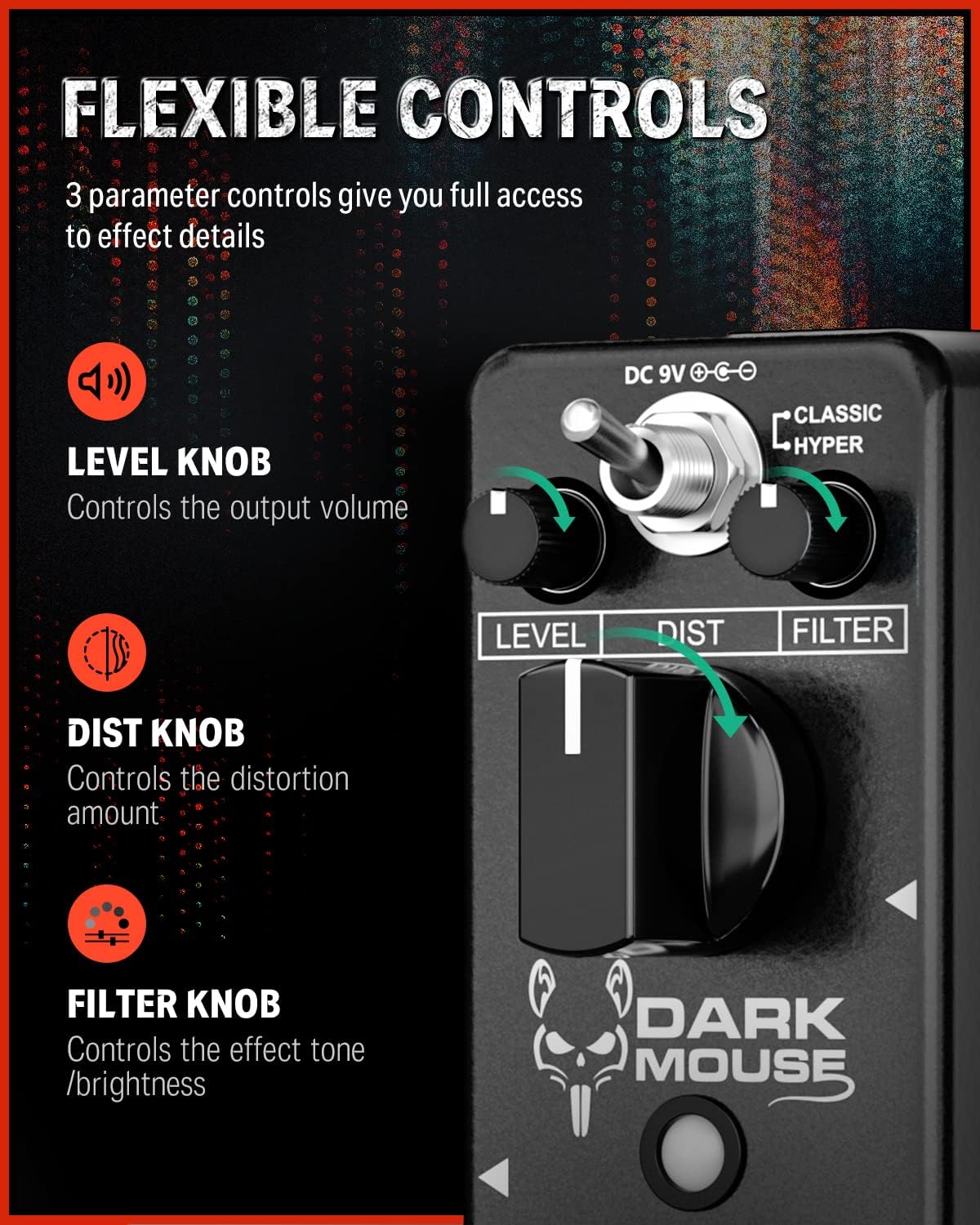
Figure 5: The Level, Dist, and Filter knobs provide flexible control over the effect.
Otitọ Fori:
The pedal features true bypass circuitry. This means that when the effect is disengaged, your guitar signal passes directly through the pedal without any electronic interference, preserving your original tone. The LED indicator will be off when in true bypass mode.

Figure 6: True bypass ensures a clean signal when the effect is off.
5. Itọju
- Ninu: Use a soft, dry cloth to clean the pedal's exterior. Avoid using abrasive cleaners or solvents.
- Ibi ipamọ: Tọju efatelese naa ni agbegbe gbigbẹ, kuro lati awọn iwọn otutu to gaju ati oorun taara.
- Ibi ti ina elekitiriki ti nwa: Always use a 9V DC center-negative power adapter with a minimum of 500mA current. Disconnect the power supply when the pedal is not in use for extended periods.
- Itọju Ti ara: The pedal features a durable aluminum alloy casing. Avoid dropping the pedal or subjecting it to excessive force.
6. Laasigbotitusita
- Ko si Ohun:
- Ṣàyẹ̀wò gbogbo àwọn ìsopọ̀ okùn (gítà sí ìtẹ̀síwájú, ìjáde sí amp).
- Ensure the power adapter is correctly connected and providing power.
- Rí i dájú pé gítà rẹ àti amplifier are functioning correctly.
- If the LED is off, press the footswitch to engage the effect.
- Weak or Distorted Sound (when bypassed):
- This pedal features true bypass, so a weak or distorted bypassed signal usually indicates an issue with cables or other equipment in your signal chain, not the pedal itself.
- Ariwo/Hum ti aifẹ:
- Ensure you are using a regulated 9V DC center-negative power supply. Unregulated power supplies can introduce noise.
- Ṣàyẹ̀wò fún àwọn okùn tí kò ní àbùkù.
- Move the pedal away from power transformers or other electronic devices that may cause interference.
7. Awọn pato
| Ẹya ara ẹrọ | Sipesifikesonu |
|---|---|
| Nọmba awoṣe | EC1178-FBA-US |
| Iwọn Nkan | 8.8 iwon (0.25 kilo) |
| Ọja Mefa | 3.7 x 1.69 x 2.01 inches (3.7"L x 1.7"W x 2"H) |
| Ohun elo ara | Aluminiomu alloy |
| Orisun agbara | Adapter, Electric |
| Voltage | 9 Volts DC (Center Negative) |
| Asopọmọra Iru | 1/4" (6.35mm) mono jack |
| Ilana ifihan agbara | Analog |
8. Ohun ti o wa ninu Apoti
- 1 x Donner Dark Mouse pedal
9. Atilẹyin ọja ati Support
For warranty information or technical support, please refer to the official Donner website or contact Donner customer service directly. Keep your purchase receipt for warranty claims.