
Ọrọ Iṣaaju
Welcome to the Ipega PG-9033 Bluetooth Gamepad user manual. This guide provides detailed instructions for setting up, operating, maintaining, and troubleshooting your new wireless controller. Please read this manual carefully before use to ensure optimal performance and longevity of your device.
Ọja Pariview
The Ipega PG-9033 is a versatile Bluetooth gamepad designed for an enhanced gaming experience across multiple platforms, including Android, iOS, and PC. It features an adjustable phone holder, dual analog sticks, a D-pad, and action buttons.

Figure 1: The Ipega PG-9033 Bluetooth Gamepad with a smartphone securely mounted in its adjustable holder, actively displaying a racing game. This illustrates the controller's primary use for mobile gaming.
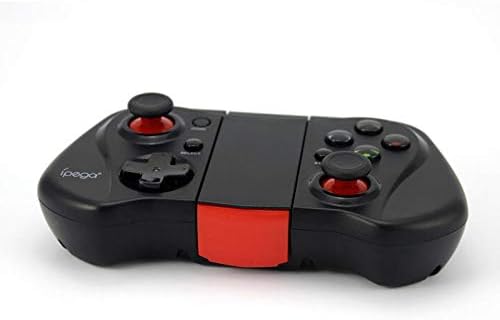
olusin 2: A ẹgbẹ view of the Ipega PG-9033 Bluetooth Gamepad, showcasing its ergonomic design and compact form factor when not in use. The red accent on the central hinge is visible.
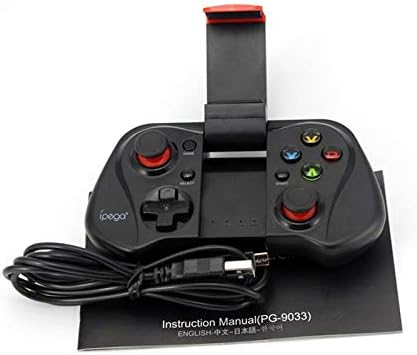
Figure 3: The Ipega PG-9033 Bluetooth Gamepad displayed alongside its USB charging cable and the included instruction manual, which clearly indicates the model number PG-9033.

olusin 4: Awọn ru view of the Ipega PG-9033 Bluetooth Gamepad, featuring a label with technical details such as "BLUETOOTH CONTROLLER," working voltage, working current, and input specifications.
Ṣeto
Gbigba agbara Gamepad
Before first use, fully charge the gamepad using the provided USB cable.
- Connect the micro-USB end of the charging cable to the gamepad's charging port.
- Connect the USB-A end to a USB power source (e.g., computer, USB wall adapter).
- The charging indicator light will illuminate. It will typically turn off or change color when fully charged.
Sopọ pẹlu Ẹrọ kan
The PG-9033 supports different pairing modes for various operating systems.
Android Papọ
- Rí i dájú pé gamepad ti pa.
- Tẹ mọlẹ ILE bọtini ati awọn X button simultaneously until the indicator light flashes rapidly. This puts the gamepad into Android pairing mode.
- Lórí ẹ̀rọ Android rẹ, lọ sí àwọn ètò Bluetooth kí o sì wá àwọn ẹ̀rọ tó wà.
- Select "PG-9033" from the list to pair. The indicator light will become solid when connected.
iOS Pairing (iCade Mode)
- Rí i dájú pé gamepad ti pa.
- Tẹ mọlẹ ILE bọtini ati awọn B button simultaneously until the indicator light flashes rapidly. This puts the gamepad into iOS iCade pairing mode.
- On your iOS device, go to Bluetooth settings and search for available devices.
- Select "PG-9033" from the list to pair. The indicator light will become solid when connected.
Note: iCade mode has limited game compatibility. For broader iOS compatibility, check specific game requirements.
PC Sisopọ
- Rí i dájú pé gamepad ti pa.
- Tẹ mọlẹ ILE bọtini ati awọn A button simultaneously until the indicator light flashes rapidly. This puts the gamepad into PC pairing mode.
- On your PC, go to Bluetooth settings and search for available devices.
- Select "PG-9033" from the list to pair. The indicator light will become solid when connected.
Note: A Bluetooth adapter may be required for PCs without built-in Bluetooth.
Awọn ilana Iṣiṣẹ
So Foonu Alagbeka Rẹ Mọ́
- Gently extend the adjustable phone holder located on the top of the gamepad.
- Carefully place your smartphone into the holder, ensuring it is securely gripped and centered.
- Ṣatunṣe igun fun aipe viewing.
Game Mode Selection
The gamepad automatically enters the last used mode upon reconnection. To switch modes, disconnect the gamepad and re-pair using the desired mode's button combination (HOME + X for Android, HOME + B for iOS, HOME + A for PC).
Titan / Paa
Lati mu agbara ṣiṣẹ, tẹ bọtini naa ILE bọtini. Lati fi agbara si pipa, tẹ mọlẹ ILE button for approximately 5 seconds until the indicator light turns off. The gamepad will automatically power off after a period of inactivity.
Itoju
To ensure the longevity and proper functioning of your Ipega PG-9033 gamepad, follow these maintenance guidelines:
- Jeki ẹrọ naa gbẹ. Yago fun ifihan si ọrinrin tabi olomi.
- Clean the gamepad with a soft, dry cloth. Do not use harsh chemicals or abrasive cleaners.
- Tọju paadi ere naa ni itura, aye gbigbẹ kuro lati orun taara ati awọn iwọn otutu to gaju.
- Yẹra fún jíjá tàbí fífi eré náà sí àwọn ipa tó lágbára.
- Gba agbara batiri nigbagbogbo, paapaa ti ko ba si ni lilo, lati ṣetọju ilera batiri.
Do not attempt to disassemble the gamepad. This will void the warranty and may cause damage.
Laasigbotitusita
Gamepad not connecting or pairing:
- Rí i dájú pé gamepad ti gba agbara ni kikun.
- Daju pe Bluetooth ti ṣiṣẹ lori ẹrọ rẹ.
- Make sure the gamepad is in the correct pairing mode for your device (Android, iOS, or PC).
- Gbìyànjú láti gbàgbé ẹ̀rọ náà nínú ètò Bluetooth rẹ kí o sì tún so ó pọ̀ mọ́ ara wọn.
- Tun bẹrẹ ere-idaraya ati ẹrọ rẹ.
Àwọn bọ́tìnì tàbí àwọn joysticks tí kò dáhùn:
- Check if the gamepad is properly connected.
- Ensure the game you are playing supports external controllers.
- Some games may require specific controller mapping or settings adjustments within the game.
- If the issue persists, try resetting the gamepad (if a reset button is available, typically a small pinhole).
Ìdádúró ìfàsẹ́yìn tàbí ìfàsẹ́yìn:
- Ensure your device is not too far from the gamepad. Maintain a clear line of sight.
- Dín ìdènà láti ọ̀dọ̀ àwọn ẹ̀rọ alailowaya mìíràn kù.
- Ti awọn ohun elo abẹlẹ ti ko wulo lori ẹrọ rẹ.
Phone not fitting in holder:
- The holder is designed for most smartphones. Ensure your phone's dimensions are within the supported range.
- Yọ gbogbo awọn apoti foonu ti o tobi ti o le ṣe idiwọ fun ibaamu ni aabo.
Awọn pato
| Ẹya ara ẹrọ | Ẹ̀kúnrẹ́rẹ́ |
|---|---|
| Awoṣe | PG-9033 |
| Brand | Ipega |
| Asopọmọra | Bluetooth |
| Ibamu | Android, iOS (iCade), PC |
| Ṣiṣẹ Voltage | DC 3.7V |
| Ṣiṣẹ Lọwọlọwọ | 30mA |
| Iṣagbewọle Voltage | DC 5V500mA |
| ASIN | B07P52YH7M |
Atilẹyin ọja ati Support
Fun alaye atilẹyin ọja ati atilẹyin imọ-ẹrọ, jọwọ tọka si Ipega osise webojula tabi kan si alagbata rẹ. Tọju iwe-ẹri rira rẹ bi ẹri rira.
Itọsọna yii wa fun awọn idi alaye nikan. Awọn pato jẹ koko ọrọ si iyipada laisi akiyesi.