
1. Ifihan
The TP-Link Archer T2U Plus is an AC600 High Gain Wireless Dual Band USB Adapter designed to provide high-speed Wi-Fi connectivity for desktop PCs and laptops. It supports both 2.4 GHz and 5 GHz bands, offering flexible connectivity options and enhanced range with its 5dBi high-gain antenna. This manual provides instructions for setting up, operating, and maintaining your adapter.

Image: The TP-Link Archer T2U Plus AC600 High Gain Wireless Dual Band USB Adapter.
2. Package Awọn akoonu
Jẹrisi pe package rẹ ni awọn nkan wọnyi ninu:
- AC600 High Gain Wireless Dual Band USB Adapter (Archer T2U Plus)
- Awọn ọna fifi sori Itọsọna
- CD orisun (fun awọn awakọ ati awọn ohun elo ina)

Image: The retail packaging for the Archer T2U Plus, showing the adapter and its key features.
3. System Awọn ibeere
Ṣaaju fifi sori ẹrọ, rii daju pe eto rẹ pade awọn ibeere wọnyi:
- An available USB port (USB 2.0 or higher recommended).
- Operating System: Windows 11/10/8.1/8/7/XP or Mac OS 10.15 and earlier.
- CD-ROM drive (for driver installation from Resource CD) or internet access (for driver download).

Image: Icons representing compatible operating systems: Windows 10, Windows 8.1, Windows 8, Windows 7, Windows XP, and Mac OS.
4. Ṣíṣeto ati Fifi sori ẹrọ awakọ
4.1 Fifi sori ẹrọ Hardware
- Fi Adapter sii: Plug the Archer T2U Plus USB adapter into an available USB port on your computer. Ensure it is securely seated.
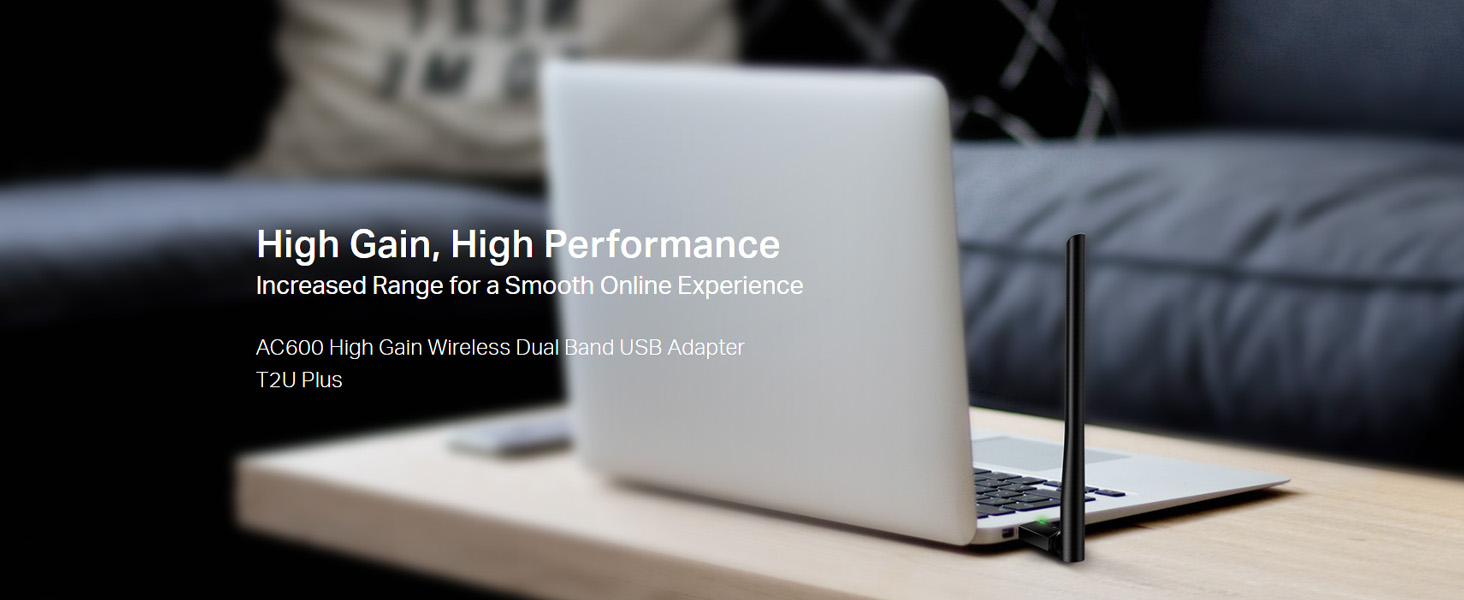
Image: The Archer T2U Plus adapter connected to a laptop's USB port, demonstrating its compact form factor.
4.2 Driver fifi sori
The adapter requires a driver to function correctly. You can install it using the provided Resource CD or by downloading it from the TP-Link webojula.
Option A: Using the Resource CD
- Insert the Resource CD into your computer's CD-ROM drive.
- Follow the on-screen instructions to run the setup wizard.
- Select the Archer T2U Plus model and proceed with the driver installation.
- Tun kọmputa rẹ bẹrẹ ti o ba ṣetan.
Option B: Downloading Drivers Online
- Ṣabẹwo si atilẹyin TP-Link osise webAaye (www.tp-link.com/support/download/).
- Wa fun "Archer T2U Plus" and download the latest driver compatible with your operating system.
- Jade awọn gbaa lati ayelujara file (if compressed) and run the setup executable.
- Follow the installation wizard and restart your computer if required.
5. Awọn ilana Iṣiṣẹ
5.1 Nsopọ si Wi-Fi nẹtiwọki
- After successful driver installation, the adapter will be detected by your operating system.
- Click the Wi-Fi icon in your system tray (Windows) or menu bar (Mac OS).
- Select your desired Wi-Fi network (SSID) from the list of available networks.
- Enter the network password (security key) if prompted and click Sopọ.
- The adapter will establish a connection to the Wi-Fi network.
5.2 Iṣẹ́ Ìbánisọ̀rọ̀ Méjì
The Archer T2U Plus supports both 2.4 GHz and 5 GHz Wi-Fi bands. The 5 GHz band offers faster speeds and less interference, ideal for streaming and gaming, while the 2.4 GHz band provides wider coverage.
- Iwọn 2.4 GHz: Up to 200 Mbps data rate, suitable for general web lilọ kiri ayelujara ati imeeli.
- Iwọn 5 GHz: Up to 433 Mbps data rate, ideal for HD video streaming and online gaming.
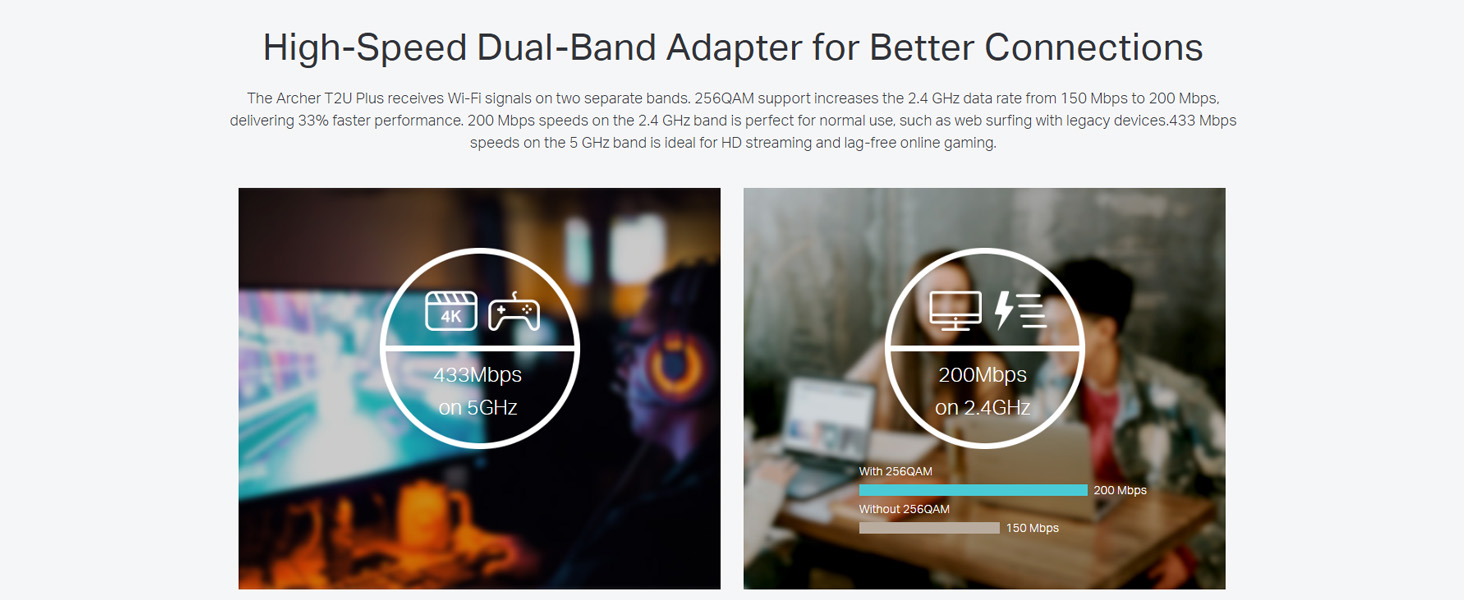
Image: A visual representation comparing the data rates and typical uses for the 2.4 GHz (200 Mbps) and 5 GHz (433 Mbps) bands.
5.3 Atunṣe Antenna
The adapter features an adjustable, multi-directional 5dBi high-gain antenna to optimize signal reception and transmission.
- Rotate and adjust the antenna in various directions to find the optimal position for signal strength and performance in your environment.
- Experiment with different angles to achieve the best possible Wi-Fi range and stability.

Image: The Archer T2U Plus adapter illustrating its adjustable antenna, capable of rotating up to 180 degrees and tilting 90 degrees for optimal signal.
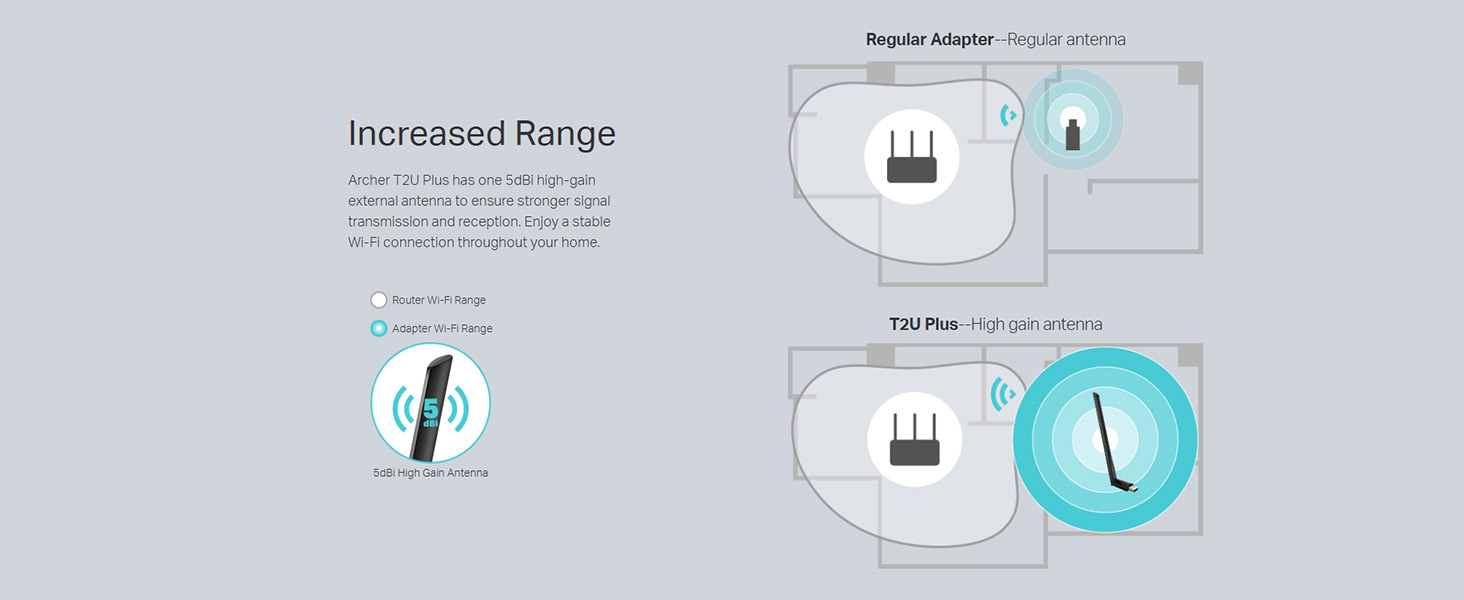
Image: A diagram comparing the Wi-Fi coverage area of a regular adapter with a standard antenna versus the extended range provided by the Archer T2U Plus's high-gain antenna.
6. Itọju
6.1 Driver Updates
Ṣe àyẹ̀wò àtìlẹ́yìn TP-Link déédéé website for updated drivers. Keeping your drivers current ensures optimal performance, compatibility, and security.
6.2 Ninu
To maintain the adapter's performance, keep it clean and free from dust. Use a soft, dry cloth to wipe the device. Avoid using liquid cleaners or solvents.
7. Laasigbotitusita
If you encounter issues with your Archer T2U Plus adapter, refer to the following common troubleshooting steps:
- Ko si Wi-Fi Asopọmọra:
- Rii daju pe ohun ti nmu badọgba ti wa ni edidi ni aabo sinu ibudo USB kan.
- Rí i dájú pé àwọn awakọ̀ náà ti fi sori ẹrọ dáadáa. Tún fi sori ẹrọ tí ó bá pọndandan.
- Check if your router is powered on and broadcasting a Wi-Fi signal.
- Gbiyanju lati sopọ si ibudo USB miiran.
- Iyara Wi-Fi o lọra:
- Ensure you are connected to the 5 GHz band if your router supports it, for faster speeds.
- Adjust the antenna position for better signal reception.
- Dín ìdènà kù nípa gbígbé adapter náà kúrò lọ́dọ̀ àwọn ẹ̀rọ itanna mìíràn.
- Ṣe àtúnṣe àwọn awakọ̀ adapter rẹ sí àtúnṣe tuntun.
- A ko rii Adapter:
- Try plugging the adapter into another USB port.
- Tun kọmputa rẹ bẹrẹ.
- Manually install the drivers from the Resource CD or TP-Link webojula.
8. Awọn pato
| Brand | TP-Link |
| Awoṣe | Archer T2U Plus |
| Ni wiwo Hardware | USB, USB 2.0 |
| Data Gbigbe Oṣuwọn | 600 Megabits Per Second (200 Mbps on 2.4 GHz, 433 Mbps on 5 GHz) |
| Eriali Iru | 5dBi High-Gain External Antenna |
| Ibamu Awọn ọna ṣiṣe | Windows 11/10/8.1/8/7/XP, Mac OS 10.15 and earlier |
| Awọn iwọn Ọja (L x W x H) | 5.8L x 1.8W x 17.3H centimita |
| Iwọn Nkan | 12 giramu |
| Àwọ̀ | Dudu |
9. Atilẹyin ọja ati Support
9.1 atilẹyin ọja Alaye
Ọja yi wa pẹlu kan 3-odun atilẹyin ọja Láti ọjọ́ tí o ti ra ọjà náà. Jọ̀wọ́ pa ẹ̀rí ìrajà rẹ mọ́ fún àwọn ẹ̀tọ́ àtìlẹ́yìn. Àtìlẹ́yìn náà bo àwọn àbùkù àti àìṣedéédéé iṣẹ́-ṣíṣe lábẹ́ àwọn ipò lílo déédéé.
9.2 Imọ Support
For technical assistance, driver downloads, or further inquiries, please contact TP-Link support:
- Owo Atilẹyin Ọfẹ: 1800-209-4168
- Imeeli Atilẹyin: support.in@tp-link.com
- Webojula: www.tp-link.com/in/support/