
Ọrọ Iṣaaju
The Plugable Performance Onyx Gaming Headset is designed to provide an immersive audio experience and clear communication for gamers across multiple platforms. Featuring 53mm dynamic drivers, a retractable microphone, and comfortable memory foam ear cushions, this headset is built for extended gaming sessions. This manual provides detailed instructions for setting up, operating, maintaining, and troubleshooting your headset.
Ohun ti o wa ninu Apoti
Your Plugable Performance Onyx Gaming Headset package includes the following components:
- Plugable Performance Onyx Headset
- 30cm 3.5mm TRRS extension with in-line volume and mute control
- 250cm 3.5mm TRRS to TRS Y-cable extension
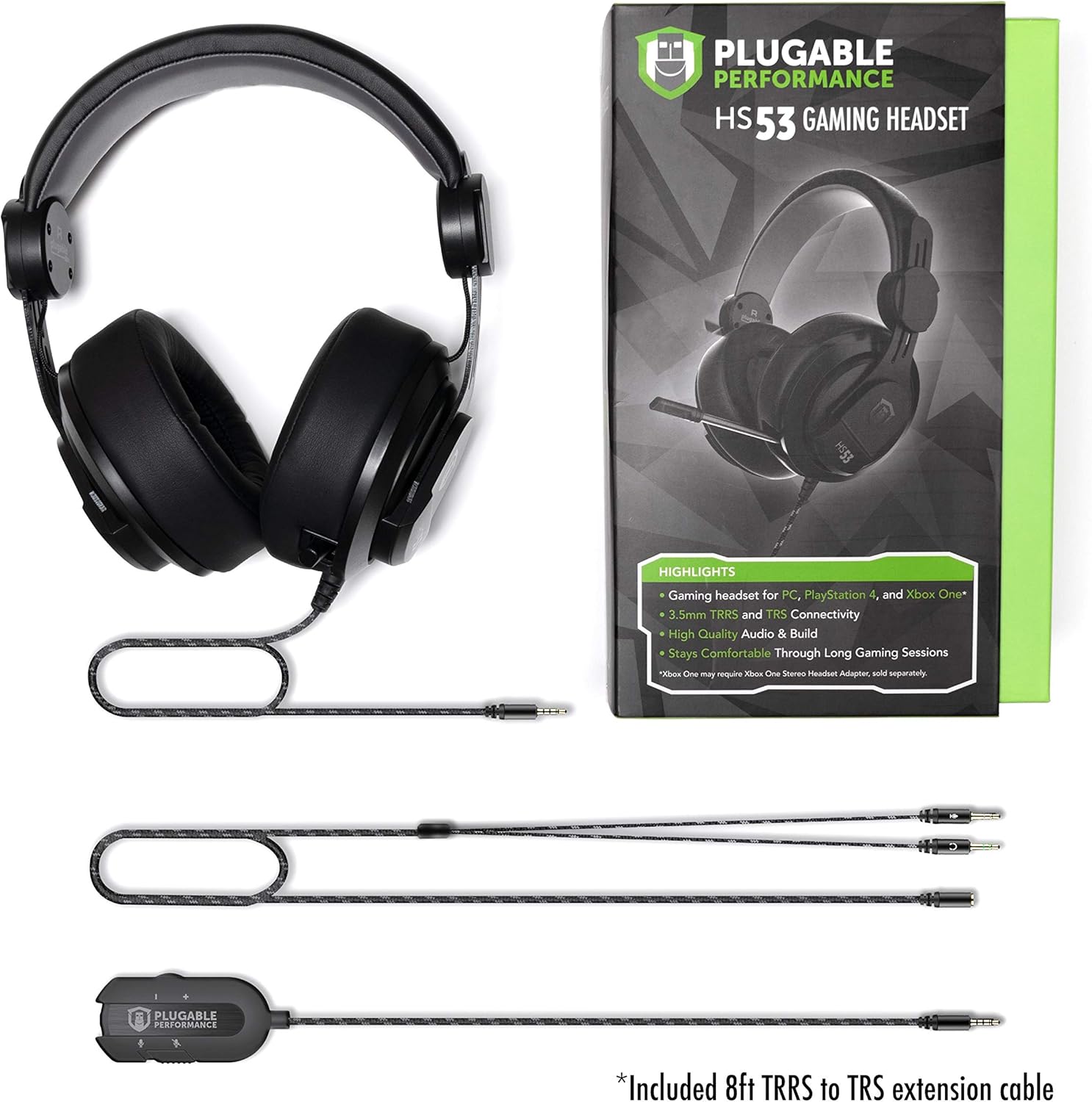
Image: All components included with the Plugable Performance Onyx Gaming Headset.
Ṣeto
Follow these steps to connect your Plugable Performance Onyx Gaming Headset to your device.
Connecting to PCs, Gaming Consoles, Tablets, and Smartphones
The headset offers versatile connectivity options using its 3.5mm jack and included adapters.
- For devices with a single 3.5mm TRRS port (combined audio/mic): Connect the headset's 3.5mm TRRS plug directly to your device. For added convenience and control, you can use the 30cm 3.5mm TRRS extension with in-line volume and mute control.
- For devices with separate 3.5mm TRS audio and microphone ports (e.g., many desktop PCs): Connect the headset's 3.5mm TRRS plug to the 250cm 3.5mm TRRS to TRS Y-cable extension. Then, plug the green connector (headphone) into your device's audio output jack and the pink connector (microphone) into your device's microphone input jack.

Image: Modular connectivity options for the headset.
Siṣàtúnṣe Agbekọri
Adjust the headband for a comfortable and secure fit. The sturdy brushed aluminum framing allows for precise adjustments.

Image: Detail of the headset's quality fit and adjustable headband.
Gbigbe Gbohungbohun
The microphone is retractable and flexible. Pull it out and bend it to position it optimally for clear voice capture. When not in use, it can be retracted back into the earcup.

Image: The retractable microphone extended for use.

Image: Headset connected and ready for gaming.
Ṣiṣẹ Agbekọri Rẹ
Audio Awọn ẹya ara ẹrọ
The headset features 53mm large surface area diaphragm drivers, delivering 2.0 stereo sound quality. This design reproduces audio elements with accuracy and clarity, true to the developer's intent. The closed-back dynamic design provides passive noise isolation.

Image: Memory foam padding and dynamic audio features.

Image: Noise isolating design of the earcups.
Gbohungbohun Lilo
The high-precision unidirectional microphone ensures clear communication with your teammates. Extend the microphone from the left earcup and adjust its flexible arm to position it near your mouth.
In-line Controls
When using the 30cm TRRS extension cable, you have access to convenient in-line volume and microphone mute controls. Use the scroll wheel to adjust audio volume and the switch to mute or unmute the microphone.
Itoju
Ìtọ́jú tó tọ́ yóò mú kí agbekọri rẹ pẹ́ sí i.
- Awọn Imu Eti Eti mimọ: Fi rọra nu awọn irọmu eti foomu iranti pẹlu asọ, damp asọ. Yago fun lilo awọn kẹmika lile tabi awọn ohun elo abrasive.
- Isọsọ gbogboogbo: Use a dry, soft cloth to wipe down the rest of the headset. Keep the connectors clean and free of dust.
- Ibi ipamọ: Tọju agbekari naa ni itura, aye gbigbẹ kuro lati orun taara ati awọn iwọn otutu to gaju.
Laasigbotitusita
Tí o bá ní ìṣòro pẹ̀lú agbekọri rẹ, wo àwọn ìdáhùn tí ó wọ́pọ̀ wọ̀nyí:
Ko si Audio tabi Iwọn kekere
- Ensure all 3.5mm connections are fully inserted into the correct ports on your device and the headset.
- Check the in-line volume control (if used) and ensure it is turned up.
- Verify the audio output settings on your computer or console. Make sure the headset is selected as the default audio device.
- Ṣe idanwo agbekari pẹlu ẹrọ miiran lati ṣe akoso ọran-ẹrọ kan pato.
Gbohungbohun Ko Ṣiṣẹ
- Check the in-line mute switch (if used) and ensure the microphone is not muted.
- Confirm the microphone connection is secure, especially if using the Y-splitter cable.
- Verify the microphone input settings on your computer or console. Ensure the headset microphone is selected and its input volume is not set to zero.
- Ensure the microphone is fully extended and positioned correctly.
Ìyípadà ohùn tàbí Ìdúróṣinṣin
- Ṣayẹwo gbogbo awọn asopọ okun fun alaimuṣinṣin tabi ibajẹ.
- Try connecting the headset to a different audio port or device to see if the issue persists.
- Ensure your audio source is not overdriven or set to an excessively high volume.
Awọn pato
| Orukọ awoṣe | TRRS-HS53 |
| Asopọmọra Technology | Ti firanṣẹ (Jack3.5mm) |
| Audio Driver Type | Yiyi Awakọ |
| Apẹrẹ Akọti | Lori-eti |
| Iwọn Igbohunsafẹfẹ | 20 Hz - 20 kHz |
| Ipalara | 32 ohm |
| Gbohungbohun Iru | Unidirectional, Retractable |
| Iṣakoso Iru | Volume Control, Mic Mute (in-line) |
| Ohun elo | Plastic, Metal (headband) |
| Iwọn Nkan | 2.05 iwon |
| Ọja Mefa | 5 x 8.75 x 10 inches |
Atilẹyin ọja ati Support
Plugable products are designed and tested for quality and reliability. The Plugable Performance Onyx Gaming Headset is backed by a 2-Year Warranty, certified to exceed standards.
For technical support, troubleshooting assistance, or warranty claims, please visit the official Plugable support website or contact their customer service. Refer to the product packaging or Plugable's official webojula fun awọn julọ lọwọlọwọ alaye olubasọrọ.