
1. Ifihan
Thank you for choosing the Targus W620 Wireless Optical Mouse. This manual provides detailed instructions for setting up, operating, and maintaining your mouse to ensure optimal performance and longevity. The Targus W620 offers reliable 2.4 GHz wireless connectivity, a precise 1600 DPI optical sensor, and a compact design suitable for both office and mobile use.
2. Package Awọn akoonu
Jọwọ ṣayẹwo package fun awọn nkan wọnyi:
- Targus W620 Wireless Optical Mouse
- Olugba USB
- 2 x AAA batiri
3. Ọja Ipariview
Familiarize yourself with the components of your Targus W620 Wireless Optical Mouse.
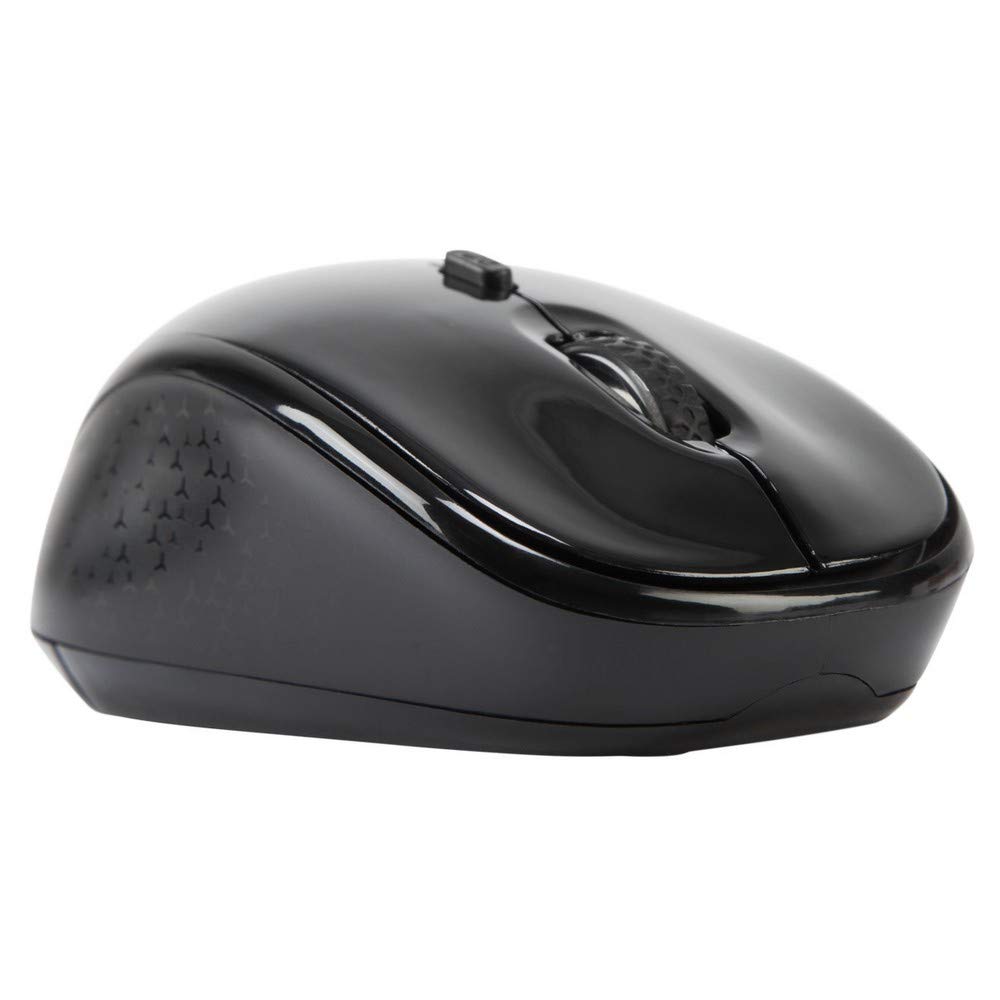
Aworan 3.1: Oke view of the Targus W620 Wireless Optical Mouse. This image displays the primary buttons and scroll wheel.
- Bọtini Tẹ osi: Standard jc iṣẹ tẹ.
- Ọtun Tẹ Bọtini: Standard secondary tẹ iṣẹ.
- Yi lọ Kẹkẹ: Fun iṣẹ lilọ kiri inaro ati titẹ-arin.
- Bọtini DPI: Ṣe atunṣe ifamọ Asin (DPI).
- Sensọ Ojú: Located on the bottom, detects mouse movement.
- Abala Batiri: Located on the bottom, holds two AAA batteries.
- Ibi ipamọ olugba USB: A dedicated slot on the bottom for storing the USB receiver when not in use.

Aworan 3.2: Isalẹ view of the mouse, highlighting the battery compartment and optical sensor.
4. Awọn ilana iṣeto
Follow these steps to set up your Targus W620 Wireless Optical Mouse:
- Fi Awọn batiri sii:
- Wa ideri ibi ipamọ batiri naa ni isalẹ Asin naa.
- Gbe ideri naa ṣii.
- Fi awọn batiri AAA meji sii, ni idaniloju polarity ti o pe (+/-).
- Pa ideri batiri naa ni aabo.
- So olugba USB pọ:
- The USB receiver is typically stored in a slot on the bottom of the mouse for transport. Gently remove it.
- Pulọọgi olugba USB sinu ibudo USB ti o wa lori kọnputa rẹ.

Aworan 4.1: The mouse with its USB receiver, ready for connection.
- Agbara Tan:
- There is no explicit power switch on this model; the mouse activates upon movement and connection.
- Kọmputa rẹ yẹ ki o ṣawari laifọwọyi ati fi awọn awakọ pataki sii. Eyi le gba awọn iṣẹju diẹ.
- Once drivers are installed, the mouse is ready for use.
5. Awọn ilana Iṣiṣẹ
The Targus W620 Wireless Optical Mouse is designed for intuitive use. Here are its primary functions:
- Lilọ kiri ipilẹ: Move the mouse on a flat surface to control the cursor on your screen.
- Tẹ osi: Lo fun yiyan awọn ohun kan, ṣiṣi files, tàbí àwọn iṣẹ́ ìṣiṣẹ́.
- Tẹ-ọtun: Lo fun wíwọlé sí àwọn àkójọpọ̀ ọ̀rọ̀ tàbí àwọn iṣẹ́ kejì.
- Yi lọ Kẹkẹ: Rotate the wheel to scroll vertically through documents and web pages. Press the scroll wheel for a middle-click function, often used for opening links in new tabs or auto-scrolling.
- Atunse DPI: Press the DPI button (located behind the scroll wheel) to cycle through the available DPI settings (800, 1200, 1600 DPI). This changes the sensitivity of the mouse cursor. A higher DPI means the cursor moves further with less physical mouse movement.
6. Itọju
Proper maintenance ensures the longevity and performance of your mouse.
- Ninu: Lo aṣọ rirọ, gbẹ, tí kò ní àwọ̀ láti nu ìta eku náà. Fún eruku líle, fi díẹ̀ dì í.ampen awọn asọ pẹlu omi. Yẹra fun lilo awọn kẹmika lile tabi awọn afọmọ abrasive.
- Sensọ Ojú: Jeki agbegbe sensọ opiti ti o wa ni isalẹ ti Asin ni mimọ ati ofe kuro ninu eruku tabi idoti lati rii daju titọpa deede.
- Rirọpo Batiri: When the mouse performance degrades or stops responding, it is likely time to replace the batteries. Follow the steps in Section 4.1 to replace the two AAA batteries.
- Ibi ipamọ: When transporting or storing the mouse, always place the USB receiver back into its dedicated storage slot on the bottom of the mouse to prevent loss.
7. Laasigbotitusita
If you encounter issues with your Targus W620 mouse, try the following solutions:
| Isoro | Owun to le Solusan |
|---|---|
| Mouse not responding or cursor not moving. |
|
| Gbigbe kọsọ jẹ aisise tabi fo. |
|
| Bọ́tìnì DPI kò yí ìfàmọ́ra padà. |
|
| Awọn iṣoro asopọ alailowaya. |
|
8. Awọn pato
| Brand | Targus |
| Nọmba awoṣe | AMW620AP |
| Asopọmọra Technology | Alailowaya 2.4 GHz (Ìgbàgbogbo Rédíò) |
| Imọ-ẹrọ Iwari išipopada | Optical (BlueTrace Technology) |
| Awọn ipele DPI | 800/1200/1600 DPI (Atunṣe) |
| Nọmba ti Awọn bọtini | 4 (Left, Right, Scroll Wheel, DPI) |
| Ọwọ Iṣalaye | Right (Comfortable for ambidextrous use) |
| Orisun agbara | 2 x Awọn batiri AAA (pẹlu) |
| Iwọn Nkan | 26 giramu |
| Ibamu System isẹ | Linux, Windows XP (Compatible with modern Windows and macOS) |
| Hardware Platform | Mac, PC |
| Àwọ̀ | Dudu |
9. Atilẹyin ọja ati Support
Alaye Atilẹyin ọja: The Targus W620 Wireless Optical Mouse comes with a 3-odun olupese ká atilẹyin ọja lati ọjọ ti o ra. Atilẹyin ọja yi ni wiwa awọn abawọn ninu awọn ohun elo ati iṣẹ ṣiṣe labẹ lilo deede. Jọwọ ṣe idaduro ẹri rira rẹ fun awọn iṣeduro atilẹyin ọja.
Atilẹyin Onibara: For technical assistance, troubleshooting beyond this manual, or warranty inquiries, please visit the official Targus website or contact their customer support service. Refer to the contact information provided with your product packaging or on the Targus official webojula.