
1. Ifihan
The Hohem iSteady X is a lightweight, foldable 3-axis smartphone gimbal stabilizer designed to capture smooth and stable video footage with your mobile device. This manual provides detailed instructions for setup, operation, maintenance, and troubleshooting to ensure optimal performance.
2. Ohun ti o wa ninu Apoti
Upon unboxing your Hohem iSteady X, verify that all components are present:
- Hohem iSteady X Gimbal Stabilizer
- Mini Tripod Iduro
- Okun gbigba agbara (USB-C)
- Okun Ọwọ
- Apo ipamọ
- Quick Bẹrẹ Itọsọna
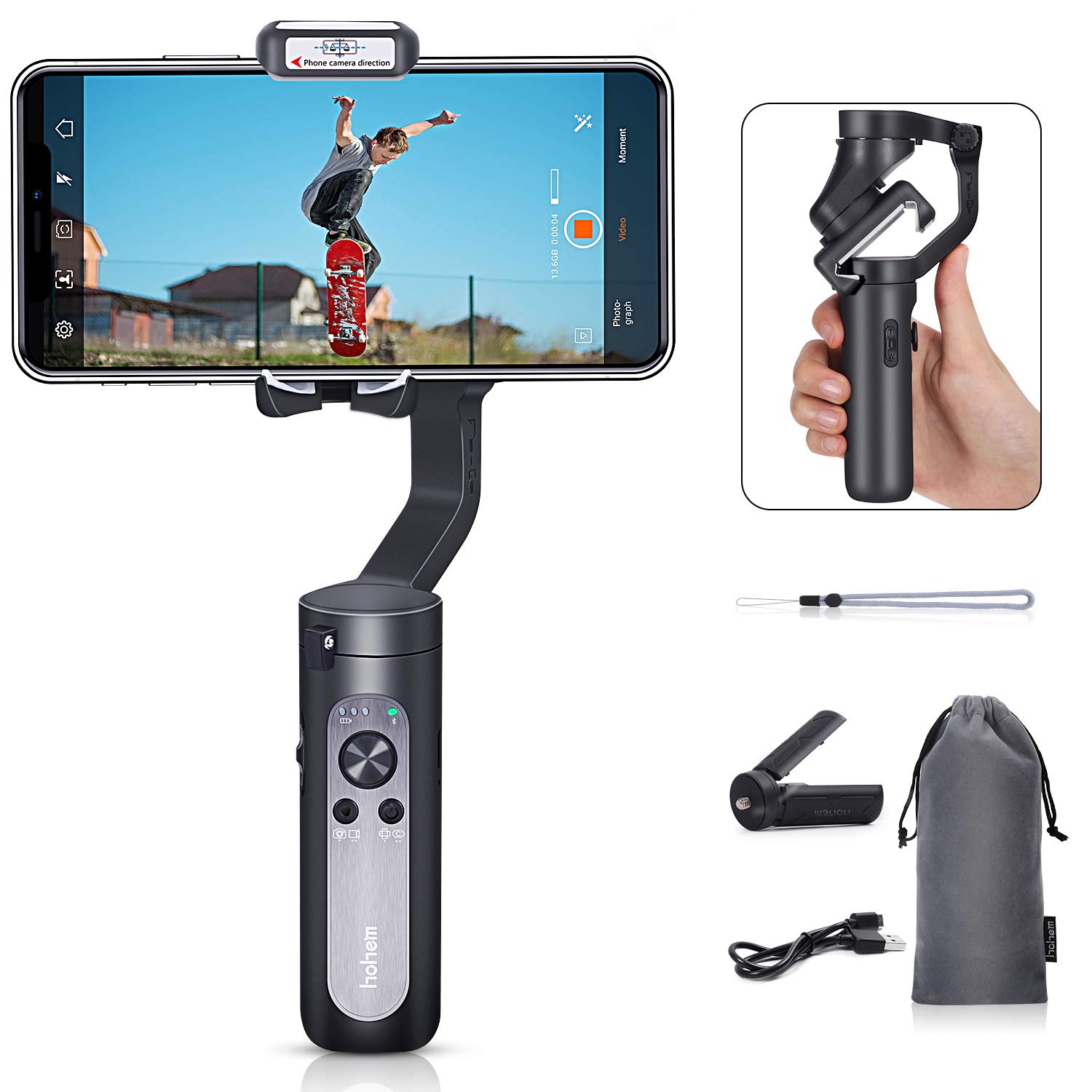
Figure 2.1: Contents of the Hohem iSteady X package, including the gimbal, mini tripod, charging cable, wrist strap, and storage pouch.
3. Eto
3.1 Unfolding the Gimbal
The iSteady X is designed to be compact when folded. To unfold, gently extend the gimbal arm until it locks into its operational position. Ensure all motor buckles are unlocked before powering on.

Figure 3.1: Visual guide for unfolding the gimbal, securing the smartphone, and unlocking the motor axes.
3.2 Mounting and Balancing Your Smartphone
- Ensure your smartphone is removed from its case for proper balancing.
- Place your smartphone securely in the phone clamp.
- Adjust the phone's position within the clamp to achieve a balanced state. The phone should remain level when the gimbal is powered off.
3.3 Ìgbàsílẹ̀ àti Ìmúṣiṣẹ́ Àpù
Before first use, the iSteady X requires activation via the Hohem Pro app. Download the app from your smartphone's app store (iOS App Store or Google Play Store).
- Mu Bluetooth ṣiṣẹ lori foonuiyara rẹ.
- Launch the Hohem Pro app.
- The app will detect the iSteady X. Tap 'Connect' and then 'Pair' when prompted for Bluetooth pairing.
- Follow the on-screen instructions to complete the activation process. Do not turn off the phone or gimbal during activation.
4. Awọn ilana Iṣiṣẹ
4.1 Ipilẹ idari
The gimbal features intuitive controls on its handle:
- Bọtini agbara: Long press to power on/off. Single press to switch between photo/video mode. Double press to switch between horizontal/vertical shooting.
- Joysticks: Ó ń ṣàkóso ìṣípo pan àti títẹ̀.
- Zoom Slider (T/W): Controls digital zoom within the Hohem Pro app.
- Bọtini Nfa: Press and hold to enter All Lock mode. Double press to recenter the gimbal. Triple press to enter Inception mode.
4.2 Awọn ipo iyaworan
The Hohem Pro app offers various shooting modes to enhance your video creation:
- Standard Follow Mode (Tilt/Pan Follow): The camera follows your hand movements on both tilt and pan axes, maintaining a steady horizon.
- Ipo Tẹle Pan: The camera only follows your pan (horizontal) movements.
- All Lock Mode: The camera remains fixed in its current orientation, ignoring all movements.
- POV (Ipo ti View) Mode: The camera follows all three axes (pan, tilt, roll) for dynamic first-person perspective shots.
- Horizontal & Vertical Switch: Easily switch between landscape and portrait orientations for different platforms.

Figure 4.1: The gimbal supports smart switching between horizontal and vertical shooting modes.
- Itoju Oju: The gimbal automatically tracks a detected face, keeping it centered in the frame.

Figure 4.2: The Hohem Pro app enables smart face-tracking for hands-free recording.
- Motion Timelapse: Capture time-lapse videos with dynamic camera movement.

Figure 4.3: The Motion Timelapse feature allows for creative time-lapse videos with programmed movements.
- Auto Low-Angle Shots: The gimbal can automatically adjust to capture stable low-angle footage.

Figure 4.4: The gimbal facilitates smooth auto low-angle shots.
- Auto Inception Mode (270° Roll): Create cinematic spinning shots with a 270-degree roll.

Figure 4.5: Auto Inception Mode allows for dynamic 270-degree rotating video effects.
- Ipo Sókòó Sókòó Sókòó: The gimbal can be used as an extended selfie stick for wider shots.

Figure 4.6: The gimbal can be quickly switched to selfie stick mode for convenient self-portraits or group shots.
5. Itọju
- Jẹ́ kí gimbal náà mọ́ tónítóní, kí ó sì wà láìsí eruku àti ìdọ̀tí. Lo aṣọ rírọ̀ tí ó gbẹ fún ìwẹ̀nùmọ́.
- Yago fun ṣiṣafihan gimbal si awọn iwọn otutu tabi ọrinrin.
- Store the gimbal in its provided pouch when not in use to prevent damage.
- Gba agbara batiri nigbagbogbo, paapaa ti ko ba si ni lilo nigbagbogbo, lati ṣetọju ilera batiri.
6. Laasigbotitusita
- Gimbal kò ṣiṣẹ́ lórí: Ensure the battery is charged. Connect to the charging cable and try again.
- Gimbal not balancing: Remove the smartphone case. Re-center the smartphone in the clamp.
- Awọn iṣoro asopọ Bluetooth: Ensure Bluetooth is enabled on your phone. Restart the Hohem Pro app and try connecting again. If issues persist, restart both the phone and the gimbal.
- Foo tí kò dúró ṣinṣintage: Ensure the smartphone is properly balanced. Check for any obstructions to the gimbal's movement.
7. Awọn pato
| Ẹya ara ẹrọ | Sipesifikesonu |
|---|---|
| Ọja Mefa | 7.04 x 3.11 x 1.53 inches (folded: 179mm x 79mm x 39mm) |
| Iwọn Nkan | 8 iwon (227 Giramu) |
| Awọn batiri | Awọn batiri Lithium Ion 2 nilo (pẹlu) |
| Awọn ẹrọ ibaramu | Foonu alagbeka |
| Àwọ̀ | Dudu |
| ASIN | B07R2J372X |
| UPC | 749390448534 |
8. Atilẹyin ọja ati Support
For warranty information and customer support, please refer to the official Hohem webojula tabi kan si wọn onibara iṣẹ taara. Tọju iwe-ẹri rira rẹ bi ẹri rira.