
1. Ifihan
This manual provides instructions for the installation, operation, and maintenance of your Globe Electric 34207 Wi-Fi Smart LED Light Bulb. This smart bulb offers multicolor changing (RGB) and tunable white light (2000K - 5000K), controllable via the GLOBE SUITE™ App or voice commands through compatible smart home assistants. No hub is required for operation.
2. Alaye Aabo
- Ewu ti Ina mọnamọna: Ma ṣe fi sori ẹrọ pẹlu ọwọ tutu tabi nigba ti o duro lori tutu tabi damp awọn ipele.
- Lilo inu ile Nikan: A ṣe àgbékalẹ̀ gílóòbù yìí fún lílo nínú ilé ní àwọn ibi gbígbẹ.
- Kì í ṣe fún Àwọn Ohun Èlò Tí A Fi Pamọ́: Do not use in fully enclosed luminaires as this may limit air circulation and affect performance.
- Ibamu Dimmer: This smart bulb is dimmable via the app or voice control only. Do not use with external dimmer switches.
- Iwọn Iṣiṣẹ: Rí i dájú pé àyíká iṣẹ́ náà wà láàrín ìwọ̀n otutu tí a ṣeduro fún àwọn gílóòbù LED.
- Idasonu: Dispose of the bulb according to local regulations.
3. Package Awọn akoonu
The package for the Globe Electric 34207 Wi-Fi Smart LED Light Bulb (2-Pack) typically includes:
- 2 x Globe Electric Wi-Fi Smart LED Light Bulbs (Model 34207)
- 1 x Instruction Sheet / Quick Start Guide
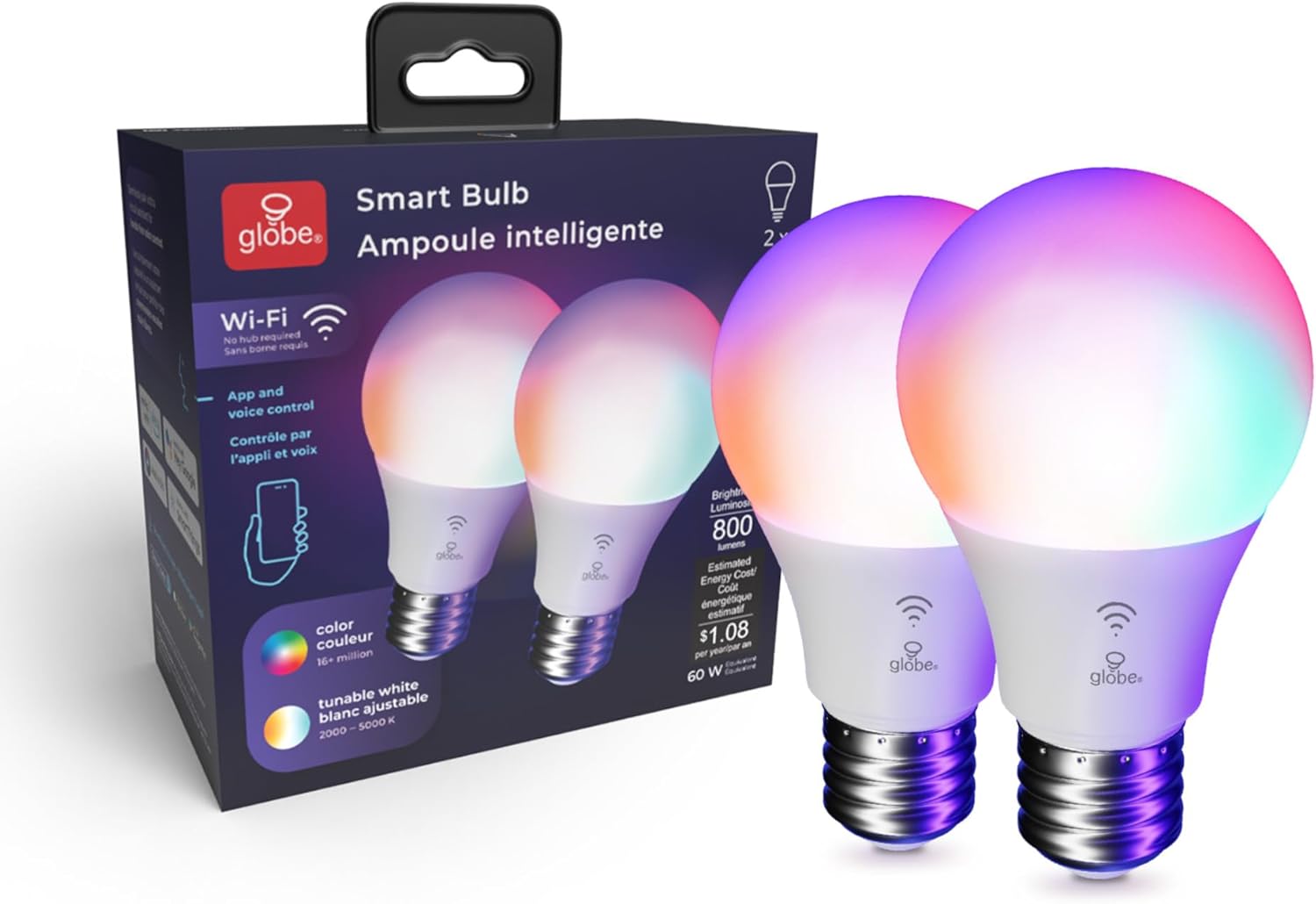
Image: Contents of the Globe Electric Smart Bulb 2-pack, showing two bulbs and the product box.
4. Eto
4.1 Fifi sori ti ara
- Ensure the power to the light fixture is turned OFF at the switch before installation.
- Carefully screw the Globe Electric Smart LED Light Bulb into a standard E26 base light socket.
- Turn the power ON at the switch. The bulb should light up.
Video: Globe Electric Smart Bulb Installation Guide. This video demonstrates the physical installation and initial setup process for the smart bulb.
4.2 App Download ati fifi sori
- Gba awọn GLOBE SUITE™ App lati Apple App itaja tabi Google Play itaja.
- Forukọsilẹ fun iroyin titun tabi wọle ti o ba ti ni ọkan tẹlẹ.

Image: A user interacting with the Globe Suite app on a smartphone, demonstrating remote control capabilities.
4.3 Connecting to Wi-Fi and Pairing
The Globe Electric Smart LED Light Bulb connects directly to your home's 2.4 GHz Wi-Fi network. No separate hub is required.
- Ensure your smartphone is connected to your 2.4 GHz Wi-Fi network. (Note: 5 GHz networks are not supported for initial pairing).
- Open the GLOBE SUITE™ App and tap the "+" icon to add a new device.
- Follow the on-screen instructions in the app to put the bulb into pairing mode (usually involves turning the bulb off and on a few times until it blinks rapidly).
- Confirm the bulb is blinking and proceed with the pairing process in the app.
- Once connected, you can rename your bulb for easier control (e.g., "Living Room Light").
5. Awọn ilana Iṣiṣẹ
5.1 Basic Controls (On/Off, Dimming)
Through the GLOBE SUITE™ App, you can:
- Turn the bulb ON or OFF remotely.
- Ṣatunṣe ipele imọlẹ lati 1% si 100%.
Àyípadà Àwọ̀ 5.2 (RGB)
The bulb offers millions of color options to customize your environment.
- In the app, navigate to the "Color" section.
- Select your desired color from the color wheel or choose from preset color scenes.
- Adjust the saturation and brightness for the chosen color.

Image: A user selecting a color from the color palette within the Globe Suite app to change the bulb's color.
5.3 Tunable White (2000K - 5000K)
Adjust the white light temperature to suit your mood or activity, from warm white to cool daylight.
- In the app, navigate to the "White" section.
- Slide the color temperature bar to select a range between 2000K (warm white) and 5000K (cool white).
- Preset options like "Relax" (2000K-3000K), "Comfort" (3000K-4000K), and "Focus" (4000K-5000K) are available.

Image: The Globe Suite app displaying options for tunable white light, including presets for Relax, Comfort, and Focus, with corresponding Kelvin temperatures.
5.4 Iṣakoso ohun
Integrate your smart bulb with voice assistants for hands-free control.
- Awọn oluranlọwọ ibaramu: Amazon Alexa, Google Assistant, Siri.
- Àkọọ́lẹ̀ Ìsopọ̀: Follow the instructions in your voice assistant's app to link your GLOBE SUITE™ account.
- Awọn aṣẹ: Use commands like "Alexa, turn on Living Room Light," "Hey Google, set Kitchen Light to blue," or "Hey Siri, dim Bedroom Light to 50%."

Image: A man in a kitchen using voice commands to control smart lighting, with a smartphone displaying Siri and smart speakers visible.
5.5 Routines and Schedules
Automate your lighting to fit your daily schedule and preferences.
- Wake Up Routine: Gradually brighten your lights in the morning.
- Bedtime Routine: Slowly dim your lights in the evening to prepare for sleep.
- Vacation Routine: Schedule lights to turn on and off randomly to simulate occupancy when you are away.
- Sync with Sun: Adjust light color and brightness automatically throughout the day to align with natural light cycles, supporting your circadian rhythm.

Image: The Globe Suite app interface showing "Wake Up Routine" and "Bedtime Routine" settings, with a person sleeping in the background.

Image: The Globe Suite app displaying "Vacation Routine" settings, with a person packing luggage in the background, indicating automated lighting for security.

Image: The Globe Suite app illustrating the "Sync with Sun" feature, showing how light changes from morning to evening to match natural light.
Video: Globe Electric Wi-Fi Smart Bulb Product Highlights. This video showcases various features of the smart bulb, including color changing, tunable white, and smart routines.
6. Itọju
- Ninu: Rí i dájú pé gílóòbù náà tutù, agbára rẹ̀ sì ti pa kí o tó fọ ọ́. Fi aṣọ gbígbẹ tó rọ̀, tó sì gbẹ nu. Má ṣe lo ohun ìfọmọ́ omi tàbí ohun ìfọṣọ.
- Ibi ipamọ: Tí o bá ń tọ́jú gílóòbù náà, pa á mọ́ sí ibi tí ó tutù tí ó sì gbẹ, kí oòrùn má baà fà tààrà tàbí ooru tó le gan-an.
- Rọpo: Replace the bulb if it becomes damaged or stops functioning correctly.
7. Laasigbotitusita
| Isoro | Owun to le Fa | Ojutu |
|---|---|---|
| Boolubu ko ni tan imọlẹ. | Power is off; bulb not screwed in properly; bulb is faulty. | Check power switch; ensure bulb is securely screwed in; test bulb in another working fixture. |
| Ko le sopọ si Wi-Fi / App. | Incorrect Wi-Fi band (not 2.4 GHz); incorrect password; bulb not in pairing mode; weak Wi-Fi signal. | Ensure connection to 2.4 GHz Wi-Fi; re-enter password carefully; follow app instructions to re-enter pairing mode; move bulb closer to router. |
| Iṣakoso ohun ko ṣiṣẹ. | Account not linked; incorrect device name; internet connectivity issue. | Verify GLOBE SUITE™ account is linked to your voice assistant; use the exact device name set in the app; check internet connection. |
| Bulb is unresponsive or lags. | Weak Wi-Fi signal; app issue. | Improve Wi-Fi signal strength; restart the GLOBE SUITE™ App; power cycle the bulb (turn off/on at switch). |
8. Awọn pato
- Nọmba awoṣe: 34207
- Brand: Globe Electric
- Irú Imọlẹ: LED
- Wattage: 10 Wattis (60W Dédé)
- Ijade Imọlẹ: 800 Lumens
- Iwon Apẹrẹ Boolubu: A19
- Ipilẹ Bulbu: E26
- Iwọn awọ: 2000K - 5000K (Fúfú tí a lè tún ṣe)
- Awọ Imọlẹ: RGB (Multicolor Changing), Warm White
- Voltage: 120 Volts
- Ọna Iṣakoso: App (GLOBE SUITE™), Voice (Amazon Alexa, Google Assistant, Siri)
- Asopọmọra: Wi-Fi (2.4 GHz nikan)
- Lilo inu ile/ita gbangba: Ninu ile
- Iru nkan elo: Ṣiṣu
- Ìwọ̀n Nkan: 0.2 iwon
- Awọn Iwọn Nkan (W x H): 2.4"W x 4.33"H
9. Atilẹyin ọja & Atilẹyin
This Globe Electric product comes with a Atilẹyin ọja ọdun kan fun olupese.
For technical support, warranty claims, or additional product information, please visit the official Globe Electric website or contact their customer service directly. Refer to the packaging or the Globe Electric webojula fun awọn julọ soke-si-ọjọ olubasọrọ awọn alaye.
Awọn orisun Ayelujara:
- Globe Electric Official Webojula: www.globe-electric.com
- GLOBE SUITE™ App Support: Available via the app's help section.