
Ọrọ Iṣaaju
The SanDisk Ultra Flair USB 3.0 Flash Drive provides high-speed data transfer and reliable storage in a durable metal casing. Designed for efficiency, it allows you to move files quickly and securely. This manual will guide you through the setup, operation, maintenance, and troubleshooting of your flash drive.
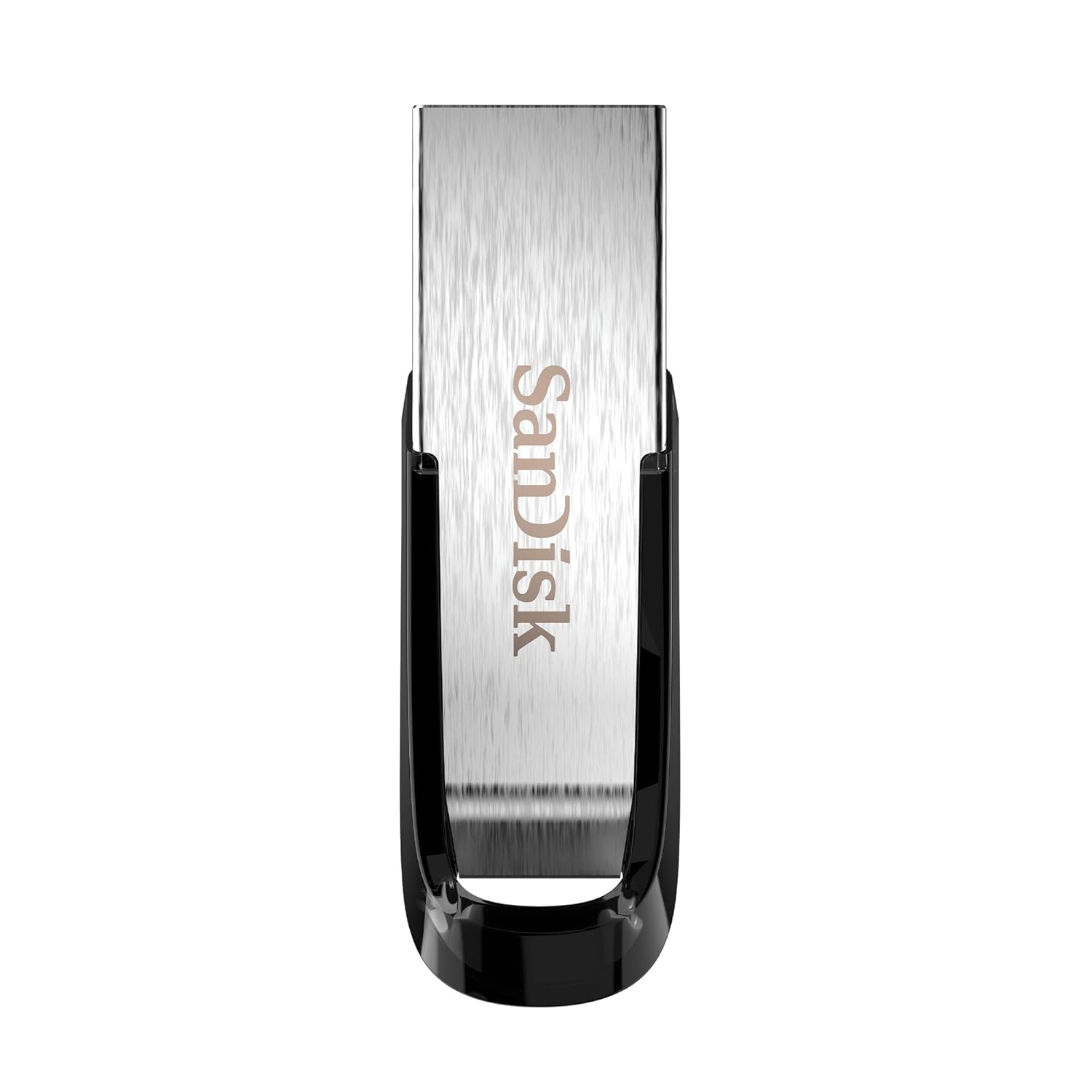
Image: The SanDisk Ultra Flair USB 3.0 Flash Drive, showcasing its sleek metal design and USB 3.0 connector.
Ṣeto
- Insert the Flash Drive: Locate an available USB port on your computer (desktop, laptop, or compatible device). Gently insert the SanDisk Ultra Flair USB 3.0 Flash Drive into the USB port. For optimal performance, use a USB 3.0 port (often identified by a blue interior). The drive is also backward compatible with USB 2.0 ports.
- Idanimọ aifọwọyi: Your operating system (Windows, macOS, Linux) should automatically detect and install the necessary drivers for the flash drive. A notification may appear indicating that the device is ready for use.
- Accessing the Drive:
- Windows: Open "This PC" or "My Computer." The flash drive will appear as a removable disk (e.g., "SanDisk Ultra Flair" or a drive letter like E: or F:).
- MacOS: The flash drive icon will appear on your desktop or in the Finder sidebar under "Locations."
- Pre-loaded Software: The drive may come with pre-loaded software, such as SanDisk SecureAccess. You can choose to install and use this software for password protection and file fifi ẹnọ kọ nkan.
Awọn ilana Iṣiṣẹ
Gbigbe Files
Lati gbe files to or from your SanDisk Ultra Flair flash drive:
- Open the Drive: Double-click the flash drive icon in "This PC" (Windows) or on your desktop/Finder (macOS) to open its contents.
- Fa ati Ju silẹ:
- Lati daakọ files si the flash drive: Drag and drop files or folders from your computer into the flash drive's window.
- Lati daakọ files lati the flash drive: Drag and drop files or folders from the flash drive's window to a location on your computer.
- Daakọ/Lẹ mọ: Alternatively, right-click on the desired files/folders, select "Copy," then navigate to the destination, right-click, and select "Paste."

Image: A person working on a computer, illustrating the fast data transfer capabilities of the SanDisk Ultra Flair USB 3.0 Flash Drive.
Using SanDisk SecureAccess Software
The SanDisk SecureAccess software allows you to create a password-protected folder (vault) on your flash drive to secure sensitive files with 128-bit AES encryption.
- Fifi sori: If not already installed, run the SecureAccess installer found on the drive. Follow the on-screen instructions to set up your vault and password.
- Fifi kun Files: Fa ati ju silẹ files into the SecureAccess vault window to encrypt them.
- Iwọle si Files: To access encrypted files, open the SecureAccess application and enter your password.

Image: A person using a computer, representing the ease of backup and organization with SanDisk software.
Safely Removing the Flash Drive
Always safely remove the flash drive to prevent data corruption:
- Windows: Click the "Safely Remove Hardware and Eject Media" icon in the system tray (bottom-right corner), then select your flash drive. Wait for the "Safe to Remove Hardware" message before physically disconnecting.
- MacOS: Drag the flash drive icon from your desktop to the Trash, or click the Eject icon next to the drive name in Finder. Wait for the icon to disappear before physically disconnecting.
Itoju
- Itọju Ti ara: The SanDisk Ultra Flair features a durable metal casing. While robust, avoid exposing the drive to extreme temperatures, moisture, or strong magnetic fields. Keep the USB connector clean and free from dust or debris.
- Afẹyinti data: Regularly back up important data from your flash drive to another storage device to prevent data loss.
- Awọn imudojuiwọn sọfitiwia: Periodically check the official SanDisk website for any available firmware updates or new versions of SanDisk SecureAccess software.
Laasigbotitusita
- A ko mọ Awakọ:
- Try inserting the drive into a different USB port on your computer.
- Test the drive on another computer to rule out a port or system issue.
- Rí i dájú pé a ti fi awakọ naa sinu ibudo USB patapata.
- Tun kọmputa rẹ bẹrẹ.
- Awọn iyara Gbigbe lọra:
- Ensure you are using a USB 3.0 port for maximum speed. USB 2.0 ports will result in slower transfers.
- Gbigbe ọpọlọpọ awọn kekere files le jẹ losokepupo ju gbigbe kan diẹ ti o tobi files.
- Ti awọn ohun elo miiran ti o le ma nlo awọn orisun eto.
- Drive Gets Warm During Use:
It is normal for the metal casing of the SanDisk Ultra Flair to become warm during prolonged data transfers, especially with USB 3.0 speeds. The metal design helps dissipate heat efficiently. This typically does not affect performance or durability.
- Lost or Corrupted Files:
Your SanDisk Ultra Flair includes a one-year subscription to RescuePRO software. Visit the SanDisk website to download and activate RescuePRO for data recovery attempts.
Awọn pato

Aworan: Alaye view of the SanDisk Ultra Flair USB 3.0 Flash Drive, showing its physical dimensions.
| Ẹya ara ẹrọ | Ẹ̀kúnrẹ́rẹ́ |
|---|---|
| Brand | SanDisk |
| Orukọ awoṣe | SanDisk Ultra Flair |
| Nọmba awoṣe | SDCZ73-032G-I35 |
| Agbara Ibi ipamọ Iranti | 32 GB |
| Ni wiwo Hardware | USB 3.0 (ibaramu sẹhin pẹlu USB 2.0) |
| Ka Iyara | Titi di 150 MB / s |
| Pataki Awọn ẹya ara ẹrọ | Irin tó le pẹ́ títí casing, Fast Data Transfer, Sleek design, Password Protected (with SecureAccess software), Data Encryption, Easy File Recovery (with RescuePRO software) |
| Awọn ẹrọ ibaramu | Devices with USB 3.0 or USB 2.0 port |
| Àwọ̀ | Fadaka |
| Awọn iwọn (L x W x H) | Nǹkan bíi 43mm x 13mm x 7mm (1.69" x 0.51" x 0.28") |
| Iwọn Nkan | 4 giramu |
| UPC | 619659173975 |
| Ilu isenbale | Taiwan |
| Awọn akoonu apoti | 1x SanDisk Ultra Flair Flash Drive |
Alaye atilẹyin ọja
The SanDisk Ultra Flair USB 3.0 Flash Drive comes with a 5-odun lopin atilẹyin ọja provided by SanDisk. This warranty covers manufacturing defects under normal use. Please retain your proof of purchase for warranty claims.
For detailed terms and conditions, or to initiate a warranty claim, please visit the official SanDisk support webojula.
Atilẹyin
For further assistance, technical support, or to download software like SanDisk SecureAccess or RescuePRO, please visit the official SanDisk support webojula:
SanDisk Official Support Webojula
O tun le wa awọn FAQs ati awọn apejọ agbegbe lori wọn website for common issues and tips.