
1. Ifihan
The CEM iLDM-150 is a professional-grade laser distance meter designed for fast, accurate, and easy distance measurement. This device utilizes a precision narrow laser beam to ensure accuracy, avoiding common errors associated with extraneous objects. Beyond basic measurements, it offers advanced functionalities such as capturing images of measured distances, marking lengths, areas, or volumes, and storing data on a cloud service for convenient access and sharing.
This manual provides detailed instructions for the safe and effective use of your iLDM-150 Laser Distance Meter. Please read it thoroughly before operating the device.
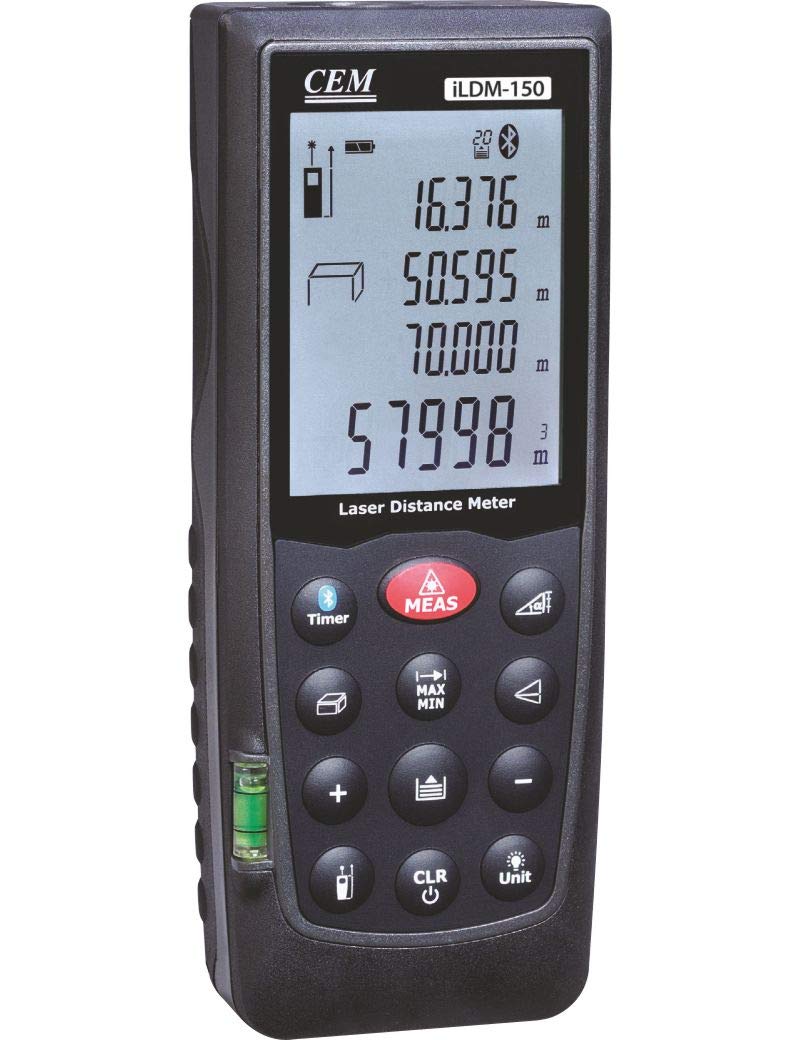
Figure 1: The CEM iLDM-150 Laser Distance Meter, displaying its compact design, digital interface, and control buttons for precise measurements.
2. Key Awọn ẹya ara ẹrọ
The CEM iLDM-150 Laser Distance Meter includes the following key features:
- Awọn iṣiro agbegbe ati iwọn: Quickly determine areas and volumes from measured lengths.
- Indirect Measuring (Pythagoras): Calculate distances indirectly using the Pythagorean theorem.
- Iwọn Igun: Integrated tilt sensor allows for angle measurements.
- Wiwọn Tesiwaju: Track real-time distance changes.
- Aworan: Take pictures of measured distances.
- Cloud Service Integration: Store and manage measurement data via the Meterbox iLDM software and cloud server.
- Measurement History: Stores the last 20 measurements for review.
3. Eto
3.1 Fifi sori batiri
The iLDM-150 requires batteries for operation. Batteries are not included with the device.
- Locate the battery compartment cover on the back or side of the device.
- Ṣii ideri iyẹwu batiri naa.
- Insert the required batteries (typically AAA or AA, refer to the compartment label for exact type and polarity) ensuring correct polarity (+/-).
- Pa ideri batiri naa ni aabo.
3.2 Titan / Pa a
- Lati fi agbara sori ẹrọ, tẹ bọtini naa [ON/MEAS] bọtini.
- Lati fi agbara si pipa ẹrọ naa, tẹ mọlẹ [PA] button for a few seconds, or the device will automatically power off after a period of inactivity to conserve battery life.
4. Awọn ilana Iṣiṣẹ
4.1 Ipilẹ Distance Wiwọn
- Agbara lori ẹrọ naa.
- Tọka ina lesa ni aaye ibi-afẹde.
- Tẹ awọn [ON/MEAS] bọtini lẹẹkan. Ijinna wọn yoo han loju iboju.
4.2 Lemọlemọfún wiwọn
This mode allows you to track real-time distance changes as you move the device.
- Tẹ awọn [ON/MEAS] button and hold it for a few seconds until 'Continuous' or a similar indicator appears on the display.
- Move the device; the distance displayed will update continuously.
- Tẹ [ON/MEAS] lẹẹkansi lati da lemọlemọfún wiwọn.
4.3 Area and Volume Calculations
Use the dedicated shortcut keys for these functions.
- Agbegbe: Tẹ awọn [Agbegbe] button. Measure the length and width as prompted by the device. The area will be calculated and displayed.
- Iwọn didun: Tẹ awọn [ORO] button. Measure the length, width, and height as prompted. The volume will be calculated and displayed.
4.4 Indirect Measurement (Pythagoras)
This function is useful for measuring distances that cannot be directly accessed.
- Tẹ awọn [PYTHAGORAS] bọtini.
- Follow the on-screen instructions to take the required measurements (e.g., hypotenuse and one leg for a right triangle).
- Ẹrọ naa yoo ṣe iṣiro ati ṣafihan ijinna aimọ.
4.5 Ìwọ̀n Igun
The integrated tilt sensor allows for angle measurements.
- Tẹ awọn [ANGLE] button (if available) or cycle through modes until the angle measurement mode is active.
- Position the device to measure the desired angle. The angle will be displayed on the screen.
4.6 Image Capture and Cloud Service
The iLDM-150 allows you to capture images with measurements and store them.
- After taking a measurement, use the designated button (refer to device interface) to capture an image.
- Install the Meterbox iLDM software on your smartphone.
- Connect your iLDM-150 to your smartphone via Bluetooth (if supported) or transfer data as per software instructions.
- Utilize the Meterbox iLDM software and cloud server to edit, store, and share your measurement data and images.
5. Itọju
5.1 Ninu
- Nu ẹrọ naa nigbagbogbo pẹlu asọ, damp asọ. Ma ṣe lo abrasive ose tabi epo.
- Ensure the laser lens and display are free from dust and debris for optimal performance. Use a lens cleaning cloth if necessary.
5.2 Ibi ipamọ
- Store the iLDM-150 in a dry, dust-free environment, away from direct sunlight and extreme temperatures.
- If storing for an extended period, remove the batteries to prevent leakage and damage to the device.
6. Laasigbotitusita
| Isoro | Owun to le Fa | Ojutu |
|---|---|---|
| Ẹrọ naa ko ṣiṣẹ. | Awọn batiri kekere tabi dinku; fifi sori batiri ti ko tọ. | Rọpo awọn batiri pẹlu awọn tuntun; rii daju pe o peye polarity. |
| Awọn wiwọn ti ko pe. | Obstructed laser path; unstable measuring surface; dirty lens. | Ensure clear line of sight to target; measure on a stable surface; clean the laser lens. |
| Ifihan fihan ifiranṣẹ aṣiṣe. | Wíwọ̀n tí kò sí ní ìwọ̀n; àṣìṣe inú. | Ensure target is within specified range; power off and restart the device. If error persists, contact support. |
| Cannot connect to Meterbox iLDM app. | Bluetooth not enabled; app not installed or updated; device not in pairing mode. | Ensure Bluetooth is on for both devices; install/update Meterbox iLDM app; refer to app instructions for pairing. |
7. Awọn pato
| Sipesifikesonu | Ẹ̀kúnrẹ́rẹ́ |
|---|---|
| Brand | CEM |
| Nọmba awoṣe | iLDM-150 |
| Olupese | CEM Instruments India Pvt Ltd |
| ASIN | B07SPL1NW2 |
| Awọn batiri To wa | Rara |
| Àwọ̀ | Multicolor |
| Omi Resistance Ipele | Mabomire |
8. Atilẹyin ọja ati Support
Please note the following regarding warranty and support for your CEM iLDM-150 Laser Distance Meter:
- All sales are final. No returns are accepted.
- Replacements will be provided only in cases of a wrong item being shipped or a manufacturing defect reported.
- Any reported manufacturing defect must be replicable by the manufacturer upon receiving the product back for assessment.
For technical assistance or to report a manufacturing defect, please contact CEM Instruments India Pvt Ltd directly through their official support channels.