
Macally ACEBTKEY-US
Macally Wireless Bluetooth Keyboard Instruction Manual
Model: ACEBTKEY-US | Brand: Macally
Ọrọ Iṣaaju
Thank you for choosing the Macally Wireless Bluetooth Keyboard. This multi-device keyboard is designed to enhance your productivity across various platforms, including Mac, iOS, Windows, and Android devices. Featuring 110 keys, 20 Mac OS shortcuts, and a numeric keypad, it offers a comfortable and efficient typing experience. Its ultra-slim design and rechargeable battery make it an ideal companion for both work and leisure.

Image: The Macally Wireless Bluetooth Keyboard, showcasing its full layout and sleek silver design.
Package Awọn akoonu
- Macally Wireless Bluetooth Keyboard
- Ngba agbara USB
- Itọsọna olumulo
Ṣeto
1. Ngba agbara si Keyboard
Before initial use, fully charge the keyboard using the included charging cable. Connect the cable to the keyboard's charging port and a USB power source. The LED indicator will show charging status.

Image: Illustration showing the keyboard connected to a charging cable, emphasizing its rechargeable nature.
2. Sisopọ pẹlu Awọn ẹrọ
The Macally Wireless Bluetooth Keyboard supports connecting up to three Bluetooth-enabled devices simultaneously. Follow these steps to pair your devices:
- Tan-an keyboard nipa lilo agbara yipada.
- Press and hold one of the Bluetooth keys (BT1, BT2, or BT3) for a few seconds until the corresponding LED indicator starts blinking rapidly. This indicates pairing mode.
- On your device (computer, tablet, or smartphone), go to Bluetooth settings and search for available devices.
- Select "Macally Keyboard" (or similar name) from the list.
- If prompted, enter the pairing code displayed on your screen using the Macally keyboard and press Enter.
- Once paired, the LED indicator will stop blinking and remain solid for a few seconds before turning off.
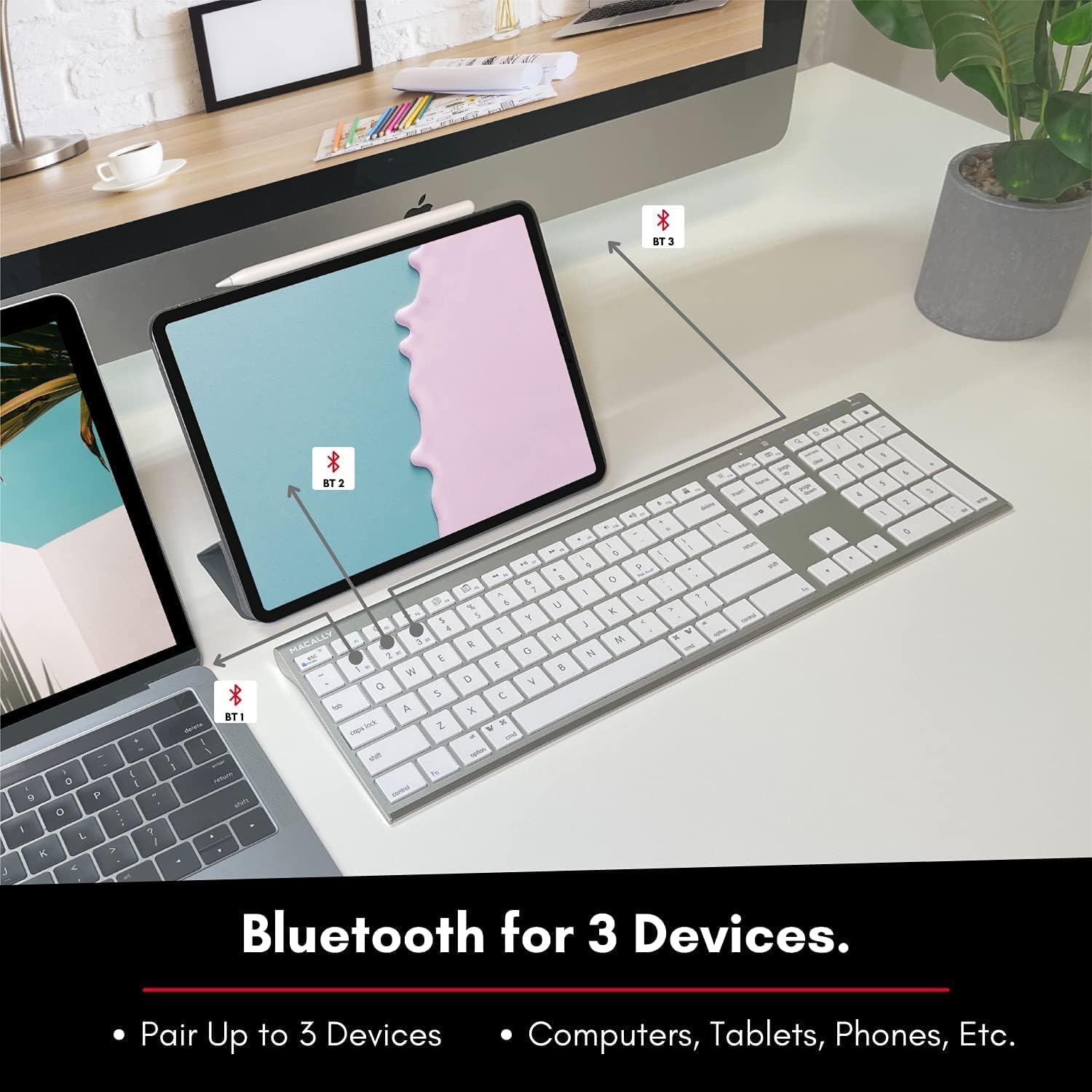
Image: The keyboard connected to a laptop and a tablet, illustrating its multi-device pairing capability.
Awọn ilana Iṣiṣẹ
Yipada Laarin Awọn ẹrọ
To switch between paired devices, simply press the corresponding Bluetooth key (BT1, BT2, or BT3) once. The keyboard will automatically connect to the selected device within a few seconds.

Image: Visual representation of the keyboard seamlessly switching between a smartphone, iMac, and laptop, highlighting the multi-sync feature.
Awọn bọtini iṣẹ ati Awọn ọna abuja
The keyboard features a full set of 110 keys, including a numeric keypad and 20 dedicated Mac OS shortcut keys. These shortcuts provide quick access to various functions such as brightness control, volume adjustment, media playback, and more. Refer to your device's operating system documentation for specific shortcut functionalities.
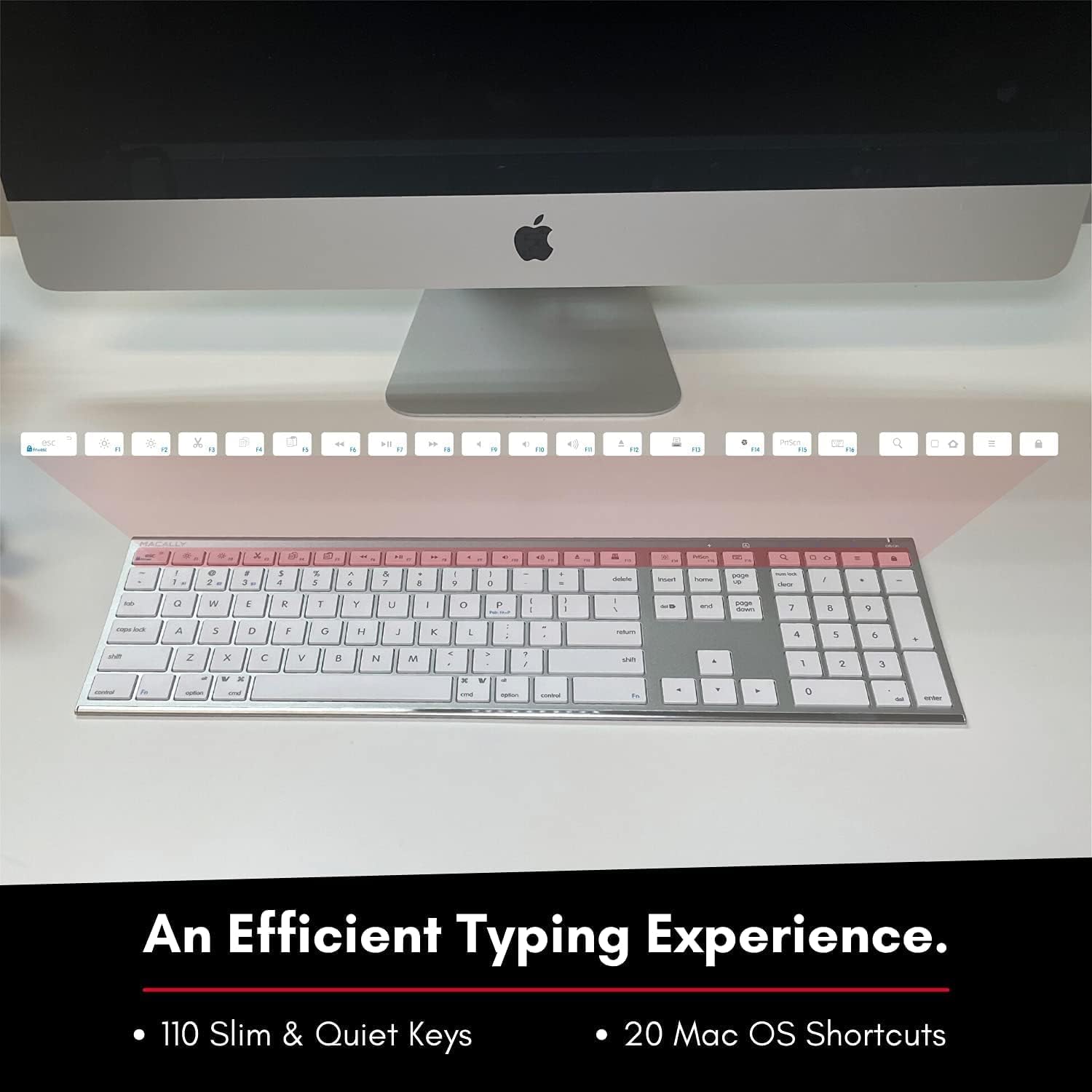
Image: Close-up of the keyboard's top row, highlighting the dedicated function and shortcut keys.
Ibamu
This keyboard is broadly compatible with a range of operating systems and devices, including:
- macOS
- Windows
- iOS (iPhone, iPad)
- Android

Image: The keyboard positioned in front of an iMac, indicating its compatibility with Mac systems.
Itoju
To ensure the longevity and optimal performance of your Macally Wireless Bluetooth Keyboard, follow these maintenance guidelines:
- Ninu: Use a soft, lint-free cloth to wipe the surface of the keyboard. For stubborn dirt, slightly dampen awọn asọ pẹlu omi tabi kan ìwọnba ninu ojutu. Yago fun ọrinrin pupọ.
- Itọju Batiri: The keyboard features a built-in rechargeable battery. To maximize battery life, avoid fully discharging the battery frequently. Charge the keyboard when the low battery indicator appears.
- Ibi ipamọ: Nigbati o ko ba wa ni lilo fun awọn akoko ti o gbooro sii, pa bọtini itẹwe lati tọju igbesi aye batiri. Tọju si ni itura, aye gbigbẹ kuro lati orun taara ati awọn iwọn otutu to gaju.
- Yago fun Idasonu: Jeki awọn olomi kuro ni keyboard lati ṣe idiwọ ibajẹ si awọn paati inu.
Laasigbotitusita
Keyboard Not Responding or Typing Incorrectly
- Rii daju pe o ti gba agbara fun keyboard.
- Verify that the keyboard is powered on and the correct Bluetooth channel (BT1, BT2, or BT3) is selected for your device.
- Gbiyanju lati tun keyboard pọ pẹlu ẹrọ rẹ.
- Check if the Fn lock is active. On the top right, there should be a lock symbol with an FN in the lock. If there is a Blue LED light on the panel which is on the top right, then press and hold Fn ki o si tẹ ESC to shut off the Fn lock.

Image: A troubleshooting tip for the Fn lock feature, showing the relevant keys.
Mouse Keys Issue (macOS)
- If your keyboard inputs are behaving like mouse movements, you may have "Mouse Keys" enabled.
- Go to System Preferences (or System Settings on newer macOS versions), then click on Wiwọle. After that, scroll to Iṣakoso ijuboluwole ati mu ṣiṣẹ Enable Mouse Keys.

Image: A troubleshooting tip for disabling Mouse Keys in system settings.
Awọn oran Asopọ Bluetooth
- Rii daju pe Bluetooth ẹrọ rẹ ti ṣiṣẹ ati wiwa.
- Move the keyboard closer to your device to ensure a strong signal.
- Yọ awọn orisun kikọlu eyikeyi ti o pọju kuro (fun apẹẹrẹ, awọn ẹrọ alailowaya miiran, awọn nkan irin nla).
- Tun bẹrẹ mejeeji keyboard ati ẹrọ rẹ.
Awọn pato
| Brand | Macally |
| Nọmba awoṣe | ACEBTKEY-US |
| Ọja Mefa | 18.11 x 6.3 x 0.91 inches |
| Iwọn Nkan | 14.9 iwon |
| Asopọmọra Technology | Bluetooth |
| Nọmba ti Awọn bọtini | 110 |
| Awọn ẹrọ ibaramu | MacOS, Windows, iOS, Android |
| Batiri | 3 Lithium Polymer batteries (included, rechargeable) |
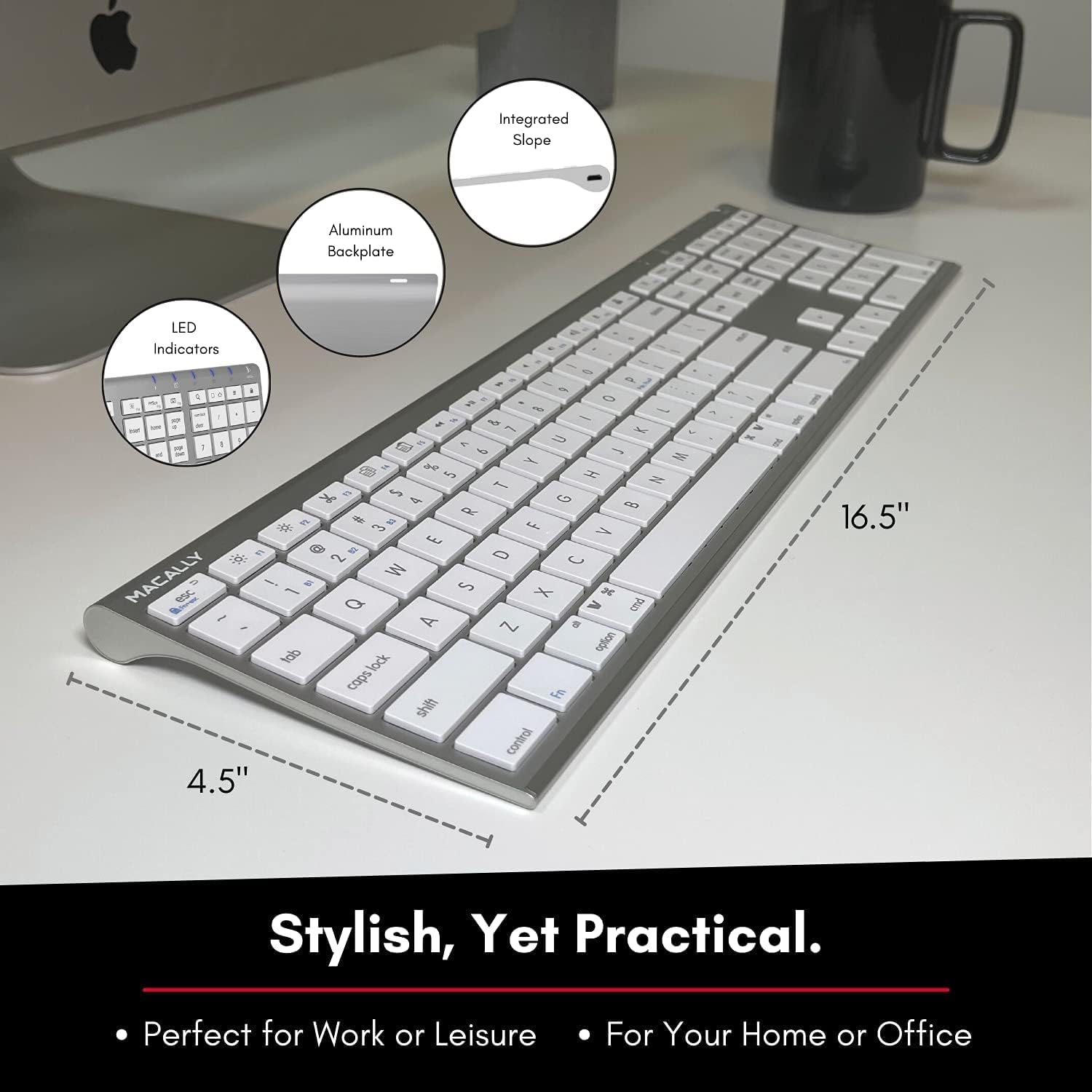
Image: Diagram illustrating the physical dimensions of the Macally Wireless Bluetooth Keyboard.
Atilẹyin ọja ati Support
Macally is committed to delivering high-quality, user-friendly workflow solutions. For any product inquiries, technical support, or warranty information, please visit the official Macally website or contact their customer service. You can find more information and support resources at the Macally Store on Amazon.
Ask a question about this manual
Ask about setup, troubleshooting, compatibility, parts, safety, or missing instructions. Manuals+ will review the question and use this page’s manual context to help answer it.