
mophie 401102947
Ìwé Àgbékalẹ̀ Olùlò Batiri Gbogbogbòò 10,000mAh Mophie powerstation
Awoṣe: 401102947
Ọrọ Iṣaaju
The Mophie powerstation 10,000mAh is a portable universal battery designed to charge smartphones, tablets, and other USB-C and USB-A compatible devices. Its compact design and high capacity ensure your devices stay powered on the go.
Package Awọn akoonu
- Mophie powerstation 10,000mAh
- Ngba agbara USB
- Quick Bẹrẹ Itọsọna
Ọja Pariview
Familiarize yourself with the Mophie powerstation's features and ports.

Aworan: Igun view of the Mophie powerstation, showing the USB-C input/output port, USB-A output port, and LED indicator lights.

Aworan: Close-up of the Mophie powerstation's ports, clearly showing the USB-C and USB-A ports.
- Ibudo USB-C: Used for both charging the powerstation and charging compatible devices.
- Ibudo USB-A: Used for charging compatible devices.
- Atọka Agbara LED: Four lights display the charging status and current battery life.
- Bọtini agbara: Activates the LED power indicator to check battery level.
Setup: Charging the powerstation
- Connect the provided charging cable to the USB-C port on the Mophie powerstation.
- Connect the other end of the charging cable to a compatible USB wall adapter (not included) or a computer's USB port.
- The LED indicators will illuminate to show the charging progress. All four LEDs will be solid when the powerstation is fully charged.
It is recommended to fully charge the powerstation before its first use.
Operating: Charging Your Devices
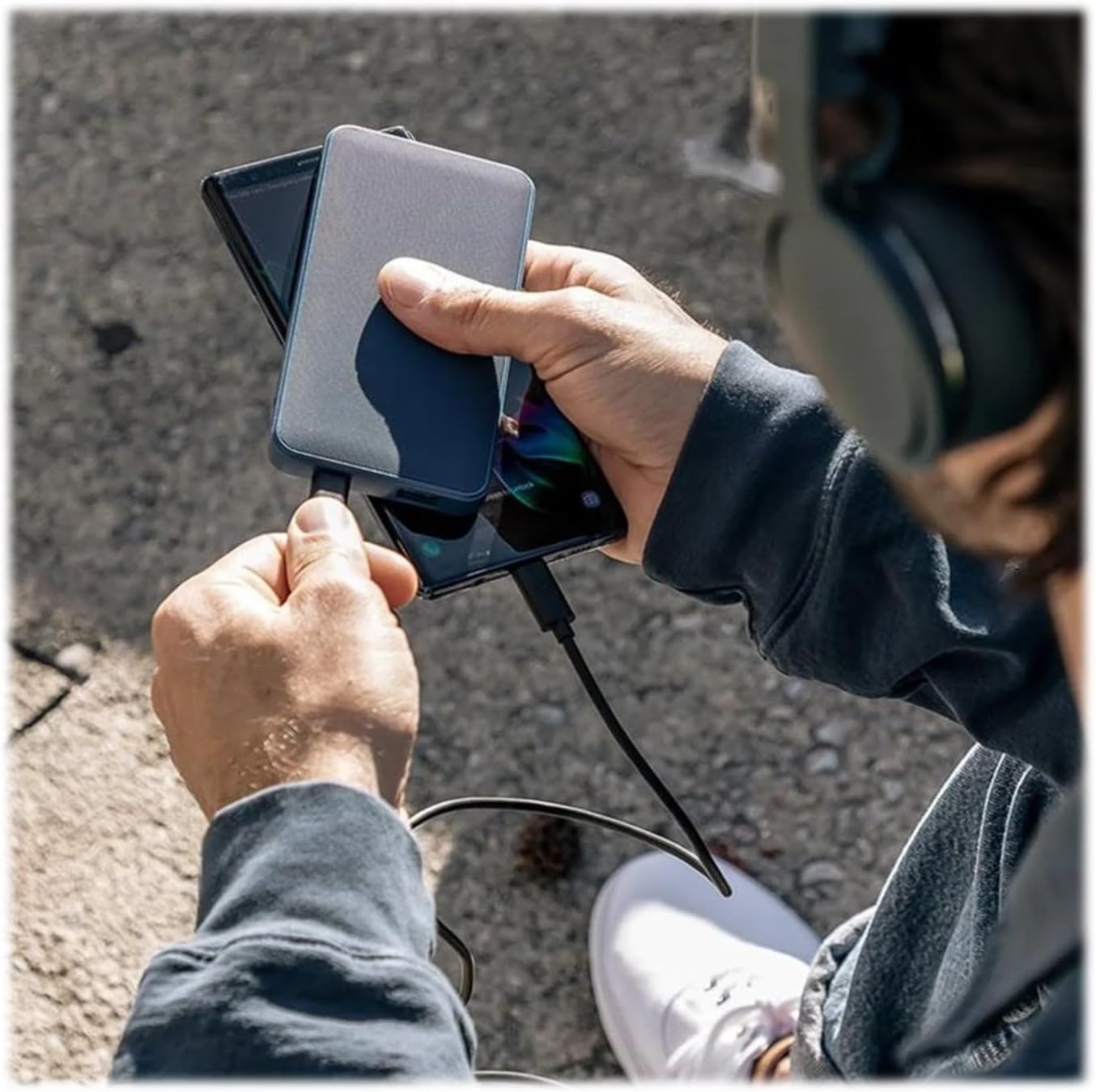
Aworan: A person holding the Mophie powerstation and a smartphone, demonstrating simultaneous device charging.
- Connect your device's charging cable to either the USB-C or USB-A output port on the powerstation.
- So opin miiran ti okun pọ si ẹrọ rẹ.
- The powerstation will automatically begin charging your device. If charging does not start, press the power button on the powerstation.
- You can charge multiple devices simultaneously by utilizing both the USB-C and USB-A ports.
LED Atọka Itọsọna
The four LED lights on the powerstation indicate the battery's charge level and charging status:
- Four Solid Lights: 75-100% gba agbara
- Three Solid Lights: 50-75% gba agbara
- Two Solid Lights: 25-50% gba agbara
- One Solid Light: 0-25% gba agbara
- Awọn imọlẹ didan: Indicates the powerstation is currently charging.
Awọn pato
| Ẹya ara ẹrọ | Ẹ̀kúnrẹ́rẹ́ |
|---|---|
| Nọmba awoṣe | 401102947 |
| Agbara Batiri | 10,000mAh |
| Ọja Mefa | 2.83 x 0.65 x 5.47 inches |
| Iwọn Nkan | 5.4 iwon |
| Asopọmọra Iru | USB Iru C, USB Iru A |
| Àwọ̀ | Dudu |
| Pataki Awọn ẹya ara ẹrọ | Ìwúwo Fúyẹ́, Agbégbé |
Itoju
- Keep the powerstation dry and away from moisture.
- Yago fun awọn iwọn otutu pupọ (gbona tabi tutu).
- Nu ẹrọ naa pẹlu asọ ti o gbẹ. Maṣe lo awọn kẹmika lile tabi awọn ohun elo abrasive.
- Tọju ni itura, ibi gbigbẹ nigbati ko si ni lilo.
Laasigbotitusita
- Powerstation not charging: Ensure the charging cable is securely connected to both the powerstation's USB-C port and the power source. Try a different wall adapter or USB port.
- Device not charging from powerstation: Ensure your device's cable is securely connected to both the powerstation and your device. Press the power button on the powerstation to initiate charging. Verify the powerstation has sufficient charge.
- Gbigba agbara lọra: Ensure you are using appropriate cables and a compatible wall adapter for optimal charging speeds.
Alaye Aabo
- Do not expose the powerstation to fire or extreme heat.
- Do not puncture, crush, or drop the powerstation.
- Do not disassemble or attempt to repair the powerstation.
- Jeki kuro ni arọwọto awọn ọmọde.
- Dispose of the powerstation responsibly according to local regulations.
Atilẹyin ọja ati Support
For warranty information and customer support, please refer to the official Mophie website or contact their customer service. You can visit the Mophie Store on Amazon fun awọn alaye ọja diẹ sii ati awọn orisun atilẹyin.
Ask a question about this manual
Ask about setup, troubleshooting, compatibility, parts, safety, or missing instructions. Manuals+ will review the question and use this page’s manual context to help answer it.