
1. Ifihan
This manual provides detailed instructions for the installation, operation, and maintenance of your GAMDIAS Aeolus M2-1204R RGB Fan. This 120mm fan is designed to enhance cooling performance and aesthetics within your computer enclosure. Please read this manual thoroughly before installation and use to ensure proper function and longevity of the product.
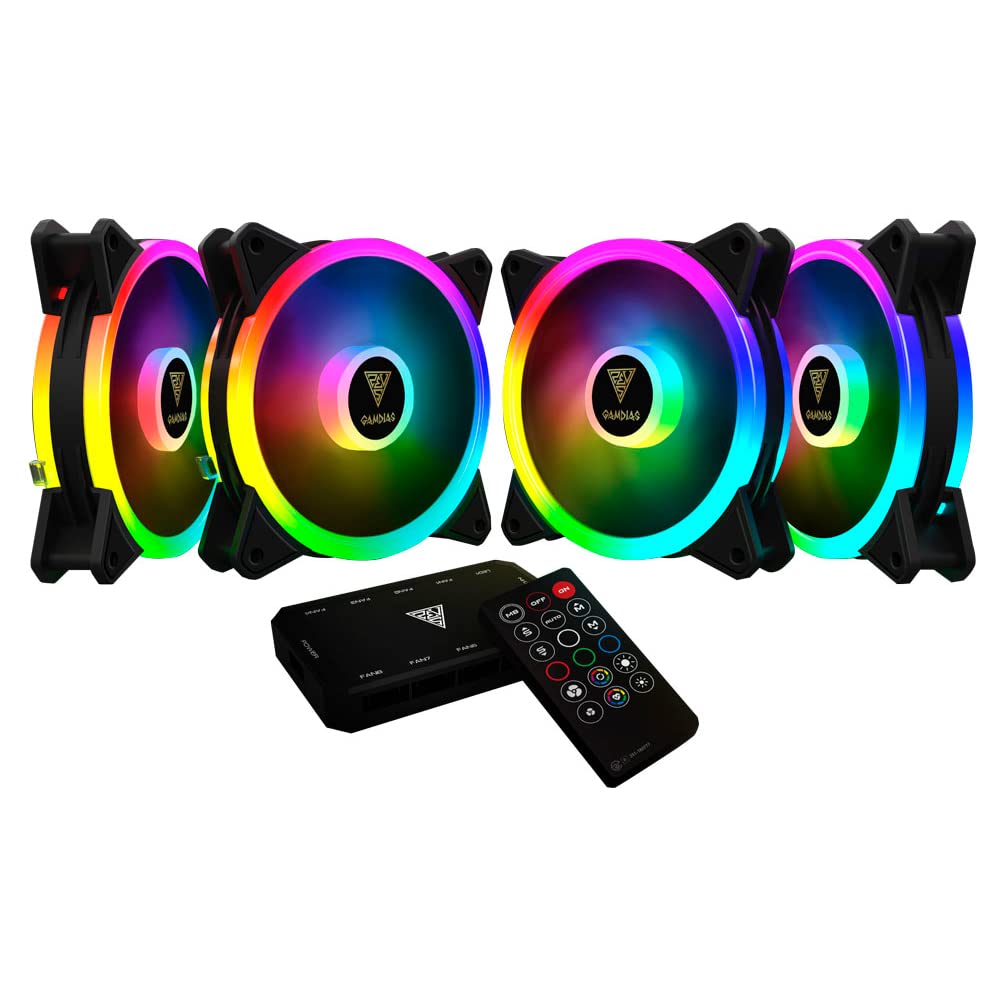
Aworan 1.1: Iwaju view of the GAMDIAS Aeolus M2-1204R RGB Fan, showcasing awọn oniwe-larinrin RGB ina.
2. Alaye Aabo
Tẹle awọn itọsọna aabo wọnyi lati yago fun ibajẹ si ọja tabi ipalara si ara rẹ:
- Ensure your computer system is powered off and disconnected from the main power supply before installation or maintenance.
- Handle the fan by its frame to avoid touching the blades, which can be delicate.
- Do not attempt to modify the fan or its components. Unauthorized modifications may void the warranty and pose safety risks.
- Jẹ́ kí afẹ́fẹ́ náà jìnnà sí omi àti ọ̀rinrin tó pọ̀ jù.
- Ensure all cables are properly connected and routed to avoid interference with moving parts or other components.
3. Package Awọn akoonu
Daju pe gbogbo awọn nkan wa ninu apo rẹ:
- GAMDIAS Aeolus M2-1204R RGB Fan (1 unit)
- Iṣagbesori skru
- Afowoyi Olumulo (iwe-ipamọ yii)
4. Eto ati fifi sori
Follow these steps to properly install your GAMDIAS Aeolus M2-1204R RGB Fan:
4.1 Fifi sori ti ara
- Mura PC rẹ: Power off your computer and unplug it from the wall outlet. Open your computer case.
- Identify mounting location: Locate an available 120mm fan mounting position in your PC case (e.g., front, rear, top, or bottom).
- Gbe olufẹ naa si: Place the fan in the desired mounting location, ensuring the airflow direction is correct. Typically, fans are installed to draw cool air into the case or exhaust hot air out. Arrows on the fan frame usually indicate airflow direction.
- Secure the fan: Use the provided mounting screws to secure the fan to the case. Tighten screws evenly but do not overtighten to avoid stripping or damaging the fan frame.
4.2 Awọn isopọ onirin
- So agbara: Locate the 4-pin power connector on the fan cable. Connect this to an available 4-pin fan header on your motherboard or a fan controller. Ensure the connector is oriented correctly before pushing it firmly into place.
- So RGB pọ (ti o ba wulo): The Aeolus M2-1204R features RGB lighting. Connect the RGB cable from the fan to a compatible RGB header on your motherboard (e.g., 5V 3-pin addressable RGB header) or to a dedicated GAMDIAS RGB controller. Refer to your motherboard or controller manual for specific RGB connection instructions.
- Iṣakoso USB: Route all cables neatly to prevent interference with other components and to maintain good airflow within the case.

Àwòrán 4.1: Onírúurú views of the GAMDIAS Aeolus M2-1204R RGB Fan, illustrating its design and connection points.
5. Awọn ilana Iṣiṣẹ
Once installed, the GAMDIAS Aeolus M2-1204R fan will begin operating when your computer is powered on. Its primary function is to provide airflow for cooling your PC components.
5.1 Fan iyara Iṣakoso
If connected to a 4-pin PWM (Pulse Width Modulation) fan header on your motherboard, the fan speed can be controlled via your motherboard's BIOS/UEFI settings or through compatible software provided by your motherboard manufacturer. This allows for dynamic adjustment of fan speed based on system temperature, optimizing for either performance or quiet operation.
5.2 RGB ina Iṣakoso
The RGB lighting of the Aeolus M2-1204R can be controlled in one of two ways, depending on your setup:
- Sọfitiwia modaboudu: If connected to a compatible addressable RGB header on your motherboard, you can use your motherboard's RGB synchronization software (e.g., ASUS Aura Sync, MSI Mystic Light Sync, Gigabyte RGB Fusion, ASRock Polychrome Sync) to customize lighting effects and colors.
- Dedicated Controller: If you are using a GAMDIAS RGB controller (often included with multi-fan packs or sold separately), the lighting can be controlled via the controller's buttons or remote control. Refer to the controller's specific manual for detailed instructions.
6. Itọju
Itọju deedee n ṣe iranlọwọ lati rii daju pe iṣẹ ṣiṣe to dara julọ ati pe o mu igbesi aye afẹfẹ rẹ pọ si.
6.1 Ninu
- Igbohunsafẹfẹ: It is recommended to clean your fan every 3-6 months, or more frequently in dusty environments.
- Ilana:
- Power off your computer and disconnect it from the power supply.
- Carefully open your computer case.
- Use compressed air to blow dust off the fan blades and frame. Hold the fan blades gently to prevent them from spinning rapidly during cleaning, which can damage the bearings.
- For stubborn dust, use a soft, dry cloth or a cotton swab to wipe the blades and frame. Do not use liquid cleaners.
- Ensure the fan is completely dry before closing the case and powering on the computer.
6.2 Itọju Gbogbogbo
- Avoid placing your computer in excessively dusty or humid environments.
- Ensure adequate space around your computer case for proper airflow.
7. Laasigbotitusita
If you encounter issues with your GAMDIAS Aeolus M2-1204R fan, refer to the following common problems and solutions:
| Isoro | Owun to le Fa | Ojutu |
|---|---|---|
| Fan ko nyi | Ko si agbara asopọ Akọsori àìpẹ aṣiṣe Ikuna àìpẹ | Check if the 4-pin power connector is securely plugged into the motherboard/controller. Try connecting the fan to a different fan header on the motherboard. If still not spinning, the fan may be faulty. |
| Imọlẹ RGB ko ṣiṣẹ | Incorrect RGB connection Ọrọ sọfitiwia Faulty RGB component | Ensure the RGB cable is correctly connected to a compatible 5V 3-pin addressable RGB header or controller. Verify that your motherboard's RGB software or dedicated controller is properly configured and running. Check for any physical damage to the RGB cable or LEDs. |
| Fan ṣiṣe dani ariwo | Idilọwọ Loose iṣagbesori skru Bearing issue | Power off and check for any cables or objects obstructing the fan blades. Rii daju pe gbogbo awọn skru iṣagbesori ti di wiwọ ni aabo. If the noise persists and there are no obstructions, the fan bearings may be worn. Consider replacement. |
8. Awọn pato
Key technical specifications for the GAMDIAS Aeolus M2-1204R RGB Fan:
- Awoṣe: AEOLUS M2-1204R
- Awọn iwọn Olufẹ: 120mm x 120mm x 25mm (4.72"L x 2.36"W x 4.72"H)
- Ohun elo: Polycarbonate
- Asopọ Agbara: 4-PWM pin
- Voltage: 12 Volts
- Wattage: 13.2 watt
- Ọna Itutu: Afẹfẹ
- Iyara Yiyi to pọju: 2000 RPM
- Agbara Sisan Afẹfẹ: Ẹsẹ onigun 56 fun Iṣẹju kan (CFM)
- Ipele Ariwo: 20 Decibels (dB)
- Awọn ẹrọ ibaramu: Ojú-iṣẹ
- Ìwọ̀n Nkan: 5.6 iwon

Aworan 8.1: Apa view of the GAMDIAS Aeolus M2-1204R RGB Fan, highlighting its profile.
9. Atilẹyin ọja ati Support
9.1 atilẹyin ọja Alaye
The GAMDIAS Aeolus M2-1204R RGB Fan comes with a manufacturer's warranty. Please refer to the warranty card included with your product or visit the official GAMDIAS webAaye fun alaye atilẹyin ọja ofin ati ipo. Jeki ẹri rira rẹ fun awọn iṣeduro atilẹyin ọja.
9.2 Imọ Support
For technical assistance, troubleshooting beyond this manual, or warranty inquiries, please contact GAMDIAS customer support through their official website or the retailer from whom you purchased the product. Provide your product model number (AEOLUS M2-1204R) and a detailed description of the issue when seeking support.