
1. Ifihan
This manual provides detailed instructions for the installation, operation, and maintenance of your Pantum BM2300AW Multifunction Printer. This device is designed to perform printing, scanning, and copying functions efficiently. Please read this manual thoroughly before using the printer to ensure proper operation and to prevent damage.
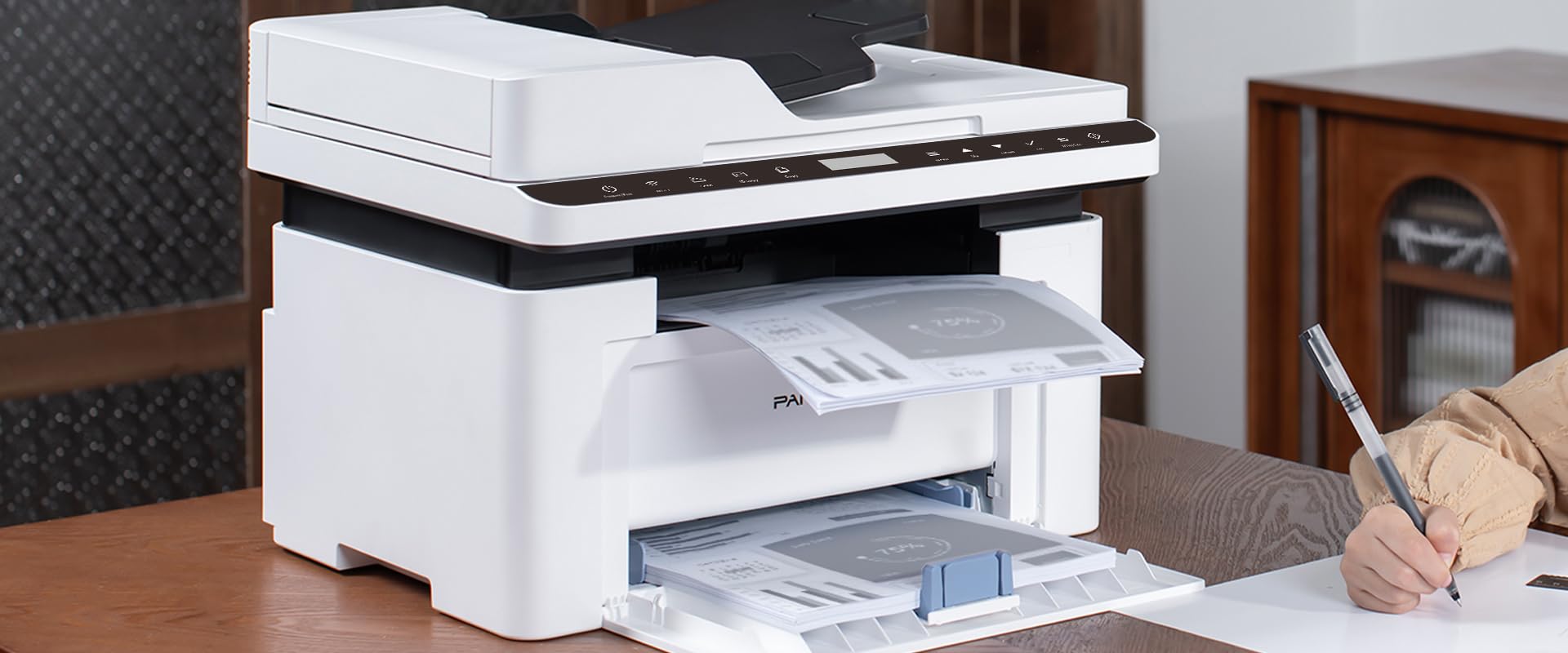
Image 1.1: The Pantum BM2300AW Multifunction Printer in use, showing paper in both the output and input trays. A user is seen writing nearby.
2. Eto
2.1 Ṣiṣii silẹ
- Fara yọọ itẹwe kuro ninu apoti rẹ.
- Yọ gbogbo àwọn téèpù ààbò àti àwọn ohun èlò ìkójọpọ̀ kúrò ní òde àti inú ẹ̀rọ ìtẹ̀wé náà. Wo ìtọ́sọ́nà ìṣètò kíákíá fún àwọn ibi pàtó kan.
- Gbe itẹwe sori iduro, ipele ipele pẹlu fentilesonu to peye.
2.2 Nsopọ Agbara
- So okun agbara pọ si titẹ agbara itẹwe.
- Pulọọgi opin miiran ti okun agbara sinu iṣan itanna ti o wa lori ilẹ.
- Tẹ bọtini agbara lati tan itẹwe.
2.3 Fifi Katiriji Toner sori ẹrọ
- Ṣii ideri iwaju ti itẹwe naa.
- Gently shake the toner cartridge horizontally several times to distribute the toner evenly.
- Fi káàtírì toner sínú ẹ̀rọ ìtẹ̀wé náà títí tí yóò fi tẹ ibi tí ó wà.
- Pa ideri iwaju.
2.4 ikojọpọ Iwe
- Fa jade ni iwe atẹ.
- Ṣàtúnṣe àwọn ìwé ìtọ́ni láti bá ìwọ̀n ìwé tí o ń kó jọ mu.
- Fi àkójọ ìwé náà sínú àwo náà, kí o rí i dájú pé ó tẹ́jú, ó sì wà ní ìsàlẹ̀ ìlà ìkún tó pọ̀ jùlọ.
- Titẹ atẹ iwe pada sinu ẹrọ itẹwe naa.
2.5 Driver Installation and Network Connection
- Asopọ USB: Connect a USB cable from your computer to the printer's USB port. The operating system may automatically detect and install drivers. If not, proceed to step 3.
- Asopọmọra Ethernet: So okùn Ethernet pọ lati olulana nẹtiwọọki rẹ tabi yipada si ibudo Ethernet ti itẹwe naa.
- Visit the official Pantum webAaye (www.pantum.com) to download the latest drivers and software for your BM2300AW model.
- Tẹle awọn ilana loju iboju lati pari fifi sori awakọ.
3. Awọn ilana Iṣiṣẹ
3.1 Iṣakoso igbimo Loriview
The Pantum BM2300AW features a 3-inch display screen and various buttons for navigation and function selection. Familiarize yourself with the layout for easy operation.
- Bọtini agbara: Tan-an tabi pa ẹrọ itẹwe naa.
- Bọ́tìnì Àtòjọ/Ètò: Accesses printer settings and configuration options.
- Awọn bọtini lilọ kiri: Used to scroll through menus on the display.
- Bọtini Ibẹrẹ: Ó bẹ̀rẹ̀ iṣẹ́ ìtẹ̀wé, àdàkọ, tàbí ṣíṣàyẹ̀wò.
- Bọtini Fagilee: Da iṣẹ lọwọlọwọ duro.
3.2 Awọn iwe aṣẹ titẹ sita
- Rii daju pe itẹwe ti wa ni titan ati ti sopọ si kọnputa tabi nẹtiwọki rẹ.
- Ṣii iwe ti o fẹ lati tẹ sita lori kọnputa rẹ.
- Yan File > Titẹ sita.
- Choose the Pantum BM2300AW from the list of available printers.
- Adjust print settings (e.g., number of copies, paper size, duplex printing) as needed.
- Tẹ Titẹ sita.
3.3 Awọn iwe aṣẹ didakọ
- Fi ìwé náà sí orí gíláàsì ẹ̀rọ ìwádìí tàbí ojú rẹ̀ sí orí rẹ̀ nínú Automatic Document Feeder (ADF).
- Lori ẹgbẹ iṣakoso ti ẹrọ itẹwe, yan Daakọ iṣẹ.
- Use the navigation buttons to adjust settings such as number of copies, copy quality, or enlargement/reduction.
- Tẹ awọn Bẹrẹ bọtini lati bẹrẹ daakọ.
3.4 Awọn iwe-iṣayẹwo
- Gbe iwe naa sori gilasi ọlọjẹ tabi ni ADF.
- On your computer, open the scanning software provided with your Pantum printer (or use a standard scanning application).
- Select the Pantum BM2300AW as your scanner.
- Yan àwọn ètò ìṣàyẹ̀wò bíi ìpinnu, ipò àwọ̀, àti folda ibi tí a ń lọ.
- Tẹ Ṣayẹwo to initiate the scanning process.
4. Itọju
4.1 Rirọpo Toner Katiriji
- When the printer indicates a low toner level, order a replacement cartridge.
- Pa ẹrọ itẹwe naa kuro ki o yọọ okun agbara.
- Open the front cover and carefully remove the old toner cartridge.
- Unpack the new toner cartridge and gently shake it.
- Fi katiriji tuntun sinu ẹrọ itẹwe titi ti yoo fi di ibi ti o yẹ.
- Close the front cover, plug in the power cord, and turn on the printer.
4.2 Ninu itẹwe
- Nigbagbogbo mu ese ita ti itẹwe pẹlu asọ, damp, lint-free asọ.
- Fi ohun ìfọmọ́ gilasi kan ti a fi si aṣọ (kii ṣe taara si gilasi naa) nu gilasi scanner naa.
- Refer to the full user manual on the Pantum webaaye fun awọn ilana mimọ inu ti o ni alaye.
4.3 Paper Paper Jams
- If a paper jam occurs, the printer display will show an error message.
- Pa ẹrọ atẹwe naa kuro ki o yọọ kuro.
- Open the covers and trays as indicated by the error message or the printer's internal diagrams.
- Fi pẹ̀lẹ́pẹ̀lẹ́ fa gbogbo ìwé tó ti dí mọ́lẹ̀ jáde sí ojú ọ̀nà tí ìwé náà ń lọ. Má ṣe ya ìwé náà.
- Close all covers and trays, plug in the printer, and turn it back on.
5. Laasigbotitusita
This section addresses common issues you might encounter. For more complex problems, consult the full user manual or contact Pantum support.
5.1 Itẹwe Ko fesi
- Rí i dájú pé ẹ̀rọ ìtẹ̀wé náà ti ń ṣiṣẹ́, àti pé okùn agbára náà ti so mọ́ ara rẹ̀ dáadáa.
- Check the USB or Ethernet cable connection between the printer and your computer/network.
- Rí i dájú pé a ti fi ẹ̀rọ ìtẹ̀wé tó tọ́ sí kọ̀ǹpútà rẹ, a sì ti yàn án.
- Tun bẹrẹ mejeeji itẹwe ati kọmputa rẹ.
5.2 Ko dara Print Didara
- Check the toner level and replace the cartridge if it is low.
- Rí i dájú pé o ń lo ìwé tó yẹ fún iṣẹ́ ìtẹ̀wé rẹ.
- Clean the printer's internal components as per the maintenance section or full manual.
- Adjust print quality settings in your computer's print dialogue.
5.3 Paper Jams Occur Frequently
- Ensure paper is loaded correctly and the paper guides are adjusted snugly against the paper stack.
- Ma ṣe apọju atẹ iwe naa.
- Use paper that meets the printer's specifications (weight, type).
- Check for any foreign objects inside the paper path.
6. Awọn pato
| Ẹya ara ẹrọ | Ẹ̀kúnrẹ́rẹ́ |
|---|---|
| Brand | PANTUM |
| Nọmba awoṣe | BM2300AW (Item No. S5627949) |
| Awọn iwọn Ọja (D x W x H) | 35 x 35 x 25 centimeters |
| Iwọn Nkan | 10 kilo |
| Asopọmọra Technology | USB, àjọlò |
| Imọ-ẹrọ titẹ sita | Lesa awọ |
| Max Monochrome Print Speed | Awọn oju-iwe 30 fun iṣẹju kan |
| Iyara titẹjade awọ to pọ julọ | Awọn oju-iwe 15 fun iṣẹju kan |
| Max B&W Print Resolution | 600x600 dpi or higher |
| Max Awọ Print ipinnu | 4800 x 1200 dpi |
| Ile oloke meji Printing | Bẹẹni |
| Iwọn Media ti o pọju | A3 |
| Agbara ifunni dì ti o pọju | 100 iwe |
| Scanner Iru | Dì-jẹ |
| Iwon iboju | 3 inches |
| Agbara agbara | 50 Wattis |
| Ijinle Awọ | 36 bpp |
7. atilẹyin ọja Information
The Pantum BM2300AW Multifunction Printer comes with a limited warranty. For specific terms, conditions, and duration of your warranty, please refer to the warranty card included with your product or visit the official Pantum webojula. Jeki ẹri rira rẹ fun awọn iṣeduro atilẹyin ọja.
8. Onibara Support
For further assistance, technical support, driver downloads, or frequently asked questions, please visit the official Pantum support webojula:
You may also find contact information for your regional support center on the webojula.