
1. Ifihan
This manual provides detailed instructions for the installation, setup, and operation of your meross Smart Ceiling Fan Control & Dimmer Light Switch (Model MFC100). This device allows you to control your ceiling fan and light independently via the Meross app, voice commands (Apple HomeKit, Amazon Alexa, Google Home), or directly from the wall switch.

Image: meross Smart Ceiling Fan Control & Dimmer Light Switch (MFC100).
The meross MFC100 is a smart wall switch designed to integrate your ceiling fan and light into your smart home system, offering convenient control options.
Alaye Aabo pataki
- Ewu ti Ina mọnamọna: Installation requires handling 120V AC wiring. Ensure power is OFF at the circuit breaker before installation.
- Ti beere fun Waya Ailopin: This switch requires a neutral wire for operation. Verify its presence in your electrical box before proceeding.
- Single-Pole Use Only: Designed for single-pole applications (controlling a fan/light from one location). Not compatible with 3-way switches.
- A ṣe iṣeduro fifi sori Ọjọgbọn: Ti o ko ba ni idaniloju nipa eyikeyi apakan ti ilana fifi sori ẹrọ, kan si onisẹ ina mọnamọna ti o peye.
2. Ibamu
2.1 Wiring awọn ibeere
The meross MFC100 requires specific wiring in your electrical box:
- Waya Aidaduro: Essential for operation (usually white).
- Waya/Waya Gbona: (usually black).
- Waya ilẹ: (bare copper or green insulated wire).
- Separate Load Wires: Your ceiling fan must have two separate load wires – one for the fan and one for the light. If your fan only has one load wire for both, this switch is not compatible.

Image: Wiring diagram for the meross MFC100 switch.
This diagram illustrates the required wiring connections for the meross MFC100. Ensure your electrical box has all five necessary wires: Neutral, Line, Ground, Fan Load, and Light Load.
2.2 Fan and Bulb Compatibility
- Irú Fan: Compatible with pull-chain ceiling fans that lack electronic controls. Not suitable for fans with built-in remote control, Bluetooth/Wi-Fi control systems, or DC motors.
- Irú boolubu: Compatible with dimmable LED/CFL bulbs (up to 150W max) and incandescent (INC) bulbs (up to 300W max). Not compatible with smart bulbs.
- Agbara Afẹfẹ: Supports fans up to 120W Max.
- Iṣakoso Iyara Fan: Supports 3 or 4-speed fan control.
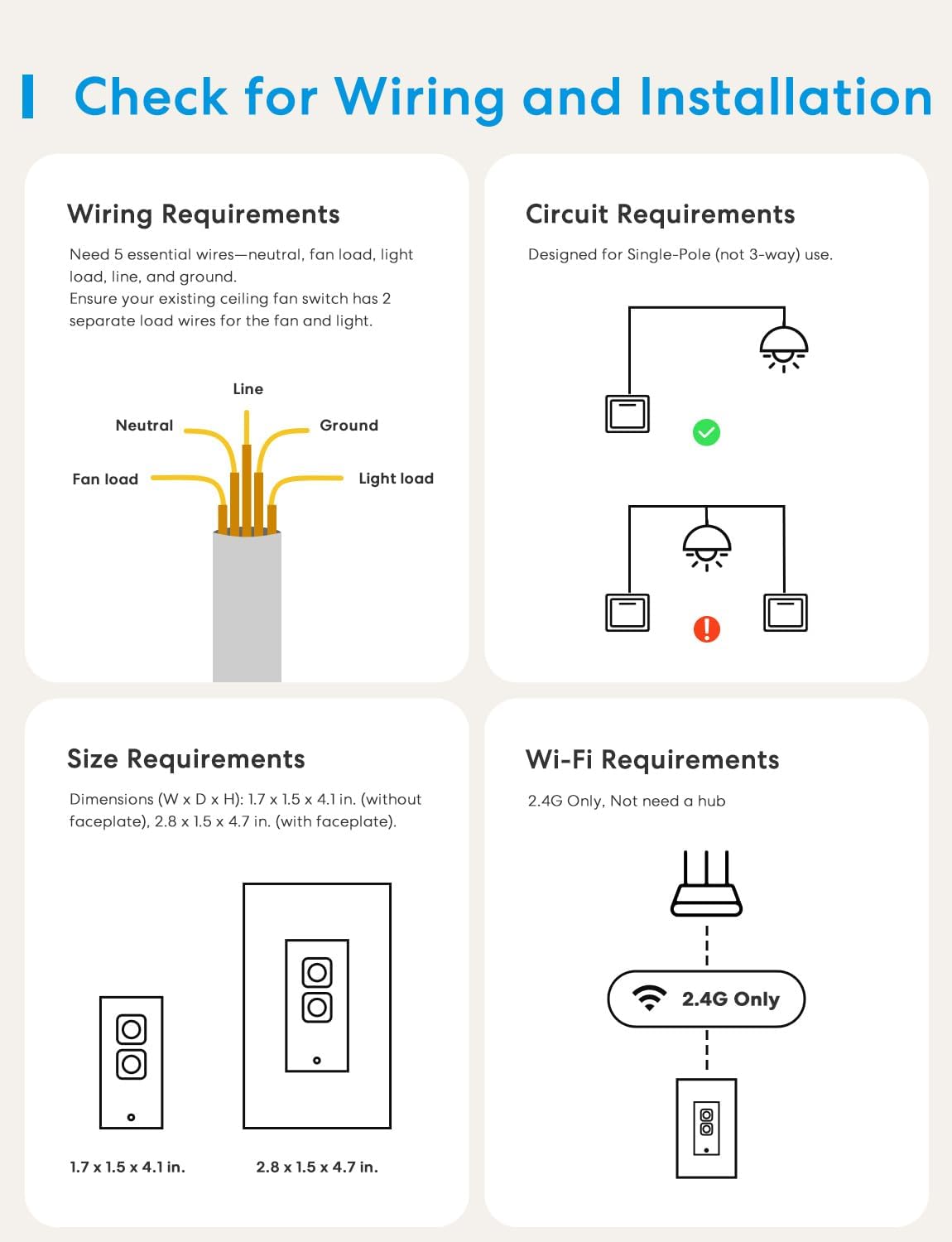
Image: Visual guide to fan and bulb compatibility.
This image details the types of bulbs and fans that are compatible or incompatible with the MFC100. It highlights that smart bulbs, fans with integrated electronic controls, or DC motors are not supported.
Video: Important considerations before purchasing the meross Smart Ceiling Fan Control.
This video provides essential information regarding the compatibility requirements of the meross Smart Ceiling Fan Control, helping users determine if their existing setup is suitable.
2.3 Wi-Fi Requirements
- Supports 2.4GHz Wi-Fi networks only. 5GHz Wi-Fi is not supported.
- No separate hub is required for operation.
3. Package Awọn akoonu
The meross MFC100 package includes the following items:
- 1 x meross Smart Wi-Fi Fan Control (MFC100)
- 1 x Oju oju
- 1 x Itọsọna olumulo
- 2 x Skru
- 5 x Wiring Nuts
- 1 x Wire Sticker Sheet
Fidio: Unboxing ati siwaju siiview of the meross MFC100 package contents.
This video provides a visual guide to what's included in your meross MFC100 package, demonstrating each component and its purpose.
4. fifi sori
4.1 Akojọ aṣyn fifi sori ẹrọ tẹlẹ
- Verify your ceiling fan has two separate load wires (one for fan, one for light).
- Confirm the presence of a neutral wire in your electrical box.
- Ensure your fan does not have built-in remote or smart controls.
- Turn off power at the circuit breaker before starting.
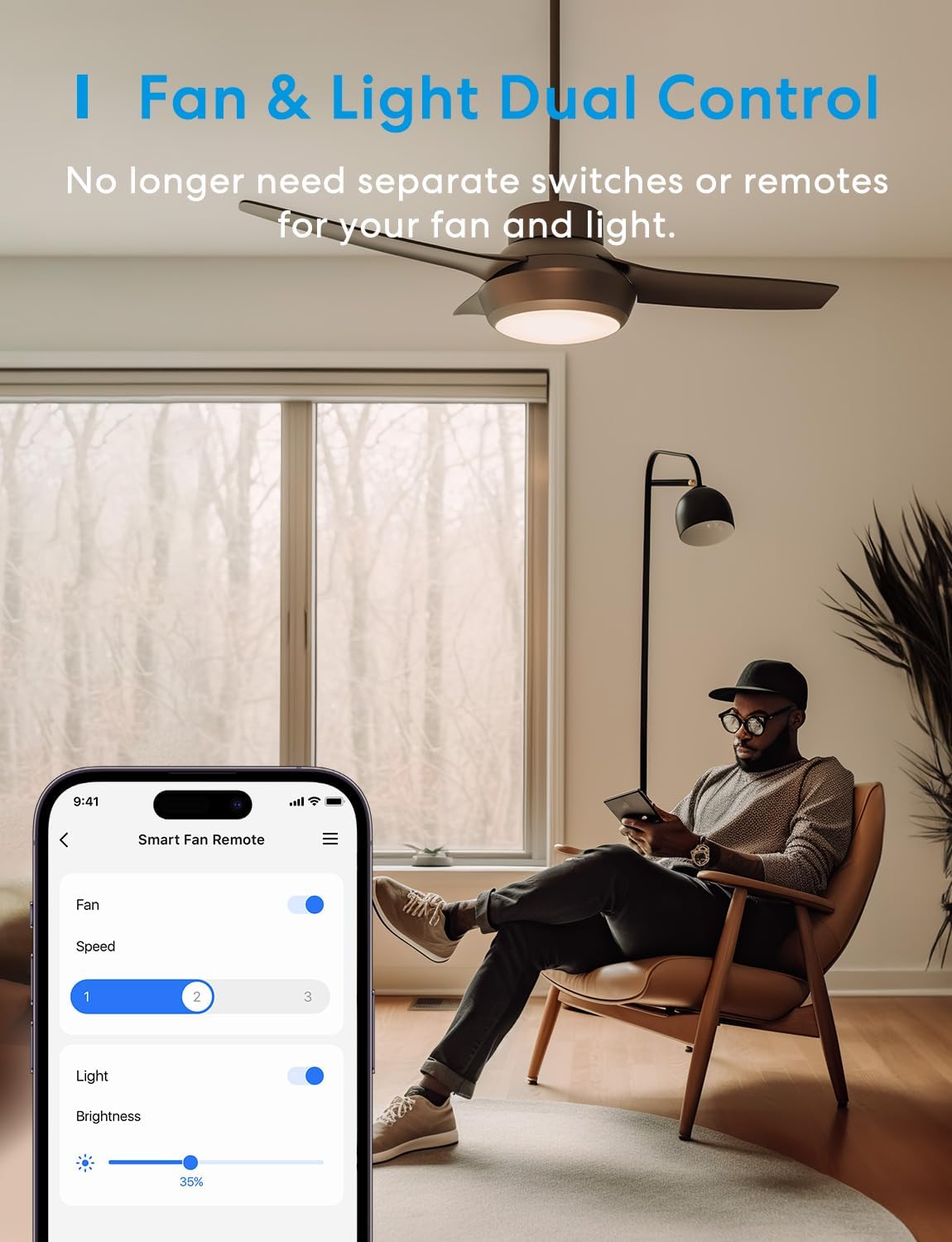
Image: Checklist for wiring and installation.
This image summarizes the critical checks before installation, including wiring, circuit type (single-pole), physical dimensions, and 2.4G Wi-Fi requirement.
4.2 Wiring Igbesẹ
- Pa Agbara: Locate the circuit breaker controlling the fan/light switch and turn it OFF. Test the existing switch to ensure power is disconnected.
- Yọ Yipada atijọ kuro: Carefully remove the faceplate and unscrew the old switch from the wall box. Disconnect the wires, noting their connections. Use the provided wire stickers to label each wire (Line, Neutral, Ground, Fan Load, Light Load).
- So Yipada Tuntun Sopọ: Using the provided wiring nuts, connect the wires from the wall box to the corresponding wires on the meross MFC100 switch.
- Sopọ awọn Ila (Gbona) wire from the wall to the switch's Line wire.
- Sopọ awọn Àdánù wire from the wall to the switch's Neutral wire.
- Sopọ awọn Ilẹ wire from the wall to the switch's Ground wire.
- Sopọ awọn Fifuye Fan wire from the wall to the switch's Fan Load wire.
- Sopọ awọn Fifuye Imọlẹ wire from the wall to the switch's Light Load wire.
- Yipada sori ẹrọ: Carefully tuck all wires into the electrical box. Secure the meross MFC100 switch into the wall box using the provided screws.
- So Apoti Iwari: Snap the new faceplate onto the switch.
- Pada Agbara pada: Tan agbara pada ON ni Circuit fifọ.
5. Eto
5.1 Meross App Setup
- Download the Meross app from the App Store or Google Play.
- Register or log in to your Meross account.
- Tẹ aami "+" ni igun apa ọtun oke lati ṣafikun ẹrọ tuntun kan.
- Follow the in-app instructions to connect your MFC100 to your 2.4GHz Wi-Fi network.

Image: Meross app interface for smart fan control.
This image shows the Meross app interface, demonstrating how to control the fan speed and light brightness from your smartphone.
5.2 Smart Home Integration (Apple HomeKit, Alexa, Google Home)
The MFC100 is compatible with major smart home platforms:
- Apple HomeKit:
- Disable 5GHz network and connect your phone to a stable 2.4GHz Wi-Fi network.
- Ensure your device's operating system is iOS 16 or higher.
- Open the Apple Home App, tap "+", then "Add Accessory".
- Scan the QR code on the switch or input the setup code.
- Follow the onboarding instructions in the Home App.
- If adding fails, factory reset the device and restart your phone. You can also visit meross support fun iranlowo.
- Amazon Alexa / Google Home:
- Ensure your MFC100 is already set up in the Meross app.
- Ṣii ohun elo Alexa tabi Google Home.
- Navigate to the "Skills" or "Works with Google" section and search for "Meross".
- Enable the Meross skill and link your Meross account.
- Discover devices, and your MFC100 should appear.

Image: Step-by-step guide for HomeKit integration.
This image provides a visual walkthrough for connecting your meross MFC100 to Apple HomeKit, including troubleshooting tips.
6. Awọn ilana Iṣiṣẹ
6.1 Afowoyi Iṣakoso
- Iṣakoso Afẹfẹ: Press the fan button to cycle through fan speeds (Off, Low, Medium, High). Double-press to adjust speed settings.
- Iṣakoso ina: Press the light button to turn the light ON/OFF. Double-press to adjust brightness (3 settings).
- Iṣakoso Titunto: A master button may be present to turn both fan and light ON/OFF simultaneously.
Video: Demonstrating manual control of fan and light with a simple touch.
This video illustrates how to manually control the fan speed and light brightness directly from the meross smart switch.
6.2 App Iṣakoso
Use the Meross app to:
- Turn the fan and light ON/OFF.
- Adjust fan speeds (3 or 4 speeds, depending on settings).
- Dim the light from 1% to 100%.
- Access advanced features like scheduling and timers.
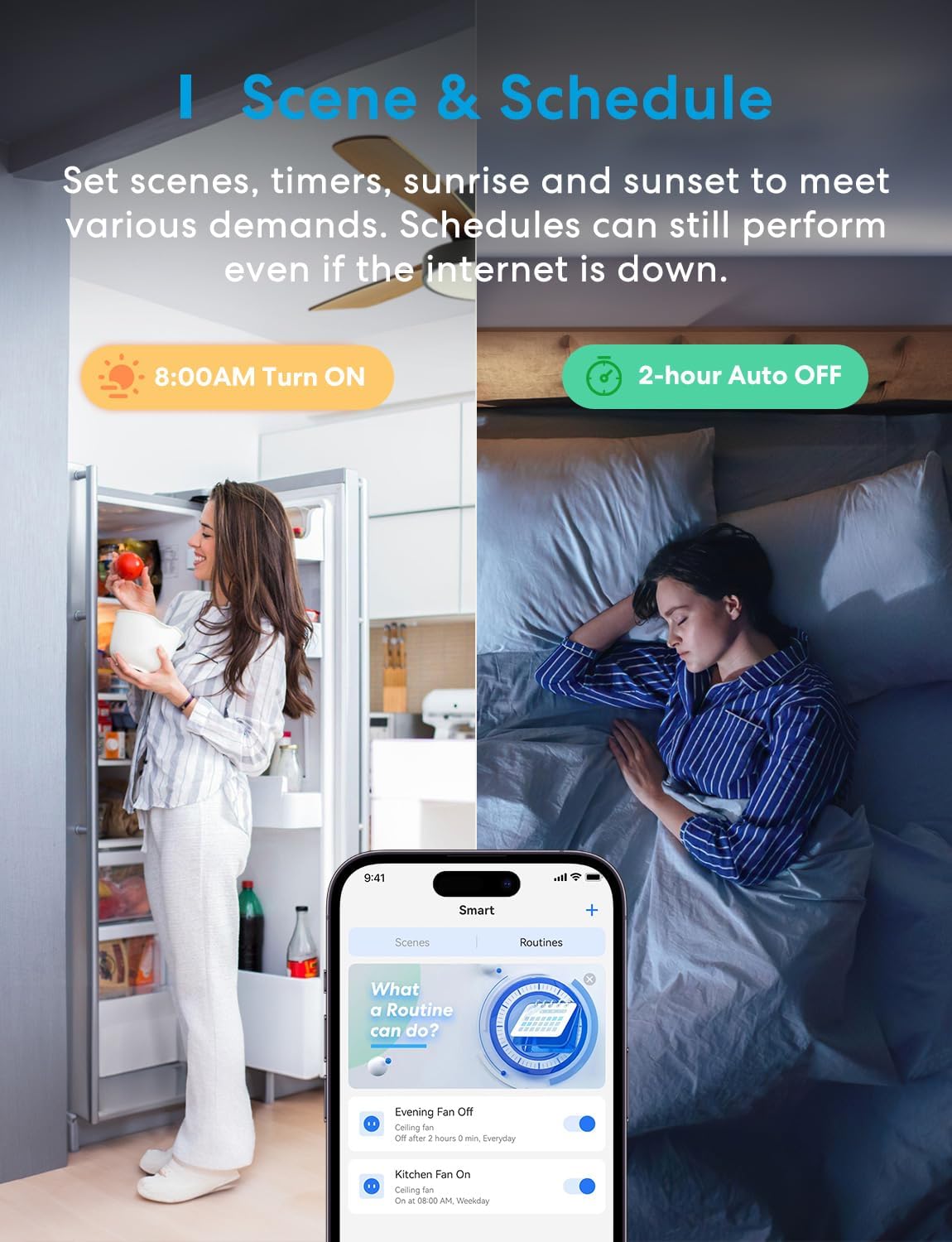
Image: App control for fan and light.
This image shows a user controlling their ceiling fan and light using the Meross app on their smartphone, highlighting the dual control functionality.
6.3 Iṣakoso ohun
Once integrated with your smart home assistant, use voice commands:
- "Hey Siri, set the bedroom fan to high."
- "Alexa, turn up the living room fan speed."
- "Hey Google, dim the light to 50%."

Image: Voice control options.
This image illustrates how to use voice commands with Siri, Alexa, and Google Assistant to control the fan and light functions of the meross smart switch.
Video: Demonstrating hands-free voice control with Alexa.
This video showcases the convenience of controlling your meross smart fan and light switch using voice commands through Alexa.
7. Awọn ẹya ara ẹrọ
- Iṣeto ati Aago: Create custom schedules or countdowns for automatic ON/OFF times for both fan and light. Supports sunrise/sunset settings. Schedules continue to run even if the internet connection is lost.
- Imọlẹ Dimmable: Smoothly dim your light from 1% to 100% via the app or voice control.
- Iyara Olufẹ Atunṣe: Control your fan with 3 or 4 speed levels (customizable in settings).
- Backlight Off Mode: Customize the switch's LED backlight to stay on or off, preventing light pollution during sleep.
- Superfast Local Control: Enjoy millisecond response times and no drop-off with local control when you are at home, ensuring quick and reliable operation.
- Offline Control: Preset routines in the Meross app will continue to run even if your internet connection is temporarily lost.
- Awọn ẹya Aabo ti a ṣe sinu: The MFC100 features fire-retardant housing (UL94-V0 rating) and is FCC/IC/ETL certified for safe use.

Image: Scene and schedule settings.
This image illustrates how to set up scenes and schedules within the Meross app to automate your fan and light operation, including sunrise/sunset and auto-off functions.
Video: Setting schedules for automatic fan and light operation.
This video demonstrates how to set up schedules to automatically turn the fan and light on or off at specific times.

Image: 1%-100% dimmable range.
This image visually represents the light dimming capability of the MFC100, allowing adjustment from 1% to 100% brightness.

Image: Adjustable fan speed levels.
This image demonstrates the adjustable fan speed feature, showing levels from 1 to 4 for customized airflow.

Image: Backlight off feature for undisturbed sleep.
This image highlights the "Backlight Off" feature, which allows users to disable the LED light on the switch for a more comfortable sleeping environment.

Image: Superfast local control diagram.
This diagram illustrates the efficiency of Meross's local control, showing significantly faster response times compared to other devices that rely solely on cloud communication.

Image: Offline control functionality.
This image demonstrates that the meross smart switch can maintain scheduled operations even when the internet connection is unavailable.

Image: Safety and quality features.
This image details the safety features of the MFC100, including its fire-retardant housing, broad bulb compatibility, and various safety certifications.
8. Itọju
- Ninu: Wipe the switch and faceplate with a soft, dry cloth. Do not use liquid cleaners or aerosols.
- Awọn imudojuiwọn famuwia: Regularly check the Meross app for firmware updates to ensure optimal performance and security.
9. Laasigbotitusita
- Yipada Ko Dahun:
- Check the circuit breaker to ensure power is ON.
- Daju pe gbogbo awọn asopọ onirin wa ni aabo.
- Perform a factory reset (refer to the Meross app or support for instructions).
- Ko le Sopọ si Wi-Fi:
- Rii daju pe nẹtiwọki Wi-Fi rẹ jẹ 2.4GHz.
- Move the switch closer to your Wi-Fi router.
- Temporarily disable 5GHz on your router during setup if possible.
- Ṣayẹwo ọrọ igbaniwọle Wi-Fi rẹ.
- Light Not Dimming / Fan Speed Issues:
- Confirm your bulbs are dimmable and within the wattage limits (300W INC, 150W LED/CFL).
- Ensure your fan is compatible (not DC motor, no integrated smart controls).
- Use the Meross app's compatibility test feature to check for optimal dimming performance.

Image: Meross app compatibility test.
This image displays the Meross app's built-in compatibility test, which helps ensure your lights are fully compatible and provide optimal dimming.
10. Awọn pato
| Awoṣe | MFC100 |
| Iṣagbewọle Voltage | 120V AC |
| Max Fan Power | 120W |
| Max Light Power | 300W INC / 150W LED/CFL |
| Asopọmọra | Wi-Fi IEEE 802.11 b/g/n, 2.4GHz |
| Awọn ọna Iṣakoso | App, Voice, Manual Switch |
| Ibamu | Apple HomeKit, Amazon Alexa, Google Home, SmartThings |
| Awọn iwọn (W x D x H) | 1.7 x 1.5 x 4.1 in (without faceplate), 2.8 x 1.5 x 4.7 in (with faceplate) |
| Awọn iwọn otutu ti nṣiṣẹ | 32°F - 104°F (0°C - 40°C) |
| Awọn iwe-ẹri | ETL, FCC, IC |
11. Atilẹyin ọja & Atilẹyin
meross products come with a standard manufacturer's warranty. For detailed warranty information, product support, or technical assistance, please visit the official meross webojula tabi kan si wọn atilẹyin alabara egbe.
Atilẹyin Ayelujara: www.meross.com/support
Imeeli Atilẹyin: support@meross.com