
Ọrọ Iṣaaju
This manual provides instructions for the Speedlink PIAVO Wireless Ergonomic Vertical Mouse (Model SL-630019-BK-01). This ergonomic mouse is designed to promote a natural, relaxed wrist posture, reducing strain on the hand, arm, shoulder, and neck during extended computer use. It features 5 buttons, adjustable DPI settings, and wireless 2.4 GHz connectivity.

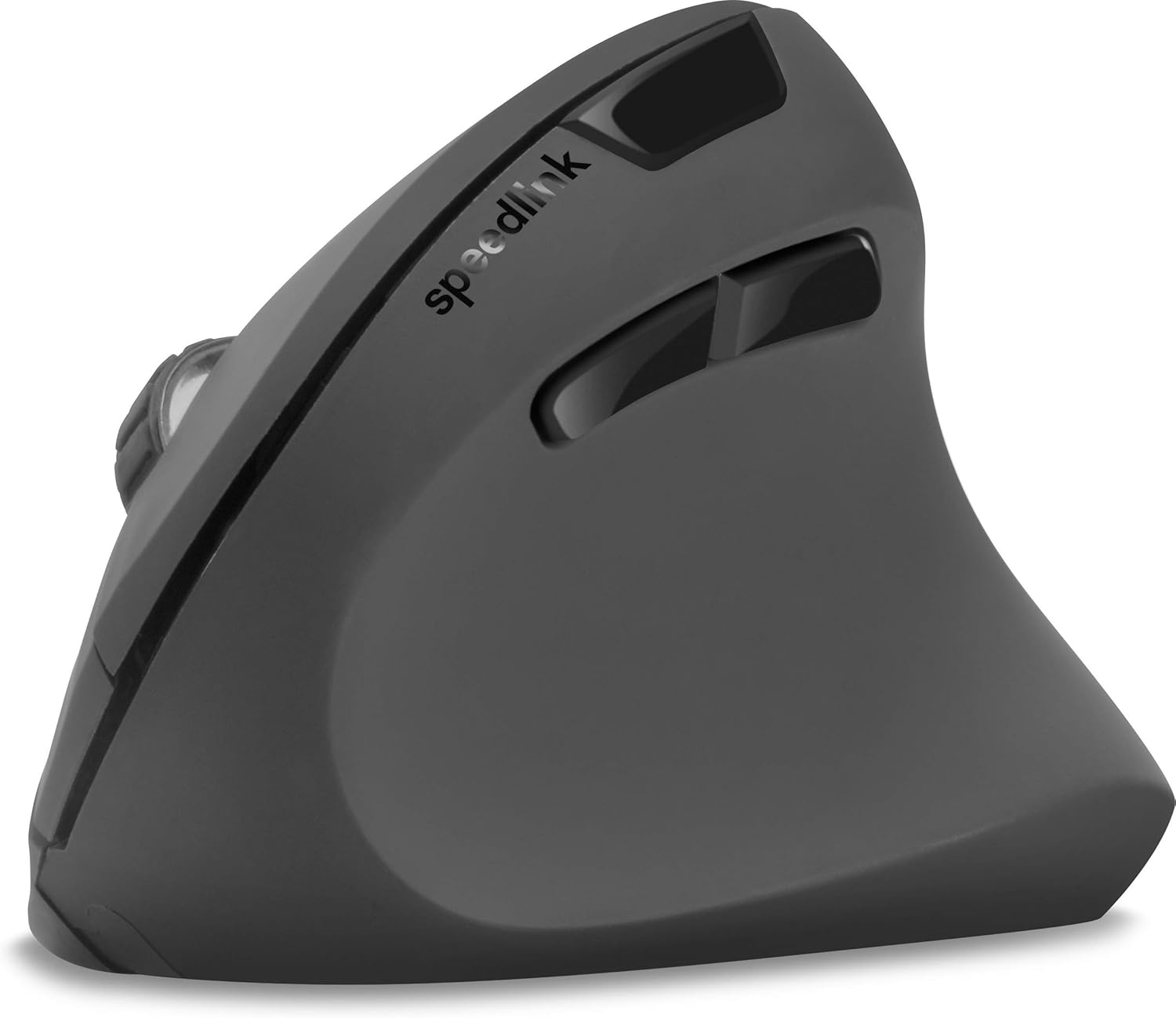
Nọmba 1: Speedlink PIAVO Wireless Ergonomic Vertical Mouse, front view. This image shows the overall ergonomic design of the mouse.
Package Awọn akoonu
Jọwọ rii daju pe gbogbo awọn nkan wa ninu package:
- Speedlink PIAVO Wireless Ergonomic Vertical Mouse
- USB-A olugba
- Batiri (ti fi sori ẹrọ tẹlẹ tabi ti a fi sinu rẹ lọtọ)
- Ilana Afowoyi (iwe yii)

Nọmba 2: Packaging of the Speedlink PIAVO Wireless Ergonomic Vertical Mouse. The box indicates "Wireless Vertical Mouse" and "10m Range".
Ṣeto
- Fi Batiri sii: If the battery is not pre-installed, open the battery compartment on the underside of the mouse and insert the included battery, ensuring correct polarity.
- So olugba USB pọ: Locate an available USB-A port on your computer or laptop. Insert the USB-A receiver into the port.
- Agbara Lori Asin: Wa switi titan/pa ni isalẹ asin naa. Gbe switi naa si ipo "Tan".
- Fifi sori Awakọ: The mouse is designed for plug-and-play operation. Your operating system (e.g., Windows) should automatically detect and install the necessary drivers. This process typically takes a few seconds.
- Idanwo: Once installed, move the mouse to test cursor movement. If the cursor does not respond, ensure the mouse is powered on and the USB receiver is securely connected.

Nọmba 3: Underside of the mouse, illustrating the battery compartment and the On/Off switch. Ensure the switch is in the 'On' position for operation.
Awọn ilana Iṣiṣẹ
The Speedlink PIAVO mouse features 5 buttons and adjustable DPI settings for optimal control.
- Bọtini Tẹ osi: Standard jc iṣẹ tẹ.
- Ọtun Tẹ Bọtini: Standard secondary tẹ iṣẹ.
- Yi lọ Kẹkẹ: For scrolling through documents and web Àwọn ojú ìwé. A tún lè tẹ̀ ẹ́ fún iṣẹ́ títẹ̀ àárín.
- Bọtini Yipada DPI: Located near the scroll wheel. Press this button to cycle through the available DPI settings (800, 1200, 1600 DPI). This adjusts the cursor speed and sensitivity.
- Awọn bọtini Siwaju/Sẹhin: Located on the side of the mouse, typically used for navigation in web aṣàwákiri tabi file oluwadi.
Nọmba 4: Oke-isalẹ view of the mouse, highlighting the left/right click buttons, scroll wheel, and DPI switch button.

Nọmba 5: Apa view of the mouse, illustrating the ergonomic grip and the forward/backward navigation buttons.
Ipo Ifipamọ Agbara
The mouse features an energy-saving mode to conserve battery life. If the mouse is inactive for a period, it will enter a sleep state. To wake it up, simply move the mouse or press any button.
Itoju
To ensure the longevity and optimal performance of your Speedlink PIAVO mouse, follow these maintenance guidelines:
- Ninu: Lo asọ ti o rọ, ti o gbẹ lati nu ita ti Asin naa. Fun idoti alagidi, die-die damp A le lo aṣọ, ṣugbọn rii daju pe ọrinrin ko wọ inu eku naa. Yẹra fun lilo awọn kemikali lile tabi awọn ohun elo afọmọ.
- Sensọ Cleaning: Occasionally, dust or debris may accumulate around the optical sensor on the underside of the mouse. Use a soft brush or compressed air to gently clean the sensor area.
- Rirọpo Batiri: When the mouse performance degrades or it stops responding, it may be time to replace the battery. Open the battery compartment, remove the old battery, and insert a new one of the same type, observing polarity.
- Ibi ipamọ: When not in use for extended periods, it is recommended to switch off the mouse using the On/Off switch to conserve battery life. Store the mouse and USB receiver in a dry, dust-free environment.
Laasigbotitusita
| Isoro | Owun to le Fa | Ojutu |
|---|---|---|
| Asin kò dáhùn / Akọsọ kò ṣí. |
|
|
| Ìṣíṣẹ́ kọ́sọ̀ tí kò tọ́. |
|
|
| DPI setting resets after sleep/reboot. | This is a known characteristic for some mice; the DPI setting may revert to default. | Press the DPI switch button to select your preferred sensitivity after waking the mouse or restarting the computer. |
Awọn pato
| Nọmba awoṣe | SL-630019-BK-01 |
| Asopọmọra | Wireless 2.4 GHz via USB-A Receiver |
| Aṣayan Iṣipopada | Opitika |
| Nọmba ti Awọn bọtini | 5 |
| Awọn Eto DPI | 800, 1200, 1600 DPI (Adjustable) |
| Ọwọ Iṣalaye | Ọwọ otun |
| Alailowaya Ibiti | Ti o to awọn mita 10 |
| Orisun agbara | Battery-powered (Battery included) |
| Ibamu Awọn ọna ṣiṣe | Windows |
| Iwọn | 106 giramu |
| Àwọ̀ | Dudu |
Atilẹyin ọja ati Support
Information regarding specific warranty terms and customer support contact details is not available in the provided product data. Please refer to the product packaging or the manufacturer's official webAaye fun alaye atilẹyin ọja lọwọlọwọ ati awọn aṣayan atilẹyin.
Fun iranlọwọ siwaju sii, o le ṣabẹwo si Speedlink official webojula.