
1. Ifihan
Welcome to the user manual for your Google Pixel 4 XL smartphone. This guide provides essential information to help you get started, understand its features, and maintain your device. The Google Pixel 4 XL is designed to offer a seamless Android experience with advanced camera capabilities, intuitive gesture controls, and the integrated Google Assistant.

Figure 1.1: Google Pixel 4 XL (Oh So Orange)
2. Eto
2.1 Kini ni Apoti
- Google Pixel 4 XL Smartphone
- AC Adapter
- Okun USB (USB-C si USB-C)
- OTG Dongle (USB-A to USB-C adapter)
- SIM Atẹ ejector Ọpa
- Quick Bẹrẹ Itọsọna
2.2 Fi kaadi SIM sii
- Wa atẹ kaadi SIM ni ẹgbẹ Pixel 4 XL rẹ.
- Fi SIM atẹ ejector ọpa sinu kekere iho tókàn si awọn atẹ ki o si tẹ ṣinṣin titi ti atẹ yoo jade.
- Place your Nano SIM card into the tray with the gold contacts facing down. Ensure it fits securely.
- Fi iṣọra Titari atẹ SIM pada sinu foonu titi yoo fi tẹ sinu aaye.

Àwòrán 2.1: Ibi tí a ń gbé àpótí SIM Card sí
2.3 Agbara akọkọ Lori ati Eto
- Tẹ mọlẹ bọtini agbara (ti o wa ni apa ọtun) titi aami Google yoo han.
- Follow the on-screen instructions to select your language, connect to Wi-Fi, and transfer data from an old device if desired.
- Wọle pẹlu akọọlẹ Google rẹ tabi ṣẹda tuntun kan.
- Set up security features such as Face Unlock.
2.4 Ngba agbara si Ẹrọ
Connect the USB cable to the AC adapter and plug it into a power outlet. Connect the other end of the USB cable to the USB-C port at the bottom of your Pixel 4 XL. The device supports fast charging. For optimal battery health, avoid fully discharging the battery frequently.
3. Awọn ilana Iṣiṣẹ
3.1 Ipilẹ Lilọ kiri
The Pixel 4 XL uses a touchscreen interface for navigation. Swipe up from the bottom to go to the home screen, swipe from the left or right edge to go back, and swipe up and hold to view to šẹšẹ apps.

Figure 3.1: Pixel 4 XL Front Display
3.2 Iranlọwọ Google
The new Google Assistant is integrated into the Pixel 4 XL. You can activate it by squeezing the sides of your phone or by saying "Hey Google." Use your voice to send texts, share photos, get directions, and more.
3.3 kamẹra Awọn ẹya ara ẹrọ
The Pixel 4 XL camera offers advanced photography capabilities:
- Point and Shoot: Capture brilliant color and control exposure balance.
- Ìran Alẹ́: Take clear photos in low-light conditions, including astrophotography for capturing the Milky Way.
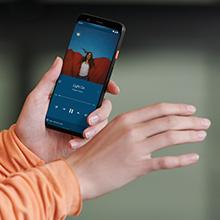
Figure 3.2: Using the Pixel 4 XL Camera
3.4 Motion Sense (Quick Gestures)
Utilize Quick Gestures to control your phone without touching it. Wave your hand above the screen to skip songs, silence calls, and more. Motion Sense functionality is available in specific regions including the US, Canada, Singapore, Australia, Taiwan, and most European countries.
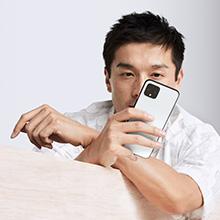
Figure 3.3: Motion Sense in Action
3.5 Call Screen
The Google Assistant's Call Screen feature helps filter out spam calls. It can proactively screen unknown callers and provide a transcript of the conversation, allowing you to decide whether to answer.
3.6 Osise Video ọja
Video 3.1: An official video from Google Inc showcasing the features of the Google Pixel 4, including Google Assistant and Motion Sense. This video provides a visual overview of key functionalities.
4. Itọju
4.1 Ninu ẹrọ rẹ
To clean your Pixel 4 XL, use a soft, lint-free cloth. Avoid abrasive materials, solvents, or aerosol sprays. For stubborn marks, slightly dampen the cloth with water. Do not submerge the device in water.
4.2 Software imudojuiwọn
Google regularly releases software updates to improve performance, add features, and enhance security. Ensure your device is connected to Wi-Fi and has sufficient battery life before installing updates. You can check for updates in Settings > System > System update.
4.3 batiri Itọju
Lati pẹ igbesi aye batiri:
- Yago fun awọn iwọn otutu to gaju.
- Use the provided charger or a compatible Qi-certified wireless charger.
- Enable Adaptive Battery in settings to optimize app usage.
- Disable features like Motion Sense and Always-on Display if not actively needed to conserve power.
4.4 Data Afẹyinti
Regularly back up your data to your Google Account. This includes photos, videos, contacts, and app data. Go to Settings > System > Backup to manage your backup settings.
5. Laasigbotitusita
5.1 Wọpọ Oran ati Solusan
- Ẹrọ ti ko dahun: Tẹ mọlẹ bọtini Agbara fun bii iṣẹju-aaya 30 lati fi ipa mu tun bẹrẹ.
- Awọn ohun elo ikọlu: Clear the cache and data for the problematic app in Settings > Apps & notifications > See all apps > [App Name] > Storage & cache.
- Awọn iṣoro asopọpọ (Wi-Fi/Bluetooth): Try toggling Wi-Fi or Bluetooth off and on. If the issue persists, reset network settings in Settings > System > Reset options > Reset Wi-Fi, mobile & Bluetooth.
- Igbesi aye batiri ti ko dara: Review battery usage in Settings > Battery to identify apps consuming excessive power. Adjust screen brightness and disable unnecessary features.
5.2 Atunto ile-iṣẹ
A factory reset will erase all data from your phone and restore it to its original factory settings. This can resolve persistent software issues. Warning: Back up all important data before proceeding.
- Lọ si Eto> Eto> Tun awọn aṣayan.
- Tap "Erase all data (factory reset)".
- Jẹrisi ipinnu rẹ ki o si tẹle awọn ilana loju iboju.
6. Awọn pato
Key technical specifications for the Google Pixel 4 XL:
| Ẹya ara ẹrọ | Sipesifikesonu |
|---|---|
| Brand | |
| Orukọ awoṣe | Pixel 4 XL |
| Eto isesise | Android |
| Agbara Ibi ipamọ Iranti | 64 GB |
| Ramu Memory sori iwọn | 6 GB |
| Iwon iboju | 6.3 inches |
| Ipinnu | 1440 x 2960 |
| Oṣuwọn sọtun | 120 Hz |
| Sipiyu Awoṣe | Snapdragon S3 |
| Sipiyu Iyara | 2.84 GHz |
| Àwọ̀ | Oh So Orange |
| Iho kaadi SIM kika | SIM nikan |
| Asopọmọra Iru | USB Iru C |
| Ẹ̀yà Ààbò Bíómẹ́tíríkì | Idanimọ Oju |
| Omi Resistance Ipele | Omi sooro |
| Awọn agbekọri Jack | Ko si jaketi agbekọri |
| Front Photo Sensor Resolution | 8 MP |
| Ipinnu Yaworan fidio | 4k (30fps) |
| Ifihan Iru | OLED |
| Olùpèsè Aláìlókùn | Ṣii silẹ |
| Batiri Apapọ Life | Awọn wakati 12 |
7. atilẹyin ọja Information
Your Google Pixel 4 XL comes with a 2-odun olupese ká atilẹyin ọja. This warranty covers defects in materials and workmanship under normal use. It does not cover damage caused by accidents, misuse, unauthorized repairs, or normal wear and tear.
For detailed terms and conditions, please refer to the warranty card included with your product or visit the official Google support webojula.
8. Atilẹyin
If you require further assistance or encounter issues not covered in this manual, please utilize the following resources:
- Iranlọwọ Ayelujara: Visit the official Google Pixel Help Center for comprehensive articles, FAQs, and troubleshooting guides.
- Awọn apejọ Agbegbe: Engage with other Pixel users and experts in Google's official product forums.
- Olubasọrọ Support: Access direct support options (chat, phone, email) through the Google Pixel Help Center.
Always ensure you are referring to official Google support channels for accurate and up-to-date information.


