
1. Awọn Ilana Aabo pataki
Jọ̀wọ́ ka gbogbo ìlànà ààbò àti ìṣiṣẹ́ dáadáa kí o tó lo tẹlifíṣọ̀n yìí. Pa àwọn ìlànà wọ̀nyí mọ́ fún ìtọ́kasí ọjọ́ iwájú.
- Ma ṣe fi TV han si ojo tabi ọrinrin.
- Maṣe ṣe idiwọ awọn ṣiṣi eefin.
- Rii daju pe ilẹ ti o yẹ fun aabo itanna.
- Yọ TV kuro lakoko iji manamana tabi nigbati a ko lo fun igba pipẹ.
- Tọkasi gbogbo iṣẹ si awọn oṣiṣẹ iṣẹ ti o peye.
2. Package Awọn akoonu
Jẹrisi pe gbogbo awọn ohun kan wa ninu package:
- ONIDA 32HAF 32-inch LED Smart TV
- Iduro TV (awọn ege 2)
- Isakoṣo latọna jijin
- Afowoyi Olumulo (iwe-ipamọ yii)
- Okun agbara
- Skru fun Imurasilẹ Apejọ

Aworan 1: Iwaju view of the ONIDA 32HAF 32-inch LED Smart TV. The screen displays a city skyline at night. The TV has a slim black bezel and two stand feet at the bottom corners.

Image 2: The black remote control for the ONIDA Smart TV. It features various buttons including power, source, HDMI, volume, channel, navigation keys, and number pad.
3. Eto
3.1 So Iduro TV
- Farabalẹ gbe oju TV si isalẹ lori rirọ, dada mimọ lati ṣe idiwọ ibajẹ iboju.
- Mö kọọkan imurasilẹ nkan pẹlu awọn ti o baamu Iho lori isalẹ ti awọn TV.
- Ṣe aabo awọn iduro nipa lilo awọn skru ti a pese. Rii daju pe wọn ti di ṣinṣin.
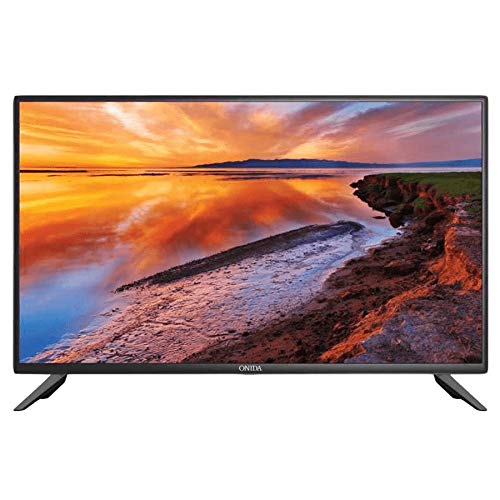
Image 3: The ONIDA 32HAF TV displayed with its stand attached, showing a scenic landscape on the screen. This illustrates the TV ready for placement on a flat surface.
3.2 Iṣagbesori odi (aṣayan)
If you choose to wall mount your TV, please consult a professional installer. The TV supports standard VESA wall mounts. Refer to the wall mount kit instructions for proper installation.
3.3 Nsopọ Peripherals
- Agbara: So okun agbara pọ si titẹ agbara TV ati lẹhinna si iṣan ogiri.
- HDMI: Use HDMI cables to connect external devices like set-top boxes, gaming consoles, or Blu-ray players.
- USB: Insert USB drives for media playback or software updates.
- Antenna/Cable: So eriali tabi okun TV rẹ pọ mọ titẹ sii RF.
3.4 Ni ibẹrẹ Power On ati Oṣo oluṣeto
- So TV pọ mọ ki o tẹ bọtini agbara lori iṣakoso latọna jijin.
- Follow the on-screen instructions to select your language, country, and network settings (Wi-Fi or Ethernet).
- Complete the channel scan for DVB-T/DVB-T2 signals if using an antenna.
4. Ṣiṣẹ Smart TV rẹ
4.1 Latọna Iṣakoso Awọn iṣẹ
Mọ ararẹ pẹlu awọn bọtini isakoṣo latọna jijin fun lilọ kiri rọrun ati iṣakoso.
- Agbara: Tan TV si tan tabi paa.
- Orisun: Yan awọn orisun titẹ sii (HDMI, USB, TV).
- Iwọn didun +/-: Ṣe atunṣe ipele iwọn didun.
- ikanni +/-: Ayipada TV awọn ikanni.
- Navigation (Arrow) Keys & OK: Lilọ kiri awọn akojọ aṣayan ati jẹrisi awọn aṣayan.
- Akojọ: Wọle si akojọ aṣayan eto akọkọ.
- Pada/Jade: Pada si iboju iṣaaju tabi jade ni akojọ aṣayan kan.
4.2 Smart TV Features (Android OS)
Your ONIDA 32HAF TV runs on Android OS, providing access to various smart features:
- App Store: Download and install applications for streaming, news, and more.
- Aṣàwákiri: Wọle si intanẹẹti taara lati inu TV rẹ.
- Sisisẹsẹhin Media: Mu awọn fidio, orin, ati view àwọn fọ́tò láti inú àwọn ẹ̀rọ USB tí a so pọ̀.
- Asopọ Alailowaya: Connect to your home Wi-Fi network for internet access.
4.3 Aworan ati Ohun Eto
Access the TV's menu to customize picture and sound settings:
- Ipo aworan: Standard, Yiyi, Fiimu, olumulo.
- Imọlẹ, Iyatọ, Awọ: Fine-tune àpapọ abuda.
- Ipo Ohun: Standard, Music, Movie, User.
- Agbẹgbẹ: Ṣàtúnṣe àwọn ìgbà ohùn fún ohùn àdáni.
- Ohun kaakiri: Enable or disable 5.1 surround sound output.

Image 4: A visual representation demonstrating the 178-degree wide viewing angle of the ONIDA TV. Multiple panels show the same image of camels in a desert, maintaining consistent color and clarity from various side angles.

Image 5: A side-by-side comparison illustrating the superior performance of an ADS Panel versus a conventional panel. The ADS Panel on the right shows better color reproduction and clarity when touched, indicating improved display technology.
5. Itọju
- Ninu iboju: Gently wipe the screen with a soft, lint-free cloth. For stubborn marks, use a screen cleaner specifically designed for LED TVs. Do not spray cleaner directly onto the screen.
- Ninu Igbimọ Ile-igbimọ: Lo asọ asọ ti o gbẹ lati nu minisita TV nu. Yago fun lilo abrasive ose tabi epo.
- Afẹfẹ: Rii daju pe awọn ṣiṣi atẹgun lori ẹhin TV ko ni idinamọ lati ṣe idiwọ igbona.
- Awọn imudojuiwọn sọfitiwia: Periodically check for software updates through the TV's settings menu to ensure optimal performance and access to new features.
6. Laasigbotitusita
| Isoro | Owun to le Fa | Ojutu |
|---|---|---|
| Ko si agbara | A ti ge okùn agbara kuro; ko si agbara lati inu ina. | Ṣayẹwo asopọ okun agbara; igbeyewo iṣan pẹlu ẹrọ miiran. |
| Ko si aworan, ṣugbọn ohun wa | Ti yan orisun titẹ sii ti ko tọ; backlight oro. | Press the "Source" button on the remote to select the correct input. |
| Ko si ohun, ṣugbọn aworan wa | Ohùn tí a dákẹ́ tàbí tí ó lọ sílẹ̀ jù; àwọn ètò ìjáde ohùn tí kò tọ́. | Unmute or increase volume; check audio settings in the menu. |
| Isakoṣo latọna jijin ko ṣiṣẹ | Àwọn bátìrì ti dínkù; ìdènà láàárín remote àti TV. | Replace batteries; ensure clear line of sight to the TV's IR sensor. |
| Ko le sopọ si Wi-Fi | Ọrọigbaniwọle ti ko tọ; awọn oran olulana; TV ju jina lati olulana. | Ṣàyẹ̀wò ọ̀rọ̀ìpamọ́ Wi-Fi; tún ráùtà náà bẹ̀rẹ̀; gbé TV sún mọ́ ráùtà náà tàbí lo ráùtà Ethernet. |
7. Awọn pato
| Ẹya ara ẹrọ | Ẹ̀kúnrẹ́rẹ́ |
|---|---|
| Brand | Ni akoko yi |
| Orukọ awoṣe | 32HAF |
| Odun awoṣe | 2019 |
| Eto isesise | Android |
| Ifihan Iru | LED |
| Ipinnu | HD Ṣetan (awọn piksẹli 1366 x 768) |
| Iwon iboju | 81 cm (32 inches) |
| Viewigun igun | Awọn iwọn 178 |
| Ipo Ijade Ohun | Ayika |
| Iṣeto ni Agbọrọsọ | 5.1 ikanni Yika Ohun |
| Asopọmọra | Wired, Wireless (Wi-Fi), USB, HDMI |
| Tuner Technology | DVB-T, DVB-T2 |
| Iṣagbesori Iru | Wall Mount, Table Top (with included stand) |
| Iwọn Nkan | 9 kg |
| Package Mefa | 54 x 30 x 21 cm |