
Ọrọ Iṣaaju
This manual provides essential information for the proper setup, operation, and maintenance of your Philips 346B1C Curved Monitor. This 34-inch WQHD (3440 x 1440) display features a 100 Hz refresh rate, 5ms response time, and a curved VA panel for an immersive viewing experience. Key features include USB-C docking, MultiView functionality, FreeSync technology, LowBlue Mode, and FlickerFree technology for enhanced user comfort and productivity.

Aworan: Iwaju view of the Philips 346B1C curved monitor, showcasing its ultrawide display and key features like WQHD, USB-C Docking, and MultiView.
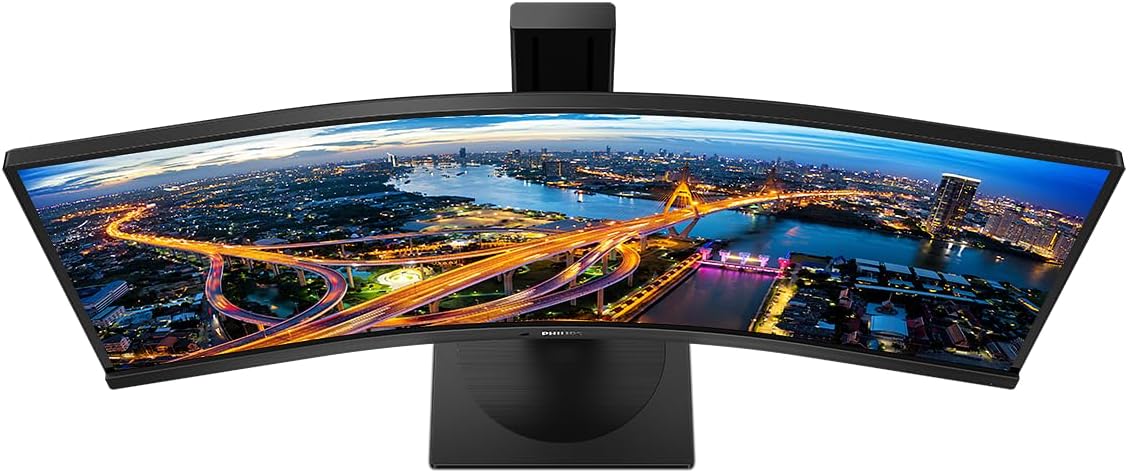
Aworan: Oke-isalẹ view of the Philips 346B1C curved monitor, emphasizing the curvature of the screen.
Ohun ti o wa ninu Apoti
Daju pe gbogbo awọn paati wa ṣaaju ki o to tẹsiwaju pẹlu iṣeto.
- Philips 346B1C Curved Monitor
- Iduro Iduro (Ipilẹ ati Ọrun)
- Okun agbara
- Okun HDMI
- Okun DisplayPort
- USB-C si okun USB-C
- USB-A to USB-B Cable (Upstream)
- Documentation (Quick Start Guide, User Manual CD)
Awọn ilana iṣeto
1. Nto Iduro
- Gbe atẹle naa si isalẹ lori rirọ, dada ti o mọ lati ṣe idiwọ awọn nkan.
- So ọrun imurasilẹ si nronu atẹle. Rii daju pe o tẹ ni aabo sinu aaye tabi ti wa ni ṣinṣin pẹlu awọn skru ti o ba pese.
- So ipilẹ iduro mọ ọrùn iduro naa. Mu awọn skru atanpako tabi awọn skru lati isalẹ ipilẹ naa di.

Aworan: Ẹyin view of the Philips 346B1C monitor, showing the stand attachment point and VESA mounting holes.
2. Nsopọ si Kọmputa Rẹ
So iboju naa pọ mọ kọmputa rẹ nipa lilo ọkan ninu awọn ọna wọnyi:
- HDMI Asopọ: So opin okun HDMI kan pọ mọ ibudo HDMI ti atẹle naa ati opin keji si ifihan HDMI ti kọnputa rẹ.
- Isopọ PortPort: Connect one end of the DisplayPort cable to the monitor's DisplayPort and the other end to your computer's DisplayPort output.
- Asopọ USB-C: Connect one end of the USB-C cable to the monitor's USB-C port and the other end to your computer's USB-C port. This connection supports video, data, and power delivery (up to 90W) to your laptop.
For USB hub functionality, connect the USB-A to USB-B upstream cable from your computer to the monitor's USB-B upstream port.
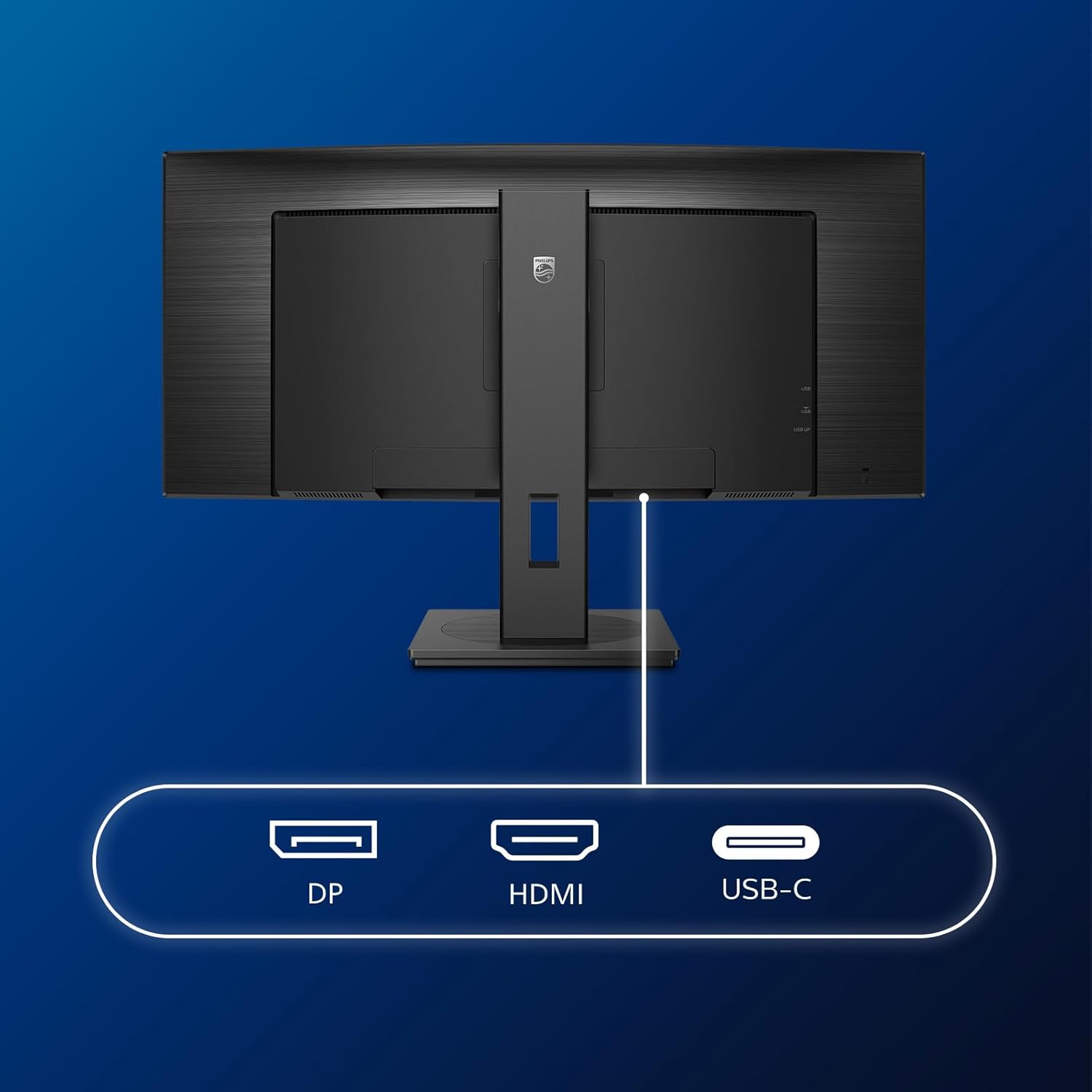
Aworan: Alaye view of the monitor's input ports, including DisplayPort (DP), HDMI, and USB-C, for connecting to various devices.
3. Asopọ agbara
So okùn agbára náà mọ́ ibi tí a fi ń lo ẹ̀rọ alágbékalẹ̀ náà, lẹ́yìn náà so mọ́ ibi tí a fi ń lo ẹ̀rọ alágbékalẹ̀ mọ́.
4. Agbara akọkọ Lori
Press the power button located on the monitor to turn it on. The monitor should automatically detect the input signal. If not, use the On-Screen Display (OSD) menu to select the correct input source.
Awọn ilana Iṣiṣẹ
Lori-iboju Ifihan (OSD) Akojọ aṣyn
The OSD menu allows you to adjust various monitor settings. Use the joystick control located on the back or bottom of the monitor to navigate the menu.
- Imọlẹ/Itọtọ: Satunṣe awọn ìwò luminance ati itansan ti awọn àpapọ.
- Eto awọ: Ṣe àtúnṣe iwọn otutu awọ, gamma, ati aaye awọ.
- Aṣayan titẹ sii: Fi ọwọ́ yípadà láàárín àwọn ìtẹ̀wọlé HDMI, DisplayPort, àti USB-C.
- Ohun: Adjust volume or mute the built-in speakers.
- Ipo aworan: Select from preset picture modes (e.g., Standard, Gaming, Text).
OlonaView Iṣẹ ṣiṣe
Awọn MultiView feature allows you to connect and view content from two different sources simultaneously on the screen. Access this feature through the OSD menu to select Picture-by-Picture (PbP) or Picture-in-Picture (PiP) modes and configure input sources.
USB-C Docking
When connected via USB-C, the monitor acts as a docking station, providing video, data transfer through its integrated USB hub, and power delivery to charge your connected laptop (up to 90W).
SmartErgoBase and Adjustability
The monitor's SmartErgoBase allows for ergonomic adjustments including height, swivel, and tilt to optimize your viewinu itunu.

Image: Illustrations demonstrating the monitor's adjustable features, including height adjustment, tilt, and swivel capabilities for ergonomic positioning.
Oju Itunu Awọn ẹya ara ẹrọ
- Ipo LowBlue: Reduces harmful shortwave blue light emissions to prevent eye strain. Activate this mode via the OSD menu.
- FlickerFree Technology: Ṣe atunṣe imọlẹ ati dinku flicker fun itunu diẹ sii viewing. This feature is always active.
- PowerSensor & LightSensor: These sensors automatically adjust monitor brightness based on ambient light conditions and user presence, saving energy and reducing eye strain.
Itoju
Ninu Monitor
- Yọọ ẹrọ atẹle nigbagbogbo ṣaaju ṣiṣe mimọ.
- Lo asọ rirọ, ti ko ni lint ni sere dampened pẹlu omi tabi ìwọnba, ti kii-abrasive iboju regede.
- Do not use alcohol, solvents, or ammonia-based cleaners, as these can damage the screen surface.
- Fi nu iboju naa rọra lati yọ eruku ati idoti kuro.
- Clean the monitor casing pẹlu asọ ti o gbẹ.
Gbogbogbo Itọju
- Yago fun gbigbe awọn nkan ti o wuwo sori atẹle tabi awọn kebulu rẹ.
- Ma ṣe fi ẹrọ alabojuto han si imọlẹ orun taara, ooru ti o pọju, tabi otutu pupọ.
- Rii daju pe fentilesonu to dara ni ayika atẹle naa.
Laasigbotitusita
Ti o ba pade awọn ọran pẹlu atẹle rẹ, tọka si awọn igbesẹ laasigbotitusita ti o wọpọ wọnyi:
| Isoro | Owun to le Fa | Ojutu |
|---|---|---|
| Ko si aworan loju iboju | Okun agbara ti ge asopọ; Okun fidio ti ge asopọ; Ti yan orisun titẹ sii ti ko tọ. | Ensure power cable is securely connected; Check video cable connections (HDMI, DP, USB-C); Select correct input source via OSD menu. |
| Aworan jẹ blur tabi daru | Incorrect resolution; Graphics driver issue. | Set display resolution to 3440 x 1440; Update graphics card drivers. |
| Ko si ohun lati ọdọ awọn agbohunsoke | Volume muted or too low; Incorrect audio output selected on computer. | Adjust monitor volume via OSD; Check computer's audio output settings. |
| Awọn ebute oko USB ko ṣiṣẹ | USB oke okun ko so. | Ensure the USB-A to USB-B upstream cable is connected from the monitor to your computer. |
For further assistance, please refer to the support section or contact Philips customer service.
Awọn pato
| Ẹya ara ẹrọ | Ẹ̀kúnrẹ́rẹ́ |
|---|---|
| Brand | Philips |
| Nọmba awoṣe | 346B1C |
| Iwon iboju | 34 inches (86 cm) |
| Ipinnu | 3440 x 1440 (WQHD) |
| Apakan Ipin | 21:9 |
| Iboju Iboju | Pánẹ́lì VA tí a tẹ̀ |
| Oṣuwọn sọtun | 100 Hz |
| Akoko Idahun | 5 Milliseconds (GtG) |
| Ipin Itansan | 3000:1 (Aṣoju) |
| Imọlẹ | 300 cd/m² |
| Viewigun igun | 178° (H) / 178° (V) |
| Asopọmọra | 1x HDMI 2.0, 1x DisplayPort 1.2, 1x USB-C 3.2 Gen 1 (upstream, power up to 90W), 1x USB-B (upstream), 4x USB 3.2 (downstream), RJ45 (Ethernet) |
| Amuṣiṣẹpọ Adaptive | FreeSync |
| Awọn Agbọrọsọ ti a ṣe sinu | 2x 5W |
| Agbara agbara | 5 Watts (Eco mode) |
| Iwọn | 7.8 Kilograms (with stand) |
Atilẹyin ọja ati Support
Alaye atilẹyin ọja
This Philips monitor comes with a 2-odun olupese ká atilẹyin ọja. The specific terms and conditions of the warranty can be found in the detailed documentation provided with your product or on the official Philips support website. Your statutory rights as a consumer are not affected by this warranty.
Onibara Support
For technical assistance, product inquiries, or warranty claims, please visit the official Philips support website or contact their customer service department. You may need your monitor's model number (346B1C) and serial number (found on the back of the monitor) when contacting support.
Philips Support Webojula: www.philips.com/support