
1. Ifihan
Thank you for choosing the iClever BK10 Bluetooth Keyboard. This manual provides essential information for setting up, operating, maintaining, and troubleshooting your new wireless keyboard. Please read it carefully to ensure optimal performance and longevity of your device.
Ohun ti o wa ninu Apoti
- iClever BK10 Bluetooth Keyboard
- USB-C Ngba agbara Cable
- Itọsọna olumulo
- Protective Silicone Cover (for key protection)

Figure 1: Included items with the iClever BK10 Bluetooth Keyboard.
2. Key Awọn ẹya ara ẹrọ
- Sleek & Wireless Design: Constructed with stainless steel and ABS, featuring a 10-degree tilt for comfortable desktop use.
- Multi-Device & Multi-OS Compatibility: Seamlessly switch between up to 3 devices using Bluetooth 5.1 technology. Automatically recognizes and adapts to Windows, macOS, iPadOS, Android, iPhone, and Chromebooks.
- Responsive & Low-Profile Awọn bọtini: Scissor-key mechanism provides enhanced feedback, stability, and quiet typing (below 50 dB). Optimized key-travel and anti-slip tapes ensure comfort and precision.
- Compact & Efficient: Full-size layout with a standard numeric keypad. Includes hotkeys for Calculator, Fn lock, Mute, Volume up/down, and more to boost productivity.
- USB-C Rechargeable & Energy Saving: Built-in rechargeable battery offers up to 45 days of use after a 2-hour charge. Features an automatic power-saving sleep mode after 30 minutes of inactivity.
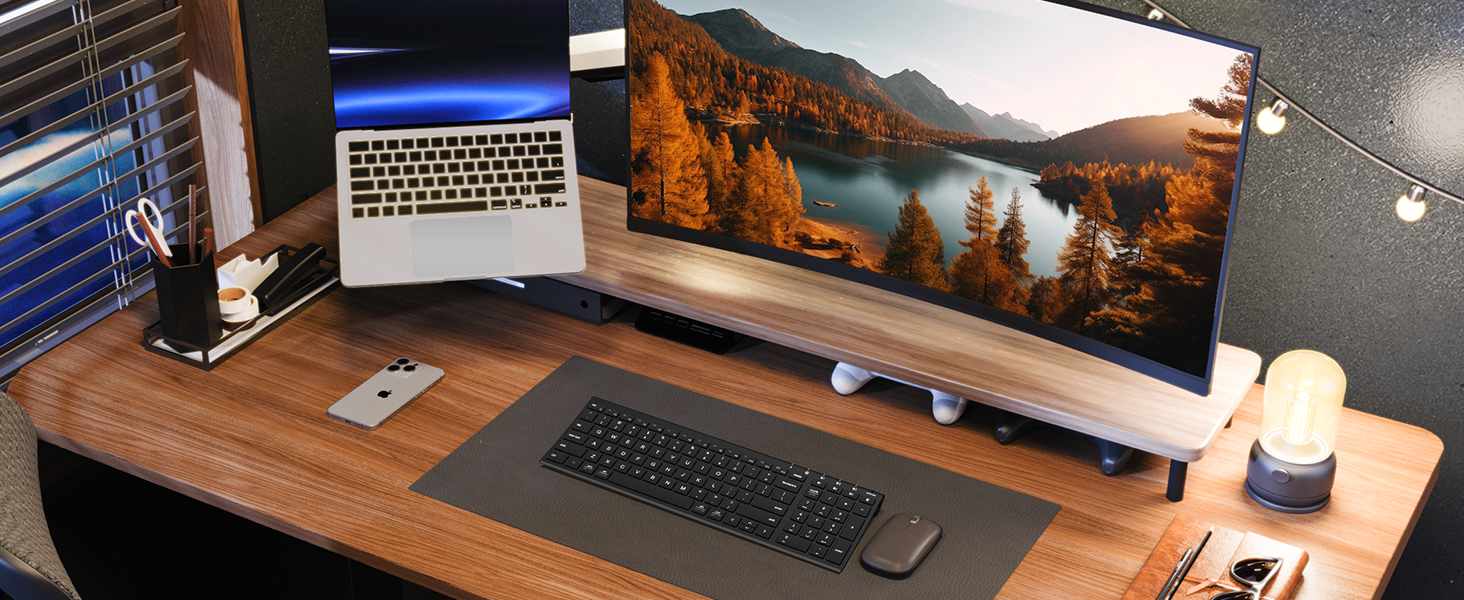
Figure 2: The sleek and wireless design of the iClever BK10 keyboard.
3. Eto
3.1 Ngba agbara si Keyboard
Before initial use, fully charge the keyboard using the provided USB-C cable. Connect the USB-C end to the keyboard's charging port (located on the right side) and the USB-A end to a power source (e.g., computer USB port, USB wall adapter). The charging indicator light will illuminate during charging and turn off when fully charged.

Figure 3: USB-C charging port on the iClever BK10 keyboard.
3.2 Titan / Pa a
Locate the ON/OFF switch on the top right side of the keyboard. Slide the switch to the 'ON' position to power on the keyboard. Slide it to 'OFF' when not in use to conserve battery life.
3.3 Sisopọ Bluetooth
The iClever BK10 keyboard supports pairing with up to three devices simultaneously. Follow these steps to pair your devices:
- Tan-an keyboard nipa lilo ON/PA yipada.
- Press and hold one of the Bluetooth channel keys (B1, B2, or B3) for 3-5 seconds until its indicator light starts flashing rapidly. This indicates the keyboard is in pairing mode.
- Lori ẹrọ rẹ (kọmputa, tabulẹti, foonuiyara), lọ si awọn eto Bluetooth ki o wa awọn ẹrọ to wa.
- Select "iClever BK10" from the list of found devices.
- Follow any on-screen prompts to complete the pairing process. The indicator light on the keyboard will stop flashing and remain solid for a few seconds, then turn off, indicating successful pairing.
- Repeat these steps for up to two additional devices using the other Bluetooth channel keys (B2 and B3).

Figure 4: Multi-device connectivity of the iClever BK10 keyboard.
4. Awọn ilana Iṣiṣẹ
4.1 Yipada Laarin Awọn ẹrọ
To switch between paired devices, simply press the corresponding Bluetooth channel key (B1, B2, or B3) once. The keyboard will connect to the selected device automatically.
4.2 Àwọn Kọ́kọ́rọ́ Iṣẹ́ àti Àwọn Kọ́kọ́rọ́ Gbóná
The iClever BK10 keyboard features a row of function keys (F1-F12) that also serve as hotkeys for various media and system controls. To use the hotkey functions, press the 'Fn' key simultaneously with the desired function key. Some common hotkeys include:
- Fn+F1: Ile
- Fn+F2: àwárí
- Fn+F3: Yan Gbogbo
- Fn+F4: Daakọ
- Fn+F5: Lẹẹmọ
- Fn+F6: Ge
- Fn+F7: Ti tẹlẹ Track
- Fn+F8: Ṣiṣẹ / Sinmi
- Fn+F9: Next Track
- Fn+F10: Pa ẹnu mọ́
- Fn+F11: Iwọn didun isalẹ
- Fn+F12: Iwọn didun soke
The keyboard also includes dedicated keys for Calculator, Fn lock, and a standard numeric keypad for efficient data entry.

Olusin 5: Pariview of keyboard layout and multi-OS features.
4.3 Operating System Layout Recognition
The keyboard automatically recognizes different operating systems (Windows, macOS, iPadOS, Android) and adjusts its key layout accordingly. For example, the 'Win' key functions as 'Alt' on Mac, and 'Alt' functions as 'Cmd'.
5. Itọju
5.1 Ninu
Láti nu keyboard rẹ, pa á kí o sì yọ gbogbo okùn kúrò. Lo aṣọ rírọ̀ tí kò ní àwọ̀ díẹ̀.ampened with water or a mild cleaning solution. Avoid excessive moisture and harsh chemicals. The included silicone cover can be removed and washed with mild soap and water.
5.2 batiri Itọju
Lati mu igbesi aye batiri pọ si:
- Yago fun gbigba agbara si batiri ni kikun nigbagbogbo.
- Gba agbara lori keyboard nigbati ifihan batiri ba lọ silẹ.
- Tọ́jú kíábọ́ọ̀dì náà sí ibi tí ó tutù tí ó sì gbẹ tí a kò bá lò ó fún ìgbà pípẹ́.
- The keyboard enters a power-saving sleep mode after 30 minutes of inactivity. Press any key to wake it up.
6. Laasigbotitusita
6.1 Kííbọọ̀dù Kò Sopọ̀/Sísopọ̀
- Rii daju pe keyboard ti wa ni titan ati gbigba agbara ni kikun.
- Rii daju pe Bluetooth ti ṣiṣẹ lori ẹrọ rẹ.
- Place the keyboard within the effective range (typically 10 meters) of your device.
- If already paired, try unpairing the keyboard from your device's Bluetooth settings and then re-pairing it.
- Gbiyanju lati tun bẹrẹ mejeeji keyboard ati ẹrọ rẹ.
6.2 Àwọn kọ́kọ́rọ́ tí kò dáhùn
- Check if the keyboard is connected to the correct device (verify the active Bluetooth channel).
- Rí i dájú pé batiri náà kò lọ sílẹ̀ dáadáa.
- Nu eyikeyi idoti kuro ni ayika awọn bọtini ti o kan.
6.3 Connectivity Issues/Lag
- Reduce interference by moving away from other wireless devices (e.g., Wi-Fi routers, cordless phones).
- Rii daju pe awọn awakọ Bluetooth ti ẹrọ rẹ ti wa ni imudojuiwọn.
- Try connecting to a different Bluetooth channel on the keyboard.
7. Awọn pato
| Ẹya ara ẹrọ | Ẹ̀kúnrẹ́rẹ́ |
|---|---|
| Nọmba awoṣe | BK10 |
| Asopọmọra Technology | Bluetooth 5.1 |
| Awọn ẹrọ ibaramu | Windows laptops/desktops, MacBook/iMac, iPad/iPhone, Android tablets/phones, Chromebooks |
| Nọmba ti Awọn bọtini | 104 |
| Iru Yipada Bọtini | Scissor-yipada |
| Ariwo Ipele | <50dB |
| Orisun agbara | Batiri gbigba agbara (USB-C) |
| Igbesi aye batiri | Up to 45 days (after 2 hours charging) |
| Awọn iwọn Ọja (L x W x H) | 14.41" x 4.92" x 0.63" |
| Ohun elo | Acrylonitrile Butadiene Styrene, Aluminiomu |
8. Atilẹyin ọja & Atilẹyin
8.1 atilẹyin ọja Alaye
The iClever BK10 Bluetooth Keyboard comes with a 12-osu atilẹyin ọja lati ọjọ ti o ra. Atilẹyin ọja yi ni wiwa awọn abawọn iṣelọpọ ati idaniloju ọja rẹ ni ofe lọwọ ohun elo ati awọn abawọn iṣẹ labẹ lilo deede.
8.2 Onibara Support
If you encounter any issues or have questions regarding your iClever BK10 Bluetooth Keyboard, please refer to the contact information provided in your product packaging or visit the official iClever support webojula fun iranlowo.