
Ọrọ Iṣaaju
The Lloyd's LC-1212 Universal Smart IR Remote Control is designed to transform your traditional infrared-controlled devices into smart, connected appliances. This device allows you to control various home electronics such as televisions, air conditioners, fans, and set-top boxes directly from your smartphone or through voice commands using virtual assistants like Amazon Alexa and Google Assistant. It integrates seamlessly into your smart home ecosystem, offering convenience and enhanced control over your entertainment and climate systems.
Package Awọn akoonu
Jọwọ rii daju pe gbogbo awọn nkan wa ninu package:
- 1 x Lloyd's LC-1212 Smart IR Remote Control Unit
- 1 x USB Agbara Agbara
- 1 x Itọsọna olumulo (iwe yii)
Ọja Pariview
The Lloyd's LC-1212 is a compact and discreet device designed to blend into your home environment while providing powerful infrared control capabilities.

Nọmba 1: Lloyd's LC-1212 Smart IR Remote Control and its packaging. The device is a small, black, square unit with a power cable, shown next to its white and grey retail box.
The device features a minimalist design, typically with a power input port and an indicator light. Its primary function is to receive commands via Wi-Fi from your smartphone or voice assistant and then emit the corresponding infrared signals to control your appliances.

Nọmba 2: Illustration of a smartphone controlling various IR devices (decoder, TV, air conditioner, fan, DVD player) through the smart infrared remote. The remote is centrally placed in a living room, emitting signals to different appliances.
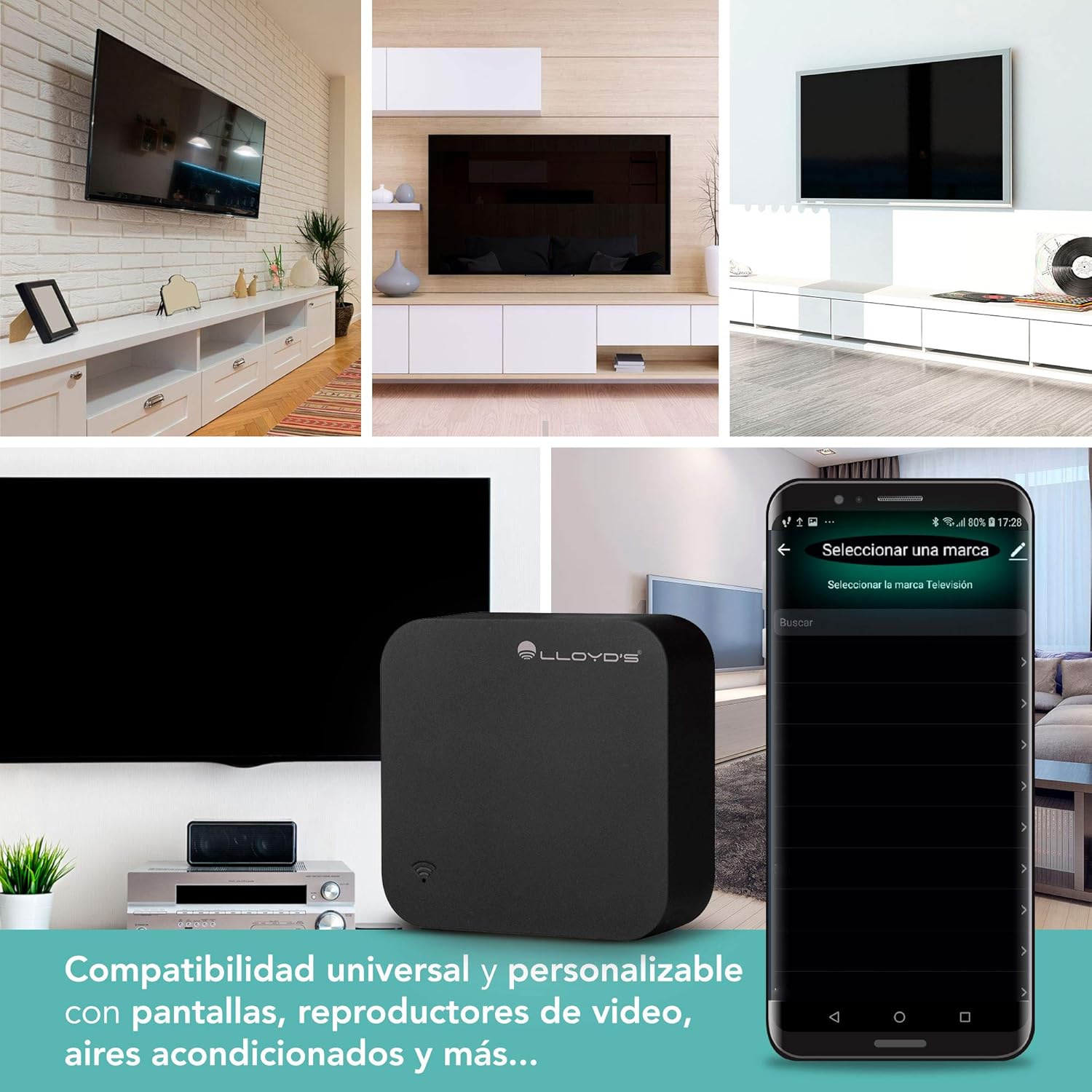
Nọmba 3: Demonstrates the universal compatibility of the smart IR remote with various screens, video players, and air conditioners. The image shows different setups of TVs and the remote's interface for selecting device brands.
Ṣeto
1. Agbara Lori Ẹrọ
- Connect the provided USB power cable to the micro-USB port on the LC-1212 device.
- Plug the other end of the USB cable into a standard 5V USB power adapter (not included) or a compatible USB port.
- The indicator light on the device will illuminate, indicating it is powered on.
2. App sori
The Lloyd's LC-1212 operates with the Smart Life or Tuya Smart application. These apps are available for both iOS and Android devices.
- Download the "Smart Life" or "Tuya Smart" app from the Apple App Store (for iOS) or Google Play Store (for Android).
- Forukọsilẹ iroyin titun tabi wọle ti o ba ti ni ọkan tẹlẹ.
3. Device Pairing with the App
- Ensure your smartphone is connected to a 2.4 GHz Wi-Fi network. The LC-1212 does not support 5 GHz Wi-Fi.
- Ṣí àpù Smart Life/Tuya Smart.
- Tap the "Add Device" or "+" icon in the top right corner.
- Select "Universal Remote Control" or "IR Remote Control" from the device list under "Electrical" or "Others".
- Follow the on-screen instructions to put the LC-1212 into pairing mode (usually by pressing and holding a button on the device or power cycling it until the indicator light blinks rapidly).
- Tẹ ọrọ igbaniwọle nẹtiwọki Wi-Fi rẹ sii nigbati o ba ṣetan.
- Wait for the device to connect. Once connected, you can rename the device for easier identification.
4. Adding Infrared Controlled Devices
After successfully pairing the LC-1212, you can add your IR-controlled appliances:
- In the app, select your newly added LC-1212 device.
- Tap "Add Remote Control" or a similar option.
- Choose the type of device you want to control (e.g., TV, Air Conditioner, Fan, Set-top Box).
- The app will guide you through two main methods for adding devices:
- Auto-Match (Recommended): The app will provide a list of brands. Select your device's brand and test the pre-programmed remote codes. If a code works, confirm it.
- DIY (Do It Yourself) / Learning Mode: If your brand is not listed or auto-match fails, you can teach the LC-1212 commands from your original remote. Point your original remote at the LC-1212 and press the desired button (e.g., Power On). The LC-1212 will learn and store this command. Repeat for all necessary functions.
- Once added, you can test and customize the controls within the app.
Ṣiṣẹ ẹrọ naa
1. Smartphone Control
After adding your devices, you can control them directly from the Smart Life/Tuya Smart app from anywhere with an internet connection.
- Open the app and select the specific device you wish to control (e.g., "Living Room TV").
- The app will display a virtual remote interface with buttons corresponding to the functions of your device.
- Tap the desired button to send the IR command. Ensure the LC-1212 has a clear line of sight to the device you are controlling.
2. Voice Control with Alexa and Google Assistant
Integrate your LC-1212 with Amazon Alexa or Google Assistant for hands-free control.

Nọmba 4: Demonstrates voice control capabilities, showing a user commanding an air conditioner to 20°C and a TV to turn off using virtual assistants.
- Link the Smart Life/Tuya Smart Skill/Service:
- Open the Alexa app or Google Home app.
- Lọ sí "Àwọn Ọgbọ́n àti Àwọn Eré" (Alexa) tàbí "Works with Google" (Google Home).
- Wa fun "Smart Life" or "Tuya Smart" and enable the skill/service.
- Link your Smart Life/Tuya Smart account by entering your credentials.
- Ṣawari Awọn ẹrọ: Once linked, ask Alexa ("Alexa, discover my devices") or Google Assistant ("Hey Google, sync my devices") to find the devices you've added to the Smart Life/Tuya Smart app.
- Awọn pipaṣẹ ohun: You can now use voice commands to control your devices. Example:
- "Alexa, turn on the Living Room TV."
- "Ẹ kú àárọ̀ Google, ẹ ṣètò iwọ̀n AC sí ìwọ̀n 22."
- "Alexa, pa afẹ́fẹ́ náà."
3. Creating Automation Routines
Leverage the automation features within the Smart Life/Tuya Smart app to create custom routines and scenes.
- Go to the "Smart" or "Automation" section in the app.
- You can set up routines based on time, device status, or other smart home triggers (e.g., "At 9:00 PM, turn on the TV and change to Channel 5").
- Integrate with other smart devices: For example, if you have a smart door sensor, you can set a routine to turn on the air conditioner when the door opens.
Itoju
To ensure optimal performance and longevity of your Lloyd's LC-1212 Smart IR Remote Control, follow these simple maintenance guidelines:
- Ninu: Mu ẹrọ naa nu pẹlu asọ ti o gbẹ. Ma ṣe lo awọn olutọpa omi tabi awọn ohun elo abrasive.
- Ibi: Place the device in a central location within the room, ensuring a clear line of sight to all IR-controlled appliances. Avoid placing it behind obstacles or in direct sunlight.
- Ibi ti ina elekitiriki ti nwa: Use a stable 5V power supply. Avoid frequent power interruptions.
- Ayika: Keep the device away from extreme temperatures, high humidity, and water.
Laasigbotitusita
If you encounter issues with your Lloyd's LC-1212, refer to the following common problems and solutions:
| Isoro | Owun to le Fa / Solusan |
|---|---|
| Ẹrọ ko sopọ si Wi-Fi. |
|
| IR commands not working or inconsistent. |
|
| Voice commands (Alexa/Google Assistant) not working. |
|
| App interface for AC control is confusing. |
|
Awọn pato
| Ẹya ara ẹrọ | Ẹ̀kúnrẹ́rẹ́ |
|---|---|
| Brand | Lloyd's |
| Nọmba awoṣe | LC-1212 |
| Awọn iwọn (L x W x H) | 1.78 x 4.98 x 4.98 cm |
| Iwọn | 45 g |
| Agbara Input | 5V DC |
| Wattage | 5 watt |
| Asopọmọra | Wi-Fi (2.4 GHz nikan) |
| Ijinna infurarẹẹdi | ≤ 8 mita |
| Awọn ẹrọ ibaramu | iOS / Android smartphones |
| Ohun elo | ABS |
| Pataki Awọn ẹya ara ẹrọ | Universal IR control, Voice control (Alexa, Google Assistant), Automation routines |
Atilẹyin ọja ati Support
The Lloyd's LC-1212 Smart IR Remote Control comes with a 1-odun atilẹyin ọja from the date of purchase. This product holds NOM certification, ensuring compliance with Mexican standards.
For technical support or warranty claims, please contact Lloyd's customer service. Technical support is offered from Mexico.
Jọwọ ṣe idaduro ẹri rira rẹ fun awọn idi atilẹyin ọja.