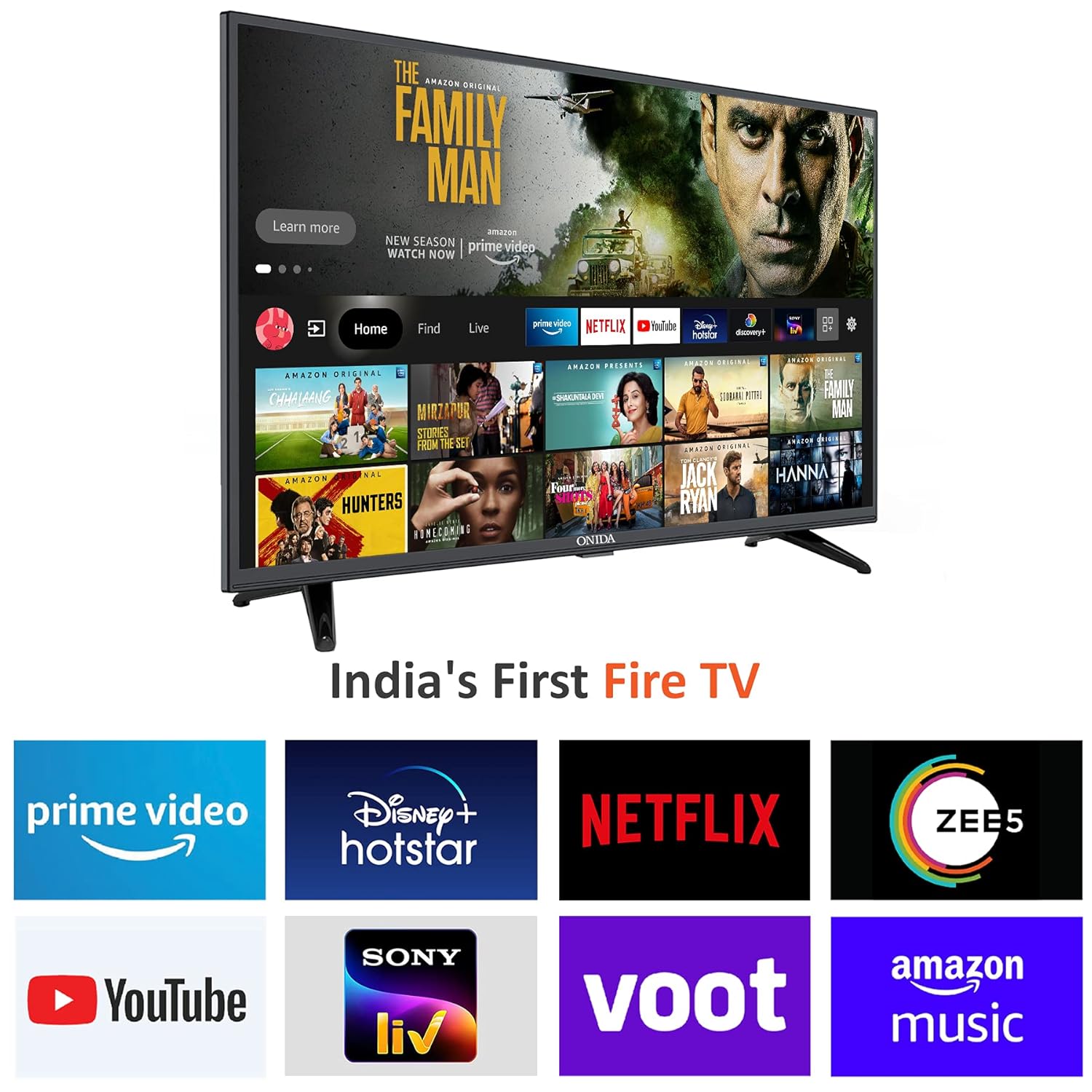
Onida 43FIF 108 cm (43 inches) Full HD Smart IPS LED Fire TV User Manual
Model: 43FIF
1. Ọja Ipariview
The Onida 43FIF is a 108 cm (43 inches) Full HD Smart IPS LED Fire TV designed to provide an integrated smart television experience. It features a vibrant IPS panel, built-in Fire TV OS, and voice control capabilities with Alexa. This manual provides essential information for setting up, operating, and maintaining your television.
Aworan: Iwaju view of the Onida 43FIF Smart Fire TV, showcasing its display quality with a vibrant image of a chameleon.
Fidio: Ọja kukuru ti pariview of the Onida Fire TV, highlighting its key features and design.
2. Eto
2.1 Unpacking ati Ibẹrẹ ayewo
Carefully remove all components from the packaging. Inspect the television and accessories for any signs of damage. Retain the packaging for future transport or service needs.
2.2 Stand Installation (Tabletop)
If using the tabletop stand, attach the stand feet to the bottom of the television using the provided screws. Ensure the stand is securely fastened before placing the TV on a stable, flat surface.
2.3 Wall Mount fifi sori
For wall mounting, use the included wall mount bracket. Follow the instructions provided with the wall mount kit for proper and secure installation. Professional installation is recommended for wall mounting.
2.4 Asopọ agbara
Connect the power cable to the TV's power input and then to a suitable electrical outlet. Ensure the power supply matches the TV's requirements.
2.5 Initial Power-On and Remote Pairing
Upon first power-on, the TV will guide you through the initial setup process. This includes language selection and remote pairing. If the remote does not pair automatically, press and hold the Home button on the remote for 15 seconds to initiate pairing.
3. Awọn ilana Iṣiṣẹ
3.1 Ìtọ́sọ́nà Ẹ̀rọ Ìṣiṣẹ́ Ẹ̀rọ Ìṣiṣẹ́ Ti Ina TV
The Onida 43FIF operates on the Fire TV OS, providing a user-friendly interface for accessing streaming content and applications. The home screen displays recommended content, recently used apps, and various input options.
Image: The Fire TV OS home screen on the Onida TV, showing popular streaming applications like Prime Video, Netflix, and YouTube.
Image: The Fire TV OS interface on the Onida TV, highlighting features such as Live TV Tab, Voice Search with Alexa, Data Monitoring, Parental Control, Fire TV mobile app connectivity, Reminders & Timers, and Display Mirroring.
Fidio: Ipariview of the Fire TV OS interface on the Onida TV, demonstrating navigation and app access.
3.2 Iṣakoso ohun pẹlu Alexa
The included Voice Remote with Alexa allows for convenient voice commands. Press and hold the microphone button on the remote to activate Alexa and speak your command. You can use voice commands to:
Switch inputs (e.g., "Switch to HDMI 2")
Wa fun movies or TV shows (e.g., "Find Stranger Things on Netflix")
Open applications (e.g., "Open YouTube")
Control playback (e.g., "Play", "Pause", "Rewind")
Image: The Onida Fire TV remote control, showing the microphone button for Alexa voice commands.
Video: A demonstration of the voice control features using the Alexa Voice Remote on the Onida Fire TV.
3.3 Aṣayan titẹ sii
To switch between different input sources (HDMI, USB, Antenna, Composite), navigate to the 'Inputs' section on the Fire TV home screen or use voice commands with Alexa.
3.4 Awọn ere Awọn Ipo
The TV features a dedicated Game Mode. When a gaming console is connected, activating this mode can optimize picture settings and reduce input lag for a more responsive gaming experience.
4. Asopọmọra
The Onida 43FIF offers various connectivity options:
Awọn ibudo HDMI: 3 ports for connecting set-top boxes, Blu-ray players, or gaming consoles.
Ibudo USB: 1 port for connecting hard drives and other USB devices.
Wi-Fi: Dual-band Wi-Fi for internet connectivity and streaming.
Bluetooth: Fun sisopọ awọn ẹya ẹrọ alailowaya ibaramu.
Display Mirroring: For casting content from compatible devices.
5. Audio Awọn ẹya ara ẹrọ
Experience clear and immersive sound with the following audio features:
Abajade: 16 Watts total audio output.
Awọn imọ-ẹrọ: Supports Dolby Digital Plus and DTS TruSurround for enhanced audio quality.
Irú Agbọrọsọ: Box Speakers.
6. Awọn pato
Image: Technical drawing illustrating the physical dimensions of the Onida 43FIF TV.
Ẹya ara ẹrọ
Ẹ̀kúnrẹ́rẹ́
Brand
Ni akoko yi
Awoṣe
43FIF
Iwon iboju
108 cm (43 inches)
Ifihan ọna ẹrọ
Awọn LED IPS
Ipinnu
Full HD (1920x1080)
Oṣuwọn sọtun
60 Hz
Eto isesise
FireOS
Ramu Memory
1 GB
Agbara ipamọ
8 GB
Awọn ibudo HDMI
3
Awọn ibudo USB
1
Asopọmọra
HDMI, USB, Wi-Fi (Dual-band), Bluetooth
Ijade ohun
16 Wattis
Ohun Technology
Dolby Digital Plus, DTS TruSurround
Viewigun igun
Awọn iwọn 178
Awọn iwọn Ọja (LxWxH)
97.3 x 23.8 x 62 cm
Iwọn Nkan
8.2 kg
Orisun agbara
AC
Isakoṣo latọna jijin
Voice Remote with Alexa (IR, Bluetooth)
Iṣagbesori Iru
Odi Oke & Table Mount
7. Ohun ti o wa ninu Apoti
The following items are included with your Onida 43FIF Fire TV:
1 LED TV
1 Table Top Iduro
1 Wall Mount akọmọ
1 Afowoyi olumulo
1 Kaadi atilẹyin ọja
1 Iṣakoso latọna jijin
2 Awọn batiri AAA
1 Okun Agbara
8. Itọju
8.1 Ninu iboju
Lati nu iboju naa, rọra nu rẹ pẹlu asọ ti ko ni lint. Fun awọn ami alagidi, die-die dampen awọn asọ pẹlu omi tabi a iboju-ninu ojutu pataki apẹrẹ fun Electronics. Yago fun lilo awọn kẹmika lile tabi awọn ohun elo abrasive.
8.2 Ninu ara TV
Wipe the TV's body and stand with a soft, dry cloth. Do not use liquid cleaners directly on the TV.
8.3 Software imudojuiwọn
Ensure your TV is connected to the internet to receive automatic software updates. These updates provide new features, performance improvements, and security enhancements. You can check for updates manually in the TV's settings menu.
9. Laasigbotitusita
9.1 No Signal Detected
If you see a "No Signal Detected" message, verify that the connected device (e.g., set-top box, gaming console) is powered on and properly connected to the correct HDMI port. Use the remote to cycle through input sources or use the voice command "Switch to HDMI [number]" to select the correct input.
9.2 Latọna jijin Ko fesi
Check the batteries in the remote control and replace them if necessary. If the remote is still unresponsive, try re-pairing it by pressing and holding the Home button for 15 seconds.
9.3 Slow Performance or App Crashes
If the TV's interface feels slow or apps crash, try restarting the TV by unplugging it from the power outlet for a few minutes and then plugging it back in. Ensure your internet connection is stable and sufficient for streaming. Clearing app caches or reinstalling problematic apps may also help.
9.4 Picture or Sound Issues
For picture or sound quality issues, check the source device and its connections. Adjust the TV's picture and sound settings in the menu. If using external audio equipment, ensure it is correctly connected and configured.
10. Atilẹyin ọja ati Support
The Onida 43FIF Fire TV comes with a 1-year warranty from the date of purchase. For any product defects, damage, or features not matching the description, the product is eligible for replacement within 10 days of delivery.
For installation, wall mounting, or demo requests, please contact Onida support directly:
When contacting support, please provide the product's model name (43FIF) and seller's details from your invoice.
Ask a question about this manual
Ask about setup, troubleshooting, compatibility, parts, safety, or missing instructions. Manuals+ will review the question and use this page’s manual context to help answer it.