
1. Ifihan
This manual provides comprehensive instructions for the IMILAB CMSXJ16A Smart Home Security Camera, a product of XIAOMI. It covers setup, operation, maintenance, and troubleshooting to ensure optimal performance and security monitoring. Please read this manual carefully before using the product and retain it for future reference.
2. Ọja Ipariview
2.1 Package Awọn akoonu
Jẹrisi pe gbogbo awọn ohun kan wa ninu package:
- IMILAB Home Security Camera Basic x 1
- Ilana itọnisọna x 1
- Agbara USB x 1
- Power Adapter (UK/EU/US) x 1
- Wall Mounting Package x 1 (includes screws and wall plugs)
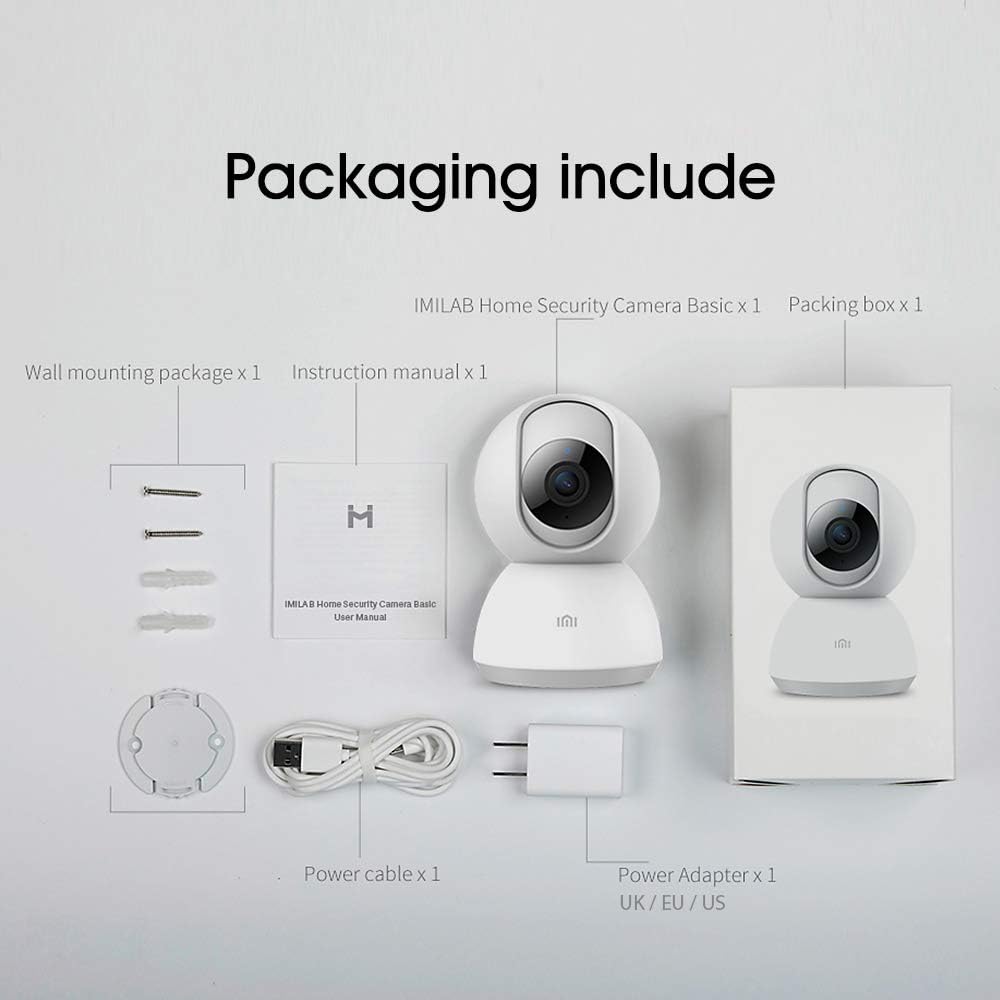
Image: Contents of the IMILAB CMSXJ16A camera package.
2.2 Awọn ohun elo kamẹra
The IMILAB CMSXJ16A camera features a compact, spherical design with a rotating base for 360-degree coverage. Key components include the lens, microphone, speaker, status indicator light, and power port.

Aworan: Iwaju view of the IMILAB CMSXJ16A camera.
2.3 Key Awọn ẹya ara ẹrọ
- FHD (1080P) Resolution: Provides clear and detailed image quality.
- 360° Yiyi: Nfun panoramic viewing for comprehensive area coverage.
- Glare-Free Night Vision: Equipped with F2.1 aperture and 8x 940mm infrared LEDs for a visible distance of 10m.
- True Color Night Vision: Maintains full color in low light conditions, even at 100 lumens.
- Iwari eniyan AI: Advanced AI reduces unnecessary alerts by 70% for more accurate notifications.
- Crying Baby Notification: Alerts you to the sound of a crying baby.
- Awọn aṣayan ipamọ pupọ: Supports cloud storage, up to 64GB Micro TF card, and NAS storage.
- H.265 Video Encoding: Efficiently compresses video, saving storage space while maintaining quality.
3. Eto
3.1 Agbara Lori
- Connect the power cable to the camera's power port.
- Pulọọgi ohun ti nmu badọgba agbara sinu iṣan itanna boṣewa.
- The camera will power on, and the status indicator light will begin to flash, indicating it is ready for connection.
3.2 Fifi sori ẹrọ Ohun elo
Download the official IMILAB Home Security app from your smartphone's app store. The app is compatible with Android 4.4 and above, and iOS 8.0 and above.
- Wa fun "IMILAB Home Security" in the Google Play Store (for Android) or Apple App Store (for iOS).
- Ṣe igbasilẹ ati fi sori ẹrọ ohun elo naa.
- Ṣii app naa ki o tẹle awọn ilana loju iboju lati ṣẹda akọọlẹ kan tabi wọle.
3.3 Nsopọ si Wi-Fi
Follow the in-app instructions to connect your camera to your home Wi-Fi network. This typically involves scanning a QR code generated by the app with the camera's lens.
3.4 Iṣagbesori Kamẹra
The camera supports wall mounting. Use the provided wall mounting package for secure installation.
- Yan ipo ti o yẹ fun fifi sori ẹrọ, rii daju pe aaye ti o han gbangba wa view ati wiwọle si a agbara iṣan.
- Use the mounting base as a template to mark drill holes on the wall.
- Lu ihò ki o si fi ogiri plugs.
- Secure the mounting base to the wall with screws.
- Attach the camera to the mounting base.
4. Awọn ilana Iṣiṣẹ
4.1 Live View ati Iṣakoso latọna jijin
Once connected, open the IMILAB Home Security app to access the live video feed from your camera. You can remotely control the camera's 360-degree rotation to view different areas of your space.

Àwòrán: Láàyé view of the camera feed on mobile devices, demonstrating H.265 encoding efficiency.
4.2 Night Vision
The camera automatically switches to night vision mode in low light conditions. It features glare-free infrared night vision and true color night vision for clear visibility even in very dim environments.

Image: Demonstration of glare-free and true color night vision capabilities.
4.3 Ìwádìí àti Ìfitónilétí nípa Ènìyàn nípa AI
The camera utilizes AI to detect human movement, significantly reducing false alarms from pets or other non-human movements. You will receive precise notifications on your smartphone when human activity is detected.

Image: AI movement notification interface in the mobile application.
4.4 Crying Baby Detection
Enable the crying baby detection feature in the app to receive alerts if the camera detects the sound of a baby crying, providing an additional layer of monitoring for nurseries.
4.5 Gbigbasilẹ ati Ibi ipamọ Fidio
The camera supports real-time video recording with multiple storage options:
- Ibi ipamọ awọsanma: Subscribe to cloud services for secure off-site storage of your recordings.
- Micro TF Card: Insert a Micro TF card (up to 64GB, not included) into the camera for local storage.
- Ibi ipamọ NAS: Connect the camera to a Network Attached Storage (NAS) device for expanded local storage capabilities.
4.6 H.265 Video Encoding
The camera uses H.265 video encoding, which allows for more efficient compression of video files. This means you can save the same quality video with approximately 50% less file size compared to H.264, optimizing storage and bandwidth usage.
5. Itọju
Láti rí i dájú pé kámẹ́rà rẹ pẹ́ tó àti pé ó ń ṣiṣẹ́ dáadáa, tẹ̀lé àwọn ìlànà ìtọ́jú wọ̀nyí:
- Ninu: Fi rọra nu lẹnsi kamẹra ati ara pẹlu asọ ti o gbẹ. Maṣe lo awọn kẹmika ti o lewu tabi awọn afọmọ abrasive.
- Ibi: Ensure the camera is placed in a stable environment, away from direct sunlight, extreme temperatures, and high humidity.
- Awọn imudojuiwọn famuwia: Regularly check the app for available firmware updates to ensure your camera has the latest features and security enhancements.
6. Laasigbotitusita
If you encounter issues with your IMILAB CMSXJ16A camera, refer to the following common solutions:
- Kámẹ́rà Kò Sopọ̀ Mọ́: Ensure your Wi-Fi network is 2.4GHz (5GHz is not supported). Check Wi-Fi signal strength. Restart the camera and your router.
- Didara Aworan Ko dara: Clean the camera lens. Ensure adequate lighting in the environment. Check your internet connection speed.
- Ko si Awọn iwifunni: Verify that notifications are enabled in both the camera app settings and your smartphone's system settings. Check network connectivity.
- Aisinipo kamẹra: Check the power connection. Ensure your Wi-Fi network is active and the camera is within range. Restart the camera.
- Micro TF Card Not Detected: Ensure the card is inserted correctly. Format the card through the app if it's new or has issues. Use a compatible Micro TF card (up to 64GB).
7. Awọn pato
| Ẹya ara ẹrọ | Sipesifikesonu |
|---|---|
| Nọmba awoṣe | CMSXJ16A |
| Awọn iwọn (L x W x H) | 10.8 x 7.6 x 7.6 cm |
| Iwọn | 211 giramu |
| Ipinnu fidio | 1080p (FHD) |
| Aaye ti View / Angle of View | Awọn iwọn 360 |
| Night Vision Distance | 10 mita |
| Awọn LED infurarẹẹdi | 8 x 940mm |
| Iho | F2.1 |
| Asopọmọra Technology | Wired, Wireless (Wi-Fi 2.4GHz) |
| Orisun agbara | Mains Powered (via 5V, 5W adapter) |
| Awọn ẹrọ ibaramu | Foonuiyara (Android 4.4+, iOS 8.0+) |
| Awọn aṣayan ipamọ | Cloud, Micro TF Card (max 64GB), NAS |
| Fidio Yaworan kika | MP4 (àkójọ H.265) |
| inu ile / ita gbangba Lo | Ninu ile |
| Iṣagbesori Iru | Ògiri Ògiri |
8. Atilẹyin ọja ati Support
For warranty information and technical support, please refer to the official IMILAB webojula tabi kan si wọn onibara iṣẹ. Tọju iwe-ẹri rira rẹ bi ẹri rira fun awọn iṣeduro atilẹyin ọja.