
Ọrọ Iṣaaju
The Homcloud Mini 8S Wi-Fi Camera is designed to enhance your home security with smart, intuitive features. This camera allows you to monitor, program, and automate your home devices directly from your smartphone, providing control from anywhere. It integrates seamlessly into your smart home ecosystem, offering convenience and peace of mind.
Awọn ẹya pataki pẹlu:
- Full HD 1080p Video Recording
- Night Vision up to 10 meters
- Motion Detection with Live Notifications
- Two-Way Audio and Noise Reduction
- SD Card and Cloud Storage Options
- Wi-Fi Asopọmọra
- Compatibility with Homcloud App, Amazon Alexa, and Google Home

Image: The Homcloud Mini 8S Wi-Fi Camera on a desk, highlighting its key features such as HD Video, Night Vision, SD Card & Cloud storage, Motion Detection, and Live Notifications.
Ọja irinše
The Homcloud Mini 8S Wi-Fi Camera package typically includes the following items:
- Homcloud Mini 8S Wi-Fi Camera
- Okun Agbara USB
- Adapter agbara (le yatọ nipasẹ agbegbe)
- Àwọn Ẹ̀rọ Ìfilọ́lẹ̀ (fún ìfilọ́lẹ̀ ògiri)
- Afowoyi Olumulo (iwe-ipamọ yii)

Image: The Homcloud Mini 8S Wi-Fi Camera positioned on a desk, demonstrating its compact design and typical indoor placement.
Eto Itọsọna
Follow these steps to set up your Homcloud Mini 8S Wi-Fi Camera:
- Download the Homcloud App: Wa fun "Homcloud" in the Apple App Store or Google Play Store, or scan the QR code below to download the official application.
- Ṣẹda akọọlẹ kan: Open the Homcloud app and register for a new account or log in if you already have one.
- Agbara Lori Kamẹra: Connect the camera to a power source using the provided USB cable and power adapter. Wait for the indicator light to flash, indicating it's ready for pairing.
- Fi ẹrọ kun: In the Homcloud app, tap the "+" icon (usually in the top right corner) to add a new device. Select "Security Camera" or "Smart Camera" from the device list.
- Sopọ si Wi-Fi: Follow the in-app instructions to connect the camera to your 2.4GHz Wi-Fi network. You may need to scan a QR code displayed on your phone screen with the camera lens.
- Ibi: Position the camera in your desired location. It supports standalone placement or wall mounting. Ensure it has a clear view agbegbe ti o fẹ lati ṣe atẹle.

Image: Multiple smartphones displaying the Homcloud application interface, along with the Homcloud logo and a QR code for easy app download. The QR code links to https://smartapp.tuya.com/homcloudsmart.
Awọn ilana Iṣiṣẹ
Once your Homcloud Mini 8S Wi-Fi Camera is set up, you can control and monitor it using the Homcloud app:
- Gbe View: Ṣí àpù náà kí o sì yan kámẹ́rà rẹ láti view live video feed in Full HD 1080p resolution.
- Audio Ọna Meji: Use the microphone and speaker icons in the app to communicate with people near the camera.
- Iran Alẹ: The camera automatically switches to night vision mode in low-light conditions, providing clear black and white video up to 10 meters.
- Iwari išipopada: Enable motion detection in the app settings to receive instant notifications on your smartphone when movement is detected. You can adjust sensitivity levels.
- Gbigbasilẹ ati Ibi ipamọ:
- Kaadi SD: Insert a microSD card (not included) into the camera's slot for local video storage. The camera supports continuous recording or event-triggered recording.
- Ibi ipamọ awọsanma: Subscribe to Homcloud's cloud storage service (if available) for secure off-site video backup.
- Iṣọkan Ile Smart: Connect your Homcloud account with Amazon Alexa or Google Home to control the camera using voice commands (e.g., "Alexa, show me the living room camera").
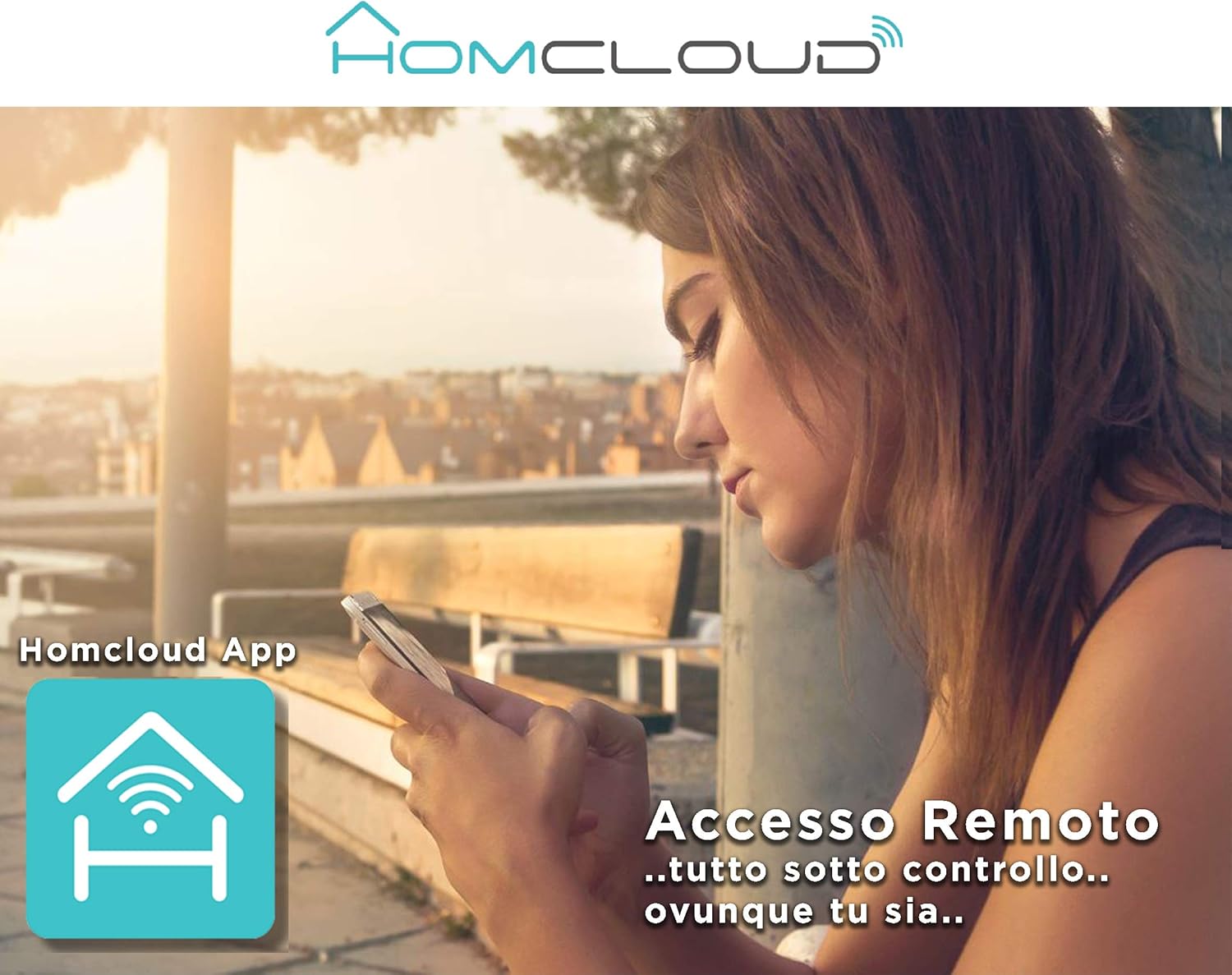
Image: A woman using her smartphone, illustrating the remote access capabilities of the Homcloud App to control and monitor the camera from any location.
Image: A family enjoying their smart home, demonstrating the integration of Homcloud solutions with Amazon Alexa and Google Assistant for convenient control.
Itoju
Itọju to peye ṣe idaniloju igbesi aye gigun ati iṣẹ to dara julọ ti kamẹra rẹ:
- Ninu: Gently wipe the camera lens and body with a soft, dry cloth. Avoid using harsh chemicals or abrasive materials that could scratch the lens or damage the casing.
- Awọn imudojuiwọn famuwia: Regularly check the Homcloud app for available firmware updates. Keeping your camera's firmware up-to-date ensures you have the latest features, security patches, and performance improvements.
- Ibi ti ina elekitiriki ti nwa: Use only the original power adapter and cable provided with the camera. Ensure the power connection is secure and free from damage.
- Ayika: The camera is designed for indoor use. Avoid exposing it to extreme temperatures, direct sunlight, high humidity, or water. While it is listed as "waterproof" in some specifications, this typically refers to splash resistance and not full submersion or outdoor exposure.
Laasigbotitusita
If you encounter issues with your Homcloud Mini 8S Wi-Fi Camera, refer to the following common solutions:
- Aisinipo kamẹra:
- Check if the camera is powered on and the power cable is securely connected.
- Ensure your Wi-Fi router is working and the internet connection is stable.
- Tun kamẹra naa bẹrẹ nipa yiyọ kuro ati tun fi sii.
- Daju pe kamẹra wa laarin agbegbe ti olulana Wi-Fi rẹ.
- If the issue persists, try re-pairing the camera with the Homcloud app.
- Didara fidio ti ko dara:
- Mọ lẹnsi kamẹra pẹlu asọ asọ.
- Ensure adequate lighting in the monitored area, especially for color video.
- Check your Wi-Fi signal strength; a weak signal can affect streaming quality.
- Iwari išipopada Ko Ṣiṣẹ:
- Verify that motion detection is enabled in the Homcloud app settings for your camera.
- Ṣàtúnṣe ìfàmọ́ra ìwádìí ìṣísẹ̀.
- Rii daju pe ko si awọn idena ti o dina kamẹra naa view.
- Kò le Sopọ̀ mọ́ App:
- Make sure your smartphone is connected to a 2.4GHz Wi-Fi network during the pairing process.
- Confirm that you are entering the correct Wi-Fi password.
- Reset the camera (refer to the app or product for specific reset instructions, usually a small button) and try the pairing process again.
Awọn pato
| Ẹya ara ẹrọ | Ẹ̀kúnrẹ́rẹ́ |
|---|---|
| Brand | Homcloud |
| Nọmba awoṣe | TY-WCM8S |
| Ipinnu Gbigbasilẹ fidio | 1080p ni kikun HD |
| Ipinnu fidio ti o munadoko | 1080 |
| Iwọn fireemu | 25 fps |
| Imọ-ẹrọ Ibaraẹnisọrọ Alailowaya | Wi-Fi |
| Ilana Asopọmọra | Wi-Fi |
| Viewigun igun | Awọn iwọn 100 |
| Ibiti Iran Night | 10 Mita |
| Pataki Awọn ẹya ara ẹrọ | Two-Way Audio, Noise Reduction, HD Resolution, Night Vision |
| Iṣeduro Lilo | Aabo inu ile |
| inu ile / ita gbangba Lo | Ninu ile |
| Awọn ẹrọ ibaramu | Homcloud App, Amazon Alexa, Android, Google Home, Smart Life, iOS |
| Orisun agbara | Cable ina |
| Voltage | 5 Volts |
| Agbara agbara | 2.5 Wattis |
| Ohun elo | Ṣiṣu |
| Awọn iwọn (L x W x H) | 8 x 5 x 9 cm |
| Iwọn | 350 giramu |
| Iṣagbesori Iru | Ògiri Ògiri |
| Omi Resistance Ipele | Waterproof (Note: Typically splash resistant for indoor use) |
Atilẹyin ọja ati Support
For warranty information, please refer to the documentation provided at the time of purchase or visit the official Homcloud website. If you require technical assistance or have questions not covered in this manual, please contact Homcloud customer support through their official channels.
You can find more information and support resources on the Homcloud website or through the Homcloud application.