
1. Ifihan
Thank you for choosing the ROFAVEZCO HDMI Splitter 1x2. This device allows you to duplicate a single HDMI input signal to two HDMI output displays simultaneously. It supports high-resolution video up to 4K@60Hz, 1080p@120Hz, and advanced audio formats, making it ideal for various home theater and professional applications. Please read this manual carefully to ensure proper installation and operation.
2. Awọn ẹya Ọja
- 4K 60Hz HDMI 1x2 Splitter: Duplicates one HDMI input to two HDMI outputs, supporting resolutions up to 4K@60Hz and 1080p@120Hz.
- Atilẹyin fidio to ti ni ilọsiwaju: Compatible with 3D, HDR, Dolby Vision, HDCP 2.2, and HDCP 2.3 bypass. Supports 3840x2160@60Hz and 1440p@60Hz.
- Bandiwidi giga: 8-bit 18Gbps data transfer rate for smooth, high-quality video.
- Superior Audio Support: Supports Dolby Atmos, 7.1CH digital audio, DTS:X, Dolby True HD, and DTS-HD Master Audio.
- Ìṣàkóso EDID: Features EDID management for optimal display compatibility.
- Iṣẹ Scaler: Includes a scaler function to downscale 4K to 1080p for one output, allowing simultaneous use of 4K and 1080p displays.
- Pulọọgi ati Ṣiṣẹ: Easy to set up with no drivers required. Powered via Micro USB.
3. Package Awọn akoonu
Jọwọ ṣayẹwo awọn akoonu package lori ṣiṣi. Ti awọn ohun kan ba nsọnu tabi bajẹ, kan si alagbata rẹ.
- 1x ROFAVEZCO HDMI Splitter 1x2 (Model EZ-SP12H2)
- 1x USB Type-C Power Cable
- 1x Itọsọna olumulo

Àwòrán 3.1: Àkóónú Àpò àti Ìwọ̀n Ọjà
The image above illustrates the compact design of the HDMI splitter, its packaging, the included USB Type-C power cable, and the user manual. The unit measures approximately 58mm x 52.8mm x 22mm.
4. Aworan atọka ọja
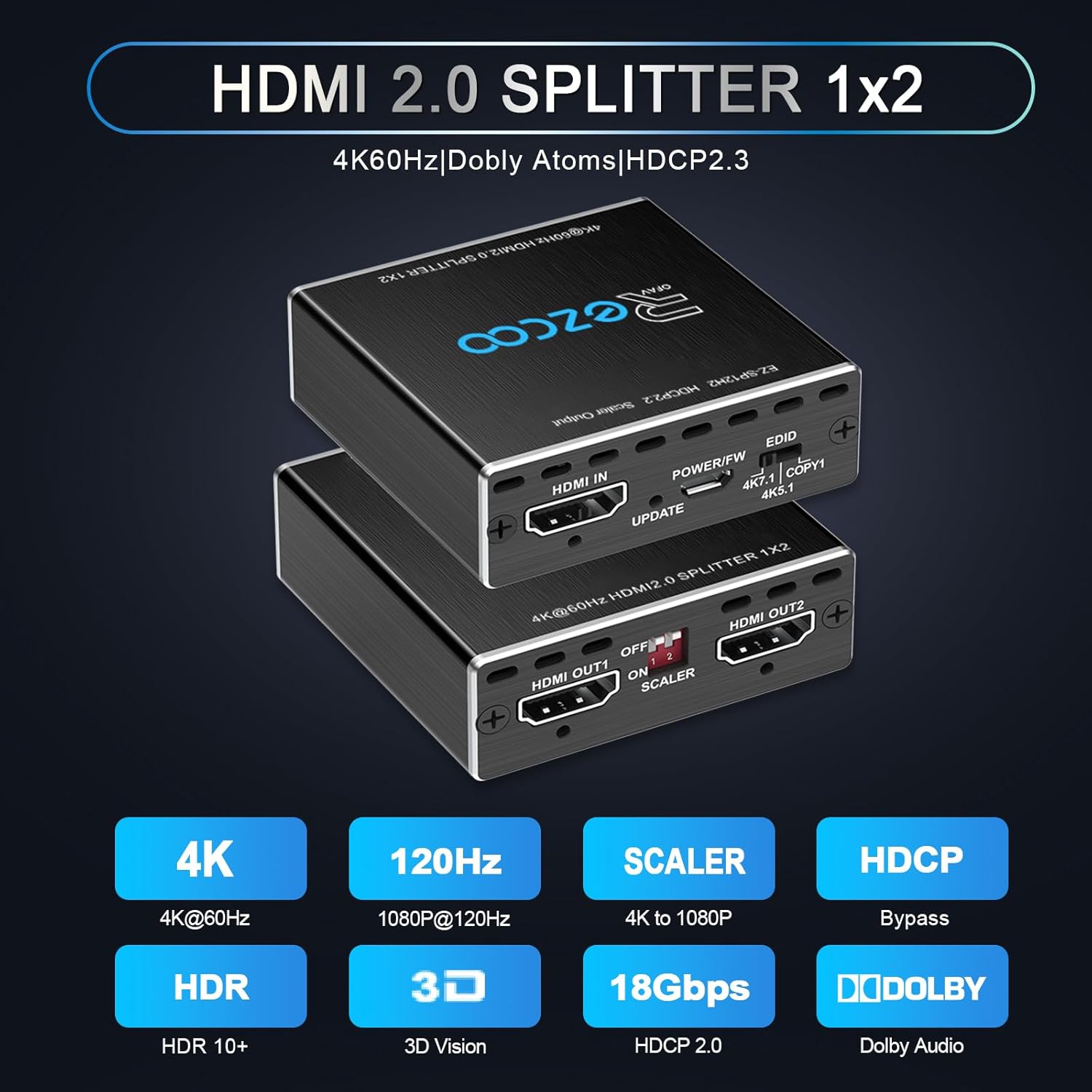
olusin 4.1: Iwaju ati Ru Panel Loriview
The diagram above highlights the various ports and controls on the ROFAVEZCO HDMI Splitter:
- HDMI NI: Connect your source device (e.g., PS5, Xbox, Blu-ray player).
- HDMI OUT1: Connect to your primary display (e.g., 4K TV).
- HDMI OUT2: Connect to your secondary display (e.g., 1080p monitor, soundbar).
- POWER/FW: Micro USB port for power supply and firmware updates.
- Yipada EDID: Used to configure EDID settings (4K7.1, 4K5.1, COPY1).
- SCALER Switch: Controls the 4K to 1080p downscaling function for Output 2.
5. Awọn ilana iṣeto
Tẹle awọn igbesẹ wọnyi lati ṣeto pipin HDMI rẹ:
- Sopọ Orisun Ẹrọ: Connect your HDMI source device (e.g., game console, media player) to the HDMI-IN port on the splitter using a high-quality HDMI 2.0 cable (recommended length under 3 meters).
- Sopọ Awọn ifihan:
- Connect your primary display (e.g., 4K TV) to the HDMI OUT1 ibudo.
- Connect your secondary display (e.g., 1080p monitor or soundbar) to the HDMI OUT2 ibudo.
- Agbara Tan: Connect the included USB Type-C power cable to the POWER/FW port on the splitter and then to a 5V/1A-5V/3A USB power adapter (not included) or a USB port on your source device/TV.
- Configure EDID and Scaler: Adjust the EDID and SCALER switches according to your display requirements (refer to Section 7 for details).
- Agbara Lori Awọn ẹrọ: Power on your displays and source device. The splitter should automatically detect the signals.

Àwòrán 5.1: Àwòrán Ìsopọ̀ Àkọ́kọ́
This diagram illustrates a typical setup where a source device (Xbox) is connected to the splitter's input, and the splitter's outputs are connected to a 4K TV and a 1080p TV. The scaler function can be used to ensure compatibility with both displays.
6. Awọn ilana Iṣiṣẹ
The ROFAVEZCO HDMI Splitter operates automatically once connected and powered. It supports two primary modes of operation:
6.1 Digi Ipo
In Mirror Mode, the splitter duplicates the input signal to both HDMI OUT1 and HDMI OUT2, displaying the same content on both screens. This is ideal for presentations, gaming setups with multiple displays, or simply watching content on two screens simultaneously.
6.2 Soundbar Mode
When using a soundbar or AV receiver for audio, you can connect your primary display to HDMI OUT1 and your soundbar/receiver to HDMI OUT2. Ensure your EDID settings are configured correctly to pass through the desired audio format.

Figure 6.1: Mirror Mode and Soundbar Mode Setup
This image illustrates how to configure the splitter for Mirror Mode (top) where two displays show identical content, and Soundbar Mode (bottom) where one display receives video and a soundbar receives audio, often with the scaler enabled for the soundbar output if it's an older model.
7. EDID and Scaler Settings
The EDID and SCALER switches on the splitter allow you to optimize video and audio output for different display configurations.

Figure 7.1: EDID and Scaler Switch Configuration
7.1 EDID Eto
The EDID (Extended Display Identification Data) switch has three positions:
- 4K7.1: Forces the output to 4K@60Hz 4:4:4, Dolby Vision, Dolby Atmos, 7.1CH, 3D, HDR. Use this setting when both displays support these advanced formats.
- 4K5.1: Forces the output to 4K@60Hz 4:4:4, 5.1CH, 3D, HDR. Suitable for setups where 5.1 channel audio is preferred.
- COPY1: Copies the EDID from HDMI OUT1. This is useful when you want the splitter to mimic the capabilities of your primary display.
7.2 Scaler Settings
The SCALER switch controls the downscaling function for HDMI OUT2:
- Ipo 1 (PA): For HDMI OUT1, the signal passes through without scaling.
- Ipo 2 (PA): For HDMI OUT2, the signal passes through without scaling.
- Ipo 1 (ON): For HDMI OUT1, the signal passes through without scaling.
- Ipo 2 (ON): For HDMI OUT2, 4K signals are downscaled to 1080p. This allows a 4K source to be displayed on both a 4K TV (OUT1) and a 1080p TV (OUT2) simultaneously.
Akiyesi: The scaler does not downscale refresh rate or Dolby Vision. If using 4K HDR Dolby Vision, please turn OFF the SCALER function.
8. Ibamu
The ROFAVEZCO HDMI Splitter offers wide compatibility with various devices and displays:
- Awọn ẹrọ orisun: PS5, PS4, Nintendo Switch, Xbox One S, Xbox X, Nvidia Shield, Roku Ultra, Apple TV, Chromecast, Google TV, Fire TV, Fire Stick, Xfinity Box, Elgato Game Capture, set-top boxes, cable satellite boxes, PC laptops, HD cameras, HD DVRs, Comcast.
- Awọn ẹrọ Afihan: TVs, monitors, projectors, soundbars.

olusin 8.1: Wide Device ibamu
This image visually confirms the broad range of devices compatible with the splitter, from gaming consoles and streaming devices to various display types and audio equipment.
8.1 HDCP Bypass
The splitter features automatic HDCP 2.2 and HDCP 2.3 bypass, allowing you to connect HDCP-protected content sources to displays that might not fully support the latest HDCP versions.
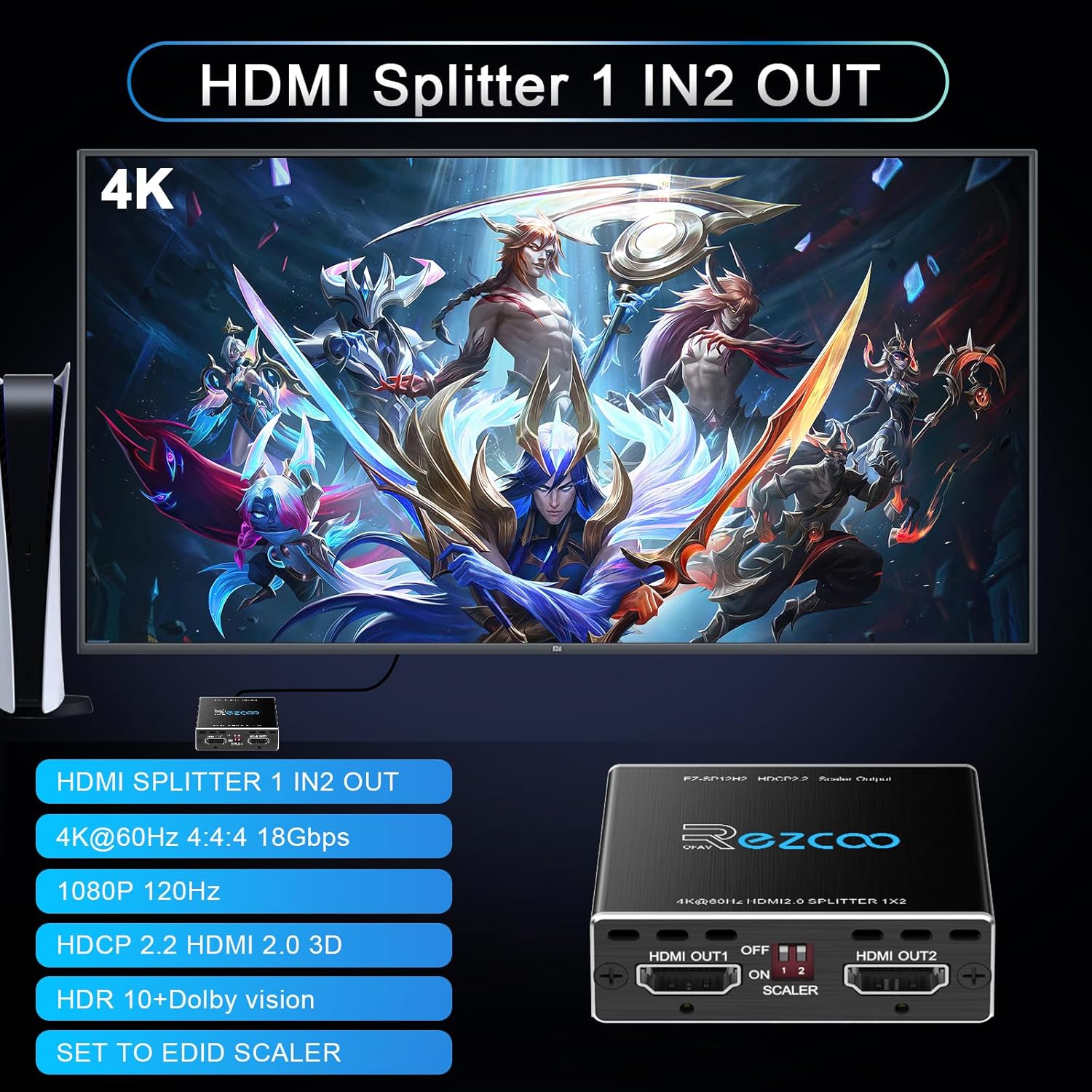
Figure 8.2: Automatic HDCP Bypass
The diagram above demonstrates the splitter's ability to automatically bypass HDCP, ensuring that protected content from sources like a PS4 can be displayed without issues on compatible screens.
9. Itọju
To ensure the longevity and optimal performance of your HDMI splitter, follow these simple maintenance guidelines:
- Ninu: Use a soft, dry cloth to clean the unit. Avoid liquid cleaners or abrasive materials.
- Afẹfẹ: Rí i dájú pé a gbé ẹ̀rọ náà sí ibi tí afẹ́fẹ́ lè máa gbóná jù. Má ṣe dí àwọn ihò afẹ́fẹ́ kankan.
- Itọju USB: Handle HDMI cables carefully. Avoid bending them sharply or pulling them forcefully, as this can damage the connectors or internal wiring.
- Ibi ti ina elekitiriki ti nwa: Always use the provided USB power cable and a compatible 5V/1A-5V/3A power adapter.
10. Laasigbotitusita
If you encounter issues with your HDMI splitter, refer to the following common problems and solutions:
- Ko si ifihan agbara lori Ifihan:
- Rí i dájú pé gbogbo àwọn okùn HDMI ni a so pọ̀ mọ́ àwọn ibudo tó tọ́ ní ààbò.
- Verify the splitter is receiving power from the USB cable.
- Check the input source selection on your display.
- Try different HDMI cables, especially high-quality HDMI 2.0 cables under 3 meters.
- Adjust the EDID switch settings to match your display's capabilities.
- Intermittent Video or Audio:
- This often indicates poor quality or excessively long HDMI cables. Use certified HDMI 2.0 cables, preferably under 3 meters.
- Ensure the splitter is adequately powered. Some devices may require a dedicated power adapter rather than a TV's USB port.
- Check for overheating. Ensure the unit has proper ventilation.
- No Audio or Incorrect Audio Format:
- Verify your displays and audio system support the audio format being sent by the source.
- Adjust the EDID switch to a setting that includes the desired audio format (e.g., 4K7.1 for Dolby Atmos).
- Ensure your soundbar or AV receiver is correctly configured to receive audio from the HDMI input.
- 4K Content Not Displaying on 1080p TV:
- Ensure the SCALER switch for HDMI OUT2 is set to ON to enable 4K to 1080p downscaling.
- HDR/Dolby Vision Issues:
- Ensure both your source and display support HDR/Dolby Vision.
- The splitter does not downscale HDR Dolby Vision (4K60 4:2:2) or convert HDR to SDR.
- Turn OFF the SCALER function when using 4K HDR Dolby Vision.
11. Awọn pato
| Ẹya ara ẹrọ | Sipesifikesonu |
|---|---|
| Brand | ROFAVEZCO |
| Nọmba awoṣe | EZ-SP12H2 |
| Awọn ibudo igbewọle | 1x HDMI |
| Awọn ibudo ti njade | 2x HDMI |
| Ipinnu Max | 4K@60Hz, 1080p@120Hz |
| Awọn ọna kika fidio | 3D, HDR, Dolby Vision |
| Ibamu HDCP | HDCP 2.2 / HDCP 2.3 Bypass |
| Bandiwidi | 18Gbps |
| Awọn ọna kika ohun | Dolby Atmos, 7.1CH Digital Audio, DTS:X, Dolby True HD, DTS-HD Master Audio |
| Ibi ti ina elekitiriki ti nwa | Micro USB (5V/1A-5V/3A) |
| Àwọ̀ | Grẹy/dudu |
| UPC | 824941679305 |
12. Important Notes and Warnings
- Ẹrọ yii ṣe KO support ARC (Audio Return Channel), e-ARC/Sonos ARC, CEC (Consumer Electronics Control), VRR (Variable Refresh Rate), 4K@120Hz, or upscaling.
- O ṣe KO downscale HDR Dolby Vision (4K60 4:2:2) or VRR.
- O ṣe KO convert HDR to SDR.
- There is no audio down-mixer.
- For optimal performance, use high-quality HDMI 2.0 cables with a length of less than 3 meters.
- To achieve both Dolby Atmos and Dolby Vision, ensure that both your TV and receiver/sound system support these formats.
13. Atilẹyin ọja ati Support
Warranty information for this product is not explicitly provided in the available product data. For details regarding warranty coverage, returns, or technical support, please contact the seller or manufacturer directly through their official channels.


