
Ọrọ Iṣaaju
The EVOLVEO EASYPHONE FM is a user-friendly mobile phone designed for straightforward communication. It features large, separated keys, a clear display, and essential functions to ensure ease of use. This manual provides instructions for setting up, operating, and maintaining your device.
1. Package Awọn akoonu
Jọwọ ṣayẹwo package fun awọn nkan wọnyi:
- EVOLVEO EASYPHONE FM Mobile Phone
- Ibi iduro gbigba agbara
- AC Adapter
- Li-ion 1000 mAh Battery
- Itọsọna olumulo
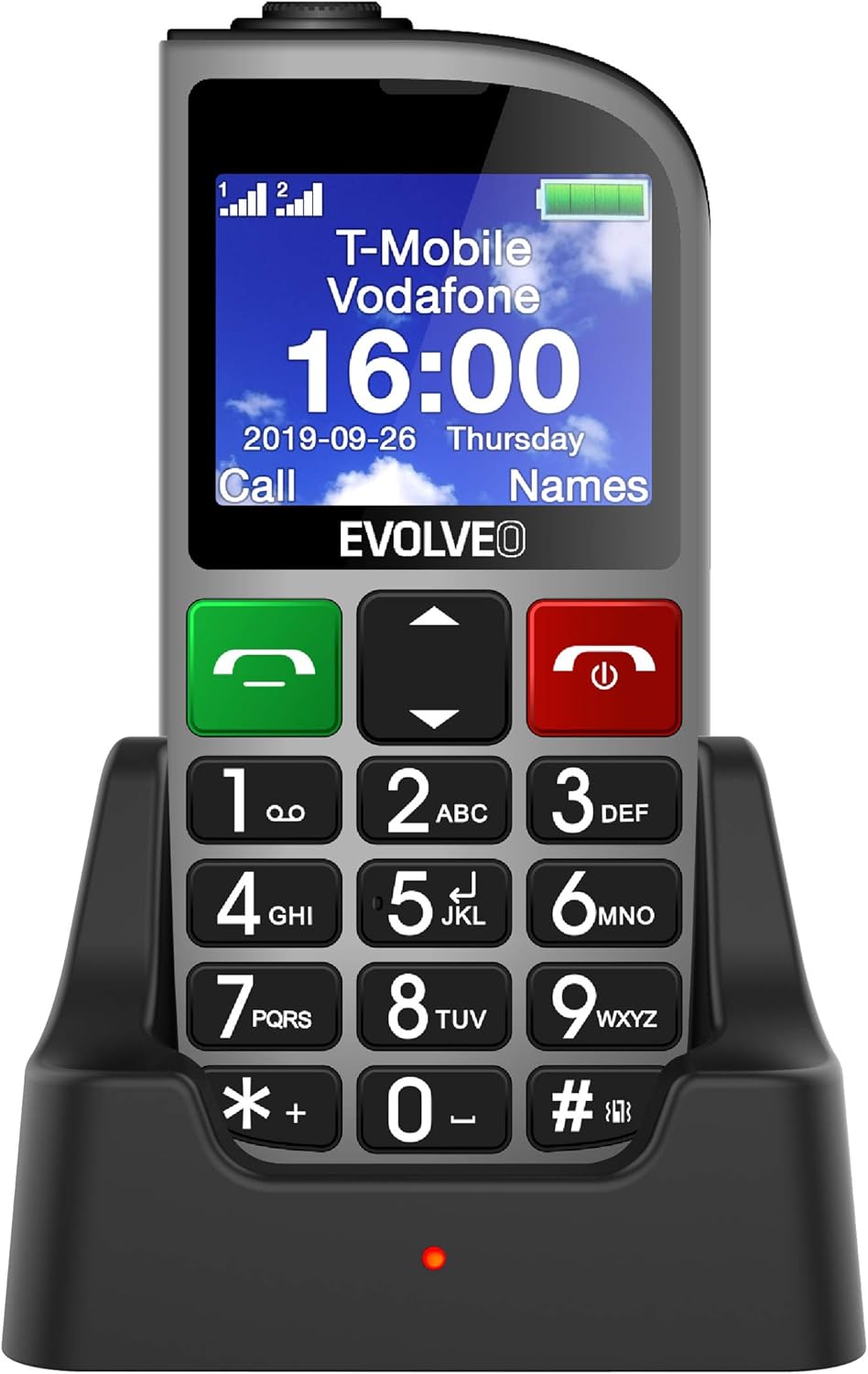
Nọmba 1.1: EVOLVEO EASYPHONE FM placed in its charging dock. The phone features a large display showing time and network information, with prominent green call and red end call buttons, and a numeric keypad below.
2. Eto
2.1. Fifi sori batiri ati gbigba agbara
- Yọ ideri ẹhin foonu kuro.
- Insert the Li-ion 1000 mAh battery, ensuring the contacts align correctly.
- Rọpo ideri ẹhin.
- Connect the AC adapter to the charging dock.
- Place the phone into the charging dock. The charging indicator light will illuminate.
- Gba foonu laaye lati gba agbara ni kikun ṣaaju lilo akọkọ.
2.2. Fi kaadi SIM sii
The phone supports two SIM cards (Dual SIM) for GSM/GPRS 850/900/1800/1900 MHz networks.
- Rii daju pe foonu ti wa ni pipa.
- Yọ ideri ẹhin ati batiri kuro.
- Locate the SIM card slots.
- Insert your SIM card(s) into the designated slots, ensuring correct orientation.
- Tun batiri sii ati ideri ẹhin.
2.3. Inserting a MicroSDHC Card
You can expand the phone's storage for music, photos, and other files by inserting a MicroSDHC card.
- Rii daju pe foonu ti wa ni pipa.
- Yọ ideri ẹhin ati batiri kuro.
- Locate the MicroSDHC card slot.
- Gently insert the MicroSDHC card until it clicks into place.
- Tun batiri sii ati ideri ẹhin.
3. Awọn ilana Iṣiṣẹ
3.1. Agbara Tan / Paa
- Lati fi agbara tan: Tẹ mọlẹ Red End Call/Power bọtini titi iboju imọlẹ soke.
- Lati fi agbara si pipa: Tẹ mọlẹ Red End Call/Power button until the power off options appear, then confirm.

Nọmba 3.1: Iwaju view of the EVOLVEO EASYPHONE FM, highlighting the large display, call buttons, and numeric keypad for easy dialing.
3.2. Ṣiṣe ati Gbigba awọn ipe
- Npe Ipe: Dial the number using the numeric keypad and press the Alawọ ewe Ipe bọtini.
- Titẹ kiakia: The phone supports quick access to 8 popular contacts. Assign numbers to keys 2-9 for speed dialing. Press and hold the assigned key to dial.
- Gbigba Ipe kan: Tẹ awọn Alawọ ewe Ipe bọtini lati dahun ipe ti nwọle.
- Pari ipe kan: Tẹ awọn Red End Call/Power button to end an active call.
3.3. Fifiranṣẹ ati Gbigba Awọn ifiranṣẹ SMS
The separated keyboard keys facilitate easy writing of SMS messages.
- Navigate to the Messaging menu.
- Select "Write Message" to compose a new SMS.
- Tẹ nọmba olugba sii tabi yan lati awọn olubasọrọ.
- Tẹ ifiranṣẹ rẹ sii nipa lilo bọtini foonu.
- Press "Send" to transmit the message.
3.4. Iṣakoso iwọn didun
Adjust the call and ringtone volume using the dedicated volume control button located on the left side of the phone.

Nọmba 3.2: Left side of the phone, showing the volume control buttons and the FM radio activation button.
3.5. Bọtini pajawiri SOS
The SOS button, located on the back of the device, allows for quick emergency calls and messages.
- Before use, configure up to five emergency contact numbers in the phone settings.
- Ní àkókò pàjáwìrì, tẹ kí o sì di mọ́lẹ̀ SOS bọtini.
- The phone will automatically dial the predefined emergency numbers sequentially and send an emergency message to these contacts.

Nọmba 3.3: Ẹyìn view of the EVOLVEO EASYPHONE FM, showing the prominent red SOS emergency button and the camera lens.
3.6. Redio FM
The phone includes an FM radio with a dedicated activation button.
- To turn on the FM radio, press the independent FM button on the side of the device.
- The radio can play in the background, allowing you to use other phone functions.
- During an incoming or outgoing call, the radio will automatically mute and resume playback after the call ends.
3.7. Flashlight
A powerful flashlight is integrated into the phone, activated by a dedicated button.
- Press the dedicated flashlight button on the side of the phone to turn the flashlight on or off.

Nọmba 3.4: Right side of the phone, showing the dedicated flashlight button.
3.8. Miiran Awọn ẹya ara ẹrọ
- Kamẹra: The phone includes a VGA camera for basic photo capture.
- Ẹrọ orin: Mu orin ṣiṣẹ files stored on your MicroSDHC card.
- Digital Recorder (Dictaphone): Record voice notes.
- Kalẹnda: Tọju awọn ọjọ ati awọn iṣẹlẹ pataki.
- Aago itaniji: Ṣeto awọn itaniji fun awọn olurannileti.
- Ẹrọ iṣiro: Ṣe awọn iṣiro ipilẹ.
- Gilasi Ngo: Utilize the screen as a magnifying glass.
4. Itọju
4.1. Ninu ẹrọ
- Use a soft, dry cloth to clean the phone's surface and screen.
- Avoid using liquid cleaners or abrasive materials, as they may damage the device.
- Ensure no moisture enters the charging port or other openings.
4.2. Itọju batiri
- Lati pẹ aye batiri, yago fun ṣiṣafihan foonu si awọn iwọn otutu to gaju.
- Charge the battery regularly, but avoid overcharging or letting it completely drain for extended periods.
- If the phone will not be used for a long time, charge the battery to about 50% before storing it.
5. Laasigbotitusita
If you encounter issues with your EVOLVEO EASYPHONE FM, refer to the following common problems and solutions:
5.1. Phone Does Not Turn On
- Rii daju pe batiri ti fi sii daradara ati gbigba agbara.
- Connect the phone to the charger and wait a few minutes before attempting to power it on again.
- Ṣayẹwo boya awọn olubasọrọ batiri mọ.
5.2. Cannot Make or Receive Calls
- Check if the SIM card(s) are correctly inserted and activated.
- Ensure you have network coverage.
- Verify that the phone is not in airplane mode (if applicable).
- Check your account balance or subscription status with your service provider.
5.3. FM Radio Not Working
- Rí i dájú pé o wà ní agbègbè tí ó ní ìgbanisíṣẹ́ FM tó dára.
- Check if the FM radio is properly activated using its dedicated button.
5.4. Ifihan Awọn oran
- If the display is dim, check the brightness settings.
- If the screen is unresponsive, try restarting the phone.
6. Awọn pato
| Brand | Evolveo |
| Awoṣe | EASYPHONE FM |
| Iwọn Ifihan | 1.8 inches |
| Ipinnu Ifihan | 320 x 240 px |
| Cellular Technology | 2G (GSM/GPRS 850/900/1800/1900 MHz) |
| SIM Support | SIM meji |
| Asopọmọra | Bluetooth, 3.5 mm Jack |
| Batiri | Li-dẹlẹ 1000 mAh |
| Awọn iwọn | 130 × 61 × 16.5 mm |
| Iwọn | 105 g (pẹlu batiri) |
| Kamẹra | VGA |
| Imugboroosi ipamọ | MicroSDHC kaadi Iho |
Akiyesi: Awọn pato jẹ koko ọrọ si iyipada laisi akiyesi iṣaaju.
7. Atilẹyin ọja ati Support
For warranty information and technical support, please refer to the warranty card included in your package or visit the official Evolveo webojula. Jeki ẹri rira rẹ fun awọn iṣeduro atilẹyin ọja.