
1. Ifihan
Thank you for choosing the Maxcio Smart Wi-Fi Wall Switch. This device allows you to control your lights remotely via Wi-Fi, voice commands, or touch, enhancing your home automation experience. Please read this manual carefully before installation and use to ensure proper function and safety.
2. Alaye Aabo
- Ti beere fun Waya Ailopin: This smart switch requires a neutral wire for installation. If your existing wiring does not include a neutral wire, consult a qualified electrician.
- Ewu Itanna: Installation should only be performed by a qualified electrician or a person with a thorough understanding of electrical wiring. Always turn off power at the circuit breaker before installation.
- Lilo inu ile Nikan: Ẹrọ yii jẹ apẹrẹ fun lilo inu ile ni awọn ipo gbigbẹ.
- Awọn ọna Voltage: Rii daju voltage in your home matches the specifications of the switch (typically 100-240V AC).
- Ikojọpọ ti o pọju: Do not exceed the maximum load capacity of 400 Watts.
- Aabo Awọn ọmọde: Jeki ẹrọ naa kuro ni arọwọto awọn ọmọde.
3. Package Awọn akoonu
- Maxcio Smart Wi-Fi Wall Switch (1 unit)
- Skru fun fifi sori
- Afowoyi Olumulo (iwe-ipamọ yii)
4. Awọn ẹya Ọja
- Iṣakoso ohun: Ni ibamu pẹlu Amazon Alexa ati Google Home fun iṣẹ ọwọ-ọwọ.
- Isakoṣo latọna jijin: Control your lights from anywhere using the Maxcio mobile application (available on Google Store). Supports 2.4 GHz Wi-Fi (IEEE 802.11b/g/n).
- 2-Way Switch Functionality: Can replace one or two traditional 2-way switches to control a single light from multiple locations.
- Iṣẹ Aago: Schedule lights to turn on or off automatically at set times.
- Páálí ìbòjú ìfọwọ́kan: Features a responsive touch screen and a durable tempered glass panel.
- Pipin idile: Pin iṣakoso ti yipada pẹlu awọn ọmọ ẹgbẹ ẹbi nipasẹ ohun elo naa.
- Idaabobo Apọju: Built-in safety features to prevent damage from electrical overloads.
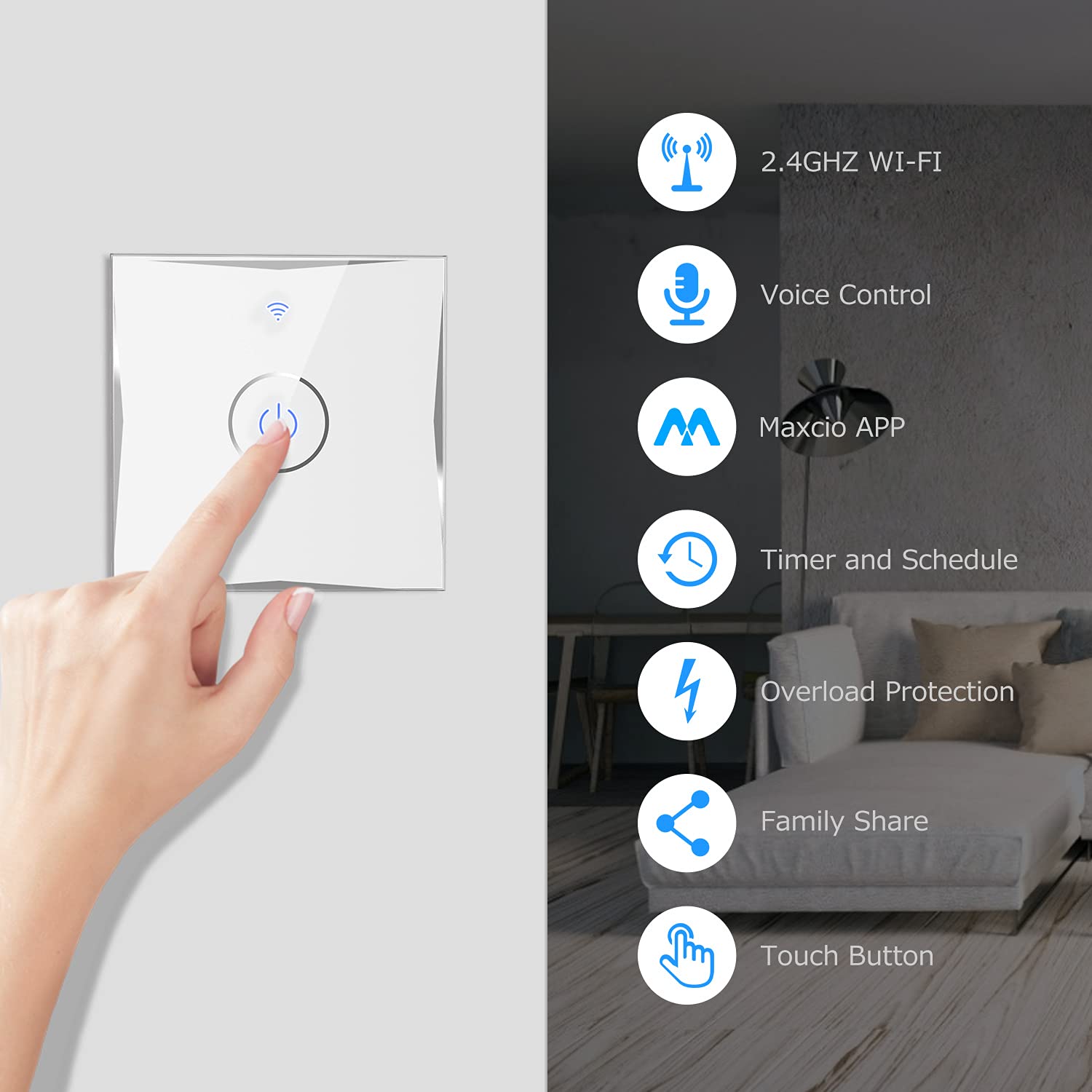
Aworan: Pariview of Maxcio Smart Wi-Fi Wall Switch features including 2.4GHz Wi-Fi, Voice Control, Maxcio APP, Timer and Schedule, Overload Protection, Family Share, and Touch Button.
5. Fifi sori (Eto)
5.1 Ṣaaju fifi sori ẹrọ
- Rii daju pe agbara wa ni PA ni ẹrọ fifọ.
- Confirm that a neutral wire is present in your wall box. A neutral wire is essential for the smart switch to function.
- Prepare necessary tools: screwdriver, wire strippers, voltage idanwo.
5.2 Wiring aworan atọka
Refer to the wiring diagram below for correct installation. The switch uses screw terminals for connections.
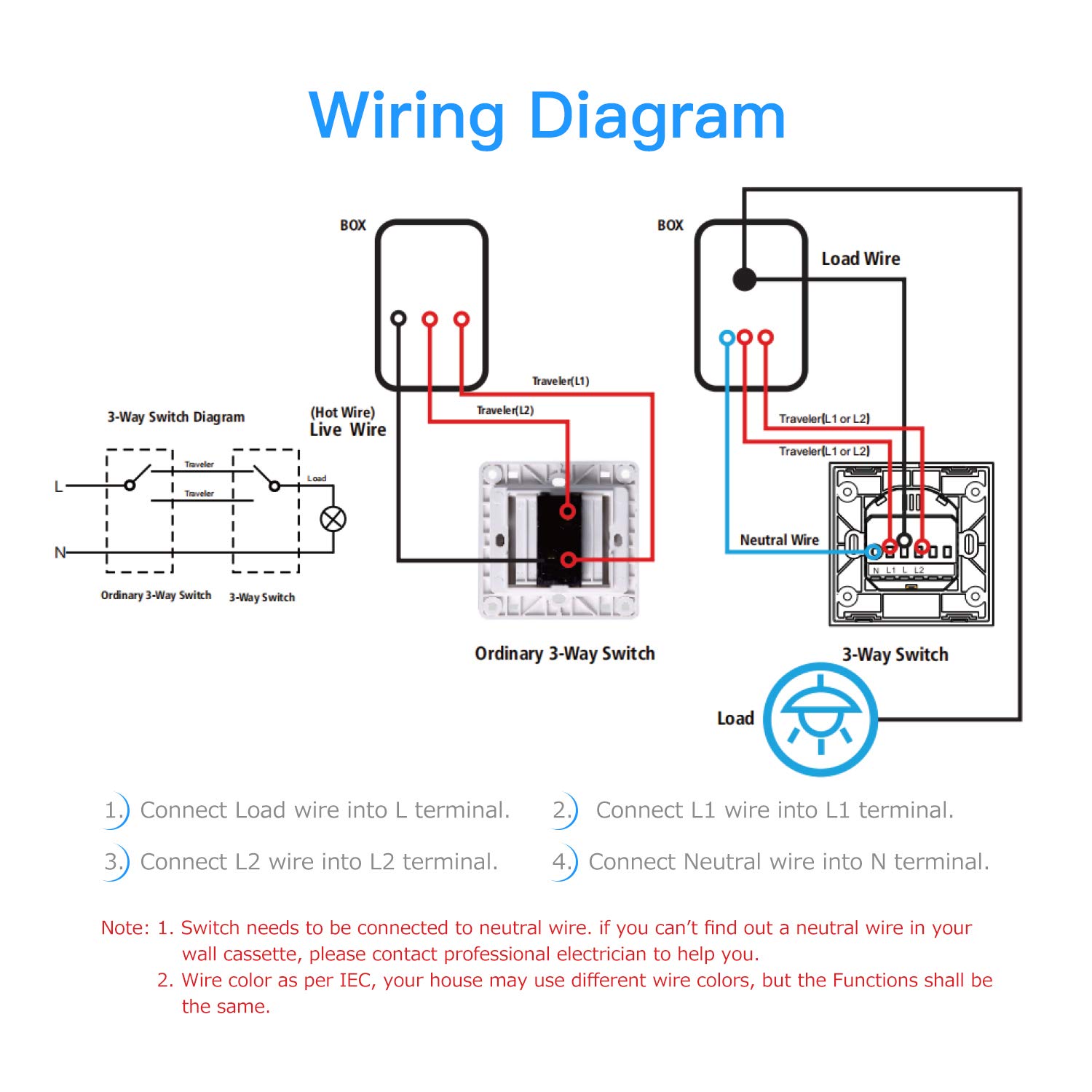
Image: Detailed wiring diagram showing connections for Live Wire (L), Load Wire (L1), and Neutral Wire (N) for both 1-way and 2-way switch configurations.
- Connect the Load Wire into the L terminal.
- Connect the L1 wire into the L1 terminal (for 2-way switching, connect traveler wires here).
- Connect the L2 wire into the L2 terminal (for 2-way switching, connect traveler wires here).
- Connect the Neutral Wire into the N terminal.
Akiyesi: Wire colors may vary by region. Always ensure correct wire identification before connecting. If you are unsure, consult a professional electrician.
5.3 Fifi sori ti ara
- Lẹhin onirin, farabalẹ tẹ yipada sinu apoti ogiri.
- Ṣe aabo iyipada si apoti ogiri nipa lilo awọn skru ti a pese.
- Attach the glass panel to the switch.
- Mu pada agbara ni awọn Circuit fifọ.
5.4 App Sisopọ
- Download the "Maxcio" app from the Google Store or Apple App Store.
- Register or log in to your Maxcio account.
- Ensure your smartphone is connected to a 2.4 GHz Wi-Fi network. The switch only supports 2.4 GHz Wi-Fi.
- In the app, tap "+" to add a device. Follow the on-screen instructions to put the switch into pairing mode (usually by pressing and holding the touch button until the Wi-Fi indicator blinks rapidly).
- Once paired, you can rename the switch and access its features.
6. Isẹ
6.1 Afowoyi Iṣakoso
Simply touch the ON/OFF button on the switch panel to toggle the connected lights.

Image: Illustration of the Maxcio Smart Wi-Fi Wall Switch demonstrating its use as a 1-way switch and its ability to replace one or two traditional 2-way switches for controlling a single light from multiple points.
6.2 Remote Control via Maxcio App
Open the Maxcio app on your smartphone. You can turn lights on/off, set timers, and manage other settings from anywhere with an internet connection.

Image: A hand interacting with the Maxcio app on a smartphone, demonstrating remote control functionality for the smart switch. The Maxcio logo is visible.
6.3 Iṣakoso ohun
Integrate your Maxcio switch with Amazon Alexa or Google Home. Enable the "Maxcio" skill in your voice assistant app. Then, use voice commands such as:
- "Alexa, tan ina ile gbigbe."
- "Hey Google, turn off the kitchen light."

Image: A living room setting where a user is using voice commands with Alexa to control the Maxcio Smart Wi-Fi Wall Switch. A speech bubble shows "Alexa, turn on the light." and "Okay!".
6.4 Timer and Schedule Settings
Use the Maxcio app to set up schedules and timers for your lights. This feature helps save energy and automate your home lighting.

Image: A smartphone screen displaying the Maxcio app's timer setting interface, showing options to add a schedule for the smart switch.
7. Itọju
- Ninu: Wipe the glass panel with a soft, dry cloth. Do not use abrasive cleaners or solvents.
- Awọn imudojuiwọn famuwia: Periodically check the Maxcio app for available firmware updates to ensure optimal performance and security.
- Agbara Outages: Ni ọran ti agbara kan otage, the switch will retain its last state. However, some users have reported needing to re-pair the switch with the app after extended power interruptions.
8. Laasigbotitusita
| Isoro | Owun to le Fa | Ojutu |
|---|---|---|
| Yipada ko dahun si ifọwọkan. | No power; loose wiring; switch malfunction. | Check circuit breaker. Verify wiring connections (ensure neutral wire is connected). If problem persists, contact support. |
| Ko le sopọ si Wi-Fi. | Incorrect Wi-Fi band (5GHz); weak signal; incorrect password; pairing mode not active. | Ensure your router is broadcasting a 2.4 GHz Wi-Fi network. Move closer to the router. Re-enter Wi-Fi password carefully. Put the switch into pairing mode (refer to section 5.4). |
| Iṣakoso ohun ko ṣiṣẹ. | Maxcio skill not enabled; incorrect device name; no internet connection. | Enable the "Maxcio" skill in your Alexa/Google Home app. Ensure the device name in the app matches what you're saying. Check your internet connection. |
| Switch loses pairing after power outage. | Known behavior for some smart switches. | Re-pair the switch with the Maxcio app. If standard pairing fails, try Wi-Fi mode pairing. |
9. Awọn pato
| Nọmba awoṣe | AK3-AT1-GL-M-X |
| Brand | Maxcio |
| Olupese Apá Number | KS601 |
| Ilana Asopọmọra | Wi-Fi (2.4 GHz, IEEE 802.11b/g/n) |
| Ipo Isẹ | TAN, PAA |
| Adarí Iru | Fọwọkan |
| Agbara to pọju | 400 Wattis |
| Ohun elo | Tempered Glass + PC |
| Iṣagbesori Iru | Ẹke Fula |
| Awọn ẹrọ ibaramu | Alexa, Google Home, Smart Life, Tuya Smart |
| Awọn irinše to wa | Awọn skru |

Image: Technical drawing showing the dimensions of the Maxcio Smart Wi-Fi Wall Switch, indicating a width and height of 86mm (3.38 inches) and a depth of 30.7mm (1.2 inches) with a mounting depth of 39.4mm (1.55 inches).
10. Atilẹyin ọja ati Support
Maxcio products are designed for quality and reliability. For warranty information, please refer to the documentation provided with your purchase or contact Maxcio customer support.
If you have any questions, require technical assistance, or need a French version of the manual, please contact the seller or Maxcio customer service directly via email. Contact information is typically available on the product packaging or the official Maxcio webojula.
- Olupese: Maxcio
- ASIN: B08534WVRG
- GTIN/UPC: 760354659186