
Ọrọ Iṣaaju
The Razer Viper Ultimate is a high-performance lightweight wireless gaming mouse designed for professional-grade performance. It features an ultra-fast wireless technology, a 20,000 DPI optical sensor for precise tracking, optical mouse switches for rapid actuation, and an ambidextrous design with programmable buttons. This manual provides essential information for setting up, operating, maintaining, and troubleshooting your device.
Ṣeto
To begin using your Razer Viper Ultimate mouse, follow these steps for initial connection and charging.
1. Isopọmọ akọkọ
Your Razer Viper Ultimate mouse can be connected wirelessly via its USB dongle or wired using the included Speedflex cable.
- Ipo Alailowaya: Insert the USB wireless dongle into an available USB port on your computer. The mouse will automatically connect.
- Ipo Firanṣẹ: Connect the Razer Speedflex cable to the micro-USB port on the front of the mouse and to a USB port on your computer. The mouse will function as a wired device and charge simultaneously.
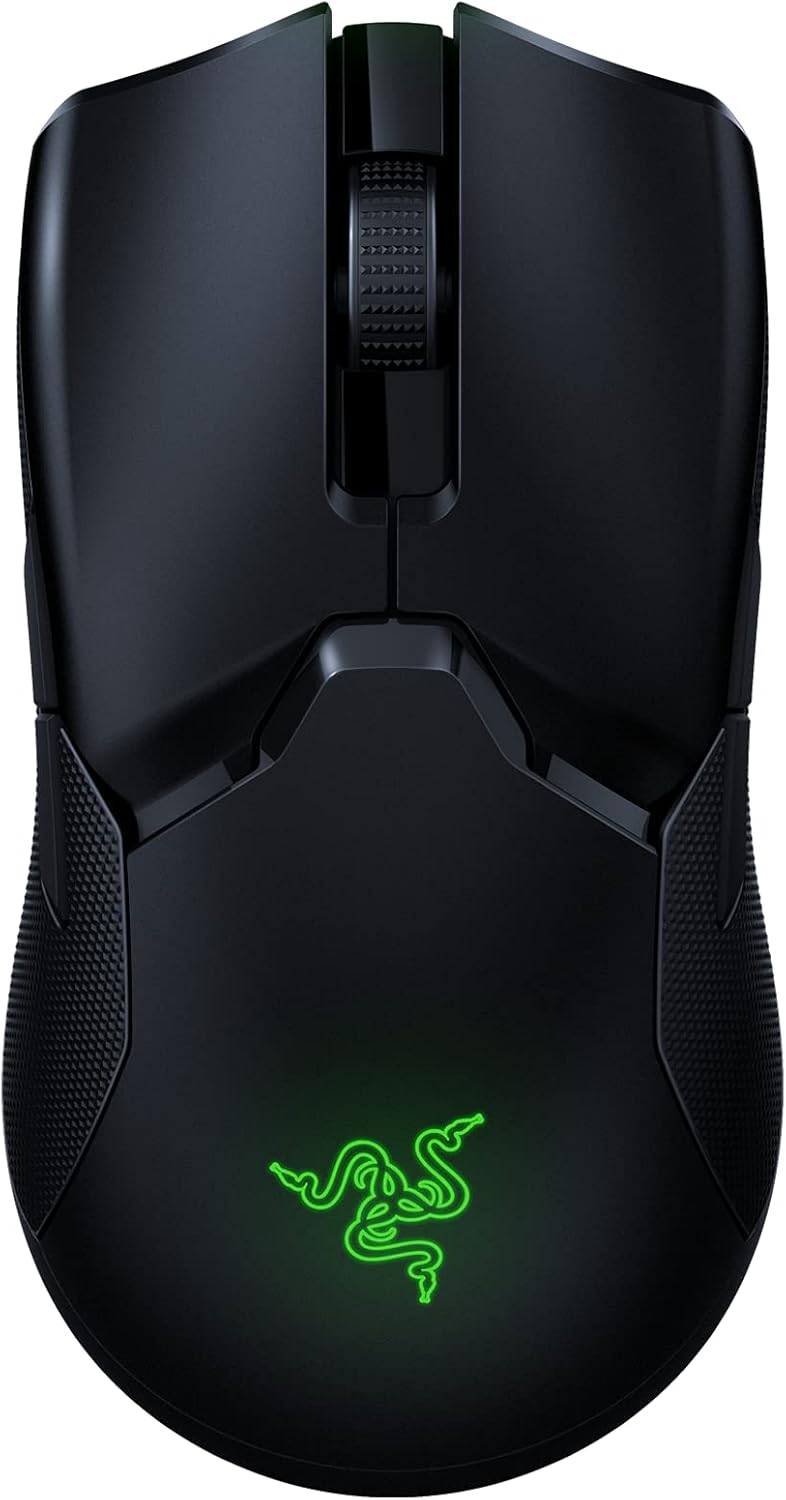
Image: Razer Viper Ultimate Lightweight Wireless Gaming Mouse in Classic Black. This image displays the sleek, ambidextrous design of the mouse.
2. Gbigba agbara si Asin
The mouse can be charged via the Speedflex cable or an optional charging dock (if purchased separately).
- Nipasẹ okun USB: Connect the Speedflex cable to the mouse and your computer. The mouse will charge while in use or standby.
- Via Charging Dock: Place the mouse onto the Razer charging dock, ensuring the charging contacts align. The dock will indicate charging status.
Video: An unboxing and setup guide for the Razer Viper Ultimate. This video demonstrates how to connect the wireless dongle and charge the mouse.
Fidio: A review highlighting the features and setup of the Razer Viper Ultimate. This video shows the mouse components and initial connection process.
3. Razer Synapse 3 Software
For full customization of your mouse's settings, including DPI, button assignments, and Chroma lighting, download and install Razer Synapse 3 from the official Razer website. This software is compatible with Windows operating systems.
Ṣiṣẹ Asin
The Razer Viper Ultimate is engineered for high-performance gaming with several key features.
1. Key Awọn ẹya ara ẹrọ
- Apẹrẹ iwuwo fẹẹrẹ: Weighing only 74g, the mouse offers effortless control and swift movements.
- Alailowaya HyperSpeed Razer: Experience ultra-low latency and interference reduction for true wireless freedom.
- Sensọ Opitiki 20K DPI: The Focus+ optical sensor provides industry-leading 99.6% resolution accuracy for precise tracking.
- Optical Mouse Switches: Actuate button presses at the speed of light for rapid response and enhanced durability.
- Awọn bọtini eto 8: Customize buttons for complex macro functions via Razer Synapse 3.
- Apẹrẹ Ambidextrous: Suitable for both left and right-handed users with accessible buttons on both sides.
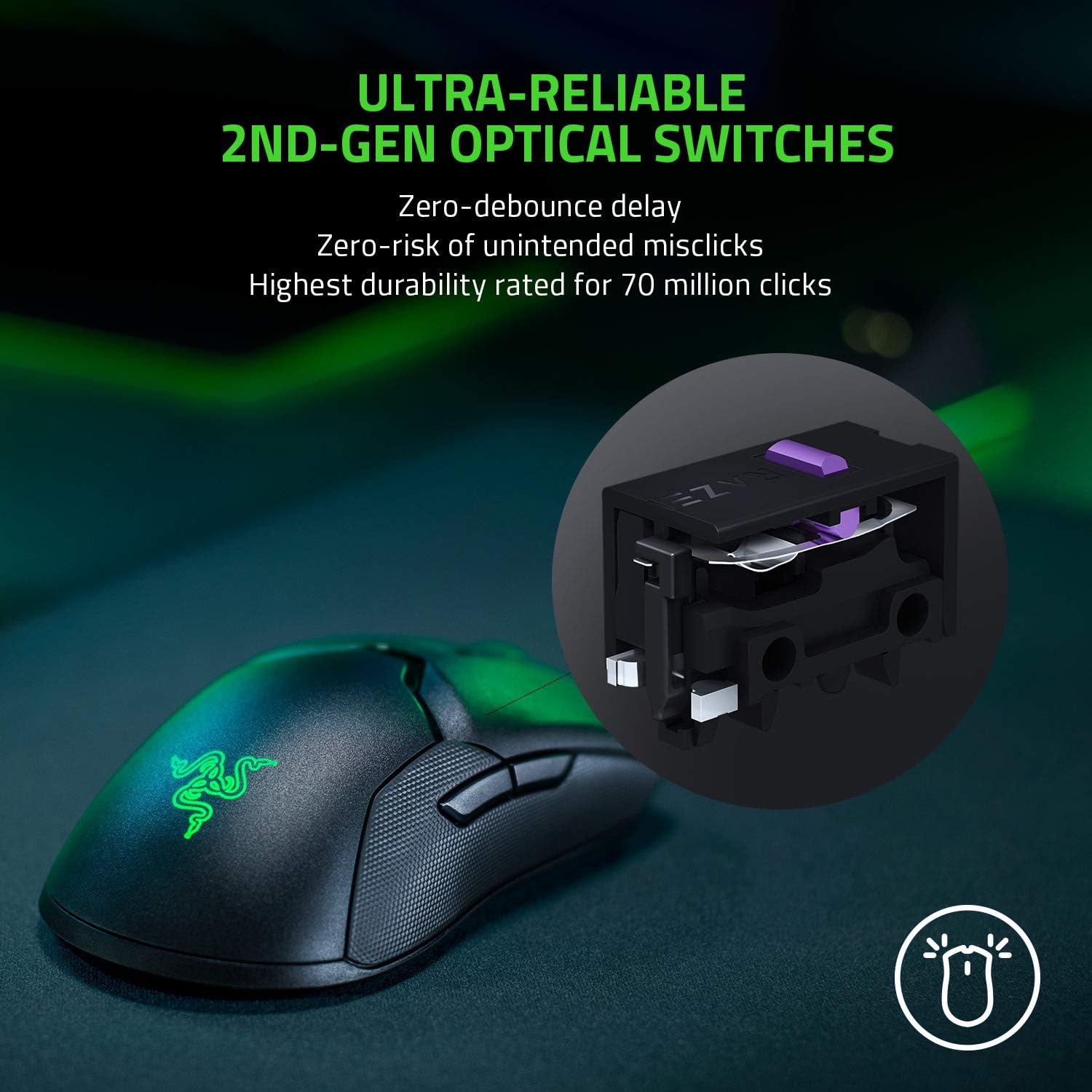
Image: Ultra-Reliable 2nd-Gen Optical Switches. This image illustrates the internal optical switch mechanism, emphasizing zero-debounce delay and high durability.

Image: Fastest Wireless Technology. This image highlights the mouse's wireless capabilities, noting it's 3x faster than competitors with up to 70 hours of gameplay.
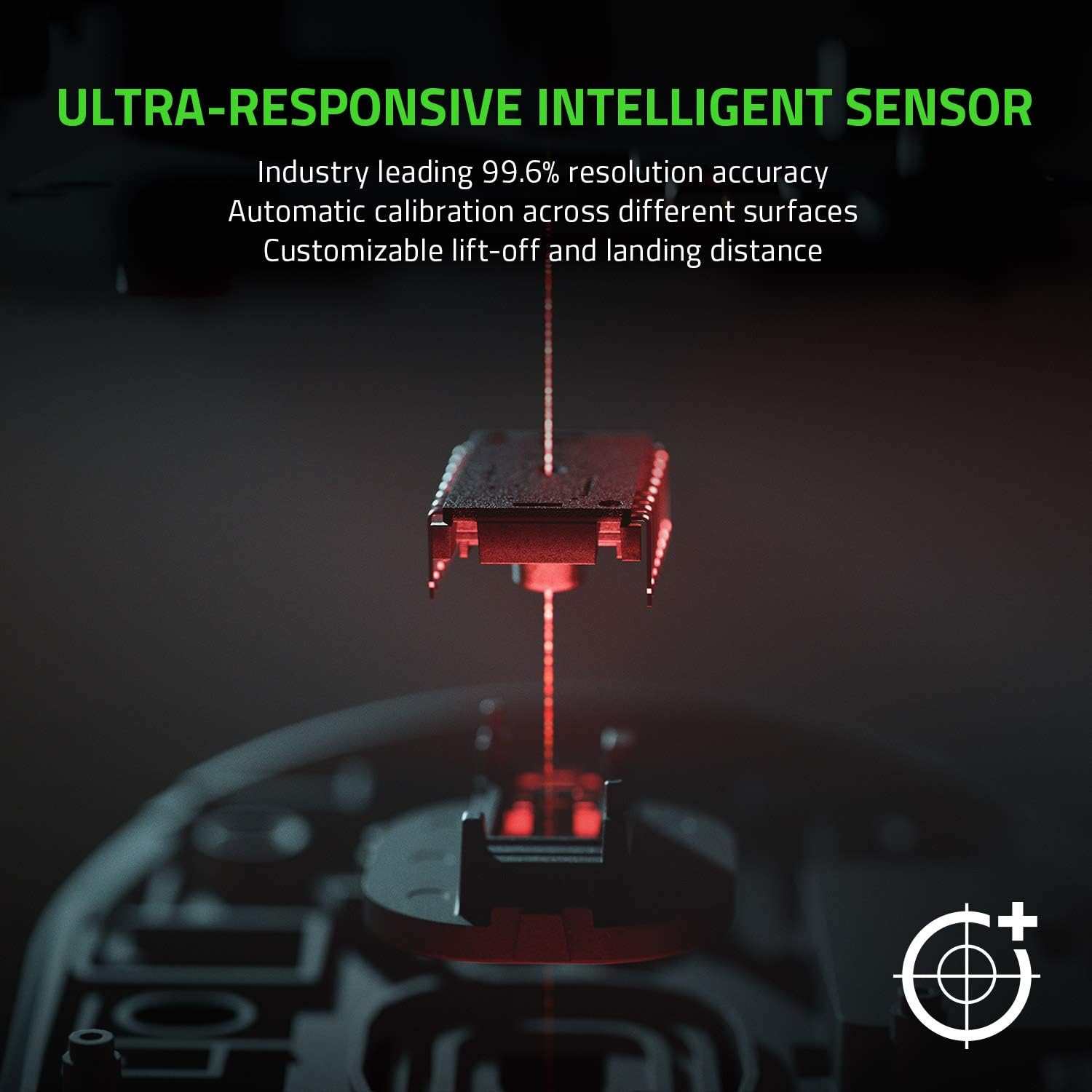
Image: Ultra-Responsive Intelligent Sensor. This image shows the optical sensor's precision, with 99.6% resolution accuracy and customizable lift-off distance.
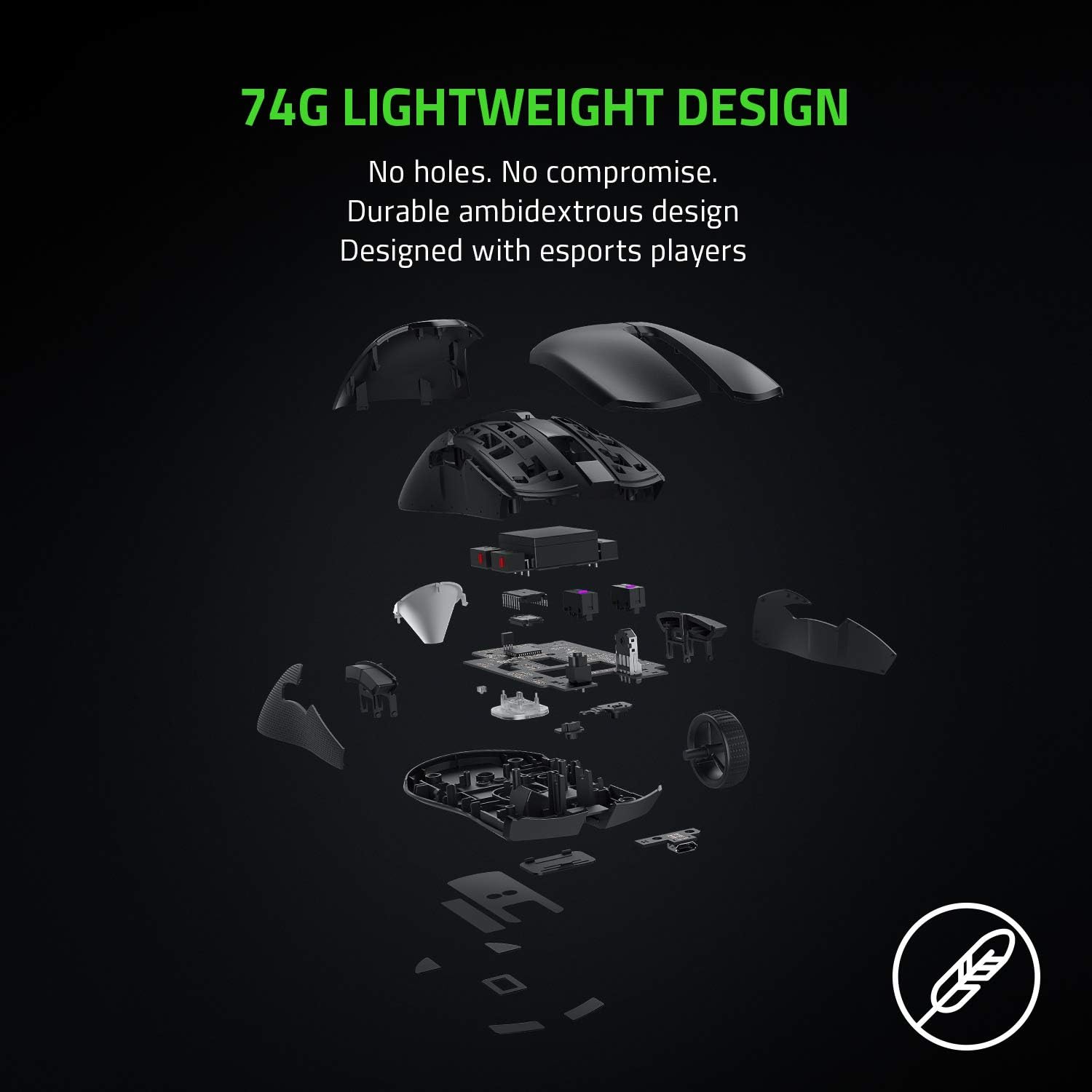
Image: 74g Lightweight Design. An exploded view of the mouse components demonstrates its lightweight and durable ambidextrous design without drilled holes.
2. DPI Atunṣe
The DPI (Dots Per Inch) sensitivity can be adjusted using the dedicated button located on the underside of the mouse. You can cycle through pre-set DPI stages or customize them further using Razer Synapse 3.
Video: A alaye review of the Razer Viper Ultimate, showcasing its features and performance during gameplay. This video provides insights into the mouse's responsiveness and design.
Itoju
To ensure the longevity and optimal performance of your Razer Viper Ultimate mouse, follow these maintenance guidelines:
- Ninu: Lo asọ asọ, ti ko ni lint die-die dampened with water to clean the mouse surface. Avoid harsh chemicals or abrasive materials.
- Itọju Sensọ: Keep the optical sensor on the underside of the mouse clean and free from dust or debris. Use a cotton swab with a small amount of rubbing alcohol if necessary.
- Igba aye Batiri: Avoid fully discharging the battery frequently. For best results, charge the mouse regularly, especially after long gaming sessions.
Laasigbotitusita
If you encounter any issues with your Razer Viper Ultimate mouse, try the following steps:
- Ko si Asopọmọra: Ensure the USB wireless dongle is securely plugged into your computer. If using wired mode, check the micro-USB cable connection. Try a different USB port.
- Lag or Disconnects: Ensure the mouse is fully charged. Move the USB wireless dongle closer to the mouse or away from other wireless devices to reduce interference.
- DPI Issues: Verify that Razer Synapse 3 is installed and updated. Check your custom DPI settings within the software.
- Software Not Recognizing Mouse: Reinstall Razer Synapse 3. Ensure your operating system is up to date.
Awọn pato
| Ẹya ara ẹrọ | Ẹ̀kúnrẹ́rẹ́ |
|---|---|
| Brand | Razer |
| Orukọ awoṣe | Gbẹhin paramọlẹ |
| Nọmba awoṣe | RZ01-03050200-R3U1 |
| Àwọ̀ | Alailẹgbẹ Black |
| Asopọmọra Technology | Alailowaya 2.4 GHz, USB |
| Imọ-ẹrọ Iwari išipopada | Opitika |
| Mouse Maximum Sensitivity | 20000 Dots per Inch (DPI) |
| Bọtini opoiye | 8 |
| Ọwọ Iṣalaye | Ambidextrous |
| Batiri Apapọ Life | Awọn wakati 70 |
| Iwọn Nkan | 0.17 iwon |
| Awọn iwọn Nkan L x W | 4.98"L x 2.61"W |
| Hardware Platform | PC |
Alaye atilẹyin ọja
The Razer Viper Ultimate Lightweight Wireless Gaming Mouse comes with a 2-odun olupese ká atilẹyin ọja. Please retain your proof of purchase for warranty claims. For detailed terms and conditions, refer to the official Razer warranty policy.
Atilẹyin
For further assistance, technical support, or to download the latest drivers and software (Razer Synapse 3), please visit the official Razer support webAaye ayelujara. O tun le ri awọn ibeere ti a beere nigbagbogbo ati awọn apejọ agbegbe fun iranlọwọ afikun.
Atilẹyin Razer osise: www.razer.com/support