
1. Ọja Ipariview
The ProCase Wireless Keyboard (Model PC-08362168) is a compact and portable Bluetooth keyboard designed for multi-device compatibility. It offers a comfortable typing experience with low-profile, quiet keys and an ergonomic design, suitable for use with iOS, Android, and Windows operating systems.

Image: The ProCase Wireless Keyboard, a slim black keyboard with a standard QWERTY layout, designed for portability and multi-device use.
2. Package Awọn akoonu
- ProCase Wireless Keyboard (Model PC-08362168)
- Afowoyi Olumulo (iwe-ipamọ yii)
Àkíyèsí: Àwọn bátírì AAA 2x ni a nílò fún iṣẹ́ wọn, wọn kò sì sí nínú àpò náà.
3. Eto Itọsọna
3.1. Fifi sori batiri
- Wa ibi ipamọ batiri naa ni ẹhin keyboard naa.
- Ṣii ideri iyẹwu batiri naa.
- Fi awọn batiri AAA meji (2) sii, ni idaniloju polarity ti o pe (+/-).
- Pa ideri batiri naa ni aabo.

Image: Underside of the keyboard showing the ON/OFF switch, Connect button, and the battery compartment for two AAA batteries.
3.2. Agbara lori / Paa
Slide the ON/OFF switch, located on the back of the keyboard, to the "ON" position to power on the device. Slide it to "OFF" when not in use to conserve battery life.
3.3. Sisopọ Bluetooth
- Rii daju pe keyboard ti wa ni titan.
- Press the "Connect" button on the back of the keyboard. The Bluetooth indicator light (usually blue) on the keyboard will start blinking, indicating it is in pairing mode.
- On your device (tablet, smartphone, computer), navigate to its Bluetooth settings.
- Mu Bluetooth ṣiṣẹ ki o wa awọn ẹrọ to wa.
- Select "ProCase Keyboard" (or similar name) from the list of found devices.
- Follow any on-screen prompts to complete the pairing process. A successful connection will be indicated by the Bluetooth light on the keyboard turning solid or turning off, depending on the model.

Image: Diagram illustrating wide compatibility with Android, Windows, and iOS devices, including iPads, Android tablets, Microsoft Surface, and smartphones. It also notes that a USB drive is not included and only Bluetooth connection is supported.
4. Awọn ilana Iṣiṣẹ
4.1. Ìtẹ̀wé ìpìlẹ̀
The keyboard features a standard QWERTY layout. Simply begin typing after successful pairing with your device.
4.2. Function Keys (F1-F12) and Hot Keys
The top row of keys serves dual functions: standard F-keys (F1-F12) and special hot keys for media control, volume, and other system functions. To use the F-keys (F1, F2, etc.), you must hold down the Fn key simultaneously with the desired F-key. Pressing the key without holding Fn will activate its associated hot key function.
- Fn + F1: Ile
- Fn + F2: Wiwa
- Fn + F3: Select All
- Fn + F4: Daakọ
- Fn + F5: Lẹẹmọ
- Fn + F6: Cut
- Fn + F7: Ti tẹlẹ Track
- Fn + F8: Ṣiṣẹ / Sinmi
- Fn + F9: Next Track
- Fn + F10: Dakẹ
- Fn + F11: Iwọn didun isalẹ
- Fn + F12: Iwọn didun Up

Aworan: Isunmọ view of a keyboard key, illustrating the scissor-cross mechanism for comfortable and responsive keystrokes.

Image: A person typing on the ProCase Wireless Keyboard, positioned next to a tablet, highlighting the comfortable and quiet typing experience.
5. Itọju
5.1. Ninu
To clean the keyboard, gently wipe the surface with a soft, dry, lint-free cloth. For stubborn dirt, slightly dampen the cloth with water or a mild cleaning solution. Avoid excessive moisture and do not spray cleaners directly onto the keyboard.
5.2. Ibi ipamọ
When not in use for extended periods, power off the keyboard to conserve battery life. Store it in a cool, dry place away from direct sunlight and extreme temperatures.
6. Laasigbotitusita
- Keyboard ti ko sopọ:
- Rí i dájú pé keyboard náà ti ń ṣiṣẹ́, ó sì ní àwọn bátìrì tuntun.
- Press the "Connect" button on the back of the keyboard to enter pairing mode.
- Verify Bluetooth is enabled on your device and try re-pairing.
- Gbe awọn keyboard jo si ẹrọ rẹ.
- Tun keyboard naa (pa/tan) ati ẹrọ rẹ bẹrẹ.
- Awọn bọtini ko dahun:
- Ṣayẹwo ipele batiri ki o rọpo ti o ba jẹ dandan.
- Rí i dájú pé keyboard náà so pọ̀ dáadáa nípasẹ̀ Bluetooth.
- Nu eyikeyi idoti kuro ni ayika awọn bọtini.
- Function (F) keys not working as expected:
- Remember that to activate F1-F12 functions, you must hold down the Fn key simultaneously. Without holding Fn, the keys will activate their assigned hot key functions (e.g., media control). This behavior cannot be changed.
- Igbesi aye batiri kukuru:
- Ensure the keyboard is powered off when not in use.
- The keyboard features a sleep mode to conserve power during inactivity.
- Lo awọn batiri AAA didara ga.
7. Awọn pato
| Ẹya ara ẹrọ | Ẹ̀kúnrẹ́rẹ́ |
|---|---|
| Nọmba awoṣe | PC-08362168 |
| Awọn iwọn (L x W x H) | 11.5 x 4.7 x 0.29 inches (29.2 x 11.9 x 0.74 cm) |
| Iwọn | 10 iwon (283.5 giramu) |
| Asopọmọra | Alailowaya Bluetooth |
| Orisun agbara | Awọn batiri 2 x AAA (kii ṣe pẹlu) |
| Ohun elo | Acrylonitrile Butadiene Styrene (ABS) |
| Àwọ̀ | Dudu |
| Ibamu Awọn ọna ṣiṣe | iOS, Android, Windows (Note: Does not support Windows 8 Mobile) |
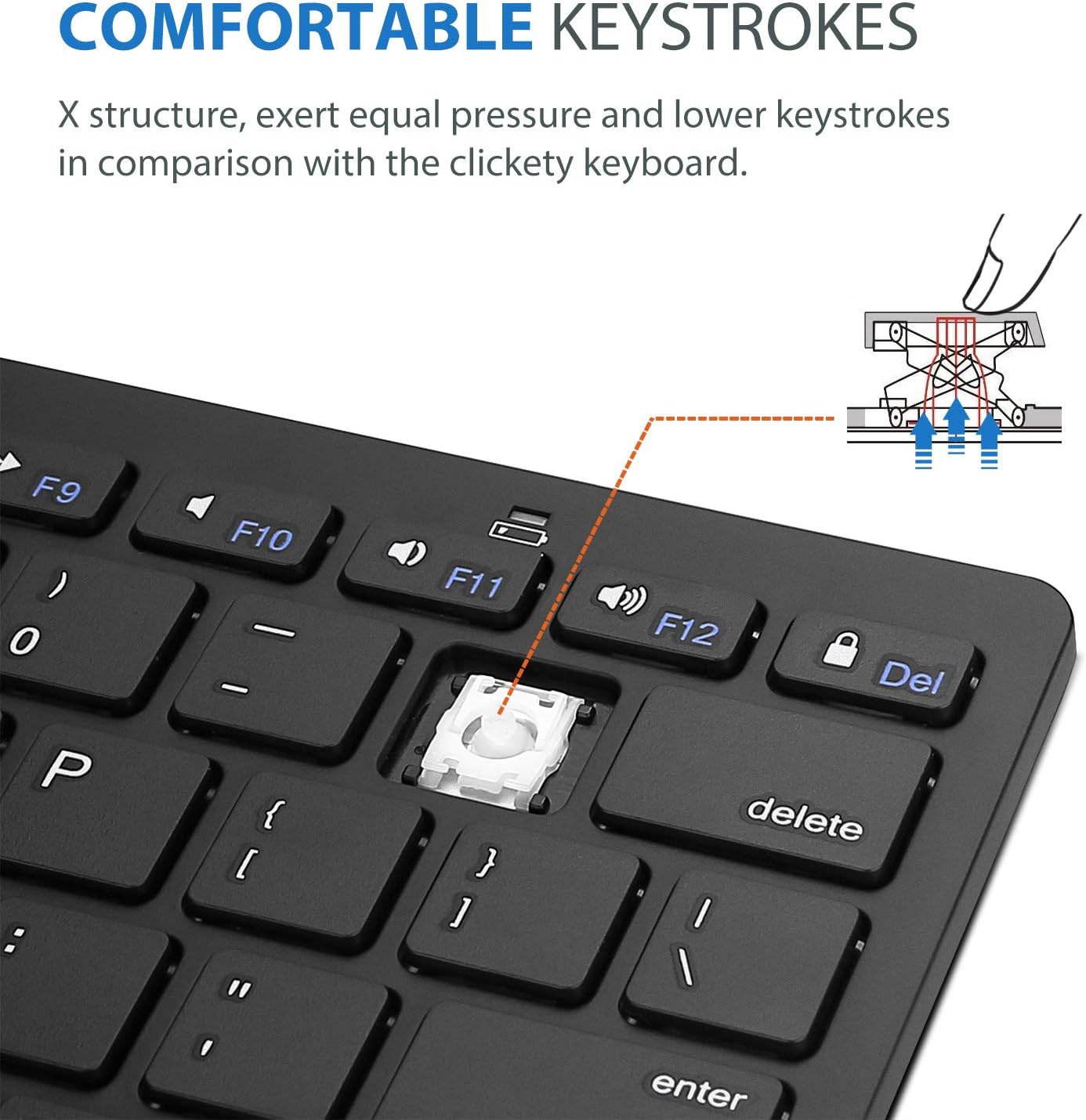
Image: Diagram showing the ultra-slim design and dimensions of the ProCase Wireless Keyboard, measuring 11.2 inches in length, 4.7 inches in width, and 0.19 inches in thickness.
8. Atilẹyin ọja ati Support
8.1. atilẹyin ọja Information
ProCase products are designed for reliability and performance. For specific warranty details regarding your ProCase Wireless Keyboard, please refer to the warranty card included with your purchase or visit the official ProCase webojula. Jeki ẹri rira rẹ fun awọn iṣeduro atilẹyin ọja.
8.2. Onibara Support
If you encounter any issues or have questions not covered in this manual, please contact ProCase customer support. You can find contact information on the official ProCase webojula tabi nipasẹ rẹ ra Syeed.
Fun alaye diẹ sii, ṣabẹwo si ProCase Store on Amazon.