
1. Ifihan
The TP-Link Archer TX50E is an AX3000 Wi-Fi 6 and Bluetooth 5.2 PCIe Adapter designed to upgrade your desktop computer's wireless capabilities. It provides ultra-fast Wi-Fi speeds, improved network efficiency, and broader Bluetooth connectivity, making it ideal for demanding applications like online gaming, 4K/8K video streaming, and VR experiences. This adapter features a specialized heatsink for enhanced stability and includes high-gain antennas for extended signal coverage.

Image: The Archer TX50E PCIe adapter installed in a desktop computer, showcasing its Wi-Fi 6 and Bluetooth 5.3 capabilities.

Image: Key features of the Archer TX50E, including Wi-Fi 6, Bluetooth 5.3, WPA3 security, Windows 11/10 compatibility, and included low-profile biraketi.
2. Package Awọn akoonu
Jẹrisi pe package rẹ ni awọn nkan wọnyi ninu:
- TP-Link Archer TX50E AX3000 Wi-Fi 6 Bluetooth 5.2 PCIe Adapter
- Two High-Gain Antennas
- Kekere-Profile akọmọ
- Quick Installation Guide (not listed in JSON, but typical)
- Resource CD (for drivers)

Image: The retail box for the Archer TX50E adapter, showing the product and its main features.
3. Awọn ilana iṣeto
Follow these steps to install your Archer TX50E adapter into your desktop computer.
3.1 Fifi sori ẹrọ Hardware
- Pa kọmputa rẹ: Turn off your computer and unplug the power cable from the wall outlet.
- Ṣí àpótí kọ̀ǹpútà náà: Yọ ẹgbẹ ẹgbẹ ti ọran kọnputa rẹ lati wọle si modaboudu.
- Install the PCIe Adapter: Locate an available PCIe X1 slot on your motherboard. Carefully insert the Archer TX50E adapter into the slot until it is firmly seated. Secure the adapter with a screw if your case requires it.
- Connect Bluetooth USB Cable: Connect the provided Bluetooth USB cable to the adapter and then to an available F_USB connector on your motherboard. This connection is essential for Bluetooth functionality.
- So Antennas: Connect the two high-gain antennas to the antenna connectors on the adapter. Adjust their orientation for optimal signal reception.
- Pa Ẹjọ Kọmputa naa: Replace the side panel of your computer case and plug the power cable back into the wall outlet.
- Agbara Tan: Tan kọmputa rẹ.

Image: The Archer TX50E adapter with its two high-gain antennas, installed in a desktop computer's PCIe slot.

Image: Illustration demonstrating how the high-gain antennas extend Wi-Fi coverage for the desktop PC.
3.2 Driver fifi sori
After hardware installation, you need to install the drivers for both Wi-Fi and Bluetooth functionality. The Archer TX50E supports Windows 11/10 (64-bit) only.
- Insert Resource CD: Insert the provided resource CD into your computer's CD/DVD drive. If you do not have a CD/DVD drive, download the latest drivers from the official TP-Link webAaye (www.tp-link.com).
- Ṣiṣe Insitola: Open the CD/DVD drive or the downloaded driver package and run the setup file (e.g., Autorun.exe).
- Install Wi-Fi Driver: Follow the on-screen instructions to install the Wi-Fi driver. This typically involves accepting the license agreement and choosing an installation type.
- Fi Awakọ Bluetooth sori ẹrọ: After the Wi-Fi driver installation is complete, proceed to install the Bluetooth driver by following the on-screen prompts.
- Tun Kọmputa bẹrẹ: Restart your computer to ensure all driver changes take effect.
Akiyesi: Do not run the Bluetooth and Wi-Fi driver installers at the same time. Install them sequentially.
4. Awọn ilana Iṣiṣẹ
4.1 Nsopọ si Wi-Fi
Once the Wi-Fi driver is installed, your computer can connect to Wi-Fi 6 networks.
- Click the Wi-Fi icon in the system tray (usually bottom-right corner of your screen).
- Yan nẹtiwọki Wi-Fi ti o fẹ lati inu atokọ naa.
- Tẹ bọtini aabo nẹtiwọki (ọrọ igbaniwọle) ti o ba ṣetan.
- Tẹ 'Sopọ'.
The Archer TX50E supports Wi-Fi 6 (802.11ax) for speeds up to 2402 Mbps on the 5 GHz band and 574 Mbps on the 2.4 GHz band, offering a smoother experience with 75% lower latency. Technologies like MU-MIMO and OFDMA boost network throughput and efficiency, especially in multi-device environments.
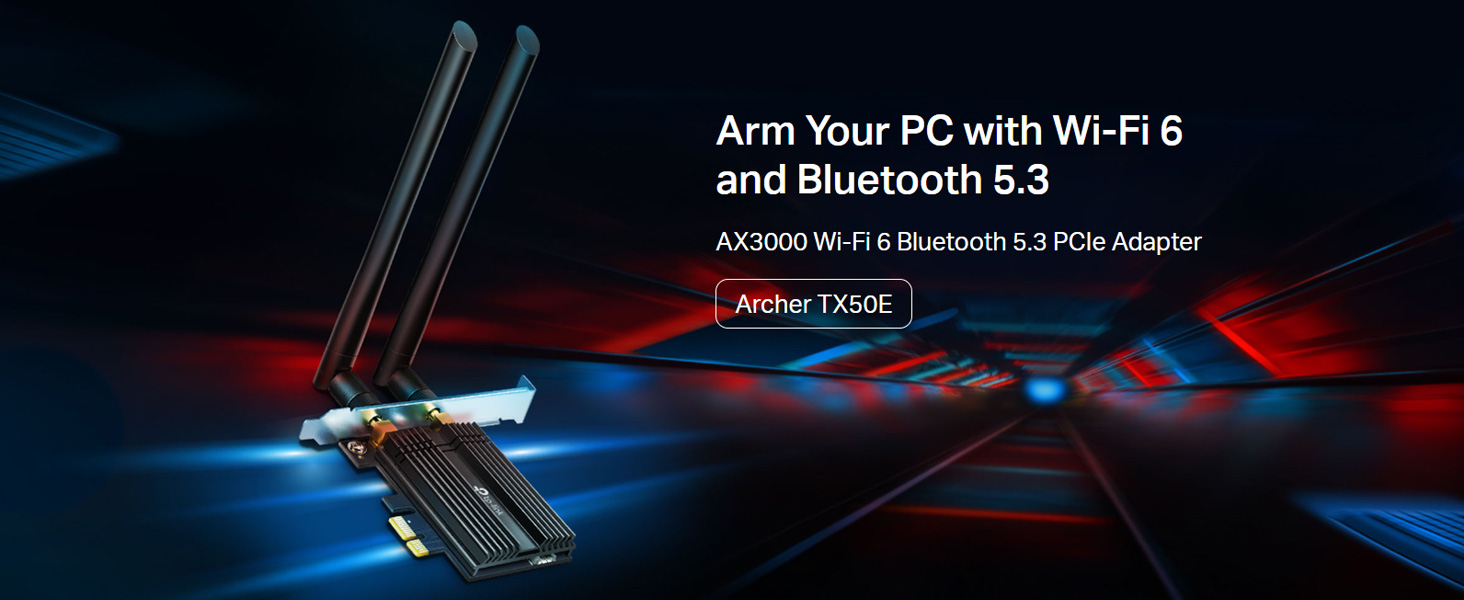
Image: Comparison of Wi-Fi 6 (2402 Mbps) and Wi-Fi 5 (867 Mbps) speeds, illustrating the performance benefits for VR.

Image: Diagram explaining how MU-MIMO and OFDMA reduce latency and improve network efficiency for multiple devices.
4.2 Lilo Bluetooth
With the Bluetooth driver installed and the USB cable connected, you can pair Bluetooth devices.
- Rii daju pe ẹrọ Bluetooth rẹ wa ni ipo sisopọ.
- Lori kọmputa rẹ, lọ si Eto > Awọn ẹrọ > Bluetooth & awọn ẹrọ miiran.
- Turn on Bluetooth and click 'Add Bluetooth or other device'.
- Select 'Bluetooth' and choose your device from the list to pair.
The adapter features Bluetooth 5.2, offering faster speeds and broader coverage compared to previous Bluetooth versions, ensuring reliable connections for your peripherals.

Image: The Bluetooth 5.2 adapter connecting to various devices such as headphones, game controllers, mouse, and keyboard.
5. Laasigbotitusita
If you encounter issues with your Archer TX50E adapter, refer to the following common solutions:
- No Wi-Fi or Bluetooth: Ensure the adapter is correctly seated in the PCIe slot and the Bluetooth USB cable is securely connected to both the adapter and the motherboard's F_USB header. Verify that drivers are installed correctly in Device Manager.
- Iyara Wi-Fi o lọra: Check antenna connections and orientation. Ensure your router supports Wi-Fi 6 and is configured for optimal performance. Update drivers to the latest version from the TP-Link webojula.
- Ẹrọ Bluetooth Ko Sopọ: Make sure the Bluetooth device is in pairing mode and within range. Confirm the Bluetooth driver is installed and enabled in Device Manager.
- Asopọmọra Laarin: This could be due to interference. Try repositioning your computer or antennas. Ensure your operating system is up to date.
- Awọn ọran fifi sori awakọ: If the CD does not work, download drivers directly from the TP-Link support website. Ensure you are installing the correct 64-bit drivers for Windows 10 or Windows 11.
6. Awọn pato
Detailed technical specifications for the TP-Link Archer TX50E:
| Ẹya ara ẹrọ | Apejuwe |
|---|---|
| Nọmba awoṣe | Tafatafa TX50E |
| Boṣewa alailowaya | IEEE 802.11ax/ac/n/a (5 GHz), IEEE 802.11ax/n/g/b (2.4 GHz) |
| Ẹya Bluetooth | Bluetooth 5.2 / 5.0 / 4.2 / 4.0 |
| Data Gbigbe Oṣuwọn | Titi di 3000 Mbps (2402 Mbps lori 5 GHz, 574 Mbps lori 2.4 GHz) |
| Ni wiwo | PCIe X1 |
| Eriali | Meji Ga-Gain Meji Band Eriali |
| Awọn ọna System Support | Windows 11/10 (64-bit) only |
| Aabo | WPA3, WPA2, WPA, WEP |
| Awọn iwọn (L x W x H) | 15 x 20 x 3.9 cm (Ọja) |
| Iwọn Nkan | 200 g |
| Pataki Awọn ẹya ara ẹrọ | Heat Sink, MU-MIMO, OFDMA, Ultra-Low Latency |

Aworan: Isunmọ view of the Archer TX50E's specialized heatsink and gold-plated connectors, designed for stability and reliability.
7. Atilẹyin ọja ati Support
Fun alaye atilẹyin ọja, atilẹyin imọ-ẹrọ, ati iforukọsilẹ ọja, jọwọ ṣabẹwo si TP-Link osise. webojula tabi kan si wọn onibara iṣẹ.
- Osise Webojula: www.tp-link.com
- TP-Link India Support: Toll Free 1800-209-4168, support.in@tp-link.com
Jọwọ ṣe idaduro iwe rira rẹ fun awọn iṣeduro atilẹyin ọja.