
Ọrọ Iṣaaju
Thank you for choosing the DEPSTECH D04 1080P HD Webkamẹra. Iwe afọwọkọ yii n pese alaye pataki fun iṣeto, ṣiṣiṣẹ, ati itọju rẹ webcam to ensure optimal performance. The D04 webcam is designed to deliver sharp, crystal-clear video and natural audio for various applications, including video conferencing, online teaching, streaming, and gaming.
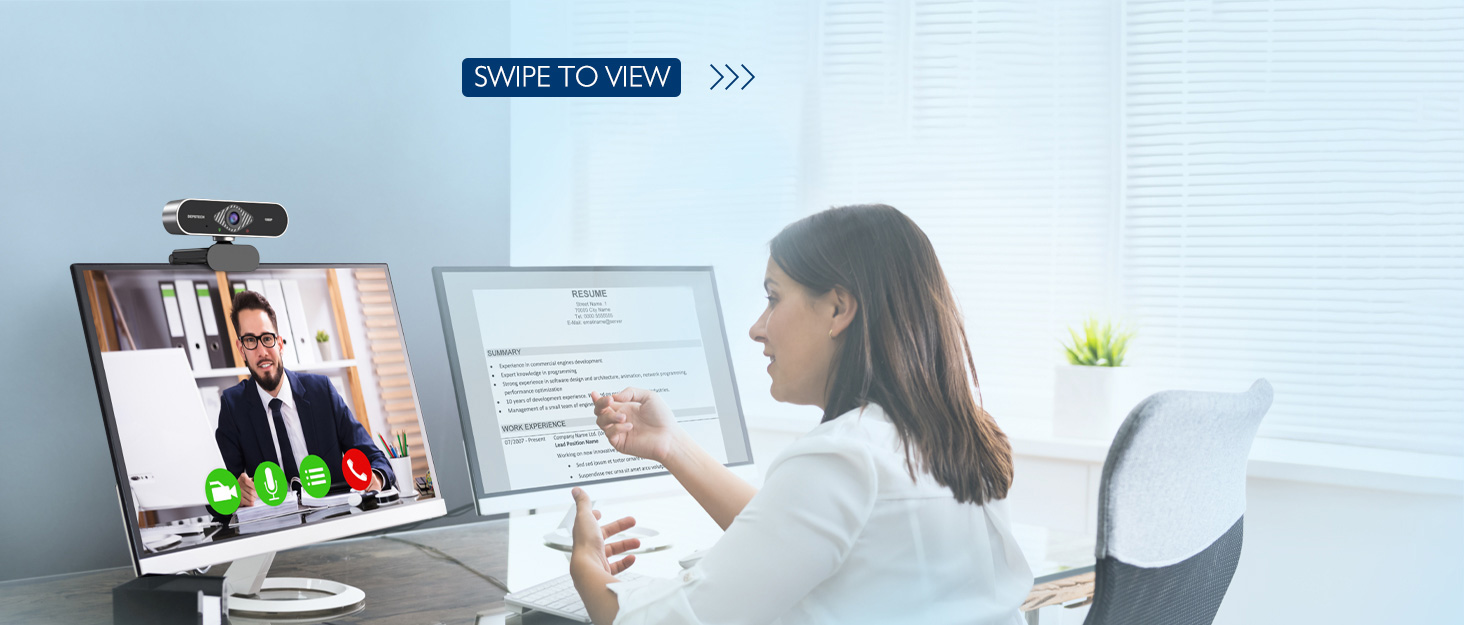
Image: DEPSTECH D04 Webcam in use for a video conference.
Awọn ẹya pataki:
- Fídíò HD 1080P Kíkún: Delivers sharp and crystal-clear video at 30 frames per second with a 6-layer glass HD lens and 1/2.9” CMOS image sensor.
- Stereo Microphone with Noise Reduction: Features an automatic noise reduction function for clearer and more natural sound, even in noisy environments.
- Automatic Light Correction & HDR: Ensures excellent video quality even in dimly lit conditions.
- Plug-and-Play: No additional drivers or software required for most operating systems.
- Ibamu gbooro: Works with MAC OS, Windows XP/7/8/10, and popular applications like Skype, YouTube, Yahoo!, and Zoom.
Package Awọn akoonu
- DEPSTECH D04 Webkamẹra
- Mini Tripod
- Iboju Asiri
- Itọsọna olumulo
Awọn ilana iṣeto
1. Placement of the Webkamẹra
Awọn DEPSTECH D04 webcam features a flexible mounting clip that allows it to be placed on various devices or surfaces.
- Lori Atẹle/Iboju Kọǹpútà alágbèéká: Ṣii agekuru ati ki o gbe awọn webcam on top of your monitor or laptop screen. Adjust the angle so the camera is stable and facing you.
- Lori Irin-ajo: So awọn webcam to the included mini tripod using the universal screw mount at the bottom of the clip. Place the tripod on a flat surface.
- Lori Ilẹ Alapin: The clip can also be folded to create a stand, allowing the webcam to sit directly on your desk or shelf.

Aworan: Webcam mounted on a laptop screen.

Aworan: Webcam mounted on a tripod.
2. Sísopọ̀ mọ́ ara wọn Webkamẹra
Awọn DEPSTECH D04 webcam is a plug-and-play device, requiring no additional driver installation for most operating systems.
- So okun USB pọ lati awọn webcam to an available USB port on your computer (desktop or laptop).
- Wait for your operating system to automatically detect and install the device. This usually takes a few seconds.
- Once detected, the webcam is ready for use with your preferred video communication or recording software.

Image: USB connection for the webKame.awo-ori.
Awọn ilana Iṣiṣẹ
1. Lilo awọn Webcam with Software
After connecting, your DEPSTECH D04 webcam will be recognized as a standard video and audio input device by most applications.
- Open your desired video conferencing, streaming, or recording application (e.g., Zoom, Skype, OBS, YouTube, Facetime).
- Navigate to the application's settings or preferences, usually under 'Audio' and 'Video' sections.
- Select "DEPSTECH D04 Webcam" or "USB 2.0 Camera" as your video input device.
- Select "USB 2.0 Camera Audio" as your microphone input device.
- Adjust video and audio settings as needed within the application.

Image: User engaged in a video call with the webKame.awo-ori.
2. Ideri Asiri
Awọn webcam includes a privacy cover for enhanced security and peace of mind. Slide the cover over the lens when the webcam is not in use to prevent accidental recordings or unauthorized access.

Aworan: Webcam with the privacy cover closed.
3. Awọn imọlẹ Atọka
Awọn webcam features indicator lights to show its status:
- Imọlẹ alawọ ewe: Indicates the camera is active and in use by an application.
- Imọlẹ pupa: Tọkasi awọn webcam is powered on and connected.
Itoju
To ensure the longevity and optimal performance of your DEPSTECH D04 webKame.awo-ori, tẹle awọn itọnisọna itọju wọnyi:
- Fifọ lẹnsi naa: Gently wipe the lens with a soft, lint-free cloth. Avoid using harsh chemicals or abrasive materials that could scratch the lens.
- Ninu ara: Lo asọ, gbẹ asọ lati nu awọn ode ti awọn webKame.awo-ori.
- Ibi ipamọ: Nigbati o ko ba si ni lilo, paapa fun o gbooro sii akoko, fi awọn webcam in a clean, dry place. Use the privacy cover to protect the lens.
- Yago fun awọn ipo to gaju: Maṣe fi han awọn webcam to extreme temperatures, humidity, or direct sunlight.
Laasigbotitusita
If you encounter issues with your DEPSTECH D04 webKame.awo, wo awọn solusan ti o wọpọ wọnyi:
- WebKame.awo-ori Ko Ṣeri:
- Gbiyanju lati so awọn webKame.awo-ori si ibudo USB ti o yatọ lori kọnputa rẹ.
- Tun kọmputa rẹ bẹrẹ.
- Rii daju pe okun USB ti sopọ ni aabo.
- Check your operating system's device manager (Windows) or System Information (Mac) to see if the webkamẹra ti wa ni akojọ.
- Ko si Fidio/Iboju dudu:
- Make sure the privacy cover is open.
- Ṣayẹwo pe awọn webA yan kamera bi ẹrọ titẹ fidio ninu awọn eto ohun elo rẹ.
- Pa ati tun ṣi ohun elo naa.
- Ko si Ohun/Didara Olohun Ko dara:
- Ensure "USB 2.0 Camera Audio" is selected as the microphone input in your application's settings.
- Ṣayẹwo awọn eto ohun ti kọnputa rẹ lati rii daju pe gbohungbohun ti ṣiṣẹ ati pe ko dakẹ.
- Adjust the microphone input volume in your application or system settings.
- Didara fidio ti ko dara:
- Ensure you have adequate lighting in your environment. The webcam has auto light correction, but good ambient light helps.
- Mọ awọn weblẹnsi kamẹra.
- Check your internet connection speed if streaming or video conferencing.
Awọn pato
| Brand | DEPSTECH |
| Nọmba awoṣe | D04 |
| Ipinnu Yaworan fidio | 1080p |
| Iyara Yaworan Aworan | 30 fps |
| Fọto sensọ Technology | CMOS (1/2.9” CMOS image sensor) |
| Idojukọ Iru | Idojukọ ti o wa titi |
| Lẹnsi Iru | Igun gbooro |
| Asopọmọra Technology | USB |
| Atilẹyin Audio kika | Sitẹrio |
| Pataki Awọn ẹya ara ẹrọ | Auto Light Correction, Noise Canceling Microphone, Tripod and Privacy Cover Included |
| Ibamu System isẹ | Mac OS, Windows XP/7/8/10 |
| Àwọ̀ | Dudu |
Alaye atilẹyin ọja
Awọn DEPSTECH D04 WebKame.awo-ori wa pẹlu kan 1 Odun atilẹyin ọja from the date of purchase. This warranty covers manufacturing defects and ensures the product is free from defects in material and workmanship under normal use. Please retain your proof of purchase for warranty claims. The warranty does not cover damage caused by misuse, accident, unauthorized modification, or external causes.
Atilẹyin
For further assistance, technical support, or warranty inquiries, please contact DEPSTECH customer service. You can typically find contact information on the official DEPSTECH webaaye tabi nipasẹ alagbata ti o ti ra ọja naa.
Please have your model number (D04) and proof of purchase ready when contacting support.