
Ọrọ Iṣaaju
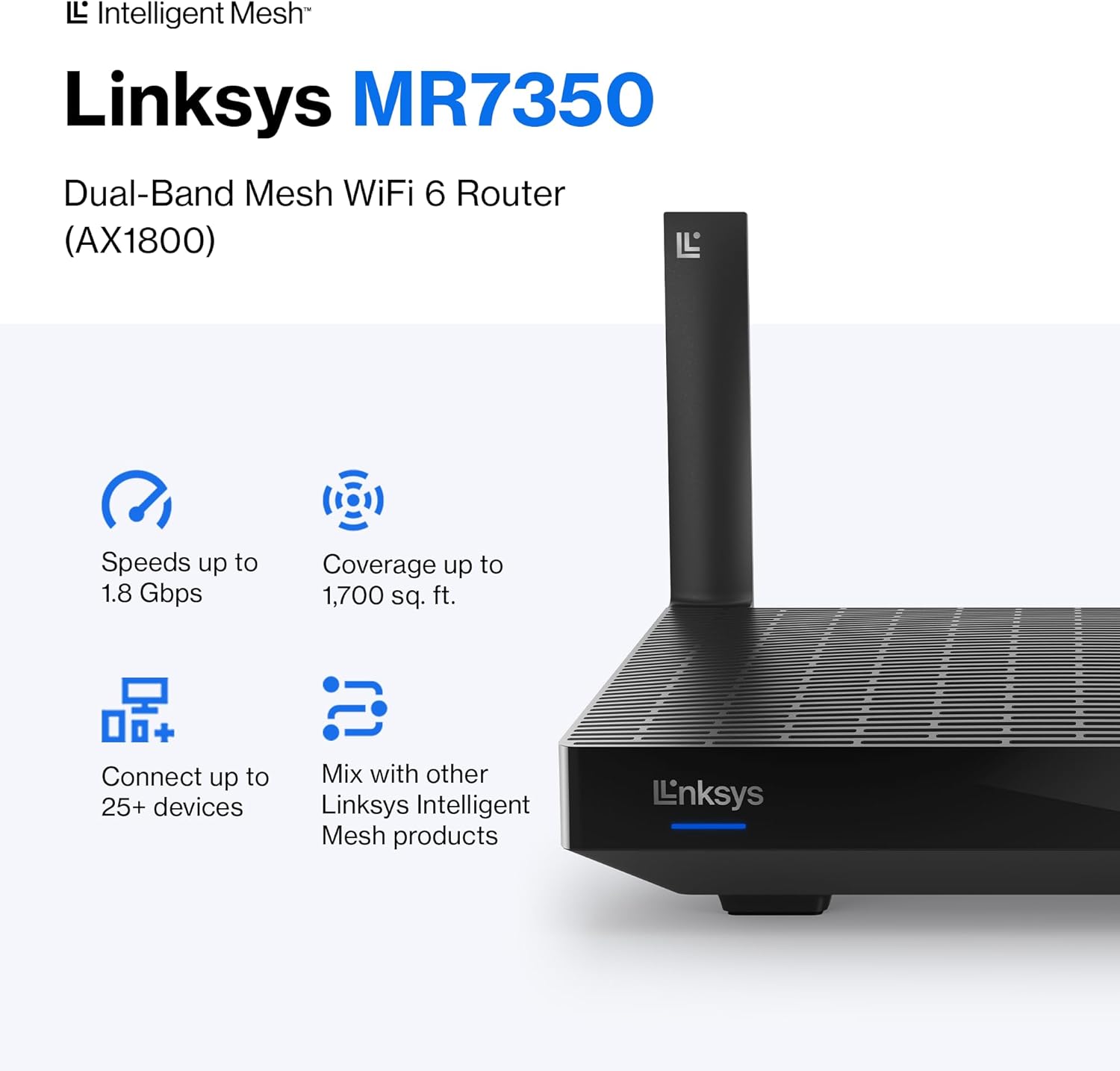
The Linksys MR7350 Dual-Band Mesh WiFi 6 Router is designed to provide robust and reliable wireless connectivity throughout your home. Featuring Intelligent Mesh Technology and WiFi 6 (802.11ax) standard, this router delivers high speeds and extended coverage for multiple devices simultaneously. It is ideal for streaming, gaming, and managing a connected smart home environment.

Figure 1: Linksys MR7350 Dual-Band Mesh WiFi 6 Router
Ohun ti o wa ninu Apoti
Jẹrisi pe gbogbo awọn ohun kan wa ninu package:
- Linksys Dual-Band Mesh WiFi 6 Router (MR7350)
- Quick Bẹrẹ Itọsọna
- àjọlò Cable
- Adapter agbara
- Warranty and Regulatory Documentation
Ṣeto
Setting up your Linksys MR7350 router is designed to be quick and straightforward using the Linksys App. Follow these steps for initial installation:
- So olulana: Plug the power adapter into the router and an electrical outlet. Connect one end of the provided Ethernet cable to the yellow 'Internet' port on the back of the MR7350 router and the other end to your modem.
- Agbara Tan: Turn on your modem and then the Linksys MR7350 router. Wait for the router's LED indicator to show a solid blue light, indicating it's ready for setup.
- Download the Linksys App: Download and install the free Linksys App on your iOS or Android smartphone.
- Launch Setup: Open the Linksys App and follow the on-screen instructions to begin the setup process. The app will guide you through creating your Wi-Fi network name (SSID) and password.
- Add to Mesh Network (Optional): If you are expanding an existing Linksys Intelligent Mesh network, log in to the Linksys App, find "Set Up a New Product" from the menu, and select "Add Another Node."

Figure 2: Easy Setup via the Linksys App
Awọn ilana Iṣiṣẹ
Once your Linksys MR7350 router is set up, you can manage and optimize your network using the Linksys App or through a web kiri ni wiwo.
Network Management via Linksys App
- View Awọn ẹrọ ti a ti sopọ: See all devices connected to your network.
- Ohun elo akọkọ: Prioritize specific devices for optimal performance during high-bandwidth activities like gaming or streaming.
- Wiwọle alejo: Create a separate, password-protected Wi-Fi network for guests.
- Awọn iṣakoso obi: Manage internet access for specific devices, set schedules, and block webojula.
- Awọn imudojuiwọn Firmware Aifọwọyi: Ensure your network is always secure and up-to-date with automatic updates.
Ti ara Awọn isopọ
The back of the router features several ports for wired connections:
- Ibudo Ayelujara (ofeefee): Sopọ mọ modẹmu rẹ fun iraye si intanẹẹti.
- Awọn ibudo Ethernet (1-4): Four Gigabit Ethernet ports for wired devices such as computers, gaming consoles, or smart TVs.
- Ibudo USB 3.0: Connect a storage device to share files kọja nẹtiwọki rẹ.
- Bọtini WPS: For easy, secure connection of WPS-compatible devices.
- Bọtini atunto: Lo lati mu pada olulana to factory aiyipada eto.
- Tan-an/Pa Yipada: To manually turn the router on or off.
olusin 3: Ẹyìn view of the Linksys MR7350 with ports
Awọn ẹya ara ẹrọ
The Linksys MR7350 is packed with features to enhance your home network experience:
- Intelligent Mesh Technology: Dynamically maximizes speed and eliminates dead zones, adapting to your Wi-Fi needs for full-strength signal throughout your entire home.
- WiFi 6 (802.11ax) Standard: Delivers faster speeds (up to 1.8 Gbps AX1800), increased capacity (25+ devices), and improved efficiency for a seamless experience.
- Asopọmọra-Band Meji: Operates on both 2.4 GHz and 5 GHz bands for optimal performance and device compatibility.
- CPU Quad-Core: A powerful processor for extremely fast data transfer and multiple simultaneous data streams.
- Imọ-ẹrọ Iyipada: Optimizes performance and reduces interference by focusing wireless signals directly to connected devices.
- Ilọsiwaju Aabo: Safeguards your network with wireless WPA3 encryption and an SPI firewall.
- Eto ti o le gbooro: Easily expand your Wi-Fi coverage by adding any Linksys Mesh compatible products.

Figure 4: Full House Coverage with Intelligent Mesh Technology

Figure 5: WiFi Standards Evolution
Awọn pato
| Iwa | Iye |
|---|---|
| Brand | Linksys |
| Nọmba awoṣe | MR7350 |
| Wi-Fi Iran | WiFi 6 (802.11ax) |
| Igbohunsafẹfẹ Band Class | Ẹgbẹ-meji (2.4 GHz, 5 GHz) |
| Data Gbigbe Oṣuwọn | Titi di Gigabits 1.8 Ni iṣẹju-aaya (AX1800) |
| Ibora | Up to 1700 square ẹsẹ |
| Nọmba ti Awọn ẹrọ Atilẹyin | 25+ Devices |
| Nọmba ti Ethernet Ports | 5 (1 Internet, 4 LAN) |
| LAN Port bandiwidi | 1 Gbps |
| Ibudo USB | USB 3.0 |
| Aabo Ilana | WPA3-PSK |
| Ọna Iṣakoso | Ohun elo Linksys |
| Eriali Iru | Retractable (2 Antennas) |
| Awọn Iwọn Nkan (L x W x H) | 5.9"L x 8.07"W x 5.4"H |
| Iwọn Nkan | 2 iwon |
| Àwọ̀ | Funfun |
Itoju
To ensure optimal performance and longevity of your Linksys MR7350 router, consider the following maintenance tips:
- Ibi to dara julọ: Place the router in a central location in your home, away from obstructions and devices that may cause interference (e.g., microwaves, cordless phones).
- Awọn imudojuiwọn famuwia: Enable automatic firmware updates via the Linksys App to ensure your router has the latest security patches and performance enhancements.
- Awọn atunbere deede: Periodically reboot your router (unplug from power for 10 seconds, then plug back in) to clear its memory and refresh the network connection.
- Ninu: Keep the router clean and free of dust to prevent overheating. Use a soft, dry cloth to wipe the exterior.
- Abojuto Nẹtiwọọki: Use the Linksys App to monitor network activity and identify any unusual behavior or connected devices.
Laasigbotitusita
If you encounter issues with your Linksys MR7350 router, try the following troubleshooting steps:
- Ko si Asopọ Ayelujara: Check the cable connections between your modem and router. Ensure the 'Internet' port LED on the router is solid blue. Reboot both your modem and router.
- Awọn iyara ti o lọra: Ensure your devices are connected to the appropriate Wi-Fi band (5 GHz for faster speeds, 2.4 GHz for longer range). Check for interference from other electronic devices. Use the Linksys App to prioritize devices.
- Awọn asopọ ti o lọ silẹ: Update device drivers for your wireless adapters. Ensure your router's firmware is up-to-date. Adjust antenna orientation for better signal.
- Ko le Wọle si Awọn eto olulana: Ensure your device is connected to the router's Wi-Fi network. Try accessing the Linksys App or the web interface (usually 192.168.1.1) after a router reboot.
- Idapada si Bose wa tele: If all else fails, press and hold the 'Reset' button on the back of the router for 10-15 seconds until the LED blinks. This will restore factory default settings, and you will need to re-run the setup process.
Atilẹyin ọja ati Support
The Linksys MR7350 Dual-Band Mesh WiFi 6 Router comes with an 18-Month Warranty. For technical assistance, product information, or warranty claims, please refer to the Warranty and Regulatory Documentation included in your package.
Linksys also offers 24/7 customer support. You can find contact information and additional resources on the official Linksys website or through the Linksys App.
Fun iranlọwọ siwaju sii, ṣabẹwo si Linksys Store.