
Ọrọ Iṣaaju
The Bietrun UMKF01 is a versatile USB condenser microphone designed for clear audio capture across various applications, including gaming, streaming, podcasting, and studio recording. Its plug-and-play functionality ensures easy setup, while features like noise cancellation, a cardioid pickup pattern, and integrated controls enhance the user experience. This manual provides detailed instructions for setting up, operating, and maintaining your microphone.
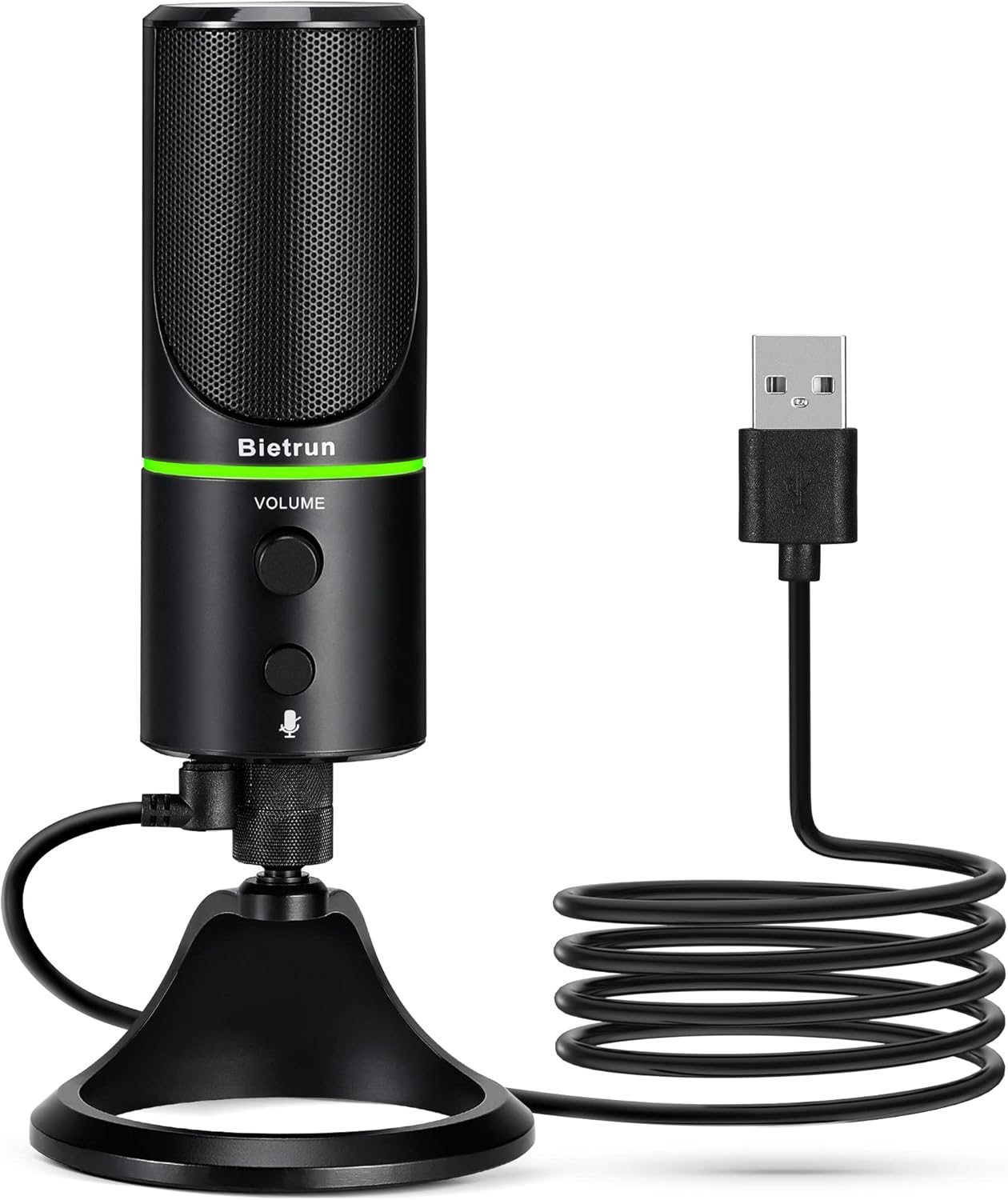
Figure 1: Bietrun UMKF01 USB Condenser Microphone
Package Awọn akoonu
Daju pe gbogbo awọn nkan wa ninu apo rẹ:
- Gbohungbohun USB
- Okun USB
- Kaadi atilẹyin ọja

Nọmba 2: Awọn akoonu Package
Ọja Awọn ẹya ara ẹrọ
- Plug and Play USB Microphone: Comes with a 59-inch (1.5m) USB cable, requiring no additional driver or software. Ideal for gaming, streaming, podcasting, recording, and online meetings.
- Idinku Ariwo: Effectively reduces background noises such as typing, clicking, and ambient sounds, ensuring clear and crisp audio.
- Àpẹẹrẹ Gbigba Cardioid: Features a cardioid pickup pattern and a 16mm condenser capsule, providing focused vocal sound and minimizing off-axis noise.
- Headphone Jack & Mute Button: Allows for real-time voice monitoring via a headphone jack with adjustable volume. A dedicated button toggles between normal (green), noise-canceling (yellow), and mute (red) modes, indicated by an LED.
- Adjustable Heavy-Duty Stand: Ensures microphone stability and offers flexible angle adjustment. The microphone can also be detached and mounted on a boom arm with a 3/8" thread.
Ṣeto
- Attach the Microphone to the Stand: Screw the microphone onto the included desktop stand. Ensure it is securely fastened. The stand allows for 360° rotation for optimal positioning.
- So okun USB pọ: Plug the micro-USB end of the provided cable into the port at the bottom of the microphone.
- Sopọ si Ẹrọ: Plug the USB-A end of the cable into an available USB port on your computer (Desktop/Laptop), PS4, or PS5. The microphone is plug-and-play and should be recognized automatically by your operating system.
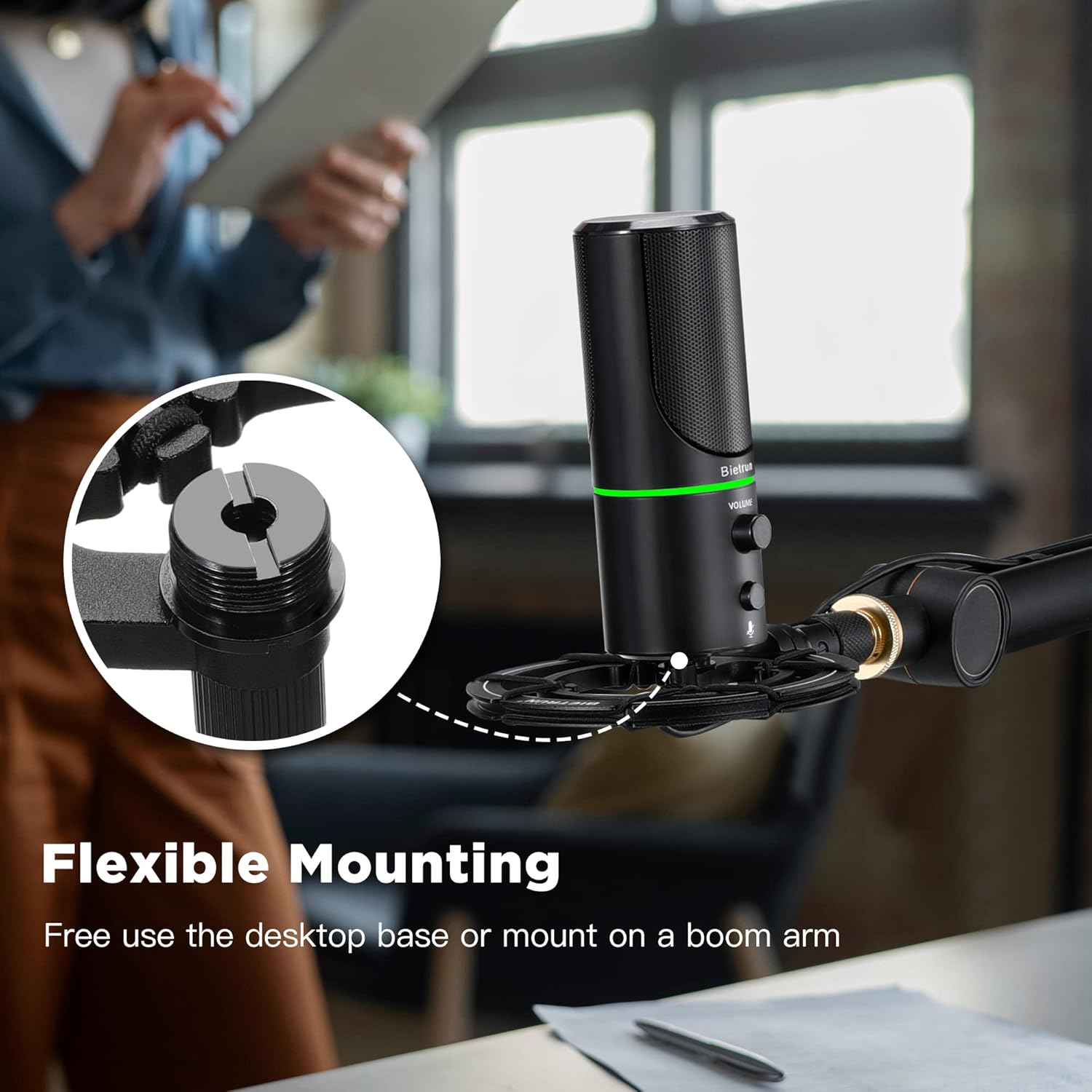
Figure 3: Flexible Mounting Options

Figure 4: Plug & Play Multi-system Compatibility
Awọn ilana Iṣiṣẹ
- Titan/Paa & Asayan Ipo: The microphone features an LED indicator that shows its status. Press the mute button (microphone icon) to cycle through modes:
- Green Green: Ipo iṣẹ deede.
- LED ofeefee: Noise-canceling mode.
- LED pupa: Muted mode.
- Iṣakoso iwọn didun: Rotate the 'VOLUME' knob on the microphone to adjust the output volume of your headphones connected to the microphone.
- Abojuto agbekọri: Plug your headphones into the 3.5mm audio jack located at the bottom of the microphone to monitor your audio in real-time.

Figure 5: Microphone Controls and LED Indicators

Figure 6: Headphone Monitoring Jack
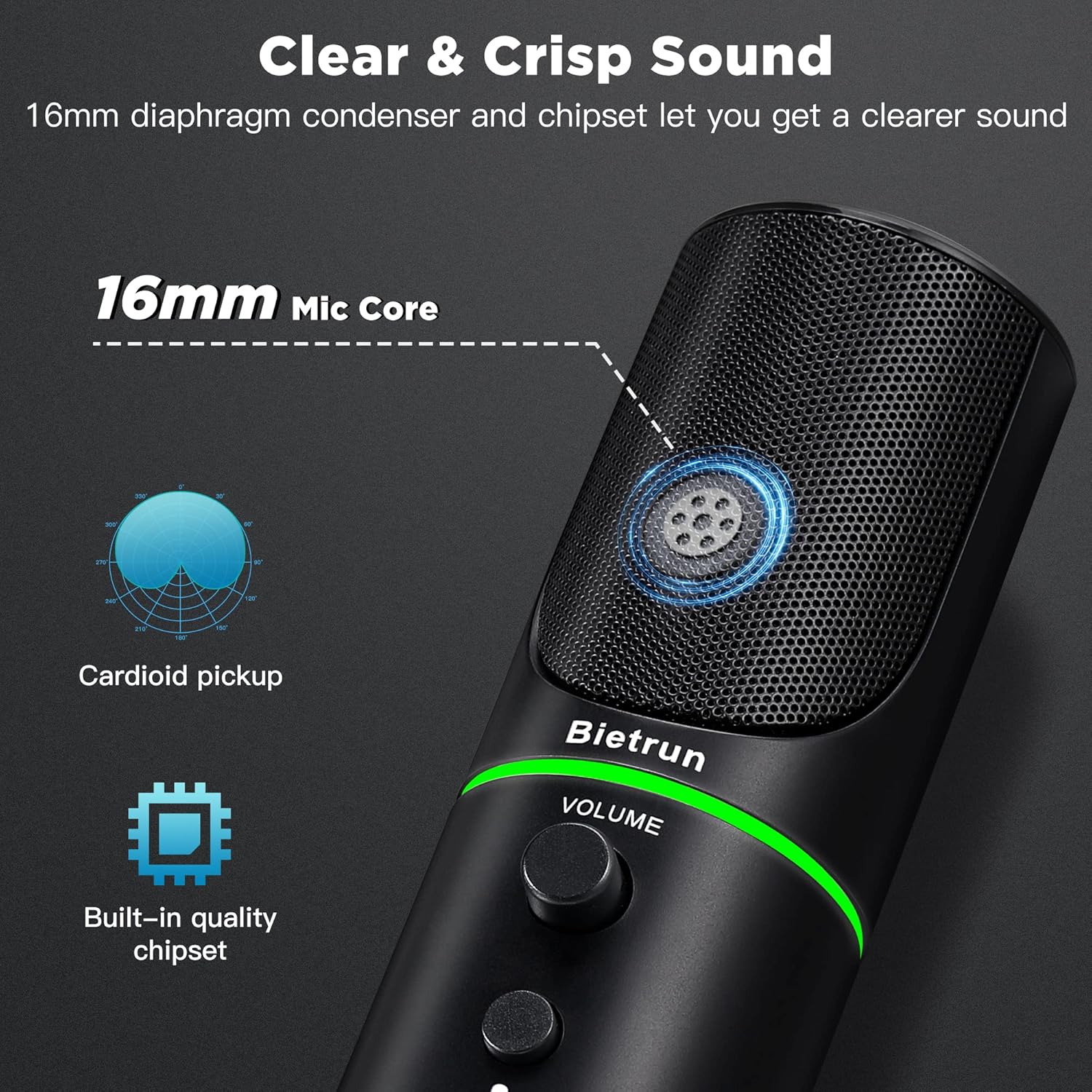
Figure 7: Cardioid Pickup Pattern for Clear Audio
Video 1: Demonstration of Noise Cancelling Feature
This video demonstrates the noise-canceling capabilities of the Bietrun UMKF01 USB Microphone, highlighting its effectiveness in reducing ambient sounds for clearer recordings and communication.
Itoju
- Ninu: Use a soft, dry cloth to wipe the microphone's surface. Avoid using liquid cleaners or abrasive materials.
- Ibi ipamọ: Tọ́jú gbohùngbohùn náà sí ibi gbígbẹ tí ó tutù, tí ó jìnnà sí oòrùn tààrà àti ooru líle nígbà tí a kò bá lò ó.
- Itọju USB: Yago fun awọn atunse didasilẹ tabi kọnks ninu okun USB lati yago fun ibajẹ.
Laasigbotitusita
| Oro | Owun to le Solusan |
|---|---|
| Ẹ̀rọ kò dá gbohungbohun mọ̀ | Ensure the USB cable is securely connected to both the microphone and your device. Try a different USB port. Check your device's sound settings to ensure 'Bietrun UMKF01' is selected as the input device. |
| Ko si ohun tabi iwọn didun kekere | Check if the microphone is muted (red LED). Adjust the volume knob on the microphone. Verify input levels in your device's sound settings. Ensure headphones are properly connected if monitoring. |
| Poor sound quality or background noise | Ensure the microphone is in noise-canceling mode (yellow LED). Position the microphone closer to your mouth. Minimize ambient noise in your environment. |
Awọn pato
| Ẹya ara ẹrọ | Ẹ̀kúnrẹ́rẹ́ |
|---|---|
| Orukọ awoṣe | UMKF01 |
| Asopọmọra Technology | USB |
| Asopọmọra Iru | USB Iru-A |
| Pola Àpẹẹrẹ | Alaiṣedeede (Cardioid) |
| Gbohungbo Fọọmù ifosiwewe | Table orun |
| Ifamọ Audio | 110 Decibels |
| Ifihan Ibuwọlu-si-Noise | 49 dB |
| Idahun Igbohunsafẹfẹ | 48 kHz |
| Awọn ẹrọ ibaramu | Laptop, PS4/5, Personal Computer |
| Pataki Awọn ẹya ara ẹrọ | Mute Function, Volume Control, Noise Cancellation |
| Àwọ̀ | Dudu |
| Ohun elo | Acrylonitrile Butadiene Styrene, Irin |
| Iwọn Nkan | 10.9 iwon (310 Giramu) |
| Awọn iwọn Ọja (L x W x H) | 3.54 x 3.54 x 7.68 inches |

Figure 8: Microphone Dimensions
Atilẹyin ọja & Atilẹyin
Your Bietrun UMKF01 USB Condenser Microphone comes with a warranty. Please refer to the included Warranty Card for specific terms and conditions. For technical support, troubleshooting assistance, or any inquiries regarding your product, please contact Bietrun customer service through their official channels.